Note
Access to this page requires authorization. You can try signing in or changing directories.
Access to this page requires authorization. You can try changing directories.
Use case classification provides privacy controls for both administrators and users. Use them to align with your organization's requirements, including any local data protection obligations or Works Council guidelines. Use case classification is on by default for all eligible users unless a policy turns it off or a user opts out.
User controls
Users can turn use case classification on or off using the Data and privacy tab in the Microsoft profile editor. When a user turns off use case classification, AI won't classify that user's work activity.
Admin controls
Admins can use Feature access management (FAM) to control use case classification for the entire organization, specific groups, or individual users. Use case classification is on by default for all eligible users unless a policy turns it off. For more information, see Feature Access Management.
You can use admin controls to:
- Turn off use case classification completely for your organization or for specific users or groups.
- Turn off use case classification by default for your organization or for specific users or groups while still allowing users to opt in from their profile.
Note
This control restricts use case classification for Microsoft AI experiences like Microsoft 365, Copilot, Cowork and Microsoft Agents. This does not apply to classification for user activity in custom agents or third-party Agents.
Turn off use case classification for users or groups
- Sign in to the Microsoft 365 admin center as the Global Administrator or AI Administrator.
- In the left navigation, select Settings.
- Select Viva.
- Select Viva settings.
- Select Feature access management. Alternatively, you can search for Feature access management from the search bar.
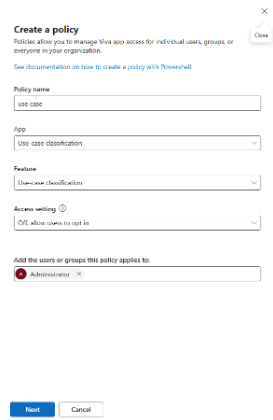
- Select the Use case classification tab and select Add a policy.
- Set up the policy as per your needs. Choose the Use case classification app and the Use case classification feature. Select the scope of the policy (specific groups, or individual users), choose the access setting, and then save the policy.
Note
To turn off use case classification for all users in your tenant, you can create a security group with all users and add that group to your policy.
Once a user is opted out, we will stop classifying use cases for that user and sharing their use case data with all Microsoft experiences within 24 hours.
Responsible AI
Use case classification aligns with Microsoft's commitment to responsible AI. For answers to frequently asked questions about the data this capability uses, its intended uses, limitations, evaluation, and operational controls, see the Responsible AI for use case classification FAQ