Note
Access to this page requires authorization. You can try signing in or changing directories.
Access to this page requires authorization. You can try changing directories.
You can select and deploy individual agents to members of your organization.
By deploying an agent, you effectively install the agent on behalf of a user by accepting Microsoft Entra permissions for them. This action makes the agent active and usable for the users or groups you have selected.
Use the following steps to deploy an individual agent:
Open the Copilot Control System within Microsoft 365 admin center in your browser.
Select Agents > All agents. You'll see as list of the agents that you can manage for your tenant.
Select an agent from the list.
Select Deploy.
Review the agent Host products to understand where the agent will be available.
Select to assign the agent based on one of the options: a. Just me b. Entire organization c. Specific users/groups Then, select Next.
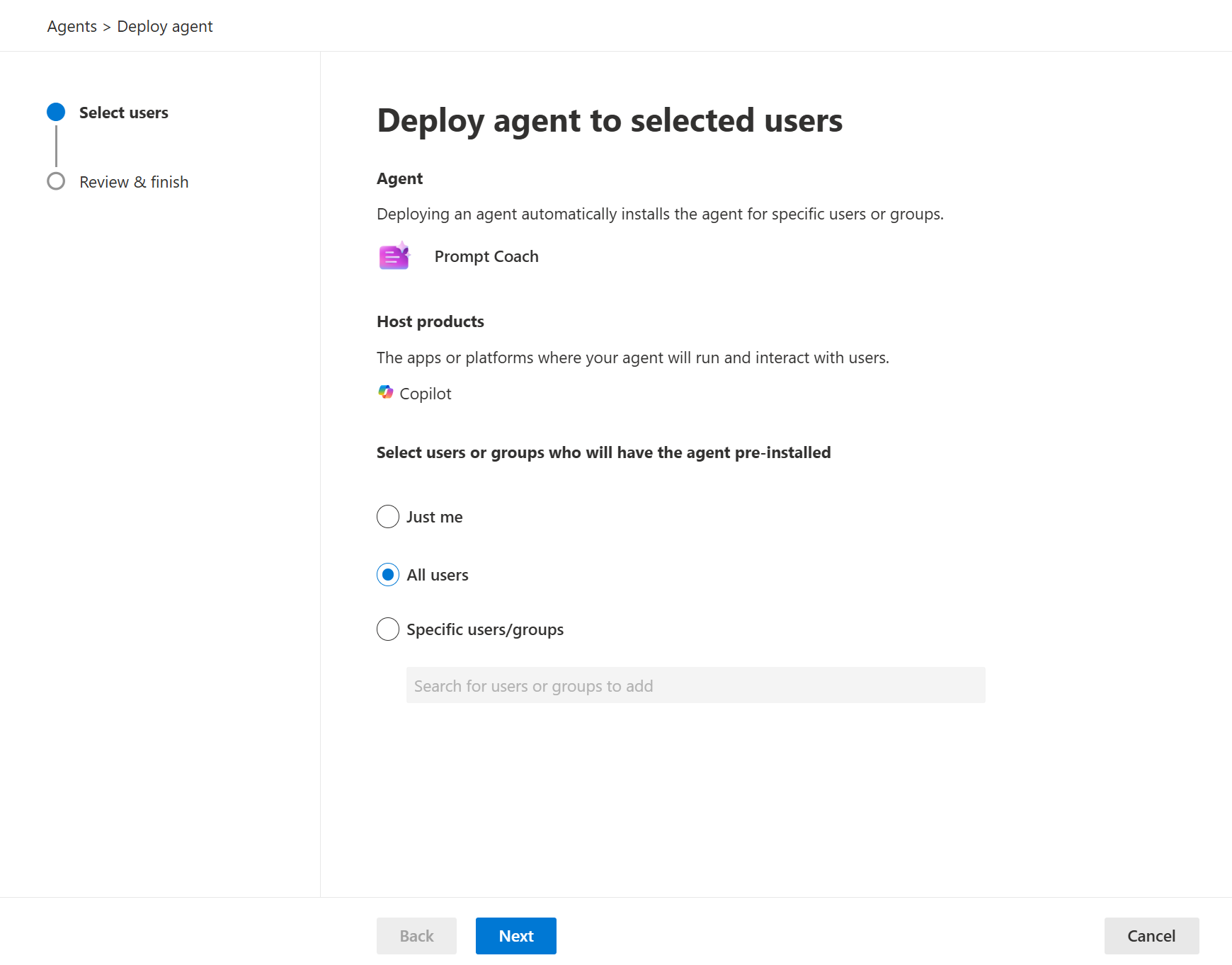
Review and confirm the agent permissions and details, then select Next.
Review the deployment, then select Finish deployment.
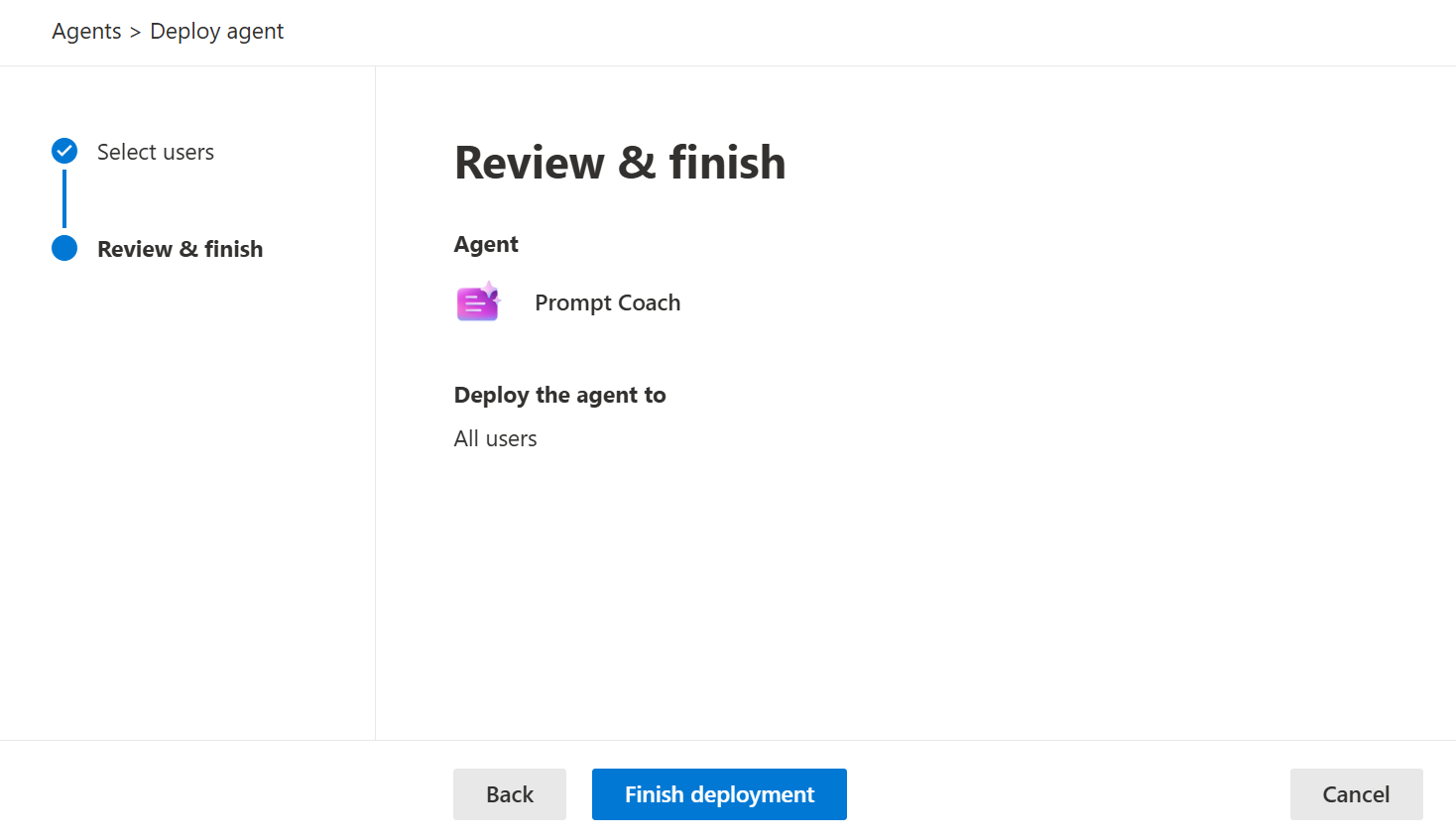
When the deployment is complete, select Close.
