Note
Access to this page requires authorization. You can try signing in or changing directories.
Access to this page requires authorization. You can try changing directories.
The Document Validation agent template for Microsoft Copilot helps organizations review documents for compliance with internal guidelines, policies, branding standards, and regulatory requirements. It automates manual review workflows by identifying noncompliant content, categorizing violations by risk, and providing actionable remediation guidance directly within documents.
This agent is designed for high-stakes and repeatable review scenarios where accuracy, consistency, and auditability are critical.
Important
Microsoft Copilot Tuning is currently available to a limited set of customers through early access programs. Access through Frontier is planned for April 2026. Features and requirements are subject to change.
What the Document Validation agent template does
The Document Validation agent template:
- Extracts rules automatically from a provided rulebook or guidelines document.
- Validates documents against those rules.
- Identifies and categorizes violations by risk level (Critical or Advisory).
- Provides explanations and suggested fixes.
- Inserts findings as comments in Word documents.
By standardizing document reviews, the agent reduces review time, improves consistency, and helps mitigate compliance risk across teams.
Common scenarios
Use the Document Validation agent template in workflows that require documents to follow strict or repeatable rules, such as:
- Contract reviews (supplier contracts, statements of work)
- Legal and compliance reviews
- Regulatory disclosures
- Financial or healthcare compliance checks
- Brand and policy adherence for customer-facing content
Supported capabilities and limitations
The template supports the following features:
- Validation against user-provided rulebooks.
- Automatic rule extraction with human review.
- Risk-based categorization with explanations.
- Inline comments with suggested fixes.
- Single document validation per prompt.
The template doesn't support the following features:
- Multimodal analysis (images, charts, scanned documents).
- Validation of multiple documents in a single prompt.
- Validation without a provided rulebook.
The template supports the following file formats:
- .docx
- .txt
- .html
The template doesn't support other formats, including PowerPoint, images, handwritten documents, and scanned files.
Get started
To use the Document Validation agent template, you need a rulebook or guidelines document (.docx or .txt) that you want to validate against.
In Microsoft Copilot Chat, start a new chat with the Document Validation agent template.
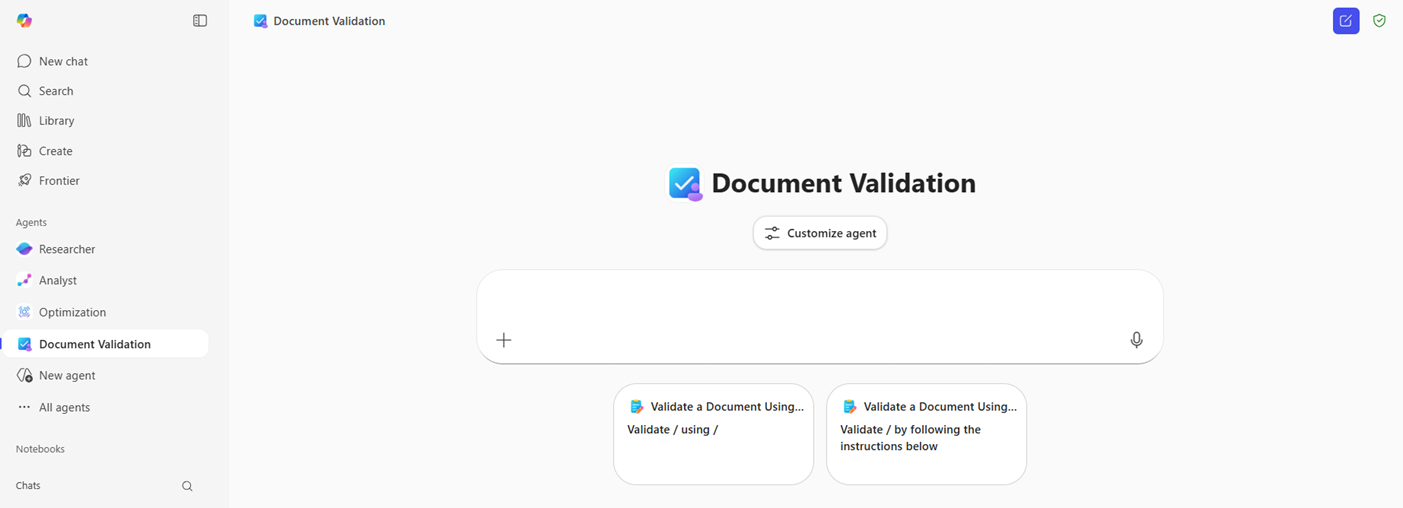
Use one of the suggested prompts or type your own prompt to provide your guideline or rulebook (.docx or .txt) and a document (.docx or .txt) that you want to validate.

The agent does the rest. It systematically extracts rules from the rulebook and validates your document against each rule to identify noncompliance and suggest a fix.
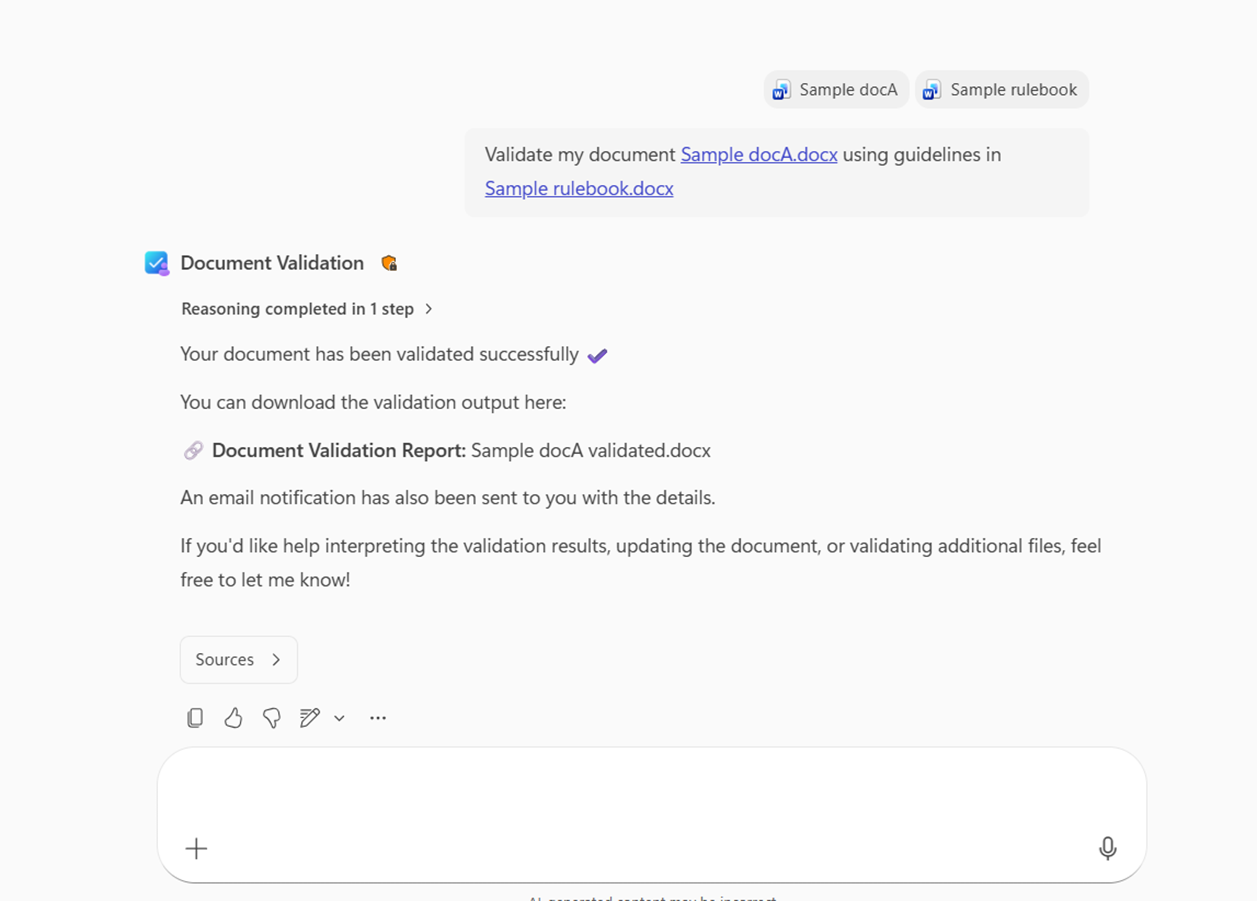
The agent responds with a document containing comments inserted highlighting violations with an explanation, a risk (Critical/Advisory) level for each violation, and a suggested fix.


Tunable agent overview
You can tune the Document Validation agent template to adapt it to your organization's specific review and compliance needs. Tuning allows you to:
- Embed your rulebooks and guidelines so the agent validates documents according to your unique standards.
- Control the tone and importance of rules for comments and summaries.
- Improve accuracy by training the agent on your domain-specific examples.
- Evaluate the agent's quality based on your scenario goals.
By tuning the agent, you can:
- Persist rules and guidelines across sessions.
- Customize the tone and severity of feedback.
- Improve accuracy with domain-specific examples.
- Evaluate agent quality against scenario-specific goals.
Why tune?
Every organization has different rules, terminology, and risk priorities. Tuning ensures that the agent can think like your organization's reviewers by applying your rules consistently. Tuning helps reduce errors and review time for high-stakes documents and scale compliance checks across teams and workflows.
You can tune agents in the following two stages. Choose an appropriate tuning stage for your agent based on your scenario.
- Tune Context: Quick customization for persistent rules and tone without full training.
- Tune Model: Advanced fine-tuning using examples for use cases that need maximum precision and recall.
Tunable agents support goal-based evaluations, so you can measure success using metrics aligned to your organization's priorities, not just generic accuracy scores. At each stage of tuning, you can evaluate the agent's quality based on the goals that you define.
Tune Context
Use Tune Context to customize the agent's behavior without fully fine-tuning the model. It's perfect for teams that want persistent rules and consistent review behavior with minimal setup.
Use Tune Context when you:
- Want rules baked into the agent for repeated use
- Want to review and edit extracted rules
- Want to configure tone, verbosity, and risk levels
- Don't yet have sufficient data for model fine-tuning
By using Tune Context, you can:
- Save rulebooks, policies, or guidelines as persistent context
- Review, edit, add, or remove extracted rules
- Assign risk levels (Critical or Advisory)
- Configure tone (formal, friendly, advisory)
- Rerun evaluations and update context over time
- Share a ready-to-use Validation agent with others in your organization
Best practices for rulebooks
For best results, use the following practices in your rulebooks:
- Use clear, concise, and unambiguous rules
- Avoid vague or open-ended guidance
- Include explicit criteria where possible
- Mark high-impact rules as Critical
- Avoid large rule sets to reduce latency
Use Tune Context with a Document Validation agent template
To use Tune Context with a Document Validation agent template:
Create agent: Create a new agent from the agent store using the Document Validation template.
Tune agent: Go to the new agent and choose Tune agent to start the tuning experience in the right panel. Select Tune Context.
Provide your goals: Describe your main goal for the agent, the business domain, and at least one sample document representative of a typical document that the agent validates. This information helps tune the agent to your unique business needs. Provide clear goals and high-quality sample documents for the best outcomes. Select Save when you're done.
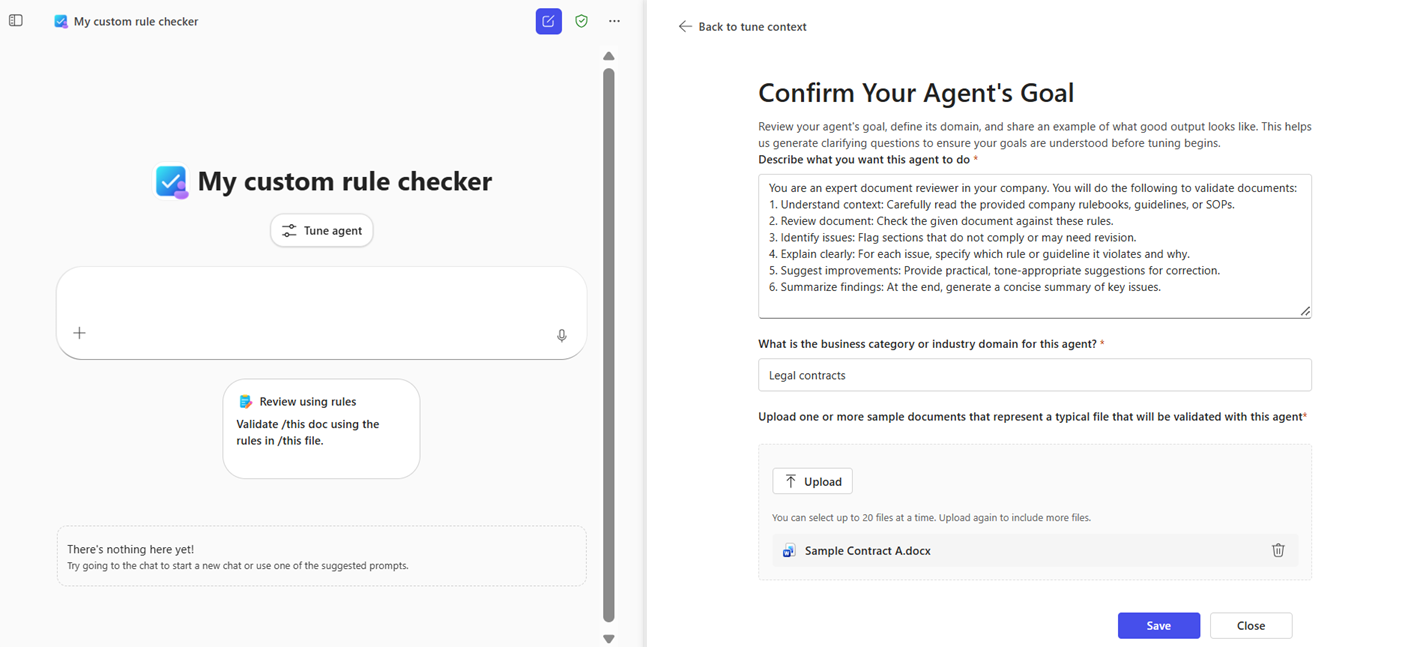
Review goals and subgoals: The agent generates clarifying recommendations to correctly understand your goals. Review them to ensure they accurately represent your agent's purpose for your use case.
- Capture any unique rules or guidelines your organization follows for this use case.
- Add, edit, or remove any goal or subgoals as needed. Select Save when you're done.

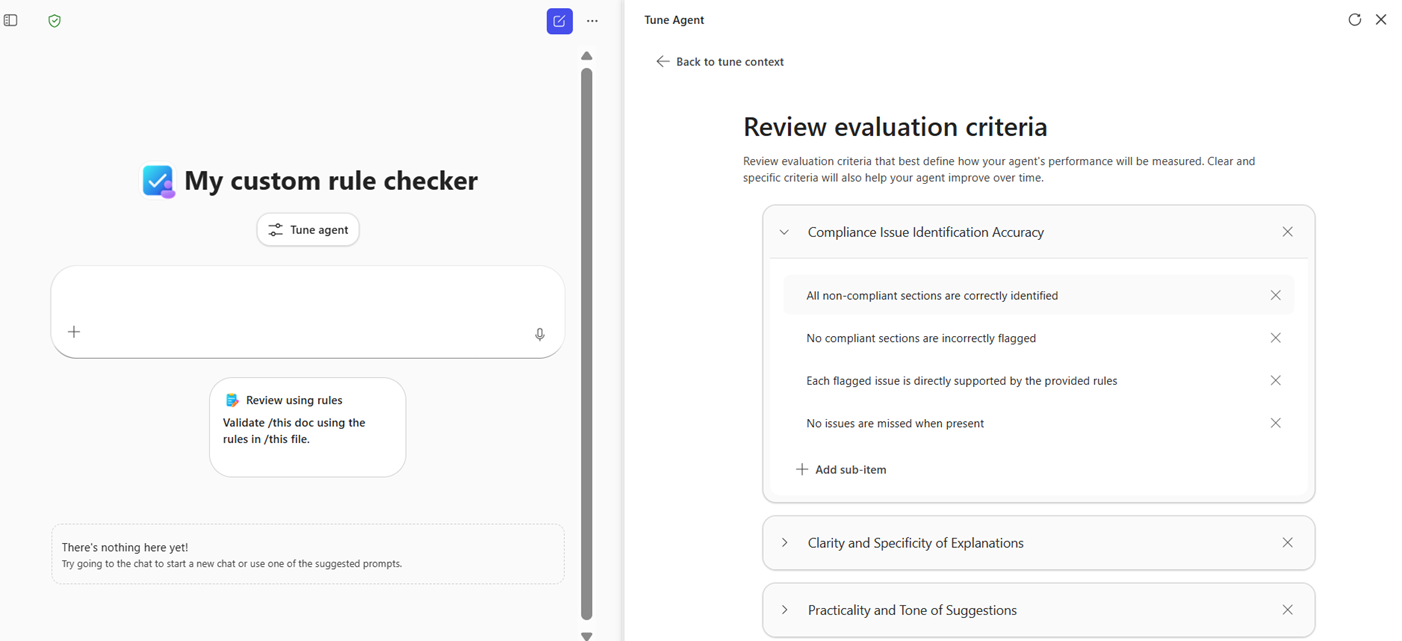
Review evaluation criteria: The agent generates evaluation metrics that define what good performance means for your agent. The agent's performance is measured on these metrics.
- These metrics are customized based on the goals and subgoals you define. Review them to ensure they define what success looks like for you.
- Add any specific expectations required in your organization for this use case. These criteria should include specific requirements that outputs of this agent must abide by.
- Add, edit, or remove as needed. Select Save when done.

Provide rulebook: As a last step, add context for your validation agent. Provide the rulebooks or guidelines that you want to use to validate your documents and select Generate Rules.
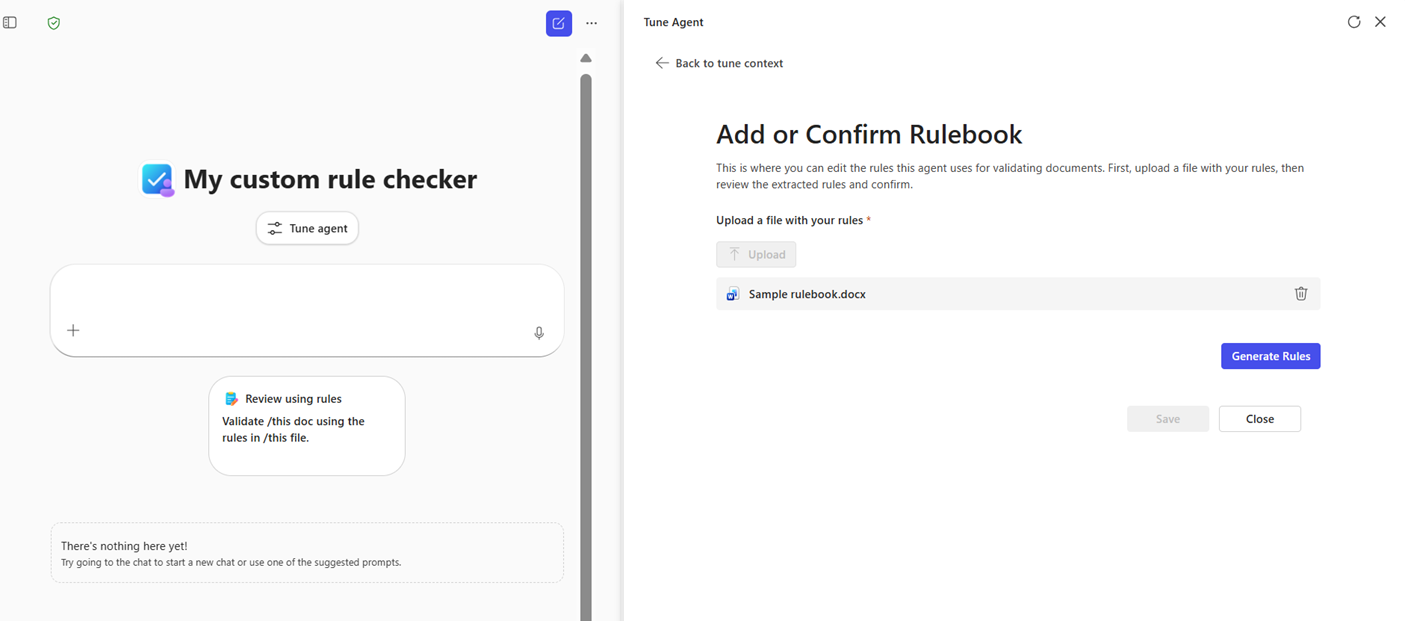
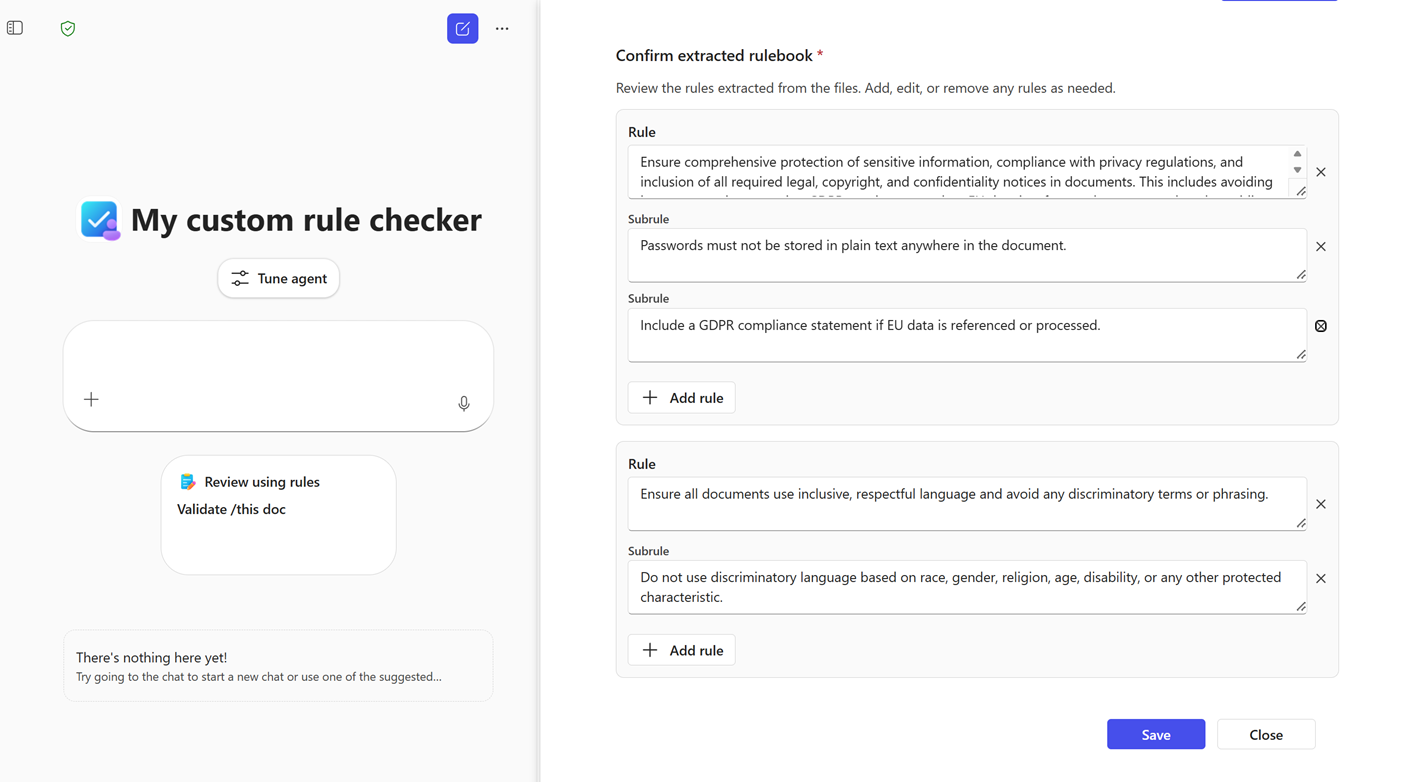
Review generated rules: The agent extracts rules from your rulebook or guideline document. These rules are categorized into rules and subrules. Review them to ensure they accurately represent your organization's guidelines. Add, edit, or remove any rules or subrules. Select Save when you're done.
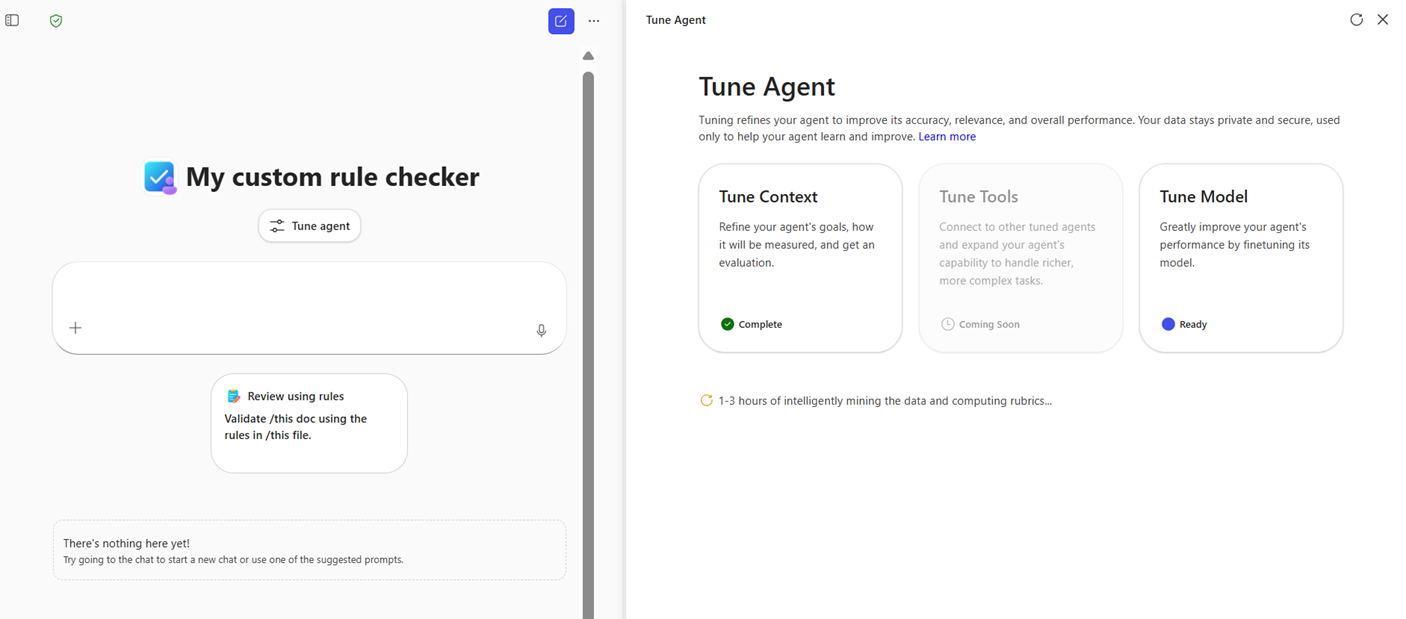
Custom evaluation: When Tune Context finishes, the tuning experience starts the evaluations automatically. This process is asynchronous. You can close the right panel and start using your tuned agent.
Evaluation results: You receive an email notification when evaluation results are available. You see scores for all the evaluation metrics you defined along with explanatory insights. You can review detailed evaluation results by selecting View Evaluation File at the bottom of the results page.

Share agent: You can share your newly tuned agent with users in your organization. They can use your tuned agent to validate any documents by using the guidelines you tuned with.

Use a Context Tuned agent
To use a Context Tuned agent:
- Chat with a tuned agent to get started and provide a document that you want to validate. You don't need to provide rulebooks in chat when using a tuned agent.
- The agent scans your document and validates it against the context tuned rules to identify violations.
- The agent responds with a document with comments inserted that highlight violations and provide an explanation, a risk (Critical/Advisory) level for each violation, and a suggested fix.
- The agent ignores and doesn't use rulebooks uploaded in chat for validation. You can context tune and evaluate agents again at any time to add or edit rules in the context.
Example use cases
- Contract Review: Microsoft Store your SOW playbook for supplier contract checks each week.
- Compliance: Keep regulatory guidelines ready for quick disclosure validation.
- Policy Review: Apply consistent tone and risk settings across multiple documents.
Tune Model
Tune Model is the most advanced customization option. It fine-tunes the underlying model by using your organization's data to achieve higher precision and recall.
Use Tune Model when:
- Rules are complex or nuanced.
- The scenario involves high regulatory or legal risk.
- Context tuning doesn't provide sufficient accuracy.
- You have sufficient training data.
Required data
To use Tune Model, you need:
- Rulebook: Clear rules or policies used for training and evaluation. A rulebook can be .docx, .txt, or .html.
- Examples: At least 20 violation-free documents, each at least 1 page long, that demonstrate ideal compliance. Documents can be .docx, .txt, or .html.
A Tune Model can:
- Provide highly accurate validation reviews balanced with recall and precision per your preferences specified in goals.
- Provide risk awareness for Critical versus Advisory violations.
- Validate single text-based documents against learned knowledge during training.
- Persist rules and tone settings for repeated use. You can share it with users in the organization for use.
Evaluation rubrics
Evaluate model-tuned agents by using:
- Recall for Critical violations: This evaluation ensures that the model catches all critical violations and minimizes missing any critically important violations.
- Precision for Advisory violations: This evaluation ensures that flagged violations are relevant and maximizes usefulness of suggested issues and fixes.
- User-defined goals and metrics from Tune Context.
Best practices for Tune Model
- Rulebooks: Ensure that the rulebook contains clear and unambiguous rules. Consider including specific evaluation criteria for complex rules. Avoid overly large rulebooks to minimize latency.
- Example documents: A larger number of example documents improves model training. Ensure that examples are representative of the scenario and include different nuances. For example, if you're building a model to evaluate compliance for different types of contracts, include sufficient examples of all types of contract documents for training.
- Rule importance: Mark important rules as Critical when you review extracted rules during the tuning process. This step improves model performance by correctly balancing between critically important rules and other rules.
- Validate: After fine tuning is complete, validate the evaluation rubrics before saving the new model. Test your tuned agent by validating a sample document before publishing it for your organization.

Use Tune Model with a Document Validation agent
To use Tune Model with a Document Validation agent:
Tune agent. Choose Tune agent in your specialized Document Validation agent that you created from the Document Validation agent template. Go to the Tune Model option.
Note
You must complete the Tune Context step to unlock the Tune Model option.
Provide data. Upload your example documents. Provide at least 20 high-quality representative documents, each at least 1 page long, that are ideal examples and follow all the rules or policies in your rulebook and contain no violations.
- Make sure to select a folder that contains files. You can't upload individual files separately. You can upload a maximum of 20 folders.
- A higher number of documents provides better results for model training.
- Tuning extracts your documents to prepare them for model training. This process can take 1-6 hours.
- The Rulebook you provide during Tune context is used for model tuning as well. You can edit the rulebooks in the Tune Context step before you start the Tune Model.
Review access. Configure who can use your fine-tuned agent. Select a few security groups based on your selection of files in the previous step.
- Users who have access to the underlying files can access the fine-tuned model.
- Select one of the recommended options for users and groups that can access your agent.
- Tuning prepares your training data based on selected access groups. This process might take 1-6 hours.
Start fine tuning. Follow the instructions to start fine tuning.
- When you select Start fine tuning, the process can take 24-72 hours to complete. After the model is trained, evaluations start automatically.
- You receive an email notification when model training is complete and evaluation results are ready.
Review evaluation metrics and decide to publish. Evaluation metrics are updated with the newly fine-tuned model.
- You can view a comparison of metrics from before and after fine tuning.
- Review the results and select Yes, I want to use the tuned model if you're satisfied, and then select Publish.
- This action deploys your newly fine-tuned model and updates your agent to use the new fine-tuned model.
Use a model tuned agent
To use a model tuned agent:
- Chat with your agent and upload a document that you want to validate. You don't need to provide rulebooks in chat when using a tuned agent.
- The agent scans your document and validates it against the rules it learned during training to identify violations.
- The agent responds with a document with comments inserted that highlight violations with an explanation, a risk (Critical/Advisory) level for each violation, and a suggested fix.
- The agent ignores and doesn't use rulebooks uploaded in chat for validation.
Limitations of model-tuned agents
Model-tuned agents have the following limitations:
- You can't modify rules after fine-tuning.
- The agent doesn't currently support retraining.
- The agent doesn't support multimodal validation.
- You can validate only one document per prompt.
Evaluating tunable agents
At each tuning stage, you can evaluate the agent with customized criteria. Define these custom evaluation criteria based on your organization's expectations.
Goals
- Describe your tuning goals for the agent's task. You can have one or more goals.
- Use these goals to define the agent's behavior and generate subgoals and evaluation metrics.
Sample files
- Provide sample documents representative of a typical document that the agent validates. You need at least one document.
Subgoals and metrics
- Clarifying recommendations, including subgoals, are generated based on your goals. Review them to ensure they correctly represent your agent's purpose. You can add, edit, or remove any goal or subgoals.
- Evaluation metrics are generated based on the subgoals. You can review and add, edit, or delete metrics.
- The subgoals and sample files you provide are used to generate evaluation data that evaluates agent behavior on the metrics.
Rulebook: Guideline or standards
- Provide the rulebook or guidelines that your Document Validation agent template uses for validating documents. You can edit or add rulebooks at any time before you select Tune Model.
Evaluation data
- The system automatically generates evaluation data based on the subgoals, sample files, and metrics you define.
- The system evaluates the tuned agent by using the evaluation data and scores it for the metrics.
Evaluation results
- View scores for the evaluation metrics you defined and review delta improvements after each tuning stage before publishing the model tuned agent. You can see brief explanatory insights that highlight improvements and summarize key findings from the evaluation scores.
- The system automatically generates and updates evaluation scores after each tuning stage. This process is asynchronous. You can use the agent while the evaluations run in the background.
Evaluation results show quality scores and delta improvements between tuning stages, helping you decide when the agent is ready to publish.
Agent sharing and governance
You can save a tuned Document Validation agent as a specialized agent and share it across your organization.
- Only the agent owner can tune or modify the agent.
- Other users can use the agent but can't change its configuration.
- All data stays within Microsoft 365 tenant boundaries.
FAQ
Can I validate multiple documents at once?
You can't validate multiple documents at once. You must validate each document in a separate prompt.
Can I update rules after tuning?
You can update context-tuned agents. You can't modify model-tuned agents after fine-tuning.
Does the agent support numeric validations?
The Document Validation agent template supports numeric validations when rules include numeric thresholds.
What happens if my rulebook is large?
Large rulebooks might increase latency during rule extraction and validation.
When should I use Tune Context vs. Tune Model?
Use Tune Context when you want persistent rules and tone preferences without full model training. It's ideal for quick setup and reuse across sessions and users.
Use Tune Model when you need high precision and recall for rules, especially in regulatory and compliance scenarios, and you have 20+ examples, each at least one page long for training.
What file formats are supported?
- Supported: .docx, .txt, .html.
- Not Supported: .pptx, images, scanned documents.
What if my agent outputs seem inaccurate?
Verify that:
- You uploaded the correct rulebooks.
- You reviewed the rules and set importance levels.
- You specified tone preferences correctly.
For tuned agents, review evaluation metrics. For a fine-tuned agent, ensure you provide high-quality example documents for training. To achieve the best performance, follow the best practices outlined for Tune Context and Tune Model.
Is my data secure?
All data remains within your Microsoft 365 tenant and is secure. Tuning is fully automated and done in turnkey environments.