Note
Access to this page requires authorization. You can try signing in or changing directories.
Access to this page requires authorization. You can try changing directories.
Learn how to use Remote File Explorer to view, upload, and download files on a remote machine from Visual Studio. With Remote File Explorer, perform common file operations such as:
- Upload files from your local machine to a remote machine
- Download files from a remote machine to your local machine
- Create folders on a remote machine
- Delete files and folders on a remote machine
- Rename files and folders on a remote machine
- Search for files and folders on a remote machine
Prerequisites
Visual Studio version 17.6 or later.
Ensure that the Linux and embedded development with C++ workload is installed. Run the Visual Studio Installer and ensure that the Linux and embedded development with C++ workload is selected. Also ensure that the Remote File Explorer for Linux component is selected, and update your installation if necessary.
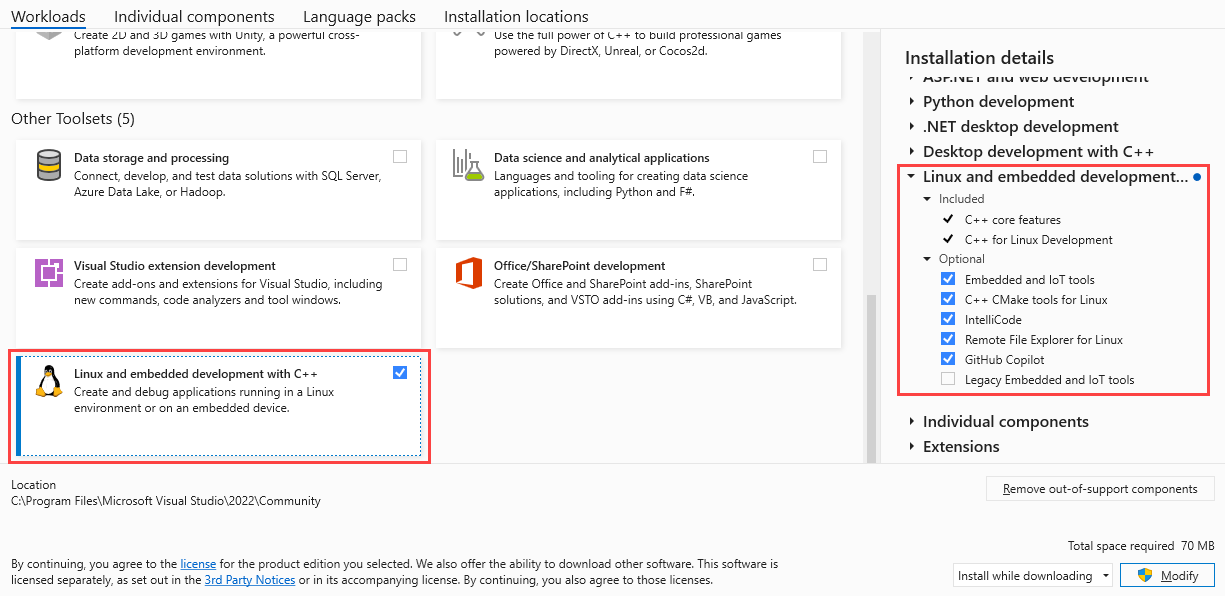
Install and configure Secure Shell (SSH) on the remote machine. To install SSH on Linux, run these commands on the remote machine:
sudo apt update
sudo apt install openssh-server
sudo systemctl start ssh
sudo systemctl status ssh
View and edit files on a remote machine
In these examples, the remote machine is a Windows Subsystem for Linux instance running on localhost port 22. The project is a new CMake project created in Visual Studio. The sample project is on the remote machine in the C:\Users\{username}\projects\ folder.
To open the Remote File Explorer in Visual Studio, choose View > Other Windows > Remote File Explorer.

The Remote File Explorer window opens:

If you see a message to select or create a new connection in the Connection Manager, ensure that the SSH server is running on the remote machine. If your remote machine is running on Windows Subsystem for Linux (WSL), ensure that the WSL instance is running. Make sure the Visual Studio debug target dropdown is set to the remote instance. To connect to a different remote machine, in the Remote File Explorer window's Select the host target dropdown, select the remote target. It may appear in a form such as username@hostname:port. For example, username@localhost:22. You can also select Add new connection to add a new connection to the Connection Manager. For more information, see Connection manager.
Open and edit files directly from the Remote File Explorer. To open a file, double-click the file in the Remote File Explorer window. The file opens in the editor window. You can also right-click the file and select Open from the context menu or press Ctrl+Enter. When you save the file, the changes are saved directly to the remote machine.
Upload files to a remote machine
To upload files or directories to the remote machine, right-click the folder in the Remote File Explorer window where you want to upload files, and select Upload.

Use the folder explorer window that opens to select the file or folder you want to upload. You can drag and drop files from your local machine onto the Remote File Explorer window. Alternatively, use the Upload Files or Upload Folder buttons to choose the items to upload:
Download files from a remote machine
To download files or directories from the remote machine, right-click the folder or file in the Remote File Explorer window that you want to download and select Download.

Use the folder explorer window that opens to select where to download the file or folder. You can also use the Download Item button to choose the item you want to download.
Monitor and cancel file operations
Monitor the progress of uploading or downloading items in the status window at the bottom of the Remote File Explorer window. Select the Cancel button to stop the operation.

Other file operations
Rename files and folders, create new folders, delete files and folders, and search for files and folders.
- Rename a file or folder: right-click the file or folder and select Rename from the context menu, or select the rename button on the toolbar. The filename becomes editable. Type the new name for the item and press Enter.
- Create a new folder: right-click in the Remote File Explorer window and select New Folder. Enter a name for the new folder and press Enter.
- Delete a file or folder: right-click the file or folder and select Delete from the context menu, or select the delete button on the toolbar. Confirm the deletion in the dialog that appears. Deleting files or folders from the remote machine is a permanent action and can't be undone.
- Refresh the view: right-click in the Remote File Explorer window and select Refresh from the context menu, or select the refresh button on the toolbar, or press F5. It only refreshes the view of what is selected. If you have a folder selected, it refreshes the view of that folder. If you have a file selected, it refreshes the view of that file.
- Search for files: enter text in the search box at the top of the Remote File Explorer window to find folders or files. The search is case-insensitive and searches all files and folders under the selected item. If a folder is selected, it searches all files and folders in that folder. If a file is selected, it searches all files and folders in the same directory as that file.
Remote File Explorer toolbar buttons
The Remote File Explorer toolbar lets you access remote file operations:

The highlighted buttons are, from left to right:
- +: Create a new Remote Explorer window.
- Home: Go to the
$HOMEdirectory of the currently signed-in user on the remote machine. - Settings: Open the settings for the Remote File Explorer.
- Upload Files: Upload files from your local machine to the remote machine.
- Upload Folder: Upload a folder from your local machine to the remote machine.
- Download Item: Download a file or folder from the remote machine to your local machine.
- Refresh Item: Refresh the view of the selected item.
- Rename Item: Rename a file or folder on the remote machine.
- Delete Item: Delete a file or folder on the remote machine.
- Search: Search for files or folders on the remote machine.
Remote File Explorer settings
To change the settings for the Remote File Explorer, select the Settings button on the toolbar. The Remote File Explorer Settings dialog opens with the following option:
- Enable Dynamic File Icons for Extension-less Files: Shows icons based on file type by checking the mime-type. Useful for Linux files without extensions so that a correct file icon is shown instead of a generic document icon. May impact performance.