Note
Access to this page requires authorization. You can try signing in or changing directories.
Access to this page requires authorization. You can try changing directories.
Microsoft Defender for Business is an endpoint security solution designed especially for small and medium-sized businesses (up to 300 employees). This article describes how to get Defender for Business.
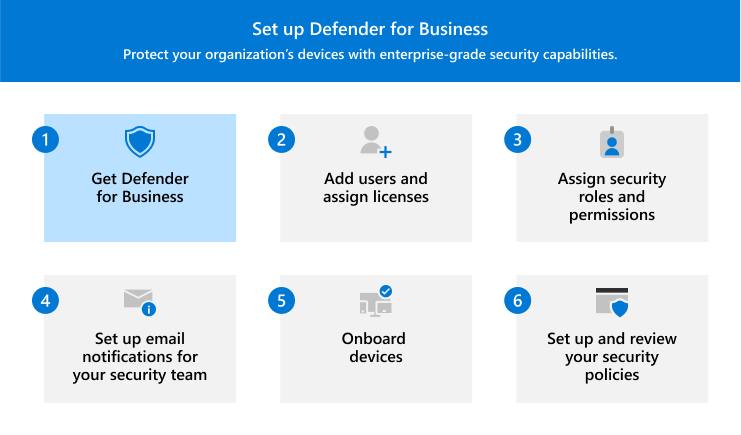
Sections include:
- How to get Defender for Business to protect client devices, such as computers, tablets, and phones
- How get Microsoft Defender for Business servers, an add-on that enables you to onboard and protect Windows and Linux servers
- Portals that you use to set up, configure, and manage Defender for Business
- Next steps, such as adding users and assigning licenses.
How to get Microsoft Defender for Business
To get Defender for Business, you can choose from several options:
- Work with a Microsoft partner who can help you get everything set up and configured.
- Try or buy the standalone version of Defender for Business.
- Get Microsoft 365 Business Premium, which includes Defender for Business.
Use the following tabs to learn more about each option.
- Work with a Microsoft partner
- Get Defender for Business (standalone)
- Get Microsoft 365 Business Premium
Microsoft has a list of solution providers who are authorized to sell offerings, including Microsoft 365 Business Premium and Microsoft Defender for Business. If you'd prefer to work with a Microsoft partner, you can follow these steps to find a solution provider in your area:
Go to Browse Partners.
In the Filters pane, specify search criteria, such as:
Your location
Your organization's size
Focus areas, such as Security and/or Threat Protection
Services, such as Licensing or Managed Services (MSP)
As soon as you select one or more criteria, the list of partners updates.
Review the list of results. Select a provider to learn more about their expertise and the services they provide.
How to get Microsoft Defender for Business servers
Microsoft Defender for Business servers is an add-on to Defender for Business that enables you to secure your server operating systems with the same protection that you get for client devices in Defender for Business.
Go to the Microsoft 365 admin center, and sign in.
In the navigation pane, choose Billing > Purchase services.
In the list of results, select the Details box for Microsoft Defender for Business servers.
Review the information, and complete the purchase process. You need one Microsoft Defender for Business servers license for each instance of Windows Server or Linux, and you don't assign that license to users or devices.
Important
- In order to add on Microsoft Defender for Business servers, you'll need at least one paid license for Defender for Business (standalone) or Microsoft 365 Business Premium.
- There's a limit of 60 Microsoft Defender for Business servers licenses per subscription to Microsoft 365 Business Premium or Defender for Business.
- If preferred, you could use Microsoft Defender for Servers Plan 1 or Plan 2 instead to onboard your servers.
Portals you use for setup and management
When you use Defender for Business, you work with two main portals:
- The Microsoft 365 admin center (https://admin.microsoft.com)
- The Microsoft Defender portal (https://security.microsoft.com)
If your subscription also includes Microsoft Intune, you use the Intune admin center (https://intune.microsoft.com) as well. The following table summarizes these portals and how you use them.
| Portal | Description |
|---|---|
| The Microsoft 365 admin center | Use the Microsoft 365 admin center to activate your trial and sign in for the first time. You can also use the Microsoft 365 admin center to: - Add or remove users. - Assign user licenses. - View your products and services. - Complete setup tasks for your Microsoft 365 subscription. To learn more, see Overview of the Microsoft 365 admin center. |
| The Microsoft Defender portal | Use the Microsoft Defender portal to set up and configure Defender for Business, and to monitor your devices and threat detections. You use the Microsoft Defender portal to: - View your devices and device protection policies. - View detected threats and take action. - View security recommendations and manage your security settings. To learn more, see Get started using the Microsoft Defender portal. |
| The Intune admin center | Use the Intune admin center to set up multifactor authentication (MFA), onboard iOS and Android devices, and configure certain capabilities, such as attack surface reduction rules. To learn more about Intune, see Microsoft Intune is an MDM and MAM provider for your devices. |