Note
Access to this page requires authorization. You can try signing in or changing directories.
Access to this page requires authorization. You can try changing directories.
As an identity and access management solution, Okta holds the keys to your organizations most business critical services. Okta manages the authentication and authorization processes for your users and customers. Any abuse of Okta by a malicious actor or any human error might expose your most critical assets and services to potential attacks.
Connecting Okta to Defender for Cloud Apps gives you improved insights into your Okta admin activities, managed users, and customer sign-ins and provides threat detection for anomalous behavior.
Use this app connector to access SaaS Security Posture Management (SSPM) features, via security controls reflected in Microsoft Secure Score. Learn more.
Main threats to your Okta environment
- Compromised accounts and insider threats
How Defender for Cloud Apps helps to protect your environment
Defender for Cloud Apps helps you protect your Okta environment with the following best practices:
- Detect cloud threats, compromised accounts, and malicious insiders
- Use the audit trail of activities for forensic investigations
SaaS security posture management for Okta
Connect Okta to Microsoft Defender for Cloud Apps using the procedure below to automatically get security recommendations in Microsoft Secure Score.
In Secure Score, select Recommended actions and filter by Product = Okta. For example, recommendations for Okta include:
- Enable multi-factor authentication
- Enable session timeout for web users
- Enhance password requirements
For more information, see:
Control Okta with built-in policies and policy templates
You can use the following built-in policy templates to detect and notify you about potential threats:
| Type | Name |
|---|---|
| Built-in anomaly detection policy | Activity from anonymous IP addresses Activity from infrequent country Activity from suspicious IP addresses Impossible travel Multiple failed login attempts Ransomware detection Unusual administrative activities |
| Activity policy template | Logon from a risky IP address |
For more information about creating policies, see Create a policy.
Automate governance controls
Currently, there are no governance controls available for Okta. If you're interested in having governance actions for this connector, you can contact Microsoft Defender support with details of the actions you want.
For more information about remediating threats from apps, see Governing connected apps.
Protect Okta in real time
Review our best practices for securing and collaborating with external users and blocking and protecting the download of sensitive data to unmanaged or risky devices.
Prerequisites
To connect Okta to Defender for Cloud Apps:
- Create an Okta admin service account dedicated to Defender for Cloud Apps. You use this account to generate the API token required for the connector.
- Make sure you use an account with Super Admin permissions.
- Make sure your Okta account is verified.
Connect Okta to Microsoft Defender for Cloud Apps
The following procedure provides instructions for connecting Microsoft Defender for Cloud Apps to your existing Okta account using the connector APIs. This connection gives you visibility into and control over Okta use. For information about how Defender for Cloud Apps protects Okta, see Protect Okta.
Use this app connector to access SaaS Security Posture Management (SSPM) features, via security controls reflected in Microsoft Secure Score. Learn more.
Configure Okta
In the Okta console, create a token for the API. Copy the token value. You will need the token value later.
Configure Defender for Cloud Apps
Perform the following steps in Defender for Cloud Apps to complete the Okta connection:
In the Microsoft Defender Portal, select Settings > Cloud Apps.
Under Connected apps, select App Connectors.
In the App connectors page, select +Connect an app, and then Okta.
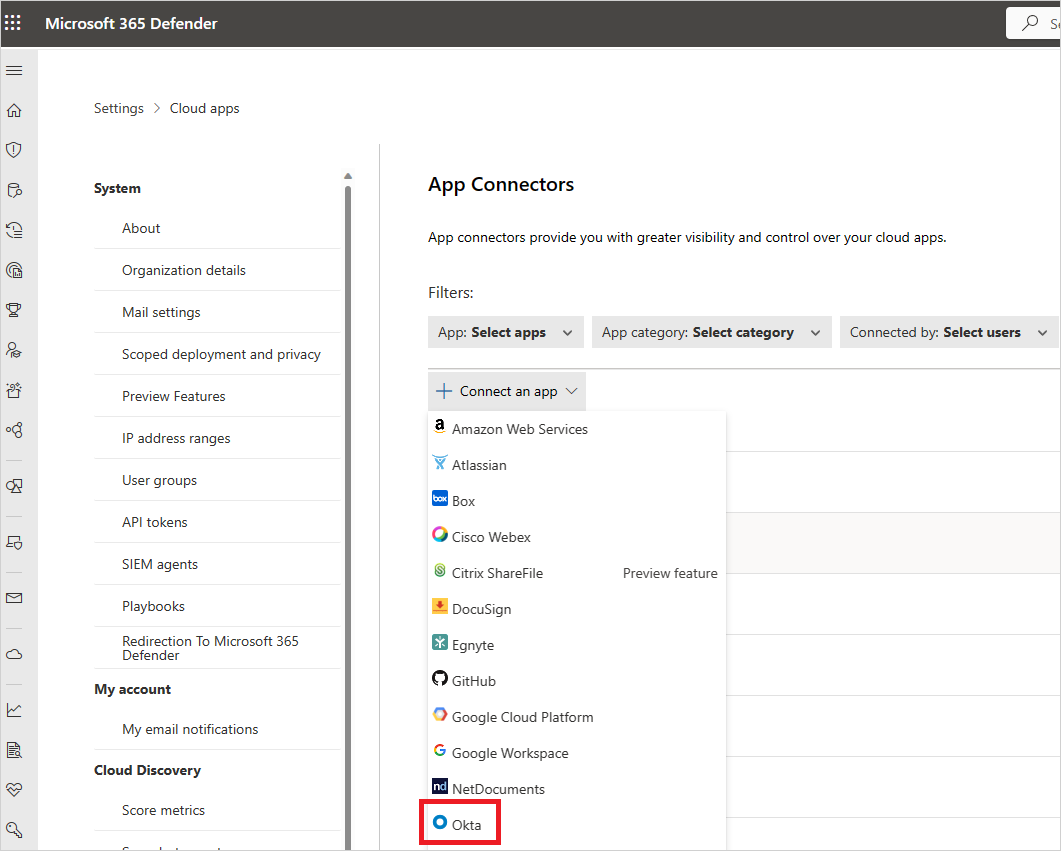
In the next window, give your connection a name and select Next.
In the Enter details window, in the Domain field, enter your Okta domain and paste your Token into the Token field.
Select Submit to create the token for Okta in Defender for Cloud Apps.
In the Microsoft Defender Portal, select Settings. Then choose Cloud Apps. Under Connected apps, select App Connectors. Make sure the status of the connected App Connector is Connected.
After connecting Okta, you'll receive events for seven days prior to connection.
Next steps
After you connect Okta, use the following resources to continue:
If you have any problems connecting the app, see Troubleshooting App Connectors.