Note
Access to this page requires authorization. You can try signing in or changing directories.
Access to this page requires authorization. You can try changing directories.
A critical part of any deployment of attack surface reduction (ASR) rules is monitoring the effect of rules on devices. This article describes the available methods to view ASR rule events in your Microsoft Defender for Endpoint organization. For more information about ASR rules, see Attack surface reduction (ASR) rules overview.
ASR rules report
Note
This feature requires Microsoft Defender for Endpoint Plan 2 or Microsoft Defender for Business.
For complete information, see Attack surface reduction rules report in the Microsoft Defender portal.
ASR rule events in Advanced Hunting
Note
This feature requires Microsoft Defender for Endpoint Plan 2.
One of the most powerful features of Microsoft Defender XDR is advanced hunting. If you're not familiar with advanced hunting, see Proactively hunt for threats with advanced hunting.
Advanced hunting is a Kusto Query Language (KQL) threat-hunting tool in the Microsoft Defender portal that lets you explore up to 30 days of the captured (raw) data from devices. You can proactively inspect events to find interesting indicators and entities for both known and potential threats.
Through advanced hunting, you can extract ASR rule information, create reports, and get detailed context on a specific audit or block event from ASR rules.
ASR rule events are available in the DeviceEvents table on the Advanced hunting page of the Defender portal at https://security.microsoft.com/v2/advanced-hunting.
Attack surface reduction events shown in advanced hunting are throttled to unique processes seen every hour. The time of the attack surface reduction event is the first time the event is seen within that hour.
The following sample query reports all events from the last 30 days with ASR rules as the data source. The query summarizes by ActionType count, which is the ASR rule.
DeviceEvents
| where Timestamp > ago(30d)
| where ActionType startswith "Asr"
| summarize EventCount=count() by ActionType
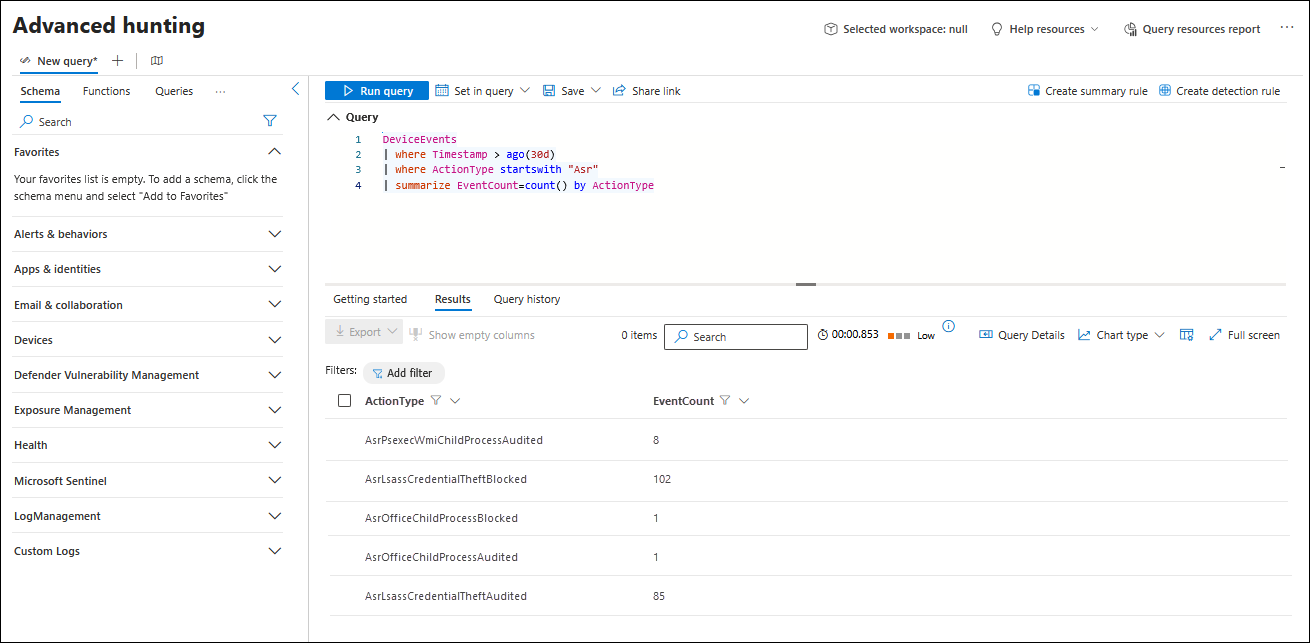
To focus on a specific rule and get details on the actual files and processes involved, change the filter for ActionType and replace the summarize line with a project line that contains the fields you want to see as shown in the following example:
DeviceEvents
| where (ActionType startswith "AsrOfficechild")
| extend RuleId=extractjson("$Ruleid", AdditionalFields, typeof(string))
| project DeviceName, FileName, FolderPath, ProcessCommandLine, InitiatingProcessFileName, InitiatingProcessCommandLine
Advanced hunting lets you customize queries to target individual devices or extract insights from your entire environment.
For more information about hunting options, see Demystifying attack surface reduction rules - Part 3.
ASR events in the device timeline
Note
This feature requires Microsoft Defender for Endpoint Plan 2 or Microsoft Defender for Business.
A narrower scoped alternative to advanced hunting is the Defender for Endpoint device timeline. For more information, see Microsoft Defender for Endpoint device timeline.
To open the device timeline of a device in the Microsoft Defender portal, complete the following steps:
Open the Device Inventory page at https://security.microsoft.com/machines.
On the appropriate tab of the Device Inventory page (for example, All devices or Computers & mobile), select a device by selecting the device name link.
In the details page that opens, select the Timeline tab.
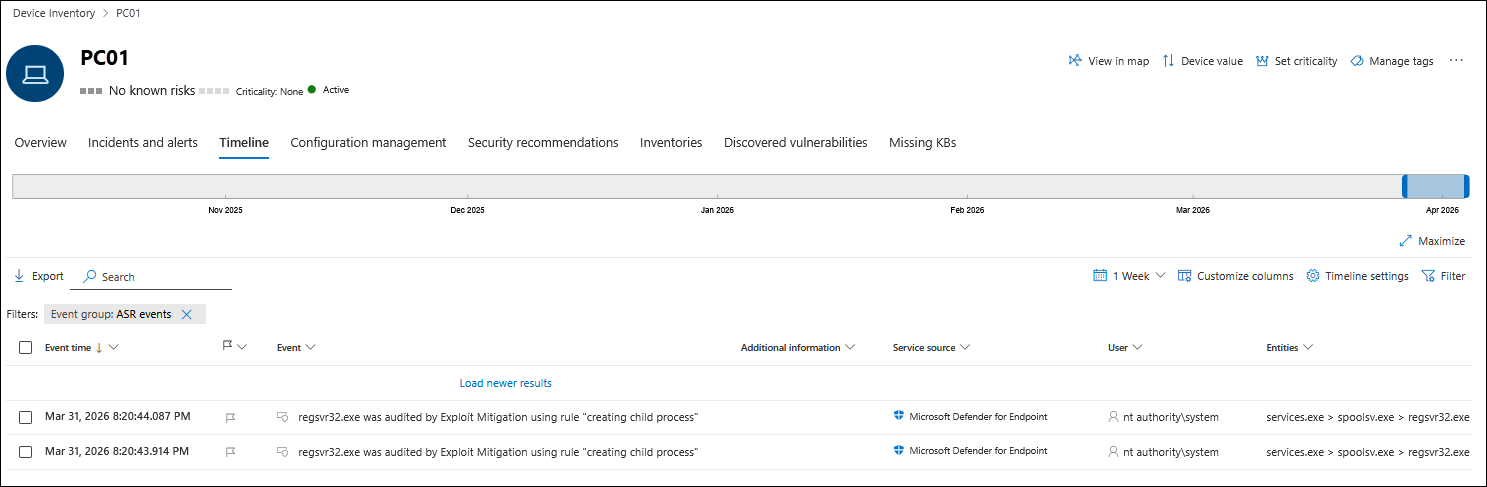
On the Timeline tab, select Filter. In the Filter flyout that opens, select ASR events from the Event group section, and then select Apply.
The default timeframe is 1 week, but you can also select 1 day, 3 days, 30 days, or a custom date range within 30 days.
ASR events in Windows Event Viewer
For complete information, see Attack surface reduction events in Windows Event Viewer.
Troubleshoot ASR rules
To troubleshoot ASR rules, see Troubleshoot attack surface reduction rules.