Note
Access to this page requires authorization. You can try signing in or changing directories.
Access to this page requires authorization. You can try changing directories.
Tamper protection helps protect certain security settings, such as virus and threat protection, from being disabled or changed. If you're part of your organization's security team, and you're using version 2006 of Configuration Manager, you can manage the tamper protection feature for devices by using a method called tenant attach. Tenant attach enables you to sync your on-premises-only Configuration Manager devices into the Intune admin center, and then deliver endpoint security configuration policies to on-premises collections & devices.
Using Configuration Manager with tenant attach, you can turn on (or off) the tamper protection feature for some or all devices.
Important
When tamper protection is turned on, tamper-protected settings can't be changed. To avoid breaking management experiences, including Intune and Configuration Manager, keep in mind that changes to tamper-protected settings might appear to succeed but are actually blocked by tamper protection. Depending on your particular scenario, you have several options available:
- If you must make changes to a device but find that those changes are getting blocked by tamper protection, use troubleshooting mode to temporarily disable the tamper protection feature on the device.
- Use Intune or Configuration Manager to exclude devices from tamper protection.
Prerequisites
Supported operating systems
- Windows
Turn tamper protection using tenant attach
Set up tenant attach. To learn more, see Get started: Create and deploy endpoint security policies from the admin center.
In the Intune admin center, go to Endpoint security > Antivirus, and then choose + Create Policy.
- In the Platform list, select Windows 10, Windows 11, and Windows Server (ConfigMgr).
- In the Profile list, select Windows Security experience (preview).
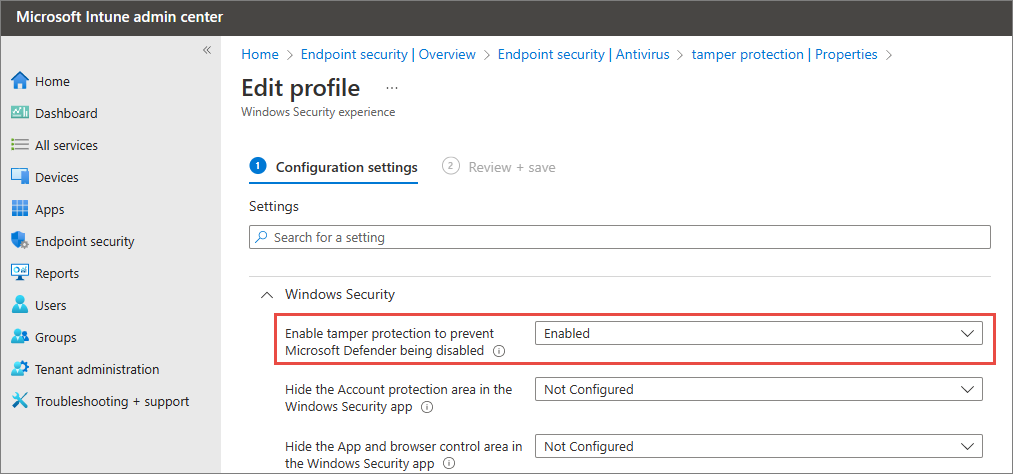
On the Configuration settings step, under Windows Security, set Enable tamper protection to prevent Microsoft Defender from being disabled to Enabled.
Finish selecting options and settings for your policy.
Deploy the policy to your devices.
See also
- Frequently asked questions (FAQs) on tamper protection
- Tech Community Blog: Announcing Tamper Protection for Configuration Manager Tenant Attach clients
- Troubleshoot problems with tamper protection
Tip
Do you want to learn more? Engage with the Microsoft Security community in our Tech Community: Microsoft Defender for Endpoint Tech Community.