Note
Access to this page requires authorization. You can try signing in or changing directories.
Access to this page requires authorization. You can try changing directories.
This article describes how to configure scheduled antivirus scans on Microsoft Defender for Endpoint on Linux. It's intended for IT and security administrators who manage Linux devices and want to ensure continuous antivirus protection through centralized scan scheduling.
Overview
Microsoft Defender for Endpoint on Linux supports scheduled antivirus scans to help maintain continuous protection across devices. Instead of relying on custom cron jobs, scheduled scans are centrally configured to ensure consistent scanning across environments.
Scheduled scans allow you to run quick scans at regular intervals or at a specific time each day, as well as configure weekly scans with either quick or full scan types. You can also control how scans run, such as reducing their performance impact, waiting for the device to be idle, or randomizing start times across devices.
You can configure scheduled scans using either managed configuration (managed JSON) or a policy experience in Security Settings Management in the Microsoft Defender portal, depending on how you manage device settings.
Prerequisites
Before configuring scheduled antivirus scans on Linux, ensure the following requirements are met:
- Microsoft Defender for Endpoint is installed and onboarded on supported Linux distributions.
- Devices are running minimum agent version 101.26032.0000 in the production ring.
- Devices are healthy and reporting correctly to the Microsoft Defender service
Depending on your configuration method, the following prerequisites also need to be met:
MDATP Managed JSON Configuration:
- You must be able to deploy configuration files to
/etc/opt/microsoft/mdatp/managed - You must have the required permissions to manage system configuration files.
- If you already use managed configuration for other antivirus settings, append to your existing configuration file instead of replacing it.
- You must be able to deploy configuration files to
Microsoft Defender portal:
- You must have appropriate permissions to create and assign security policies
Scheduled antivirus scan types
Defender for Endpoint on Linux supports the following scan types for scheduled scans:
- Quick scans: Quick scans focus on critical system locations where malware is most likely to be present, such as startup paths and system services. They complete faster and are recommended for frequent scheduling, such as daily or interval-based scans.
- Full scans: Full scans examine all files and directories on the device. They provide more comprehensive coverage but can take longer to complete, depending on system size and workload. These are typically scheduled less frequently, such as weekly.
Scheduling options
Scheduled scans can be configured using the following scheduling options:
- Hourly quick scans: Run quick scans at periodic intervals (every N hours).
- Daily quick scans: Run quick scans at a specific time each day.
- Weekly scans: Run a scan on a specified day and time, with the option to choose either a quick scan or a full scan.
These scheduling options can be configured independently and combined. For example, you can run daily quick scans along with a weekly full scan.
Scheduled scan settings
The following table describes the available settings for configuring scheduled antivirus scans:
| Category | Setting | Description | Possible values | Default |
|---|---|---|---|---|
| Daily scan settings | interval | Runs a quick scan every N hour (interval-based scheduling). | Integer (hours) 0 = disabled | 0 |
| Daily scan settings | timeOfDay (daily) | Runs a quick scan once daily at a specific time. Value is in minutes from midnight (local time of the server) | 0–1440 (for example, 120 = 2:00 AM) | 0 |
| Weekly scan settings | dayOfWeek | Specifies the day a scheduled scan runs. | 0–8 0 = disabled 1–7 = Sunday–Saturday 8 = every day |
0 |
| Weekly scan settings | timeOfDay (weekly) | Specifies when the weekly scan runs. Value is in minutes from midnight (local time of the server) | 0–1440 | 120 (2:00 AM) |
| Weekly scan settings | scanType | Specifies the scan type for weekly scans. | quick, full | quick |
| Advanced settings (optional) | runScanWhenIdle | Delays the scan until the system is idle. | true, false | false |
| Advanced settings (optional) | lowPriorityScheduledScan | Runs scans with reduced CPU priority. | true, false | false |
| Advanced settings (optional) | checkForDefinitionsUpdate | Checks for the latest security intelligence updates before starting the scan. | true, false | false |
| Advanced settings (optional) | randomizeScanStartTime | Randomizes scan start time within a defined window (in hours) to avoid simultaneous scans. | 0–23 | 0 |
| Advanced settings (optional) | ignoreExclusions | Runs scans without honouring configured exclusions. | true, false | false |
Note
interval and timeOfDay (daily) are independent settings. If both are configured, they create separate quick scan schedules and can result in multiple scans per day.
Configure scheduled antivirus scans
You can configure scheduled antivirus scans on Linux using one of the following methods, depending on how you manage device configuration in your environment.
Use Security Settings Management policies on the Defender portal
Configure your tenant to support security settings management.
In the Defender portal, navigate to System > Settings > Endpoints > Configuration management > Enforcement scope, and then select the Linux platform.
Tag devices with the MDE-Management tag. Most devices enroll and receive the policy within minutes, although some might take up to 24 hours. For more information, see Learn about using Intune to manage Microsoft Defender settings on devices that aren't enrolled with Intune.
Create a Microsoft Entra group.
- Create a dynamic Microsoft Entra group based on the operating system type to ensure that all devices onboarded to Defender for Endpoint receive the appropriate policies.
- This dynamic group automatically includes devices managed by Defender for Endpoint, eliminating the need for admins to manually create new policies. For more information, see Create Microsoft Entra groups.
Create an endpoint security policy.
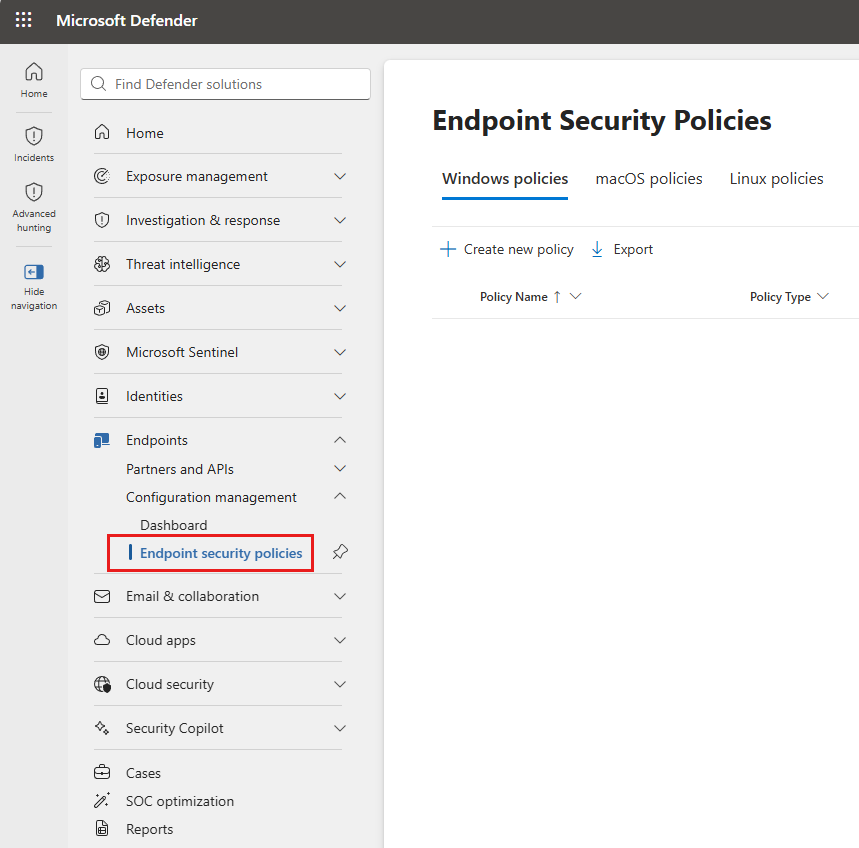
- In the Defender portal, go to Endpoints > Configuration management > Endpoint security policies, and then select Create new policy.
- For Platform, select Linux.
- Select the template Microsoft Defender Antivirus and then select Create policy.
- On the Basics page, enter a name and description for the profile, then choose Next.
- On the Configuration settings page, go to the Schedule Scan section towards the end of the page and configure the settings you want to manage with this profile.
- When you're done configuring settings, select Next.
- On the Assignments page, select the groups that receive this profile. Then select Next.
- On the Review + create page, when you're done, select Save. The new profile is displayed in the list when you select the policy type for the profile you created.
For more information, see Manage endpoint security policies in Microsoft Defender for Endpoint.
Use mdatp managed JSON configuration
In enterprise environments, antivirus scans can be scheduled through a configuration profile. Typically, you would use a configuration management tool such as Puppet, Ansible, or other management console to push a file with the name mdatp_managed.json to the location /etc/opt/microsoft/mdatp/managed.
If you already use mdatp_managed.json to configure other Defender for Endpoint settings (for example, exclusions or antivirus preferences), do not replace your existing file. Scheduled scan settings should be added to your existing managed JSON, alongside your current configuration. For more information, see Configure security settings in Microsoft Defender for Endpoint on Linux.
The following example configures:
- A weekly full scan every Saturday at 3:00 AM.
- A daily quick scan every day at 3:00 AM.
- Scans run only when the device is idle.
- Reduced CPU impact using low-priority scheduling.
- Definition updates are checked before scanning.
- Exclusions are ignored during scans.
- Scan start times are randomized by up to 3 hours.
{
  "antivirusEngine": {
    "scheduledScan": "enabled"
  },
  "scheduledScan": {
    "weeklyConfiguration": {
      "dayOfWeek": 7,
      "scanType": "full",
      "timeOfDay": 180
    },
    "dailyConfiguration": {
      "timeOfDay": 180
    },
    "runScanWhenIdle": true,
    "lowPriorityScheduledScan": true,
    "checkForDefinitionsUpdate": true,
    "ignoreExclusions": true,
    "randomizeScanStartTime": 3
  }
}
Use command line
You can configure scheduled antivirus scans directly on a Linux device using the mdatp command-line tool. This approach is useful for testing or single-device configuration.
Enable scheduled scans:
mdatp config scheduled-scan settings feature --value enabled
Configure daily quick scan:
Run a daily quick scan at a specific time (in minutes from midnight).
Example: Daily quick scan at 2:00 AM
mdatp config scheduled-scan quick-scan time-of-day --value 120
Configure interval-based quick scan:
Run quick scans at regular hourly intervals.
Example: Run a quick scan every 6 hours
mdatp config scheduled-scan quick-scan hourly-interval --value 6
Configure weekly scan:
Schedule a weekly scan with a specific day, time, and scan type.
Example: Weekly full scan every Wednesday at 3:00 AM
mdatp config scheduled-scan weekly-scan --day-of-week 4 --time-of-day 180 --scan-type full
Note
CLI-based configuration is recommended for testing or ad-hoc setup. For large-scale deployment, use managed JSON configuration or Microsoft Defender portal policies.
Configuration precedence
If scheduled scan settings are configured using multiple methods, Microsoft Defender portal policies (Security Settings Management) take precedence over local configuration (managed JSON or CLI).
Verify scheduled antivirus scans
After configuring scheduled scans, verify that the configuration is applied correctly and that scans are being executed as expected.
Verify configuration status
Run the following command to confirm that scheduled scan settings are applied:
mdatp health --details scheduled_scan
This command shows the current scheduled scan configuration on the device.
Check scheduled scan execution
To view the history of executed scans:
mdatp scan list
This command displays completed and ongoing scans.
You can also verify scan activity directly from the Defender portal at the device level. It shows last full scan and last quick scan:
- Go to Assets > Devices.
- Select the target Linux device.
- In the Overview tab, locate the Device health status section.
This helps confirm whether scheduled scans are running as expected on the device.
Frequently asked questions
Do scheduled scans require real-time protection to be enabled?
No. Scheduled scans operate independently of real-time protection. They can run even when real-time protection is disabled or the device is in passive or on-demand mode.
Can daily and weekly scans be configured together?
Yes. Daily and weekly configurations can coexist. A common pattern is daily scans for regular coverage and a weekly full scan for deeper inspection.
What scan type is used for daily scans?
Daily scans follow the engine default behaviour; they are always quick scans. Scan type is explicitly configurable for weekly scans.
Are exclusions applied during scheduled scans?
By default, scheduled scans respect configured exclusions. If ignoreExclusions is set to true, scheduled scans will ignore exclusions during execution.
What time zone is used for scan scheduling?
All scheduled scan times are evaluated using the device's local time zone.
What happens if neither daily nor weekly configuration is specified?
If no daily or weekly configuration is defined, scheduled scans will not run.
Can I stagger scan start times across devices?
Use randomizeScanStartTime to randomize the scan start within a defined window, helping reduce simultaneous load across your fleet.
What happens if the server is offline?
Scheduled scans do not run at the scheduled time while the device is asleep. Instead, scheduled scans run when the device resumes from sleep mode. If the device is turned off, the scan runs at the next scheduled scan time.