Note
Access to this page requires authorization. You can try signing in or changing directories.
Access to this page requires authorization. You can try changing directories.
Tamper protection in Microsoft Defender for Endpoint helps prevent unauthorized changes to security settings, files, and processes on macOS devices. It also helps prevent unauthorized users from removing Defender for Endpoint.
Use this article to configure tamper protection with Microsoft Intune, Jamf, or the mdatp command-line tool. You can also verify the effective configuration, test protection, configure exclusions for trusted management processes, and troubleshoot configuration issues. For an explanation of tamper protection and the settings it protects, see Protect security settings with tamper protection.
Important
Microsoft Defender for Endpoint on macOS uses the tamper protection setting configured in the Microsoft Defender portal as the default value. You can enforce tamper protection by configuring the setting through a mobile device management (MDM) solution such as Microsoft Intune or Jamf.
When an MDM policy is applied, it takes precedence over both the portal setting and any local configuration.
If MDM doesn't enforce the tamper protection setting, a local administrator can change the setting by using the local configuration method.
On macOS devices, you can configure the enforcement level as Disabled, Audit, or Block. For a description of each mode, see Tamper protection modes on macOS devices.
Note
- Mode changes apply immediately.
- If you used Jamf for the initial configuration, update the configuration by using Jamf.
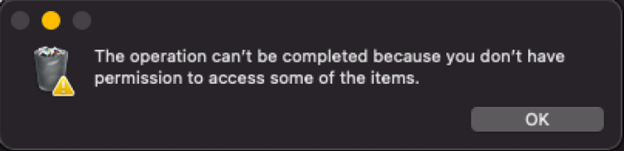
The following screenshot shows a macOS system message for an operation that tamper protection blocked:
Before you begin
Before you configure tamper protection, meet these requirements:
- The device runs macOS Big Sur (11) or later.
- The device runs Defender for Endpoint version
101.70.19(June 2022) or later. - Your account has the permissions required by your management tool. For Microsoft Intune and Microsoft Defender portal permission requirements, see Required permissions for tamper protection.
For stronger protection:
Enable System Integrity Protection (SIP). For more information, see Disabling and Enabling System Integrity Protection.
Use an MDM solution to configure Defender for Endpoint.
Grant Defender for Endpoint Full Disk Access authorization.
Note
SIP and MDM configuration aren't required for tamper protection to function. However, both are required to fully secure the device. Without these settings, a local administrator can change settings managed by macOS. For example, granting Full Disk Access through Transparency, Consent, and Control (TCC) by using an MDM solution such as Microsoft Intune prevents a local administrator from revoking the authorization.
Order of precedence for tamper protection configuration methods on macOS devices
Tamper protection configuration on macOS devices uses the following order of precedence. Defender for Endpoint applies the highest-priority configured source and ignores all lower-priority sources:
- A managed configuration profile with the
tamperProtection/enforcementLevelsetting: - Local configuration on the macOS device using
sudo mdatp config tamper-protection enforcement-level. - If tamper protection is enabled in the Microsoft Defender portal, Defender for Endpoint uses Block mode.
- If tamper protection is disabled in the Microsoft Defender portal:
- Devices with a valid license default to Audit mode.
- Devices without a license default to Disabled mode.
Warning
Disabling tamper protection reduces protection against unauthorized changes to Defender for Endpoint. Disable it only for approved troubleshooting or policy changes, and re-enable it as soon as possible.
Verify device health and license
To verify that Defender for Endpoint is healthy and correctly licensed on the macOS device, run the following health check command:
mdatp health
The command output looks like this:
healthy                                     : true
health_issues                               : []
licensed                                    : true
...
tamper_protection                           : "audit"
...
tamper_protection reports the effective enforcement level.
Configure tamper protection using a managed configuration profile with Jamf
To configure tamper protection through Jamf, add the tamperProtection settings to your Defender for Endpoint configuration profile. Set enforcementLevel to disabled, audit, or block. For a description of each mode, see Tamper protection modes on macOS devices.
The following example configures tamper protection in block mode:
<?xml version="1.0" encoding="UTF-8"?>
<!DOCTYPE plist PUBLIC "-//Apple//DTD PLIST 1.0//EN" "http://www.apple.com/DTDs/PropertyList-1.0.dtd">
<plist version="1.0">
  <dict>
    <key>tamperProtection</key>
    <dict>
      <key>enforcementLevel</key>
      <string>block</string>
    </dict>
  </dict>
</plist>
Note
If you already have a Defender for Endpoint configuration profile, add the settings to that profile instead of creating another profile.
Configure tamper protection in Microsoft Intune
You can configure tamper protection in Intune by using either the settings catalog or a custom profile. The Intune settings catalog is the preferred method. Use a custom profile if you need to add tamper protection to an existing custom Defender for Endpoint profile.
Configure tamper protection using the Intune settings catalog
To configure tamper protection in Microsoft Intune, create or modify a settings catalog policy. For detailed instructions, see Create a policy using settings catalog in Microsoft Intune.
When you create the policy, use these specific settings:
- Platform: Select macOS.
- Profile type: Select Settings catalog.
When you create or modify the policy, add the following setting on the Configuration settings tab:
- Enforcement level in the Tamper protection subcategory of the Microsoft Defender category: Select Disabled, Audit, or Block. For a description of each mode, see Tamper protection modes on macOS devices.
Configure tamper protection using an Intune custom profile
Although the settings catalog is preferred, you can also configure tamper protection by uploading a custom configuration profile to Intune. For instructions to create, upload, and assign a custom profile, see Add custom settings to Apple devices in Microsoft Intune.
In the profile, set tamperProtection/enforcementLevel to disabled, audit, or block. For a description of each mode, see Tamper protection modes on macOS devices.
The following example configures tamper protection in block mode. Copy the contents to a file named com.microsoft.wdav.mobileconfig. To use a different mode, replace block with disabled or audit.
Important
You must use com.microsoft.wdav as the configuration profile name. If the name is incorrect, Microsoft Defender for Endpoint doesn't recognize the preferences.
<?xml version="1.0" encoding="utf-8"?>
<!DOCTYPE plist PUBLIC "-//Apple//DTD PLIST 1.0//EN" "http://www.apple.com/DTDs/PropertyList-1.0.dtd">
<plist version="1">
    <dict>
        <key>PayloadUUID</key>
        <string>C4E6A782-0C8D-44AB-A025-EB893987A295</string>
        <key>PayloadType</key>
        <string>Configuration</string>
        <key>PayloadOrganization</key>
        <string>Microsoft</string>
        <key>PayloadIdentifier</key>
        <string>com.microsoft.wdav</string>
        <key>PayloadDisplayName</key>
        <string>Microsoft Defender for Endpoint settings</string>
        <key>PayloadDescription</key>
        <string>Microsoft Defender for Endpoint configuration settings</string>
        <key>PayloadVersion</key>
        <integer>1</integer>
        <key>PayloadEnabled</key>
        <true/>
        <key>PayloadRemovalDisallowed</key>
        <true/>
        <key>PayloadScope</key>
        <string>System</string>
        <key>PayloadContent</key>
        <array>
            <dict>
                <key>PayloadUUID</key>
                <string>99DBC2BC-3B3A-46A2-A413-C8F9BB9A7295</string>
                <key>PayloadType</key>
                <string>com.microsoft.wdav</string>
                <key>PayloadOrganization</key>
                <string>Microsoft</string>
                <key>PayloadIdentifier</key>
                <string>com.microsoft.wdav</string>
                <key>PayloadDisplayName</key>
                <string>Microsoft Defender for Endpoint configuration settings</string>
                <key>PayloadDescription</key>
                <string/>
                <key>PayloadVersion</key>
                <integer>1</integer>
                <key>PayloadEnabled</key>
                <true/>
                <key>tamperProtection</key>
                <dict>
                    <key>enforcementLevel</key>
                    <string>block</string>
                </dict>
            </dict>
        </array>
    </dict>
</plist>
Configure tamper protection locally
Note
Use a managed configuration profile deployed through MDM on production devices. A local administrator can change a locally configured tamper protection mode to a less restrictive mode at any time. When a managed profile sets the mode, only a Security Administrator can change the profile.
To configure tamper protection locally on a macOS device, use the following syntax:
sudo mdatp config tamper-protection enforcement-level --value <disabled | audit | block>
Run the following command to switch to Block mode:
sudo mdatp config tamper-protection enforcement-level --value block
Check tamper protection status
Run the following command to check the effective tamper protection mode:
mdatp health --field tamper_protection
The output shows block when tamper protection is in block mode.
For detailed status information, run mdatp health --details tamper_protection.
Verify tamper protection activity
Use the following scenarios to generate tampering attempts. The result depends on the configured tamper protection mode:
- Try different methods to uninstall Defender for Endpoint. For example, drag the app to the Trash, or use the command line to uninstall Defender for Endpoint.
- Try to stop the Defender for Endpoint process.
- Try to delete, rename, modify, or move the following Defender for Endpoint files and directories:
/Applications/Microsoft Defender.app//Library/LaunchDaemons/com.microsoft.fresno.plist/Library/LaunchDaemons/com.microsoft.fresno.uninstall.plist/Library/LaunchAgents/com.microsoft.wdav.tray.plist/Library/Managed Preferences/com.microsoft.wdav.ext.plist/Library/Managed Preferences/mdatp_managed.json/Library/Managed Preferences/com.microsoft.wdav.atp.plist/Library/Managed Preferences/com.microsoft.wdav.atp.offboarding.plist/usr/local/bin/mdatp
In Block mode, tamper protection prevents the operation. If a test generates an alert, look for Tampering with the Microsoft Defender for Endpoint sensor on the Alerts page in the Defender portal at https://security.microsoft.com/alerts. The alert title can vary depending on the detected activity. For more alert titles, see Detecting potential tampering activity in the Microsoft Defender portal.
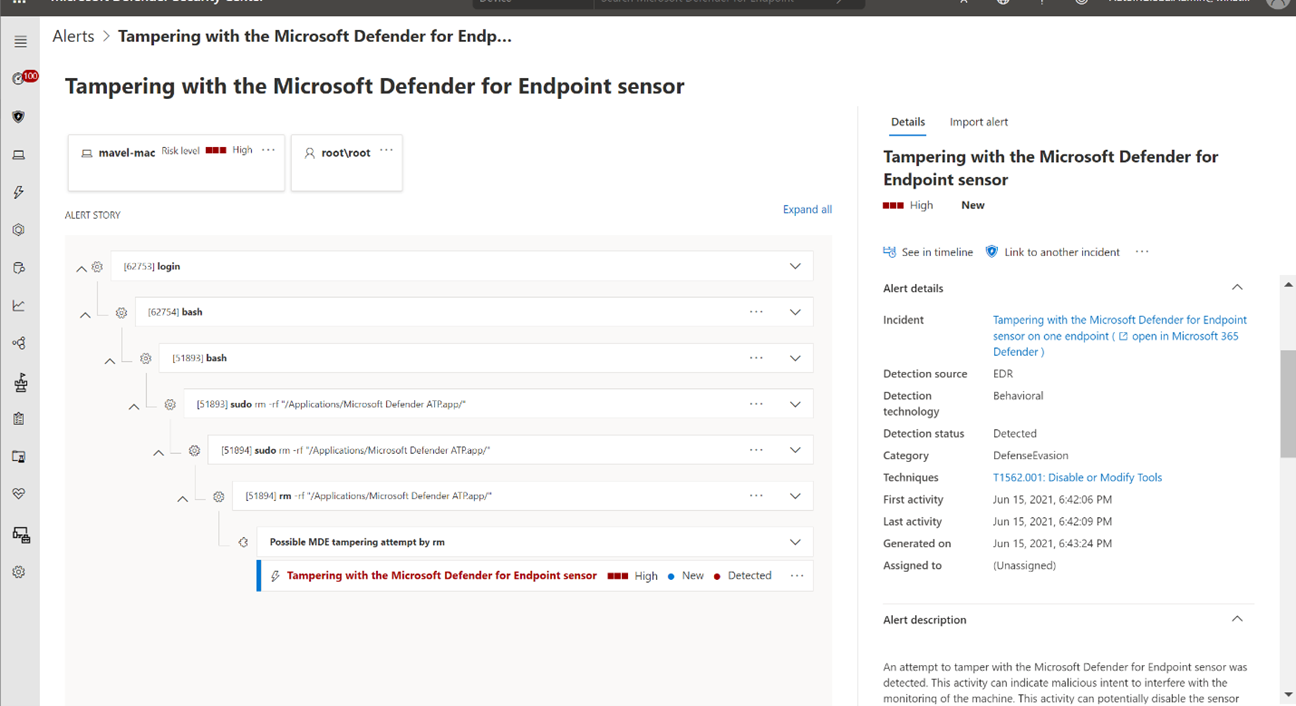
In Audit mode, tamper protection reports the attempt but doesn't block it. For information about alert generation, the device timeline, alert investigation, and advanced hunting, see View information about tampering attempts.
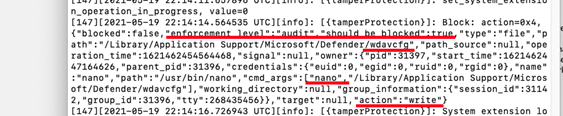
In both Block and Audit modes, tampering events appear in the local device logs. Search the Defender for Endpoint core log for entries tagged tamperProtection:
sudo grep -F '[{tamperProtection}]' /Library/Logs/Microsoft/mdatp/microsoft_defender_core.log
To collect the complete set of Defender for Endpoint logs for troubleshooting, see Collecting diagnostic information.
Configure tamper protection exclusions
Note
Available in version 101.98.71 (May 2023) or later.
Tamper protection prevents macOS processes from changing Defender for Endpoint assets, including installation and configuration files, or stopping Defender for Endpoint processes. Built-in exclusions allow specific macOS processes and management processes from Jamf and Intune to perform required operations, such as updating Defender for Endpoint or replacing its managed configuration files.
To allow a trusted management process from another MDM provider to perform a protected operation, add a tamper protection exclusion to an MDM profile. You can't configure exclusions locally. For example, an exclusion can allow an MDM policy script to restart Defender for Endpoint while tamper protection continues to block the same script when someone runs it locally from Terminal.
Use the MDM provider's documentation to identify the helper process that runs policies. You can also run a test policy that performs a protected operation, review the resulting alert in the Microsoft Defender portal, and identify the helper process in the initiating process tree.
After you identify the MDM helper process, configure the exclusion by using one or more of the following attributes:
- Path: The process path is the simplest but least secure option. Avoid using the path by itself.
- Signing identifiers: Run
codesign -dv --verbose=4 path_to_helper, and use the executable'sIdentifier,TeamIdentifier, or both. Apple tools don't have aTeamIdentifier. - Combined attributes: Combine the path and signing identifiers to make the exclusion more restrictive.
For example, to obtain the signing identifier and TeamIdentifier needed for a tamper protection exclusion, inspect the MDM helper executable with codesign:
codesign -dv --verbose=4 /usr/bin/ruby
The output shows the Identifier and TeamIdentifier values that you can use to configure the exclusion in your MDM profile:
Executable=/usr/bin/ruby
Identifier=com.apple.ruby
Format=Mach-O universal (x86_64 arm64e)
CodeDirectory v=20400 size=583 flags=0x0(none) hashes=13+2 location=embedded
Platform identifier=14
VersionPlatform=1
VersionMin=852992
VersionSDK=852992
Hash type=sha256 size=32
CandidateCDHash sha256=335c10d40db9417d80db87f658f6565018a4c3d6
CandidateCDHashFull sha256=335c10d40db9417d80db87f658f6565018a4c3d65ea3b850fc76c59e0e137e20
Hash choices=sha256
CMSDigest=335c10d40db9417d80db87f658f6565018a4c3d65ea3b850fc76c59e0e137e20
CMSDigestType=2
Executable Segment base=0
Executable Segment limit=16384
Executable Segment flags=0x1
Page size=4096
Launch Constraints:
  None
CDHash=335c10d40db9417d80db87f658f6565018a4c3d6
Signature size=4442
Authority=Software Signing
Authority=Apple Code Signing Certification Authority
Authority=Apple Root CA
Signed Time=Apr 15, 2023 at 4:45:52 AM
Info.plist=not bound
TeamIdentifier=not set
Sealed Resources=none
Internal requirements count=1 size=64
The following example shows a Jamf configuration profile that enables tamper protection in Block mode and adds a process exclusion. Deploy the profile through MDM to allow a specific process to perform operations that tamper protection would otherwise block. For more information, see Configure tamper protection exclusions.
<?xml version="1.0" encoding="UTF-8"?>
<!DOCTYPE plist PUBLIC "-//Apple//DTD PLIST 1.0//EN" "http://www.apple.com/DTDs/PropertyList-1.0.dtd">
<plist version="1.0">
  <dict>
    <key>tamperProtection</key>
    <dict>
      <key>enforcementLevel</key>
      <string>block</string>
      <key>exclusions</key>
      <array>
        <dict>
          <key>path</key>
          <string>/usr/bin/ruby</string>
          <key>teamId</key>
          <string/>
          <key>signingId</key>
          <string>com.apple.ruby</string>
          <key>args</key>
          <array>
            <string>/usr/local/bin/global_mdatp_restarted.rb</string>
          </array>
        </dict>
      </array>
    </dict>
  </dict>
</plist>
Excluding a scripting interpreter, such as Ruby in the Jamf profile example, is less secure than excluding a compiled executable because the interpreter can run any script, not only the administrator's intended script.
To reduce this risk, use the args attribute to allow only specific scripts to run with the interpreter. In the Jamf profile example, only /usr/bin/ruby /usr/local/bin/global_mdatp_restarted.rb can restart Defender for Endpoint. Commands with a different script path or more arguments, such as /usr/bin/ruby /Library/Application Support/Global Manager/global_mdatp_restarted.rb or /usr/bin/ruby /usr/local/bin/global_mdatp_restarted.rb $USER, aren't allowed.
Warning
Use the most restrictive exclusion criteria possible to reduce the risk of misuse.
Troubleshooting configuration issues
If tamper protection doesn't report the expected effective mode or configuration source, see Troubleshoot problems with tamper protection for detailed status interpretation, configuration-source checks, and log collection.