Note
Access to this page requires authorization. You can try signing in or changing directories.
Access to this page requires authorization. You can try changing directories.
For complete protection of your on-premises deployment, activate the Microsoft Defender for Identity sensor v3.x on all eligible servers. Supported server types include domain controllers. They also include Active Directory Federation Services (AD FS), Active Directory Certificate Services (AD CS), and Microsoft Entra Connect servers that aren't domain controllers. Eligible servers must meet the sensor v3.x prerequisites, including Windows Server 2019 or later. For supported servers running older operating systems, deploy the Defender for Identity sensor v2.x instead.
Note
Activating the Defender for Identity sensor v3.x on AD FS, AD CS, and Microsoft Entra Connect servers that aren't domain controllers is in preview.
Prerequisites
See Microsoft Defender for Identity sensor v3.x prerequisites for system requirements and Sensor version limitations for supported scenarios before activating the Defender for Identity sensor v3.x on eligible servers.
Turn on automatic sensor activation
Note
Automatic sensor activation and automatic Windows auditing are available only after your organization has an active license that includes Microsoft Defender for Identity.
When Automatic sensor v3.x activation is enabled, Defender for Identity automatically activates sensor v3.x on eligible domain controllers, AD FS, AD CS, or Microsoft Entra Connect servers that you onboard to Defender for Endpoint. The servers must run Windows Server 2019 or later.
Automatic activation doesn't install a separate Defender for Identity sensor package. It activates the sensor capability on eligible servers that are already onboarded to Defender for Endpoint. Servers that already have a Defender for Identity sensor aren't targeted by this flow.
On the Advanced features page in the Microsoft Defender portal at https://security.microsoft.com/securitysettings/identities, use the Automatic sensor v3.x activation toggle to turn on automatic activation for eligible servers. Automatic activation applies only to eligible servers onboarded to Defender for Endpoint.
- Turn on the setting to automatically activate eligible servers when they're discovered.
- Turn off the setting to stop future automatic activations.
The Advanced features page also includes Automatic Windows auditing configuration. For details, see Configure automatic Windows event auditing.
Activate the Defender for Identity sensor v3.x
To activate the Defender for Identity sensor v3.x on an eligible server, follow these steps:
On the Sensor management tab of the On-premises page in the Microsoft Defender portal, select the eligible server where you want to activate Defender for Identity.
Select Activate, and confirm your selection when prompted.
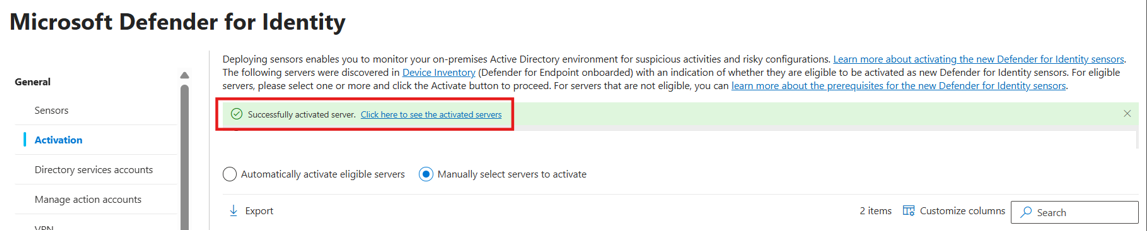
When v3.x sensor activation for the selected server is complete, a green success banner appears. In the banner, select Click here to see the onboarded servers. The Sensor management tab opens, where you can check the sensor's health.
Onboard a server without Defender for Endpoint deployment
Use onboarding without Defender for Endpoint deployment to activate the Defender for Identity sensor v3.x on eligible servers. Supported servers include domain controllers, AD FS, AD CS, and Microsoft Entra Connect.
Note
This onboarding method supports new Defender for Identity sensor v3.x deployments on eligible servers that don't have sensor v2.x installed. The standalone onboarding package activates sensor v3.x on the Windows Sense platform in restricted identity-only mode. It doesn't deploy or license the full Defender for Endpoint experience. The server still requires connectivity to Defender for Endpoint cloud services because the underlying Sense component uses that infrastructure.
Configure your network environment to ensure connectivity with Defender for Endpoint by using streamlined URLs.
On the Sensor management tab of the On-premises page in the Microsoft Defender portal, select Download onboarding package.
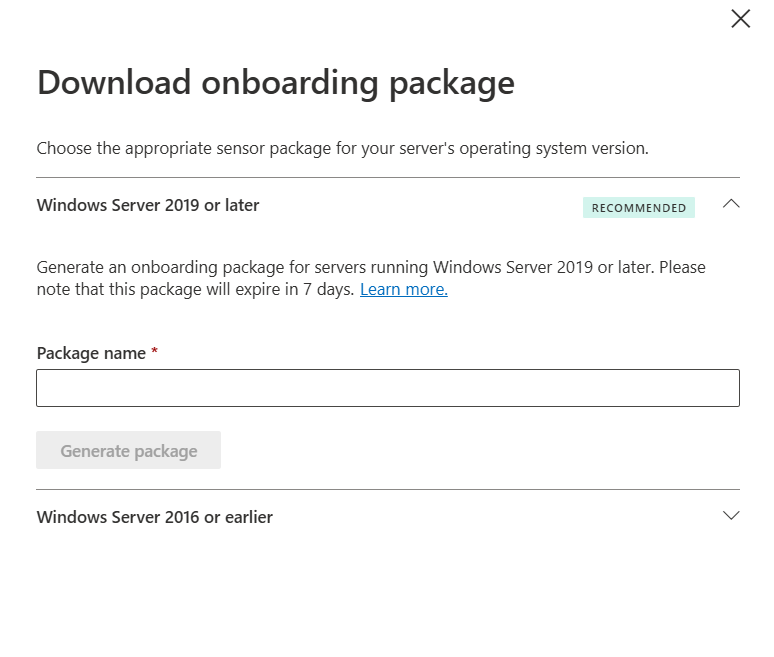
In the Download onboarding package pane, expand Windows Server 2019 or later, enter a Package name, and select Generate package.
When the package is ready, download it and copy the access key.
Important
The access key is used only during sensor installation. Regenerating the key invalidates the existing key, and installations that use the previous key fail.
Copy the downloaded package to the server.
Extract the package, making sure the
resourcessubfolder is preserved.Open PowerShell as an administrator, change to the extracted folder, and run the onboarding script:
Set-Location .\DfiOnboarding
.\DefenderForIdentityV3StandaloneOnboardingScript.cmd
When prompted, enter the access key from the Microsoft Defender portal. The input is masked.
Confirm sensor activation
To confirm that the v3.x sensor is working:
- On the Sensor management tab of the On-premises page in the Microsoft Defender portal, check that the activated server is listed.
Note
The first Defender for Identity sensor v3.x activation in your environment might take up to an hour to show as Running on the Sensor management tab. Subsequent activations appear within five minutes. Activation doesn't require a restart.
What if I want to add Defender for Endpoint later?
If you onboarded a server with Defender for Identity only and now want to add Defender for Endpoint, follow these steps:
- Offboard the server and remove the v3.x sensor.
- Onboard the server to Defender for Endpoint.
- After the server appears on the Sensor management tab, activate the Defender for Identity sensor v3.x.