Note
Access to this page requires authorization. You can try signing in or changing directories.
Access to this page requires authorization. You can try changing directories.
This article lists the steps to activate Defender workloads available in your environment to use the Microsoft Defender unified role-based access control (RBAC). Activate the unified RBAC model for some or all of your workloads for the Microsoft Defender portal to start enforcing the permissions and assignments configured in your new custom roles or imported roles.
Important
Starting 2025, the Microsoft Defender unified RBAC model is the default permissions model for new Microsoft Defender Endpoint tenants and Microsoft Defender for Identity tenants. These tenants can't export roles and permissions from the old model. Defender for Endpoint or Defender for Identity tenants with roles and permissions assigned or exported prior to this date maintain their old roles and permissions configuration.
Prerequisites
You must be at least a Security Administrator in Microsoft Entra ID to activate Microsoft Defender unified RBAC. For more information on permissions, see Permission prerequisites.
Before you begin
Before you activate Microsoft Defender unified RBAC, consider the following:
- The following roles are not supported for unified RBAC: the Microsoft Sentinel Playbook Operator, Automation Contributor and Workbook Contributor. These roles continue to be managed in Azure.
- Assigning permissions to a service principal or to a GDAP user group in Microsoft Sentinel isn't supported in unified RBAC. If you need either capability, don't activate Sentinel in unified RBAC yet. Continue using Azure RBAC for Microsoft Sentinel.
- The Microsoft Defender unified RBAC model only impacts the Microsoft Defender portal. It doesn't impact the Microsoft Purview portal or the Exchange Admin Center.
- Once unified RBAC is activated for Microsoft Sentinel, use unified RBAC in the Defender portal to manage Sentinel permissions. Making permission changes in the Azure portal after unified RBAC is active for a workspace might lead to sync errors. If a sync error occurs, a notification appears on the Permissions page in the Defender portal with instructions on how to resolve it.
Activate Microsoft Defender unified RBAC
The following steps guide you on how to activate the Microsoft Defender unified RBAC model. You can activate your workloads in the following ways:
Activate from the Permissions and roles page
Sign in to the Microsoft Defender portal.
In the navigation pane, select System > Permissions.
Under Microsoft Defender XDR, select Roles.
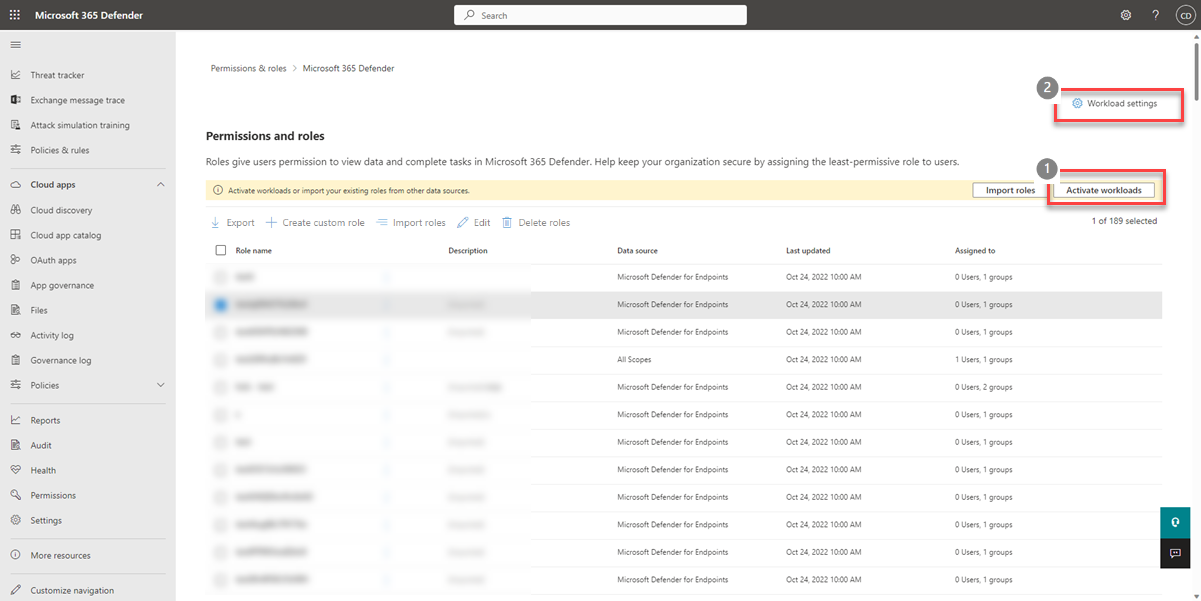
You can activate your workloads in two ways: either select Activate workloads from the banner or select Workload settings at the top of the page.
Note
The Activate workloads button is only available when there's at least one workload that's not active for Microsoft Defender unified RBAC. Microsoft Defender for Cloud is active by default with Microsoft Defender unified RBAC. Defender unified RBAC is automatically active for Exposure Management access. Once a custom role with one of the Exposure Management permissions is created, it has an immediate impact on assigned users. There's no need to activate it.
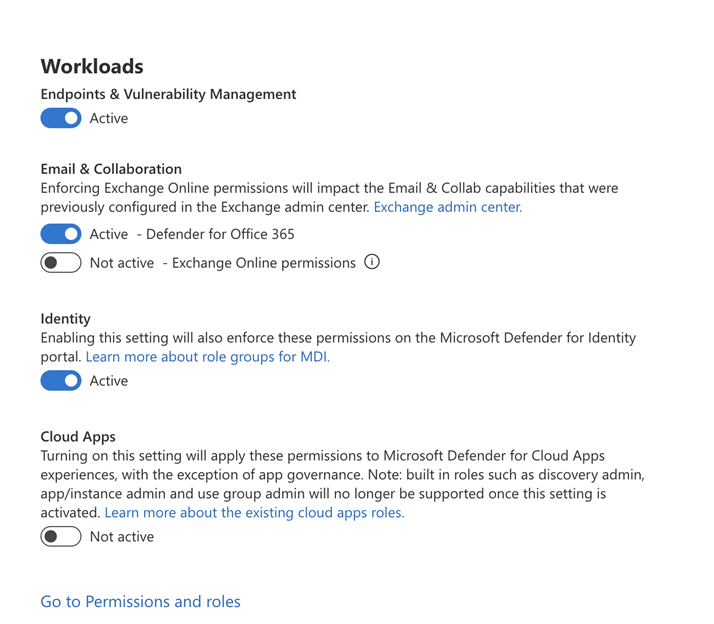
To activate Exchange Online permissions in Microsoft Defender unified RBAC, Defender for Office 365 permissions must be active.
Select the toggle for each workload you want to activate or deactivate.
Optional: To activate Sentinel's workload, select View Workspaces and select which workspaces you'd like to activate.
Select Activate on the confirmation message.
Activate in Microsoft Defender XDR settings
Follow these steps to activate your workloads directly in Microsoft Defender XDR settings:
Sign in to the Microsoft Defender portal.
In the navigation pane, select System > Settings.
Select Microsoft Defender XDR.
Under General, select Permissions and roles. This brings you to the Activate unified role-based access control page.
Select the toggle for the workloads you want to activate or deactivate.
Optional: To activate Microsoft Sentinel's workload, select View Workspaces and select which workspaces you'd like to activate.
Select Activate on the confirmation message.
Deactivate Microsoft Defender unified RBAC
You can deactivate Microsoft Defender XDR unified RBAC and revert to the individual RBAC models from Microsoft Defender for Endpoint, Microsoft Defender for Identity, Microsoft Sentinel, and Microsoft Defender for Office 365 (which includes the built-in security features for all cloud mailboxes).
To deactivate the workloads, repeat the steps in the previous section and select the workloads you want to deactivate. The status is set to Not Active.
If you deactivate a workload, the roles created and edited within Microsoft Defender unified RBAC are no longer in effect, and the previous permissions model is used instead.
Next steps
Tip
Do you want to learn more? Engage with the Microsoft Security community in our Tech Community: Microsoft Defender XDR Tech Community.