Note
Access to this page requires authorization. You can try signing in or changing directories.
Access to this page requires authorization. You can try changing directories.
This article explains how to include or exclude analytics rules from the Microsoft Defender XDR correlation engine. Including or excluding analytics rules from correlation helps organizations migrating from Microsoft Sentinel maintain predictable incident behavior and ensure compatibility with existing automation workflows.
Overview
Microsoft Defender groups multiple alerts and incidents into unified attack stories. While this capability provides powerful security insights, it can lead to unexpected behavior for organizations migrating from Microsoft Sentinel, where incidents are static and determined solely by analytics rule configurations.
By default, all analytics rules are excluded at the tenant level when you first onboard to Microsoft Defender. Depending on your organization's needs, you can change this setting to enable correlation for all analytics rules and exclude specific rules only, or exclude all analytics rules and add specific ones for correlation.
By excluding analytics rules from correlation, you can ensure that alerts generated by those rules bypass the correlation engine and group into incidents exactly as they did in Microsoft Sentinel—based only on the grouping configuration of the analytics rule.
For more information about how correlation works in Microsoft Defender, see Alert correlation and incident merging in the Microsoft Defender portal.
Prerequisites
To manage analytics rule exclusions from correlation, you need the following permissions:
Microsoft Sentinel Contributor This Azure role lets you manage Microsoft Sentinel workspace data, including alerts and detections.
How exclusion works
Depending on your tenant's settings, you can exclude all or only specific analytics rules from correlation.
When you exclude an analytics rule from correlation:
- Any alert generated by that rule bypasses the correlation engine.
- Alerts are grouped into incidents based solely on the analytics rule's grouping configuration.
- The behavior matches how incidents were created in Microsoft Sentinel.
- The rule operates independently of the correlation logic that normally creates attack stories.
Configure incident correlation behavior default settings
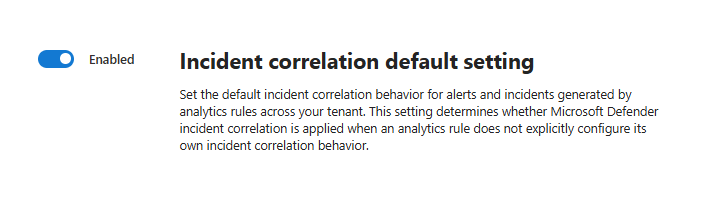
Set the default incident correlation behavior for alerts and incidents generated by analytics rules across your tenant. The tenant's default incident correlation setting determines whether Microsoft Defender includes in its correlation engine all analytics rules that don't have their incident correlation behavior explicitly configured.
To configure your tenant's default incident correlation behavior, in the Defender portal navigation menu, go to System > Settings > Microsoft Defender XDR > Rules > Incident correlation and toggle the Incident correlation default setting on or off.
Important
The Incident correlation default setting is turned off by default.
You can override the default behavior for individual rules by adding a description tag. When you turn off the incident correlation behavior default setting, Microsoft Defender excludes all analytics rules from correlation unless you explicitly include a rule by adding the #INC_CORR# (include correlation) tag to its description. When you turn on the Incident correlation default setting, Defender correlates all analytics rules unless you explicitly configure to exclude them by adding the #DONT_CORR# tag.
Manage a rule's correlation behavior using the UI
You can include or exclude a specific analytics rule from correlation by using the analytics rule wizard.
Go to the Microsoft Defender portal and sign in.
Go to the Analytics rule wizard.
In the General tab of the rule wizard, enter a name and description.
In the Set rule logic tab, configure the rule logic as needed.
In the Incident settings tab, choose any of the following settings in the Incident correlation dropdown box:
- Tenant default - Use the tenant-level incident correlation behavior setting
- Enabled - Include the analytics rule for correlation
- Disabled - Exclude the analytics rule from correlation
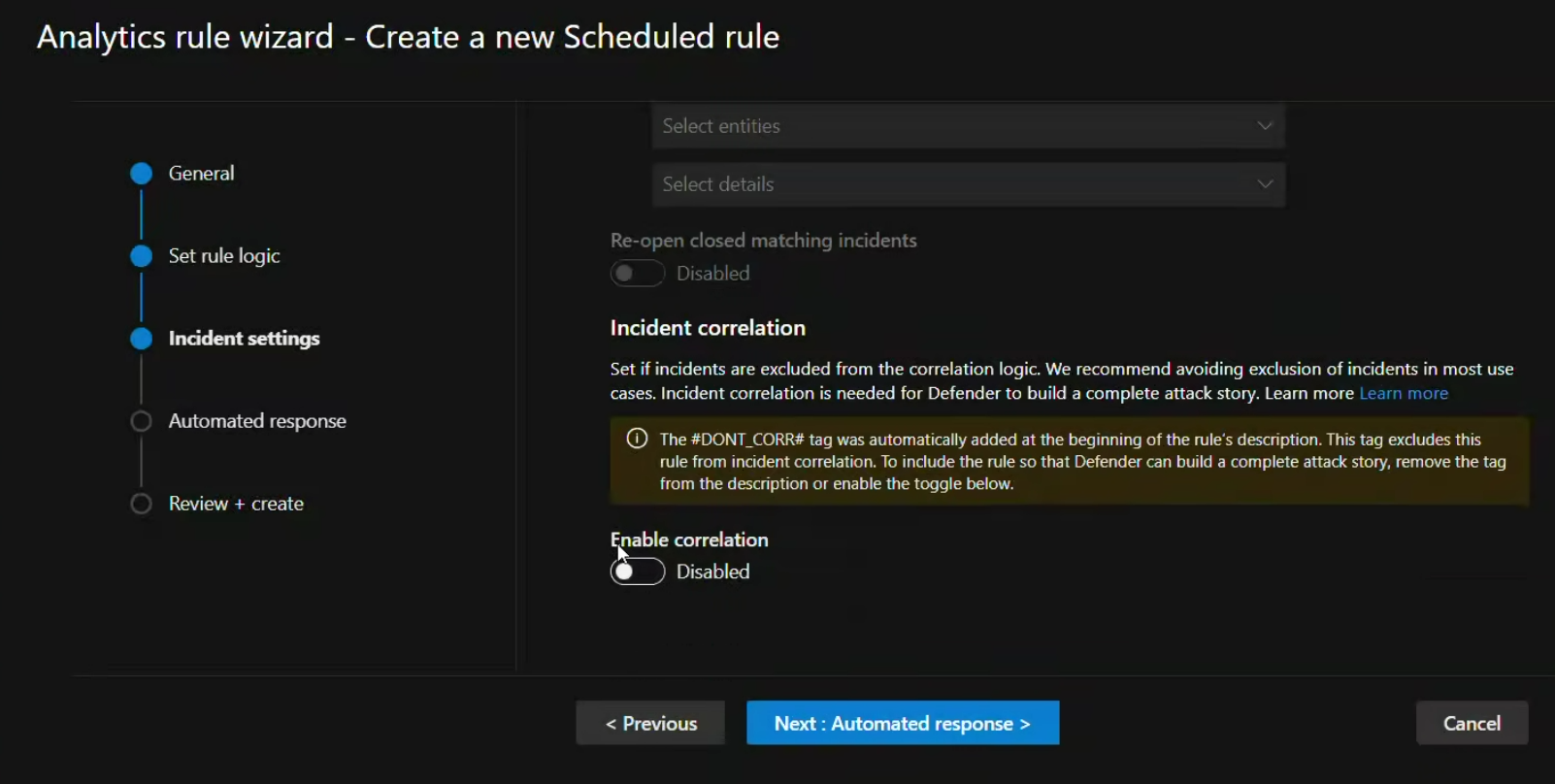
When you include or exclude a rule by using the UI toggle, the #INC_CORR# or #DONT_CORR# tag is automatically added at the beginning of the rule's description.
The analytics rules view now includes a column for correlation state so you can easily see which rules are included or excluded and filter the list to see rules in a specific state.

Manage a rule's correlation behavior manually
You can manually add or remove the #INC_CORR# and #DONT_CORR# tags to control the correlation state of an analytics rule.
Add the tag manually
To set a rule's correlation state manually, add the appropriate tag to the beginning of the rule description.
- Open the analytics rule in edit mode.
- In the rule's Description field, add
#INC_CORR#or#DONT_CORR#at the very beginning of the text. - Save the rule.
Manage correlation behavior through API
You can programmatically control the exclusion state of analytics rules by adding or removing the #INC_CORR# or #DONT_CORR# tag through the analytics API.
To modify a rule's correlation state:
- Use the Microsoft Defender XDR API to retrieve the rule's current configuration.
- Add or remove the
#INC_CORR#or#DONT_CORR#tag at the beginning of the rule's description field. - Update the rule using the API.
For more information about using the Microsoft Defender API, see Microsoft Defender APIs overview.
Important considerations for analytics rule correlation settings
Keep the following points in mind when using correlation exclusion:
The correlation state always matches the tag. For example, if you exclude a rule by using the UI toggle and then manually remove the
#DONT_CORR#tag from the description, the rule's correlation state reverts to Correlation enabled.Even when you exclude a rule from correlation, if you define an analytics rule with a dynamic title, the incident title in the Defender portal might be different from the title in Microsoft Sentinel. The Microsoft Sentinel title is the title of the first alert, and in Defender it falls back to the common MITRE tactic of all alerts.
Changing a rule's correlation state doesn't affect alerts that were created before the change. Alerts receive their correlation state when they're created, and this state remains static.
The correlation engine is designed to build complete attack stories and significantly helps security operations center (SOC) analysts understand attacks and respond efficiently. Only exclude rules from correlation when necessary for specific business or operational requirements.
Tag formatting rules:
- Not case sensitive - You can use any combination of uppercase and lowercase letters (for example,
#dont_corr#or#DONT_CORR#). - Spacing is flexible - You can add any number of spaces between the tag and the rest of the description, or no spaces at all.
- Must be at the beginning - The tag must appear at the start of the description field.
For example, the following descriptions are all valid:
- #DONT_CORR# This rule detects suspicious sign in attempts
- #dont_corr# This rule monitors file modifications
- #DONT_CORR#This rule has no space after the tag
- Not case sensitive - You can use any combination of uppercase and lowercase letters (for example,
Related content
- Alert correlation and incident merging in the Microsoft Defender portal
- Create custom detection rules
- Manage custom detections
- Manage incidents in Microsoft Defender
Tip
Do you want to learn more? Engage with the Microsoft Security community in our Tech Community: Microsoft Defender XDR Tech Community.