Note
Access to this page requires authorization. You can try signing in or changing directories.
Access to this page requires authorization. You can try changing directories.
User and entity behavior analytics (UEBA) analyzes activity from users and other entities to identify anomalous behavior and provide additional context for security investigations.
UEBA is an optional paid Microsoft Sentinel capability and isn't included with Microsoft 365 E5. With Microsoft 365 E5, you can connect supported Microsoft Defender XDR data sources to UEBA without ingesting the same first-party data into Microsoft Sentinel. You can also connect eligible third-party data that is ingested into a Microsoft Sentinel workspace.
You must have a Microsoft Sentinel workspace because UEBA outputs are written to its associated Log Analytics workspace. Log Analytics charges apply.
Important
This preview is available for new and existing UEBA deployments.
If you're already using UEBA with Microsoft Sentinel data, you must re-onboard UEBA from your primary Microsoft Sentinel workspace before you can connect Microsoft Defender XDR data sources.
What UEBA provides
After you connect supported data sources, you can use UEBA results to:
- Identify anomalies and unusual activity in Microsoft Defender XDR data.
- Review anomaly context for users and other entities.
- Investigate anomalies from entity pages.
- Hunt for suspicious activity.
- Create analytics rules based on UEBA results.
- Review UEBA insights in workbooks.
- Analyze behaviors generated from eligible third-party and other non-XDR data.
Prerequisites
Before you begin, make sure that:
- You have a Microsoft Defender XDR E5 tenant.
- You have onboarded Microsoft Sentinel. To connect Microsoft Defender XDR data sources, you must select your primary Microsoft Sentinel workspace.
- If you're already using UEBA with Microsoft Sentinel data, you have re-onboarded UEBA from your primary Microsoft Sentinel workspace.
- You have the Global Administrator or Security Administrator role in Microsoft Entra ID.
- At least one directory services sync is enabled for Active Directory or Microsoft Entra ID.
- For third-party and other non-XDR data, the data is ingested into an eligible table in the Microsoft Sentinel workspace where you want to enable UEBA.
You don't need to ingest the supported Microsoft Defender XDR data into your Microsoft Sentinel workspace.
Third-party data can be ingested through any supported method. A Microsoft Sentinel data connector isn't required if the data is already available in an eligible table.
Supported Microsoft Defender XDR data sources
You can connect the following Microsoft Defender XDR data sources to UEBA:
| Data source shown in UEBA | Microsoft Defender XDR table |
|---|---|
| AAD Service Principal SignIn Logs | EntraIdSpnSignInEvents |
| Audit Logs | EntraIdDirectoryAuditEvents |
| Device Logon Events | DeviceLogonEvents |
| Security Events | DeviceLogonEvents |
| Signin Logs | EntraIdSignInEvents |
The Microsoft XDR data sources section shows the sources that are available for your organization.
Select your primary Microsoft Sentinel workspace
Sign in to the Microsoft Defender portal.
Go to Setup & configuration > Settings.
Select Microsoft Sentinel.
Select UEBA.
In Current selected workspace, select your primary Microsoft Sentinel workspace.
Select Apply.
Enable UEBA and configure directory services sync
Sign in to the Microsoft Defender portal.
Go to Setup & configuration > Settings.
Select Microsoft Sentinel.
Select UEBA.
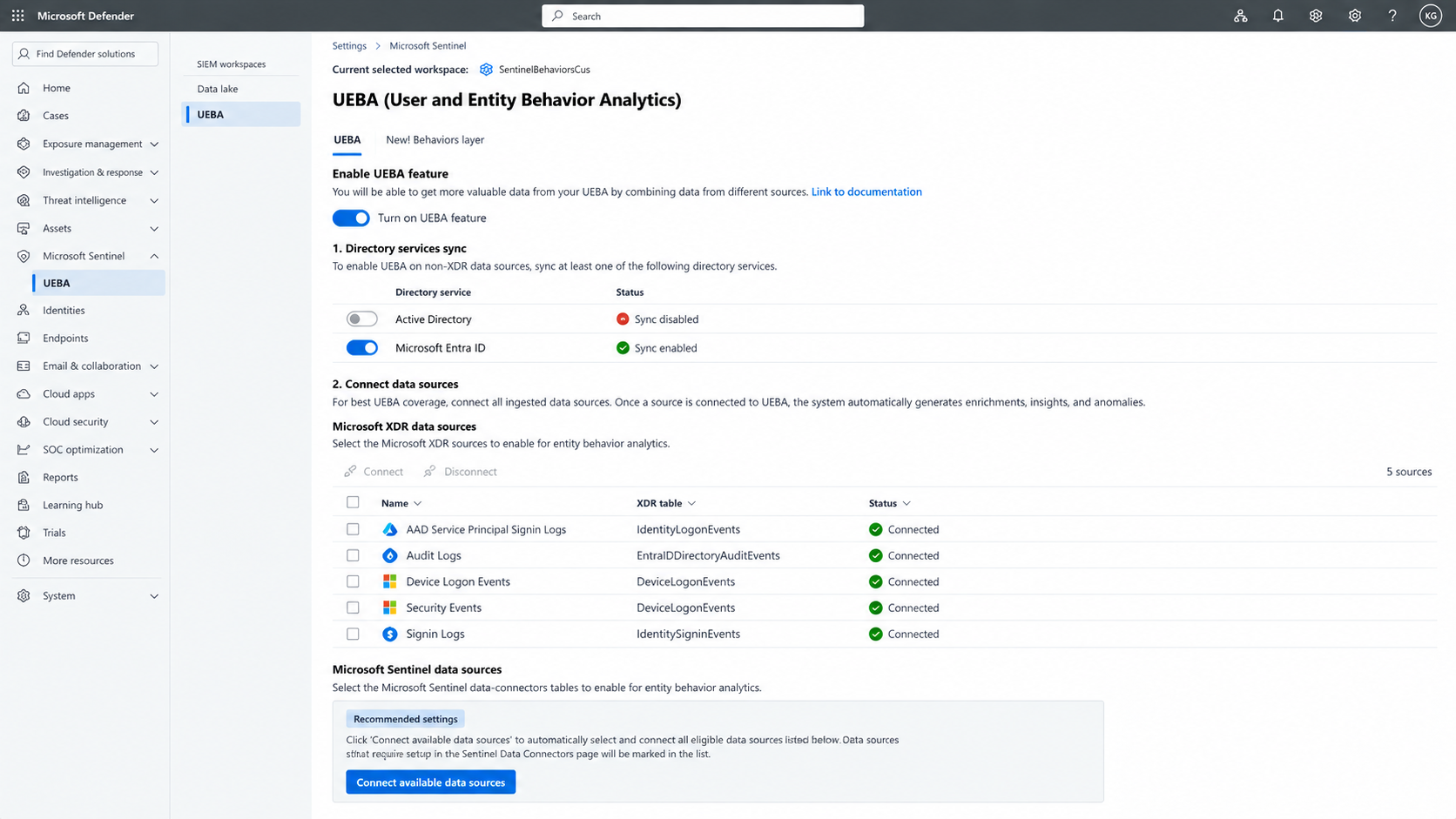
Toggle on Turn on UEBA feature.
Under Directory services sync, turn on at least one of the following directory services:
- Active Directory
- Microsoft Entra ID
Confirm that the selected directory service has a status of Sync enabled.
You must enable at least one directory services sync before you can connect Microsoft Defender XDR or Microsoft Sentinel data sources to UEBA. To connect Microsoft Defender XDR data sources, you must also select your primary workspace.
Connect Microsoft Defender XDR data sources
Tip
To automatically select and connect all currently eligible data sources, select Connect available data sources under Recommended settings. Data sources that require additional setup on the Microsoft Sentinel Data connectors page are marked in the list.
Sign in to the Microsoft Defender portal.
Go to Setup & configuration > Settings.
Select Microsoft Sentinel.
Select UEBA.
Under Directory services sync, confirm that at least one directory service has a status of Sync enabled.
Under Microsoft XDR data sources, select the data sources that you want UEBA to analyze.
To select all available sources, select the checkbox in the table header.
Select Connect.
Confirm that each selected source has a status of Connected.
Note
Microsoft Defender XDR sources are associated with your primary workspace. If another workspace is selected, the Microsoft XDR data sources section is disabled and prompts you to switch to your primary workspace.
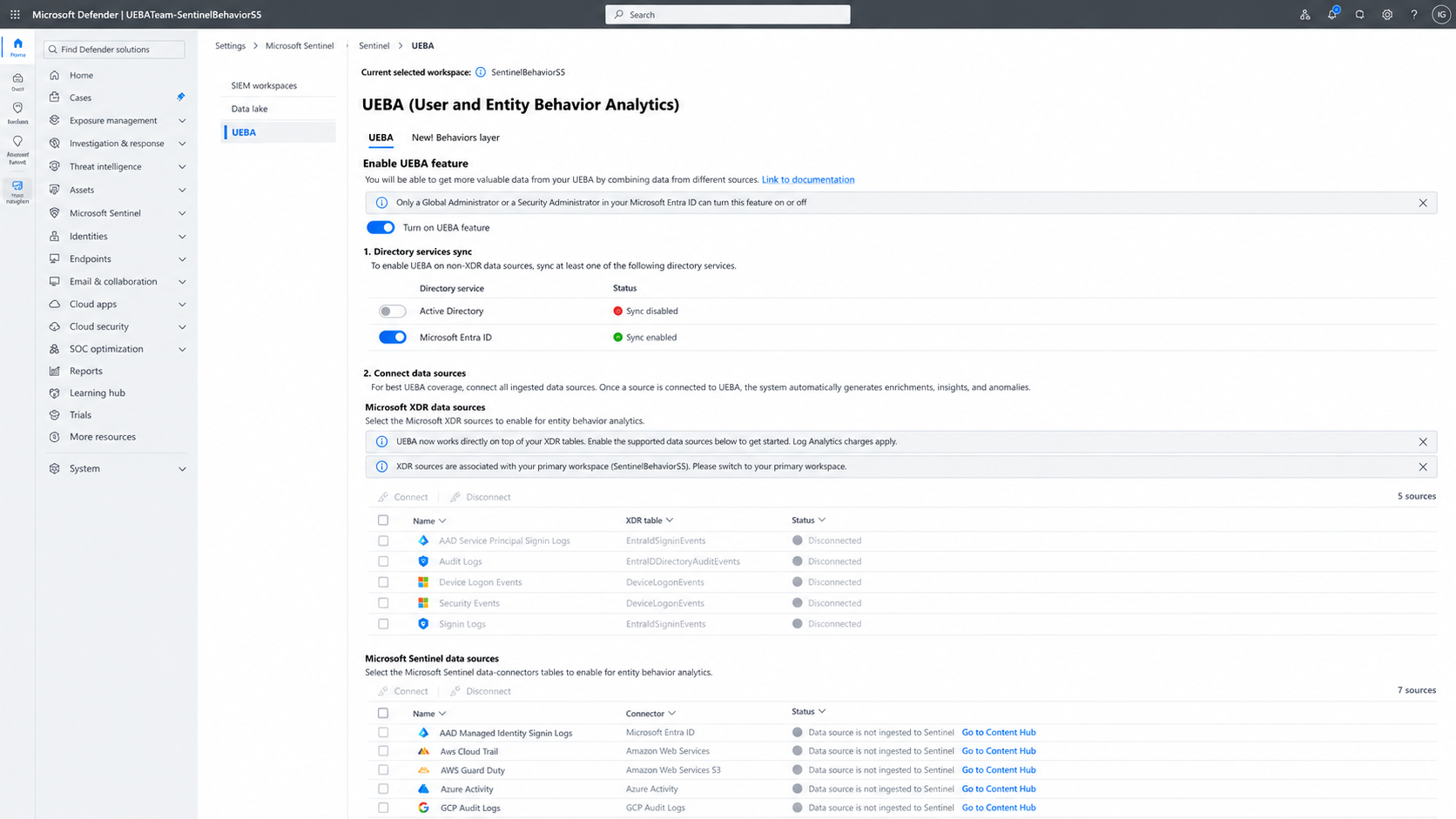
The section is also disabled until you enable at least one directory services sync.
Disconnect Microsoft Defender XDR data sources
Sign in to the Microsoft Defender portal.
Go to Setup & configuration > Settings.
Select Microsoft Sentinel.
Select UEBA.
Under Microsoft XDR data sources, select the connected data sources that you no longer want UEBA to analyze.
Select Disconnect.
Confirm that each selected source has a status of Disconnected.
Connect third-party data sources
You can connect eligible third-party and other non-XDR data that is ingested into an eligible table in a Microsoft Sentinel workspace.
Note
Microsoft Defender XDR sources are made available based on your Microsoft 365 E5 and preview eligibility. You must still select and connect the sources that you want UEBA to analyze.
Third-party and other non-XDR sources become available after eligible data is ingested into the selected Microsoft Sentinel workspace. You must connect these sources separately. The data can be ingested through any supported method; a Microsoft Sentinel data connector isn't required.
Sign in to the Microsoft Defender portal.
Go to Setup & configuration > Settings.
Select Microsoft Sentinel.
Select UEBA.
Under Directory services sync, confirm that at least one directory service has a status of Sync enabled.
Under Microsoft Sentinel data sources, find the source that you want to connect.
If the source isn't available, confirm that data is being ingested into an eligible table in the selected workspace.
Select the source, and then select Connect.
Confirm that the source has a status of Connected.
A source remains unavailable when data isn't being ingested into an eligible table in the selected workspace.
Review UEBA results
After UEBA begins processing data from the connected sources, you can review the resulting insights in the Microsoft Defender portal.
For connected Microsoft Defender XDR sources, UEBA generates anomalies that provide additional context for users and other entities. You can use the following tables for hunting and investigation:
BehaviorAnalyticsAnomalies
For eligible third-party and other non-XDR data sources, behavior records are available in:
BehaviorInfoBehaviorEntities
Use these results to investigate suspicious activity, review entity context, hunt for threats, and create analytics rules.
UEBA outputs are written to the Log Analytics workspace associated with the Microsoft Sentinel workspace where UEBA is enabled. Log Analytics charges apply.
Limitations
The following limitations apply during the preview:
- Microsoft Defender XDR data sources can be connected only from your primary Microsoft Sentinel workspace.
- The Microsoft XDR data sources section is disabled when another workspace is selected.
- At least one directory services sync for Active Directory or Microsoft Entra ID must be enabled.
- Only the supported Microsoft Defender XDR data sources listed in this article can be connected directly through this experience.
- UEBA outputs are written to Log Analytics, and Log Analytics charges apply.
- First-party data that isn't available through a supported Microsoft Defender XDR table must still be ingested into Microsoft Sentinel.
- Third-party and other non-XDR data must be ingested into an eligible table before you can connect it to UEBA.