Note
Access to this page requires authorization. You can try signing in or changing directories.
Access to this page requires authorization. You can try changing directories.
Applies to:
Set up Defender Experts for Servers in the Microsoft Defender portal by onboarding cloud resources, granting permissions, configuring notifications, and preparing your environment.
Review pricing information
Defender Experts for Servers uses pay-as-you-go consumption meter. For more information on pricing, review the Microsoft Defender for Cloud pricing page or contact your Microsoft representative.
Prerequisites
Before you begin, confirm the following:
- Defender for Servers Plan 1 or Plan 2 enabled in Microsoft Defender for Cloud
- Microsoft Entra ID Plan 2
Ensure you have at least a Security Administrator role assigned in the Microsoft Defender portal to onboard your cloud workloads.
Complete the onboarding steps
Complete these steps to onboard your cloud workloads to the Defender Experts service.
Select the cloud resources to onboard
Choose which cloud resource types you want Defender Experts to cover. The Defender Experts service is enabled at the tenant level.
Note
Defender Experts only supports managed cloud security for Microsoft Defender for Servers.
To select your coverage options:
In the Microsoft Defender portal, go to Settings > Defender Experts > Cloud workloads.
Under supported cloud coverage options, select Defender Experts for Servers.
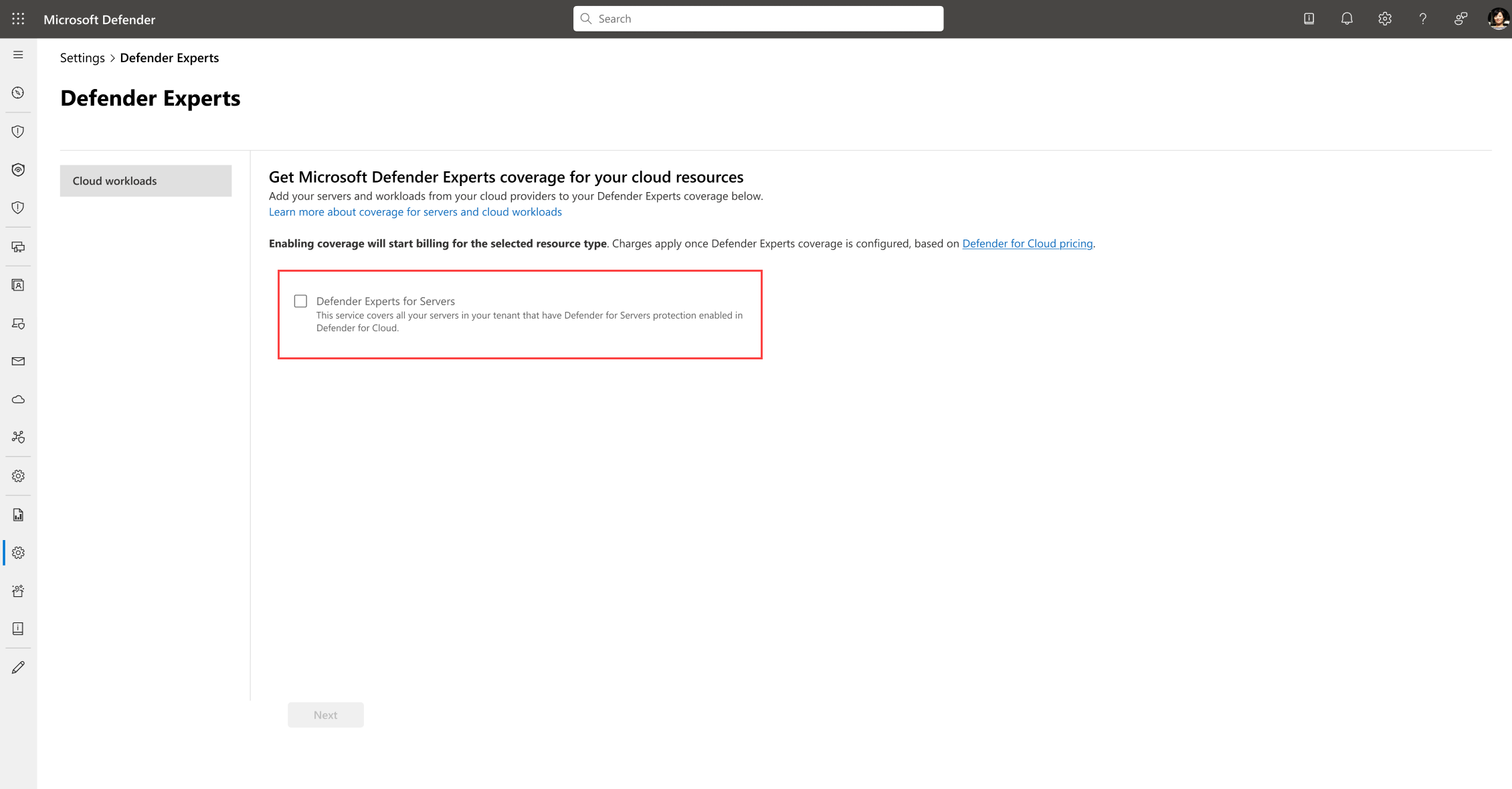
Select Save.
- If you're an existing Defender Experts for XDR customer, no additional action is needed (the provisioning script, permissions, and setup steps don't apply), and server coverage starts immediately.
- If you're a new Defender Experts customer, saving your selection opens the Defender Experts onboarding wizard.
Select Continue to proceed with the onboarding wizard to complete the following steps, or select Cancel to go back.
Run the provisioning script
To start your managed cloud security service, download and run a signed PowerShell script on any managed device by using PowerShell 7 or in Azure Cloud Shell. This script provisions and registers the necessary first-party applications that Defender Experts relies on to securely access and manage your environment.
Note
To perform this onboarding step, ensure you're assigned at least an Application Admin role.
To run the provisioning script:
In the Defender Experts onboarding wizard, under Service set up, download a copy of the signed PowerShell script and run it on a local device by using PowerShell 7 or in Azure Cloud Shell.
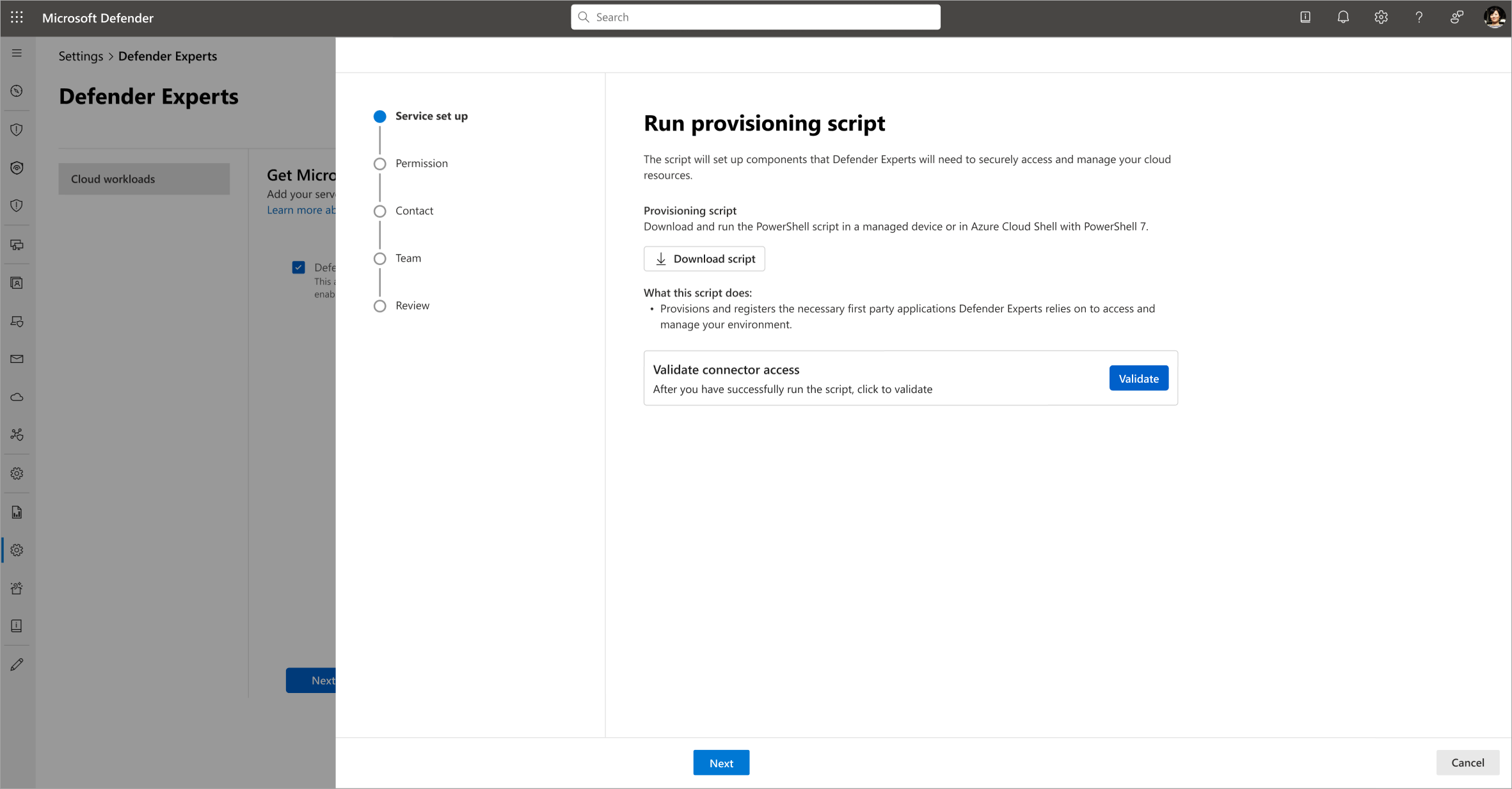
After you run the script, it might take some time to process. Don't close the wizard while the script processes. You can select Validate to check connector access and verify that the required components are provisioned.
Grant permissions to experts
Defender Experts for Servers requires Service provider access that experts use to sign in to your tenant and deliver services based on assigned security roles. For more information, see Cross-tenant access overview.
Grant experts one or both of the following permissions:
- Investigate incidents and guide my responses (default): Experts proactively monitor and investigate incidents and guide you through response actions. (Access level: Security Reader)
- Respond directly to active threats (recommended): Experts contain and remediate active threats immediately while investigating, reducing the threat's impact and improving response efficiency. (Access level: Security Operator)
To grant permissions:
In the onboarding wizard, under Permissions, choose one or more access levels to grant to the experts.
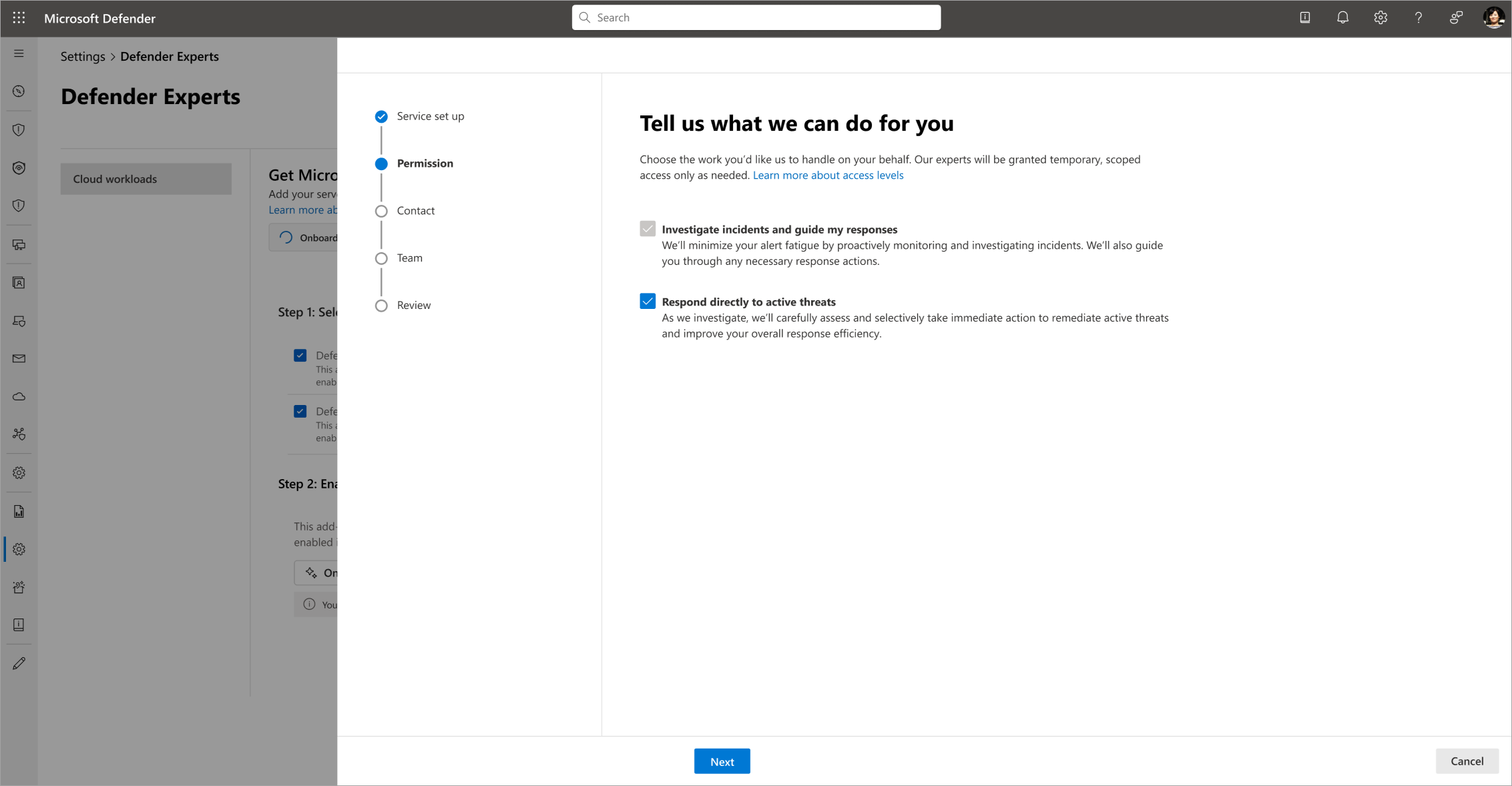
Select Next to continue.
Finish the setup and prepare your environment
To finish the setup:
Continue with the onboarding wizard to set up the following configurations:
Review and submit settings. The onboarding wizard finishes its initial setup.
After you complete the onboarding steps
After you onboard your cloud workloads, take note of the following information:
- Billing: Billing starts when you finish onboarding.
- View your bill in Microsoft Cost Management. For more information, see What is Microsoft Cost Management.
- At the end of your billing cycle, look for Microsoft Defender Experts for Servers costs.
- Endpoint protection: The Microsoft Defender for Endpoint extension is automatically installed on all supported devices connected to Microsoft Defender for Cloud. Ensure that automatic provisioning of the Defender for Endpoint sensor is enabled.
Turn off Defender Experts for Servers service
To disable the service, contact your Service Delivery Expert.
Note
Charges continue until the service is fully turned off within 48 hours.
Related content
- Microsoft Defender Experts for Servers overview
- Managed detection and response
- Communicating with experts in the Microsoft Defender Experts service
- Get real-time visibility with Defender Experts reports
- Understanding Defender Experts coverage for servers and cloud workloads
- How Defender Experts permissions work
Tip
Do you want to learn more? Engage with the Microsoft Security community in our Tech Community: Microsoft Defender XDR Tech Community.