Note
Access to this page requires authorization. You can try signing in or changing directories.
Access to this page requires authorization. You can try changing directories.
Redaction in Microsoft Edge for Business helps reduce on-screen exposure of sensitive information by hiding supported content on protected web pages. Users can continue working with the page and review hidden information when needed.
This can help with tasks where users need the surrounding context without keeping every sensitive value visible.
How redaction works
When redaction applies to a supported page, Microsoft Edge hides detected sensitive content in the displayed page. The experience identifies that content is hidden and provides controls to review it.
Redaction changes what is displayed. It does not remove the information from the source application or change who is authorized to access that application.
Important
Visual redaction does not sanitize the original document, clipboard, printed output, or downloaded file. Configure the relevant data protection policies for those actions separately.
Before you begin
To use redaction, your organization must meet the following prerequisites:
- Microsoft Edge version 158 or later.
- Microsoft 365 E5 (preferred) or E3 licensing.
- Admin access to the Microsoft Edge management service portal.
- Targeted Release enabled for your tenant.
Redaction uses a supported data protection configuration to identify protected pages.
Steps to turn on redaction
Scope the configuration policy to users
Scope the configuration policy to user identity, not to the device. In the Microsoft Edge management service, create a configuration policy and assign it to the intended users. For instructions, see Get started with configuration policies. If you already have a user-scoped configuration policy for these users, open it.
Enable redaction
- In the policy, go to Customization settings > Security settings.
- Enable the redaction setting and save your changes.
After the policy applies, open a supported protected page and confirm that sensitive content is hidden as expected.
What users experience
Hidden content on the page
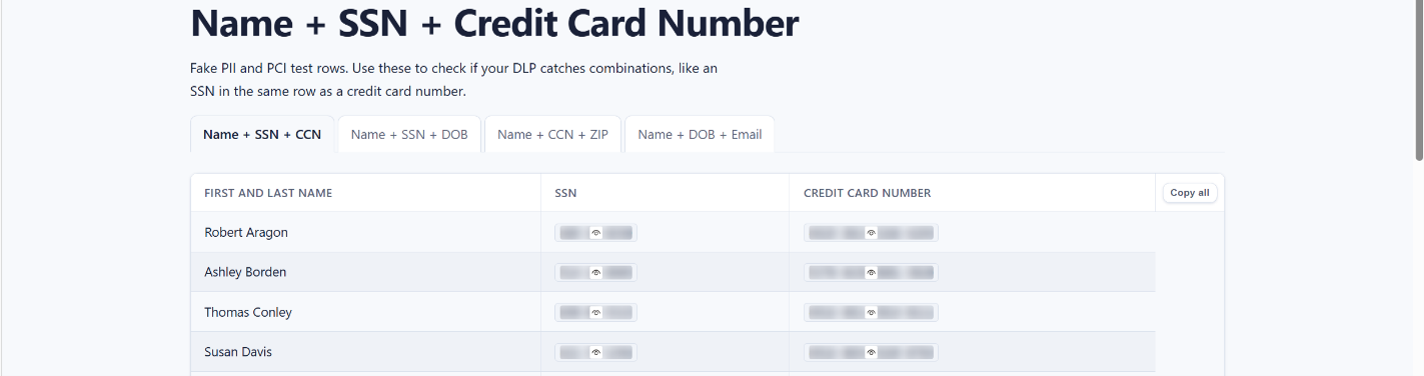
On a supported protected page, sensitive portions of the displayed content are visually masked. Users can continue reading the surrounding content and working with the page. Masking does not remove the underlying information or change their access permissions.
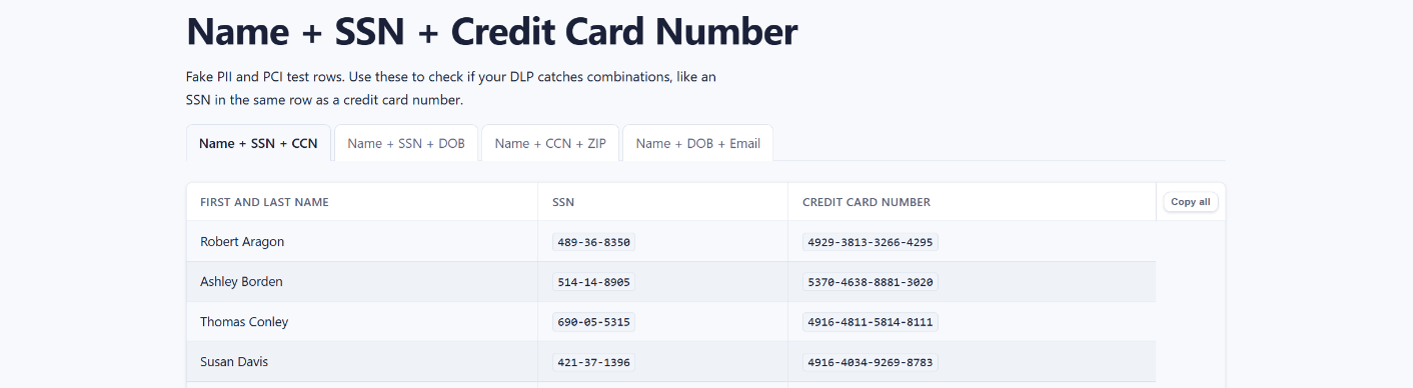
Without Redaction
With Redaction
Redaction banner and review controls
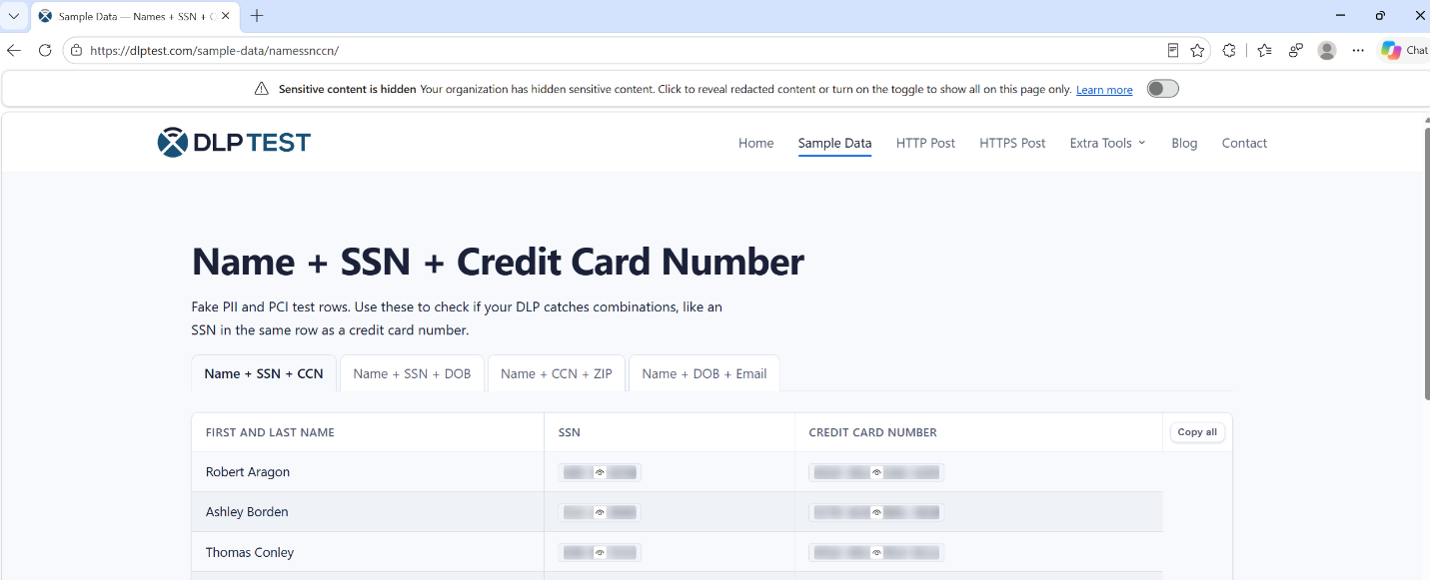
A redaction banner at the top of the page indicates that content is hidden and provides access to the review controls. Users can review hidden items without turning off redaction for the entire page.
Review hidden content
- In the redaction banner, select Review hidden content.
- Move between items using Previous and Next.
- Select Reveal Current when you need to view an item.
- Select Exit Review when you're finished.
Revealed content is temporarily visible and is hidden again. Avoid revealing information while other people can see your screen.
Keyboard users can move focus to the banner with F6, activate the review control with Enter, and move through the review controls with Tab.
Note
The ability to reveal content supports authorized work. Redaction is not intended to permanently deny an authorized user access to the underlying information.
Use redaction with other protection controls
Redaction does not independently block copying, printing, screen capture or Developer Tools. Those actions remain subject to the applicable data protection and browser policies.
For example, hiding a value on screen should not be used as evidence that the same value is safe to copy into another application.
Limitations and considerations
- Redaction applies to supported displayed content. It does not provide general input-field or text-box redaction.
- Detection is not a guarantee that every sensitive value is hidden.
- Dynamic pages can change the content being displayed and the review experience. Test representative applications, including pages that refresh or add content without a full navigation.
- Use access controls and other data protection policies alongside redaction. Visual masking alone is not a complete data loss prevention solution.