Note
Access to this page requires authorization. You can try signing in or changing directories.
Access to this page requires authorization. You can try changing directories.
In this quickstart, you learn how to deploy your project to Azure with GitHub Copilot modernization for .NET. This tool lets you deploy migrated projects to Azure and automatically fixes deployment errors during the process.
Prerequisites
Windows Operating System.
Visual Studio 2026 (or Visual Studio 2022 version 17.14.17 and newer).
.NET desktop development workload with the following optional components enabled:
- GitHub Copilot
- GitHub Copilot modernization agent
GitHub Copilot Subscription (paid or free).
Signed in to Visual Studio using a GitHub account with Copilot access.
Important
If you change subscriptions, you must restart Visual Studio.
Code must be written in C#.
Note
These prerequisites apply to Visual Studio. For other development environments, see Install GitHub Copilot modernization.
Deploy your project
The Modernization for .NET deployment feature helps you deploy your migrated app to Azure. Follow these steps to start the deployment process:
In Visual Studio, open your migrated project.
Start the deployment with one of the following approaches:
Deploy after migration: Deploy your project after completing your migration task. GitHub Copilot asks if you'd like to deploy your project to Azure upon completing a migration task. Instructing Copilot to continue starts the deployment process.

Use a deployment prompt to provision new Azure infrastructure and deploy your project: You can enter the following prompt in Copilot chat to deploy your project to Azure:
Scan my project carefully to identify all Azure-relevant resources, programming languages, frameworks, dependencies, and configuration files needed for deployment. Develop an architecture diagram for me using #appmod-generate-architecture-diagram. Based on that diagram along with all info you get from project scan, help me develop a deploy-and-provision plan WITH TOOL #appmod-get-plan and execute it to deploy my project to Azure. deployTool: azd, IacType: Bicep, hosting service: non-aks.

Use a deployment prompt to deploy your project to existing Azure resources: You can enter the following prompt in Copilot chat to deploy your project to existing Azure resources:
Deploy my project to my existing Azure resource group [resource group ID] in subscription [subscription ID]. Use the #appmod-get-plan tool to develop and execute a plan.
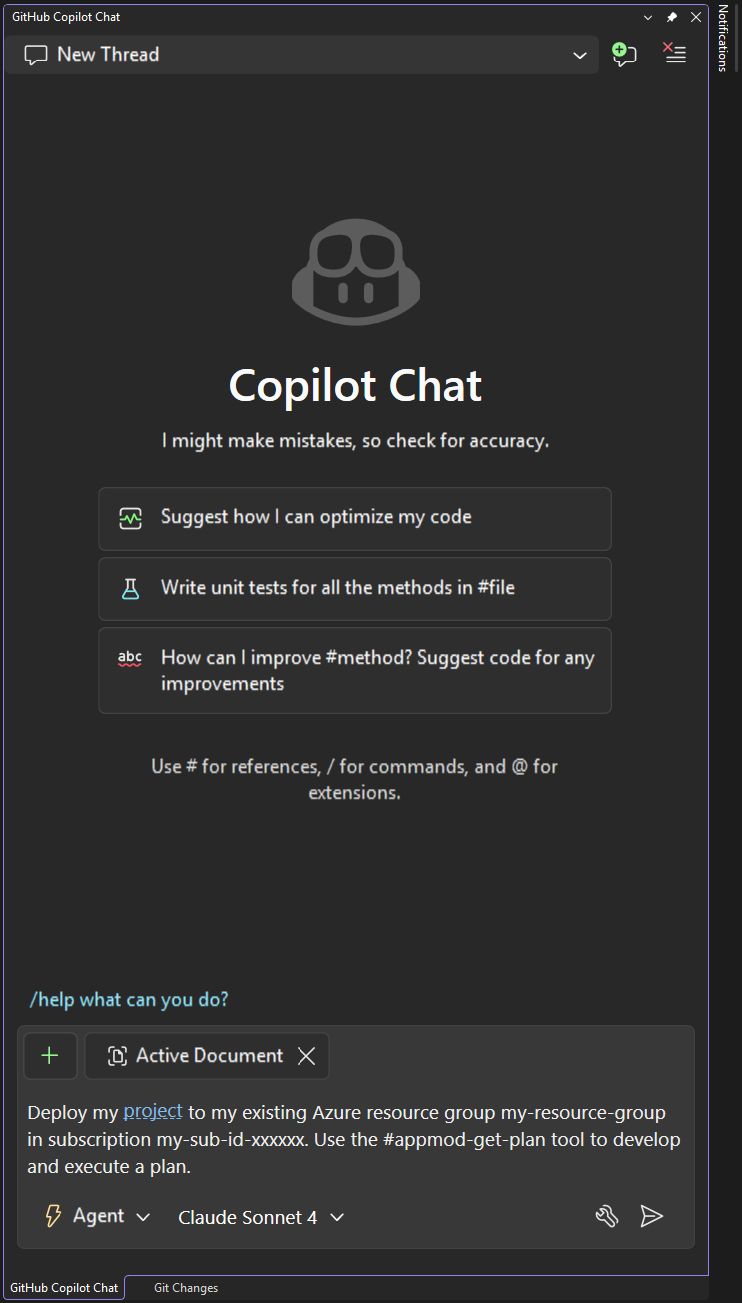
After you start the deployment, GitHub Copilot might ask for your approval to use tools or run commands. Grant permission when prompted.
GitHub Copilot creates a plan. The plan explains the deployment strategy, including deployment goals, project information, Azure resource architecture, Azure resources, and execution steps.
You can edit the plan directly or ask GitHub Copilot to edit it to customize your deployment before you proceed.
When you're satisfied with the plan, instruct GitHub Copilot to continue.
GitHub Copilot follows the plan and runs the deployment process.
When deployment finishes, GitHub Copilot provides a summary of the deployment process.
Notes
- Use Claude Sonnet 4 or later models for the best results.
- Copilot can need a few iterations to fix deployment errors.
Collaborate with us on GitHub
The source for this content can be found on GitHub, where you can also create and review issues and pull requests. For more information, see our contributor guide.
