Note
Access to this page requires authorization. You can try signing in or changing directories.
Access to this page requires authorization. You can try changing directories.
During local development, applications need to authenticate to Azure to use different Azure services. Authenticate locally using one of these approaches:
- Use a developer account with one of the developer tools supported by the Azure Identity library.
- Use a broker to manage credentials.
- Use a service principal.
This article explains how to authenticate using a developer account with tools supported by the Azure Identity library. In the sections ahead, you learn:
- How to use Microsoft Entra groups to efficiently manage permissions for multiple developer accounts.
- How to assign roles to developer accounts to scope permissions.
- How to sign-in to supported local development tools.
- How to authenticate using a developer account from your app code.
Supported developer tools for authentication
For an app to authenticate to Azure during local development using the developer's Azure credentials, the developer must be signed-in to Azure from one of the following developer tools:
- Azure CLI
- Azure Developer CLI
- Azure PowerShell
- Visual Studio
- Visual Studio Code
The Azure Identity library can detect that the developer is signed-in from one of these tools. The library can then obtain the Microsoft Entra access token via the tool to authenticate the app to Azure as the signed-in user.
This approach takes advantage of the developer's existing Azure accounts to streamline the authentication process. However, a developer's account likely has more permissions than required by the app, therefore exceeding the permissions the app runs with in production. As an alternative, you can create application service principals to use during local development, which can be scoped to have only the access needed by the app.
Create a Microsoft Entra group for local development
Create a Microsoft Entra group to encapsulate the roles (permissions) the app needs in local development rather than assigning the roles to individual service principal objects. This approach offers the following advantages:
- Every developer has the same roles assigned at the group level.
- If a new role is needed for the app, it only needs to be added to the group for the app.
- If a new developer joins the team, a new application service principal is created for the developer and added to the group, ensuring the developer has the right permissions to work on the app.
Navigate to the Microsoft Entra ID overview page in the Azure portal.
Select All groups from the left-hand menu.
On the Groups page, select New group.
On the New group page, fill out the following form fields:
- Group type: Select Security.
- Group name: Enter a name for the group that includes a reference to the app or environment name.
- Group description: Enter a description that explains the purpose of the group.
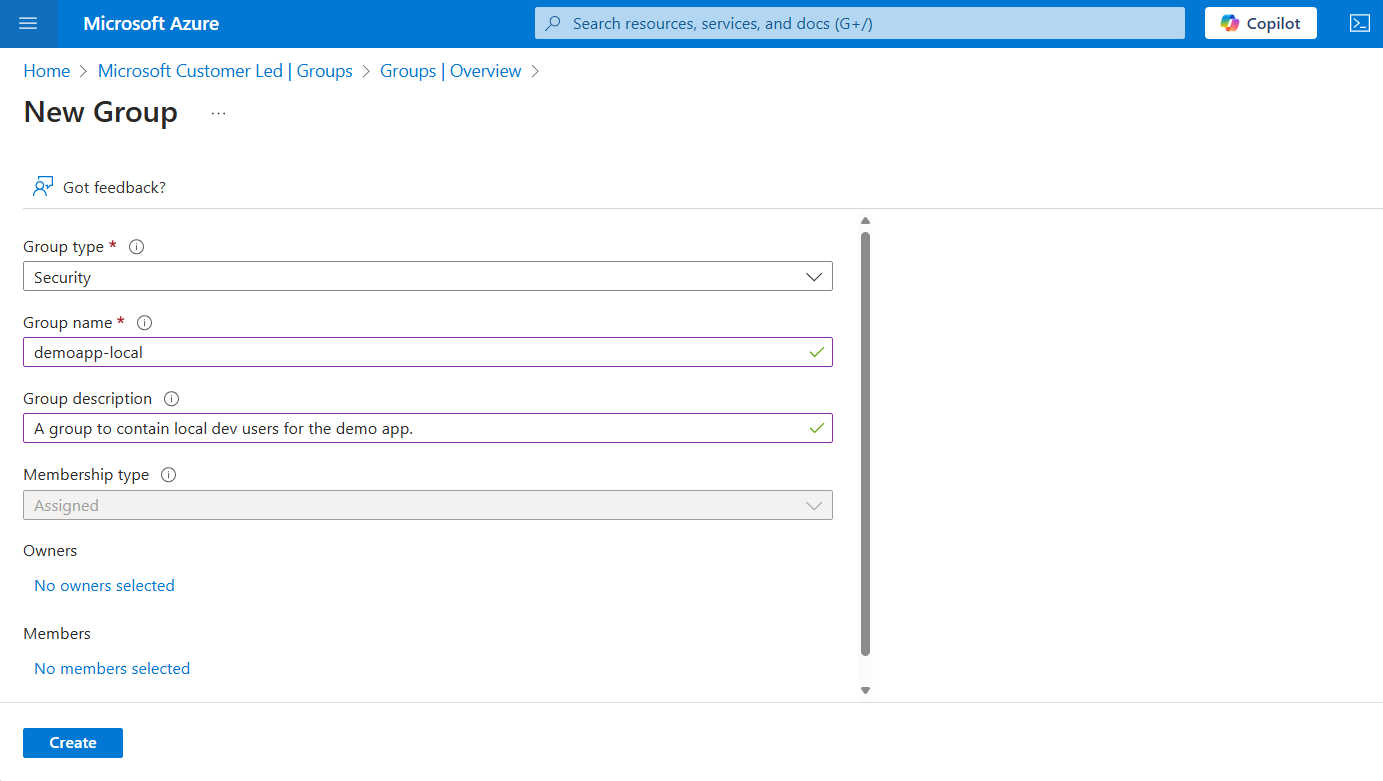
Select the No members selected link under Members to add members to the group.
In the flyout panel that opens, search for the service principal you created earlier and select it from the filtered results. Choose the Select button at the bottom of the panel to confirm your selection.
Select Create at the bottom of the New group page to create the group and return to the All groups page. If you don't see the new group listed, wait a moment and refresh the page.
Assign roles to the group
Next, determine what roles (permissions) your app needs on what resources and assign those roles to the Microsoft Entra group you created. Groups can be assigned a role at the resource, resource group, or subscription scope. This example shows how to assign roles at the resource group scope, since most apps group all their Azure resources into a single resource group.
In the Azure portal, navigate to the Overview page of the resource group that contains your app.
Select Access control (IAM) from the left navigation.
On the Access control (IAM) page, select + Add and then choose Add role assignment from the drop-down menu. The Add role assignment page provides several tabs to configure and assign roles.
On the Role tab, use the search box to locate the role you want to assign. Select the role, and then choose Next.
On the Members tab:
- For the Assign access to value, select User, group, or service principal .
- For the Members value, choose + Select members to open the Select members flyout panel.
- Search for the Microsoft Entra group you created earlier and select it from the filtered results. Choose Select to select the group and close the flyout panel.
- Select Review + assign at the bottom of the Members tab.
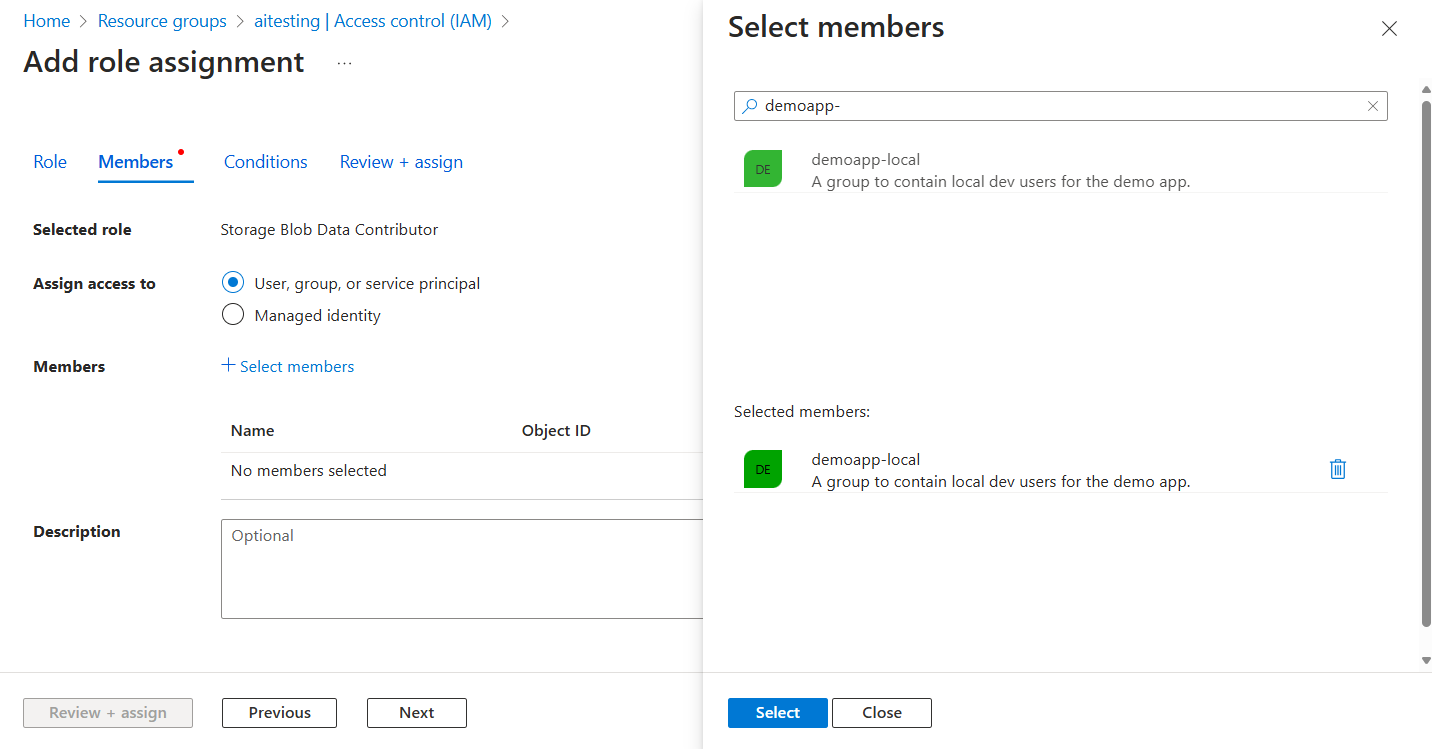
On the Review + assign tab, select Review + assign at the bottom of the page.
Sign-in to Azure using developer tooling
Next, sign-in to Azure using one of several developer tools that can be used to perform authentication in your development environment. The account you authenticate should also exist in the Microsoft Entra group you created and configured earlier.
Developers using Visual Studio 2017 or later can authenticate using their developer account through the IDE. Apps using DefaultAzureCredential or VisualStudioCredential can discover and use this account to authenticate app requests when running locally. This account is also used when you publish apps directly from Visual Studio to Azure.
Important
You'll need to install the Azure development workload to enable Visual Studio tooling for Azure authentication, development, and deployment.
Inside Visual Studio, navigate to Tools > Options to open the options dialog.
In the Search Options box at the top, type Azure to filter the available options.
Under Azure Service Authentication, choose Account Selection.
Select the drop-down menu under Choose an account and choose to add a Microsoft account.
In the window that opens, enter the credentials for your desired Azure account, and then confirm your inputs.
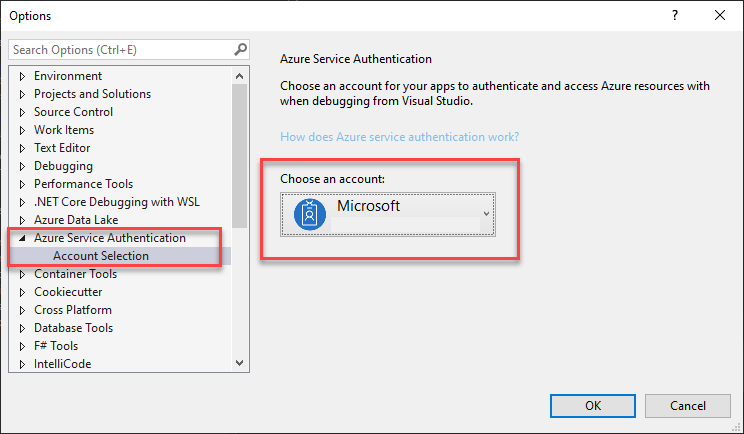
Select OK to close the options dialog.
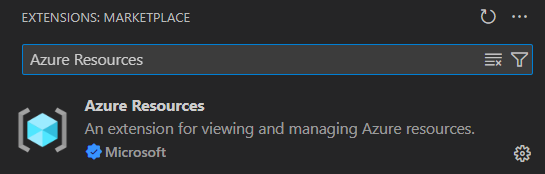

Authenticate to Azure services from your app
The Azure Identity library provides implementations of TokenCredential that support various scenarios and Microsoft Entra authentication flows. The steps ahead demonstrate how to use DefaultAzureCredential or a specific development tool credential when working with user accounts locally.
Implement the code
Complete the following steps:
Add references to the Azure.Identity and the Microsoft.Extensions.Azure packages in your project:
dotnet package add Azure.Identity
dotnet package add Microsoft.Extensions.Azure
Note
When using
VisualStudioCodeCredential, you must also install the Azure.Identity.Broker package:dotnet package add Azure.Identity.BrokerIn
Program.cs, addusingdirectives for theAzure.IdentityandMicrosoft.Extensions.Azurenamespaces.Register the Azure service client using the corresponding
Add-prefixed extension method.Azure services are accessed using specialized client classes from the Azure SDK client libraries. Register these client types so you can access them through dependency injection across your app.
Pass a
TokenCredentialinstance to theUseCredentialmethod. CommonTokenCredentialexamples include:A
DefaultAzureCredentialinstance optimized for local development. This example sets environment variableAZURE_TOKEN_CREDENTIALStodev. For more information, see Exclude a credential type category.builder.Services.AddAzureClients(clientBuilder => { clientBuilder.AddBlobServiceClient( new Uri("https://<account-name>.blob.core.windows.net")); DefaultAzureCredential credential = new( DefaultAzureCredential.DefaultEnvironmentVariableName); clientBuilder.UseCredential(credential); });An instance of a credential corresponding to a specific development tool, such as
VisualStudioCredential.builder.Services.AddAzureClients(clientBuilder => { clientBuilder.AddBlobServiceClient( new Uri("https://<account-name>.blob.core.windows.net")); VisualStudioCredential credential = new(); clientBuilder.UseCredential(credential); });
Tip
When your team uses multiple development tools to authenticate with Azure, prefer a local development-optimized instance of
DefaultAzureCredentialover tool-specific credentials.
Collaborate with us on GitHub
The source for this content can be found on GitHub, where you can also create and review issues and pull requests. For more information, see our contributor guide.
