Note
Access to this page requires authorization. You can try signing in or changing directories.
Access to this page requires authorization. You can try changing directories.
When you attempt to run a .NET Framework application, you may receive the "This application could not be started" error message. When the cause of this error is that an application can't find .NET Framework, due to .NET Framework being corrupted, use this article to try to solve that problem.
If you still can't run the application after completing all the steps in this article, then the issue might be caused by a corrupted file system, missing dependencies, or a problem with the application. In that case, you can try contacting the app publisher or post a question to Microsoft Q&A for more help.
Understand the problem
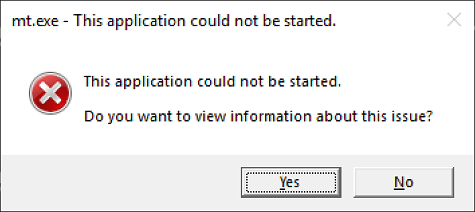
This error means that a specific application can't be started. The name of the program is the first part of the title bar before the message "This application could not be started," as highlighted in the following figure:

In the previous figure, the name of the executable that caused this error is mt.exe. Try searching the internet for more information about the executable causing your problem.
How to fix the error
To address this issue so that you can run your application, do the following:
Download the .NET Framework Repair Tool (NetFxRepairTool.exe). The tool runs automatically when the download completes.
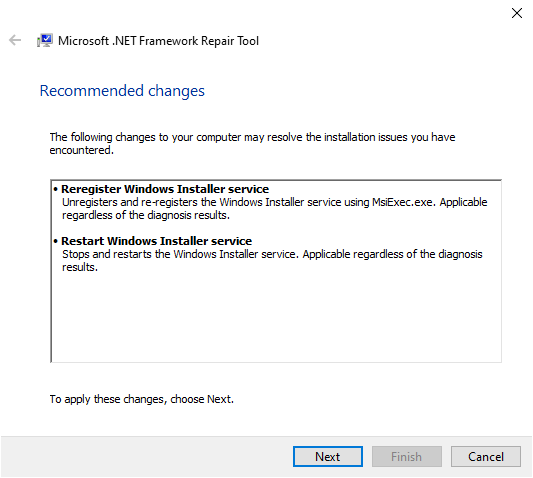
If the .NET Framework Repair Tool recommends any other action, such as those shown in the following figure, select Next.
The .NET Framework Repair Tools displays a dialog box shown in the following figure to indicate that changes are complete. Leave the dialog box open while you to try rerun your application. This succeeds if the .NET Framework Repair Tool corrected a corrupted .NET Framework installation.
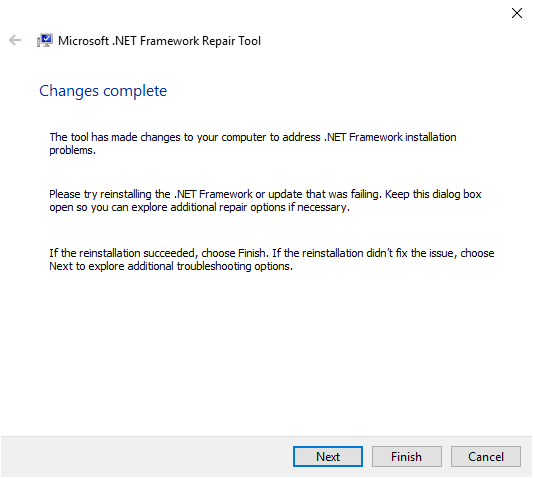
If your application runs successfully, select the Finish button. Otherwise, select the Next button.
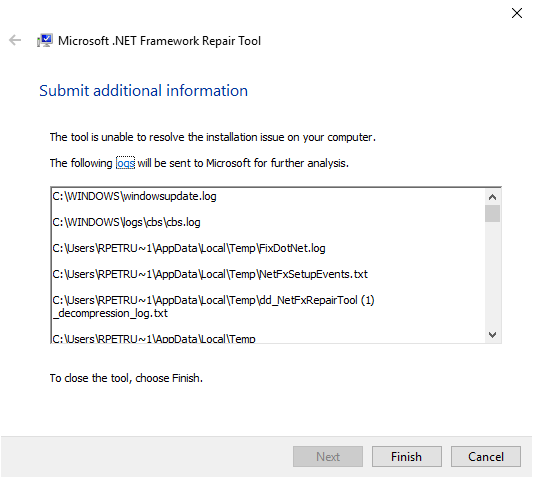
If you selected the Next button, the .NET Framework Repair Tool displays a dialog box like the following. Select the Finish button to send diagnostic information to Microsoft.
If you still can't run the application, install the latest version of .NET Framework that's supported by your version of Windows. For more information, see Install .NET Framework on Windows and Windows Server.
Attempt to launch the application.
See also
Collaborate with us on GitHub
The source for this content can be found on GitHub, where you can also create and review issues and pull requests. For more information, see our contributor guide.
