Note
Access to this page requires authorization. You can try signing in or changing directories.
Access to this page requires authorization. You can try changing directories.
[This article is prerelease documentation and is subject to change.]
Create custom insights when your organization needs to identify a condition, risk, or opportunity that default insights don't cover. Describe what you want to know, and Copilot creates an insight definition from the tables and business instructions configured for insights.
Custom insights are supported for Account and Contact tables. They can use related data such as opportunities, cases, emails, phone calls, appointments, and configured custom tables.
Important
- This is a preview feature.
- Preview features aren’t meant for production use and might have restricted functionality. These features are subject to supplemental terms of use, and are available before an official release so that customers can get early access and provide feedback.
Prerequisites
- You have the Contact and Account Insights Admin security role to turn on, create, and edit insights. This role isn't assigned automatically.
- Complete the insights setup.
- Ensure that Work IQ is enabled and Copilot credits are available.
- Add the tables required by the insight to Your business data.
- Add any organization-specific definitions or processes to How your business works.
Open the insights library
- Open the insights setup
- Select Manage insights.
The insights library includes:
- All insights: Microsoft and custom insights.
- Default: Insights provided by Microsoft.
- Custom insights: Insights created by your organization.
- Filters: Filters insight cards based on type or status.
Each card shows the insight name, description, preview, and whether it is enabled.
Create an insight
- In the insights library, select New insight.
- On the Describe the insight you need page, select Account or Contact.
- Describe what you want to know about each record. For example,
- Show open opportunities for this account when the estimated close date has passed.
- Show open cases for this account that have been waiting for more than 14 days.
- Show incoming emails from this contact that requested a reply but didn't receive one in seven days.
- Select Generate insight.
Copilot creates the definition by using the configured tables and business instructions.
Avoid asking an insight to rank records across the organization, predict an outcome, use external data, or perform an action.
Review and refine the insight
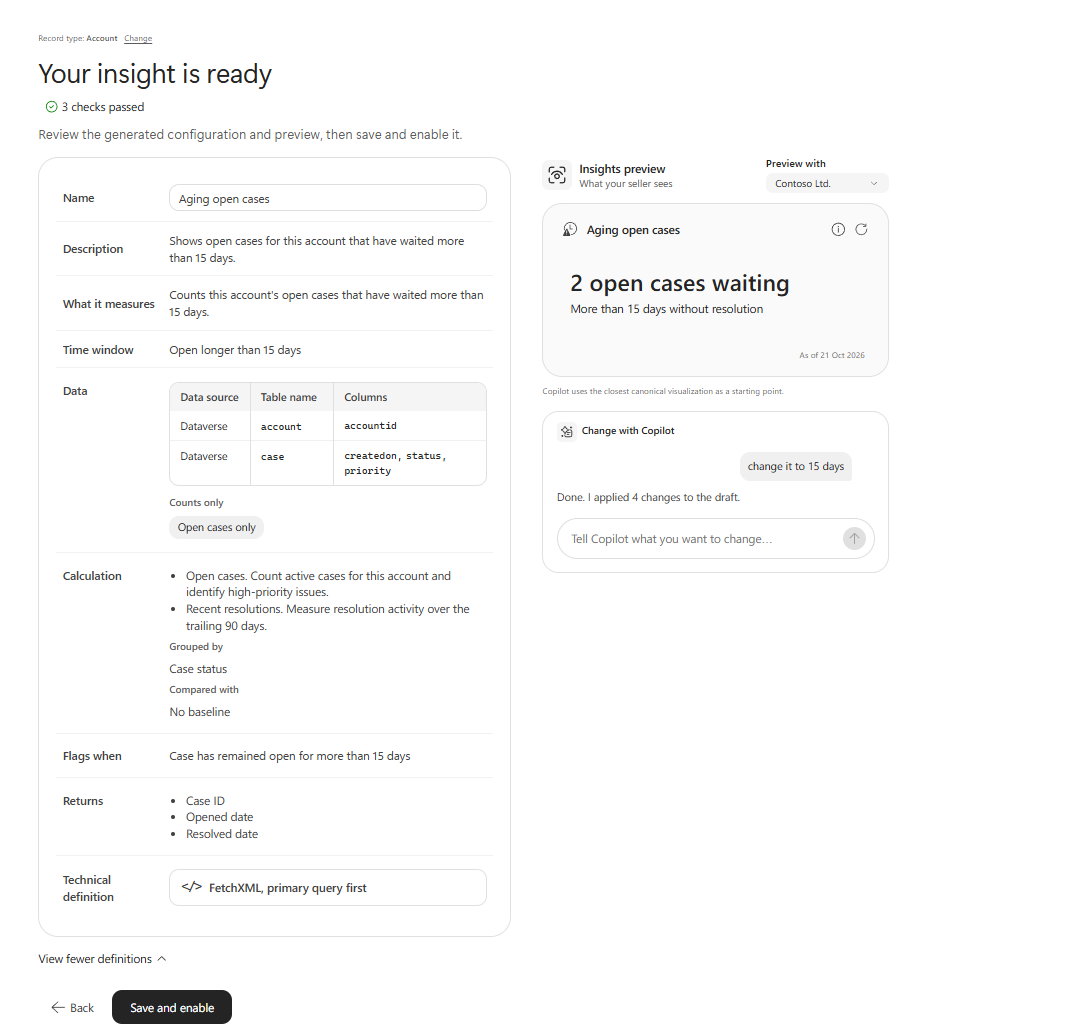
Verify the generated insight definition and preview before you publish it.
- Review the description, what it measures, time window, tables, and columns.
- Expand additional definitions to review the calculation, flag condition, return values, and technical definition.
- Under Insights preview, select an account or contact that you have permission to access, from the Preview with drop-down menu.
- Confirm that the preview result matches your intended business question.
- To change the insight definition, enter a request in Change it with Copilot. For example:
- Look at the last 90 days instead.
- Include only high-priority cases.
- Exclude inactive contacts.
Copilot updates both the definition and preview. You can't edit the generated definition directly.
Add a missing table
If the insight needs data that isn't included in Your business data, Copilot can offer Add the table for every insight.
Before adding the table:
- Confirm that it is the correct standard or custom table.
- Verify that it has a usable relationship to the account or contact.
- Review its table and column descriptions.
- Consider Dataverse search and storage impact.
Adding the table changes the organization-wide context and can make it available to other custom insights.
Publish the insight
- After reviewing the insight, select Continue.
- Enter the name that sellers see.
- To make the insight available immediately, leave Turn on for sellers set to On.
- Select Publish and turn on. If Turn on for sellers is set to Off, select Publish.
Set Turn on for sellers to Off if you want to publish the insight in a disabled state.
Important
The creation flow doesn't save a draft. If you cancel, leave the page, or are inactive for an hour, the unpublished insight is discarded.
Turn an insight on or off
In the insights library, use the switch on an insight card to turn it on or off.
The setting applies across the organization:
- An enabled account insight can appear on supported account canvases.
- An enabled contact insight can appear on supported contact canvases.
- A disabled insight stays in the library but doesn't appear to end users.
To turn all insights on or off, use Disable all or Enable all on the Manage insights page.
View an insight definition
- On an insight card, select View.
- Review its description, measurement, window, tables, columns, calculation, flags, and return values.
- Select another accessible account or contact to preview the insight with different data.
- Select Close when you're finished.
You can view but not change an insight provided by Microsoft.
Change a custom insight
- On a custom insight card, select View.
- Enter the requested change in Change it with Copilot.
- Review the updated definition and preview.
- Publish the change.
Recheck the preview when you change a time window, table, filter, calculation, or business instruction.
Custom insight limitations
- Custom insights currently support account and contact tables.
- Custom insights don't include the actions available on some Microsoft insights.
- An insight uses only tables available through the configured business data and table relationships.
- It can't use forecasts, web data, or another external source.
- Creating or regenerating an insight uses Copilot credits.