Note
Access to this page requires authorization. You can try signing in or changing directories.
Access to this page requires authorization. You can try changing directories.
Important
Some or all of the functionality noted in this article is available as part of a preview release. The content and the functionality are subject to change.
The Model Context Protocol (MCP) is an open standard that connects AI agents to data systems and business logic. The Dynamics 365 Commerce MCP server brings that standard to Dynamics 365 Commerce's headless commerce engine. It powers your in-store, e-commerce, call center, and mobile channels as a first-class set of tools that any compatible AI agent can directly call.
By using Commerce MCP, the same APIs that drive your storefront also drive an emerging new channel called agentic commerce. Shoppers can discover products, build carts, apply discounts, check inventory at nearby stores, complete checkout, and track orders by interacting with an AI agent. Retailers don't have to rebuild their commerce stack to make it happen.
Supported shopper workflows
The Commerce MCP server supports a wide range of shopper workflows that cover the entire customer journey, from discovery to post-purchase.
- Discover products with inventory availability.
- Check out with personalized promotions, discounts, and coupons.
- Shop as anonymous or authenticated users and registered shoppers.
- Buy online through an agent, and pick up in store or get items shipped to your preferred location.
- View order activity across all channels.
Why Commerce MCP matters
Generative AI is changing how shoppers find and buy products. Shoppers move from typing keywords into a search bar to describing intent in natural language to an agent, such as "Find me a waterproof hiking jacket under $150 that I can pick up tomorrow near Bellevue." For that experience to actually convert, the agent needs more than product copy. It needs real-time inventory, the customer's saved addresses, the same promotion engine that the website uses, and a payment path the retailer trusts.
Commerce MCP addresses this need by exposing your existing Dynamics 365 Commerce headless engine through a standardized protocol:
- No replatforming: The MCP server runs on the same Commerce Scale Unit (CSU) that powers your other channels. Pricing, inventory, promotions, tax, payments, and order management stay in one place.
- Omnichannel consistency: A discount that autoapplies on the website also autoapplies in the agent. An address saved during a call-center order shows up when a shopper checks out through an agent. An order placed through an agent shows up in the website's order history and the store associate's POS.
- Agent-platform neutrality: Build once and connect any compliant client such as Microsoft Copilot Studio, ChatGPT, Azure AI Foundry, or your own agent host.
- Microsoft-quality evaluations: Every tool is gated by automated evaluations covering accuracy, schema, end-to-end agent flow, and error handling.
Business value for retailers in the era of agentic commerce
| Outcome | How Commerce MCP delivers it |
|---|---|
| Reach new agentic surfaces without rebuilding | Connect any MCP-compliant agent to the Commerce engine you already operate. |
| Protect margin and pricing integrity | The same promotion, discount, and tax engines run in the agent channel as on the website. No drift, no shadow logic. |
| Convert intent into orders | Real-time inventory, nearby-location availability, saved addresses, and pay-by-link checkout reduce friction at the moment of decision. |
| Recognize the shopper everywhere | Authenticated C2 (consumer) shoppers see their order history, addresses, and status across every channel - agent, web, store, call center. |
| Stay compliant and auditable | Microsoft Entra ID-based authentication, scoped permissions, and Microsoft-quality evaluation gates make the agent channel highly auditable. |
| Move fast, then scale | Self-service enablement on a single CSU lets retailers pilot, and then expand. |
Tools
The Commerce MCP server provides tools that directly map to the headless Commerce engine. Every tool returns the same data shape that the website and store experiences receive. So, the behavior is consistent across channels.
Catalog and discovery
| Tool | Description |
|---|---|
search_products |
Search products by keywords with optional refinement filters. It returns products (RecordId, ItemId, Name, Price) and available refiners. Use RecordId as Product ID for add_product_to_cart or get_product_by_id. |
get_product_by_id |
Get complete product details by RecordId or ItemId. |
Cart and checkout
| Tool | Description |
|---|---|
create_cart |
Create an empty cart. Returns the cart ID for subsequent operations. |
add_product_to_cart |
Add a product to cart. If the product already exists in the cart, use update_cart_line instead. If the operation fails, it might be because you're attempting to add a master product - Use get_product_by_id to get the variants and ask the user to select the variant options. |
update_cart_line |
Update product quantity in the cart to add or remove items. |
get_cart |
Get complete cart details with items, prices, discounts, and taxes. |
update_cart_address |
Set customer info and shipping address. You can set or replace the shipping address on an existing cart. This value is only needed when the cart has at least one ship-to line. You can skip it for pickup-only carts (every line configured for in-store pickup), which require no shipping address. It returns the cart with recalculated totals and taxes. |
get_cart_delivery_options |
Provides delivery options including in-store or curbside pickups and different shipping options available, based on delivery methods configured for channel and items in cart. The response includes shipping options with charges for the ship-to lines in a cart. An all-pickup cart needs no address and returns the channel's carrier options instead. |
get_store_pickup_slots |
List available pickup time slots for a store and pickup delivery mode. If slots are empty, the store has no timeslot management — Inform the customer and proceed to set_cart_line_fulfillment without slot parameters. |
set_cart_line_fulfillment |
Set how a cart is fulfilled. Provide exactly one of the shipping method for lines that are required to be shipped or store pick up details for in-store or curb side pickup. |
create_payment_link |
Create a payment link to complete the checkout. |
Discounts and coupons
Promotions configured in Commerce headquarters apply automatically through the agent channel. There's no separate promotion engine. Quantity threshold (including customer-specific), mix and match, payment method, and shipping method discounts autoapply during the cart and checkout flows.
| Tool | Description |
|---|---|
add_coupons_to_cart |
Add coupon codes to a cart. Code addition is cumulative and each call appends to existing coupons. Exclusive coupons can't coexist with other coupons. The tool returns the updated cart with recalculated totals and discounts. |
remove_coupons_from_cart |
Remove coupon codes from a cart. It returns the updated cart with recalculated totals and discounts. |
Order activity
| Tool | Description |
|---|---|
get_order_details |
Get complete details for a specific order for any order identifier supported by Dynamics 365 Commerce. It returns the full order information. For anonymous customers looking up by confirmation number, provide the email used for the order. |
search_orders |
Search customer order history using customer information or date range, or list a signed-in shopper's orders across all channels (web, store, call center, agent). It returns order summaries with status, totals, and item count. To look up a specific order by ID, use get_order_details instead. |
Inventory and locations
| Tool | Description |
|---|---|
check_product_availability |
Check if one or more products are in stock. The response includes the available quantity and inventory status for each product. |
check_product_availability_in_area |
Check product availability in an area. The response includes each nearby store's inventory status and supported pickup modes for a product. |
Saved customer data
| Tool | Description |
|---|---|
get_saved_delivery_addresses |
Return delivery addresses on file for the authenticated shopper, so the agent can offer a one-tap shipping selection instead of asking the shopper to type an address. |
Authenticated workflows for C2 shoppers
Commerce MCP provides end-to-end support for authenticated C2 (consumer) shoppers. Every tool detects the shopper's authentication state and adjusts its behavior:
- Anonymous calls return public catalog, pricing, and inventory data, and support guest cart and pay-by-link checkout.
- Authenticated calls unlock customer-specific pricing, customer-specific discounts, saved addresses, order history, and order tracking.
Authentication is propagated as a user context on top of the agent's app identity (see Authentication). The shopper signs in once through the agent's host (for example, an OBO flow from Copilot Studio or a delegated sign-in in a custom agent), and the same identity flows through to the Commerce engine.
Order activity across every channel
After authentication, a shopper can ask the agent things such as:
- "Show me my recent orders"
- "Where's my order from last week?"
- "What did I buy in store on my last visit?"
The agent uses search_orders and get_order_details to return orders regardless of the channel they were placed on (web, brick-and-mortar POS, call center, mobile, or a previous agent conversation). This behavior is what omnichannel means in practice: the customer sees one history.
Seamless authenticated checkout
Authenticated checkout removes the slowest part of the conversation, which is typing an address. By using Commerce MCP:
- The shopper builds a cart through the agent.
- The shopper provides or selects an address. The agent calls
update_cart_addresswith the selected address. - The agent calls
get_cart_delivery_optionsand surfaces shipping choices. - The agent calls
create_payment_link. The shopper completes payment on the hosted pay-by-link page. - The order lands in Commerce and is immediately visible to the shopper, the call center, and the store associate's clienteling tools.
No address re-entry. No payment data handled by the agent. Same checkout fidelity as the website.
Business scenario: Build agentic commerce on Dynamics 365 Commerce
Imagine Fabrikam Outdoor, a multinational outdoor retailer running Dynamics 365 Commerce across e-commerce, 250 stores, a call center, and a mobile app. Fabrikam decides to launch an agent on its website and inside its mobile app, and to publish that agent to Copilot Studio so that their customers can shop wherever they already are.
Without Commerce MCP, Fabrikam would have to wrap dozens of custom APIs, replicate its promotion logic, build its own inventory lookup, and reimplement order tracking. Promotions and tax would inevitably drift between channels. Customer service would inherit a long tail of "The agent told me one price, the website charged me another" tickets.
With Commerce MCP, Fabrikam:
- Enables MCP on a single Commerce Scale Unit from LCS (see Self-service enablement).
- Registers their agents as Microsoft Entra ID applications and authorizes their client IDs in the Commerce Allowed MCP clients list.
- Builds the agent in Copilot Studio (for web and mobile experience).
- Ships agentic commerce with the same headless engine that powers their website - same catalog, same prices, same autoapplied promotions, same inventory, same saved addresses, and same orders.
A returning customer:
- Signs into Fabrikam's mobile app.
- Asks for a three-season tent under $400 available for store pickup nearby.
- Sees a mix and match offer the engine autoapplied.
- Picks a saved home address.
- Completes pay-by-link.
- Receives a delivery confirmation.
A week later, the same shopper asks the agent, "Where's my Fabrikam tent?". The MCP-backed agent recognizes the authenticated identity, invokes get_order_details, and reports that the product shipped this morning. The order, the promotion, the address, and the status all came from one engine - the one that Fabrikam already operates.
Self-service enablement on a Commerce Scale Unit
Commerce MCP provides a self-service toggle in Lifecycle Services (LCS) to enable or disable the MCP endpoint on a single Commerce Scale Unit (CSU) at any time, with no Microsoft support ticket required.
Important
You can enable MCP on only one CSU per environment at a time.
Enable or disable MCP on a CSU
From the Commerce Scale Unit details page in LCS, select Enable MCP to turn on the MCP endpoint for that CSU, or select Disable MCP to turn it off for that CSU. The change is self-service and takes effect after the operation completes. The button label reflects the current state.
Authentication
Commerce MCP authentication aligns with the MCP specification and the Microsoft security baseline. Agents call Commerce MCP with a bearer token issued for the current user context. The MCP server validates the token, and the Commerce platform handles authorization.
Important
Commerce MCP authenticated shopper flows require an OAuth 2.0 access token. An OpenID Connect (OIDC) ID token isn't sufficient for Commerce MCP API authorization. If you use an ID token instead of an access token, authenticated Commerce MCP tools can fail because the token doesn't represent the required API access scope.
Identity model
Commerce MCP supports two identity modes:
| Mode | Used for | Token shape |
|---|---|---|
| User context (C2) | Personalized data: Saved addresses, order history, customer-specific pricing, and discounts. | Entra ID bearer token carrying a delegated user assertion representing the signed-in shopper (C2). |
| Limited anonymous | Guest discovery, guest cart, pay-by-link checkout for unauthenticated shoppers. | Entra ID bearer token issued for anonymous shopper access. |
Authorization
The Commerce platform handles authorization. The platform applies channel, role, and customer-scoped permissions to each tool call based on the identity in the token.
Tools by identity
| Tool | Anonymous | Authenticated |
|---|---|---|
search_products |
✓ | ✓ |
get_product_by_id |
✓ | ✓ |
check_product_availability |
✓ | ✓ |
check_product_availability_in_area |
✓ | ✓ |
create_cart |
✓ | ✓ |
add_product_to_cart |
✓ | ✓ |
update_cart_line |
✓ | ✓ |
get_cart |
✓ | ✓ |
update_cart_address |
✓ | ✓ |
get_cart_delivery_options |
✓ | ✓ |
set_cart_line_fulfillment |
✓ | ✓ |
create_payment_link |
✓ | ✓ |
add_coupons_to_cart |
✓ | ✓ |
remove_coupon_from_cart |
✓ | ✓ |
search_store_inventory |
✓ | ✓ |
search_orders |
✓ | |
get_order_details |
✓ | ✓ |
Prerequisites
Important
Dynamics 365 Commerce MCP server is only available on cloud-hosted Commerce Scale Units. It isn't supported on self-hosted instances, including on-premises and hybrid deployments. Customers and partners who plan to test authenticated workflows with Dynamics 365 Commerce MCP server should contact the Microsoft team before testing. Required backend flights must be enabled before authenticated workflows using Dynamics 365 Commerce MCP server can be validated in a given environment.
Before you enable Commerce MCP, confirm the following prerequisites:
- A Dynamics 365 Commerce environment with at least one Commerce Scale Unit on version 10.0.48 or later.
- Lifecycle Services (LCS) access with permission to manage the environment's CSUs.
- A Microsoft Entra ID tenant in which you can register agent applications calling the MCP server.
Set up Commerce MCP for authenticated workflows for existing Dynamics 365 Commerce e-commerce customers
Important
Follow this section for existing Commerce e-commerce customers that already use Azure AD B2C for shopper identity. Don't reuse an ID-token-only site sign-in configuration for Commerce MCP authenticated calls. Ensure shoppers create accounts directly through the e-commerce sign-up flow and they sign in at least once on e-commerce websites. This process ensures Dynamics 365 Commerce correctly creates identity records so it can allow users to sign in through agents connected to Commerce MCP.
This guidance applies to existing Dynamics 365 Commerce e-commerce framework customers that use Azure Active Directory B2C tenants to manage customer identities.
The current Dynamics 365 Commerce e-commerce framework uses OpenID Connect (OIDC) ID tokens as part of its default customer sign-in and sign-up experience. However, AI agents and MCP based integrations need OAuth 2.0 access tokens to access protected APIs on behalf of authenticated users.
To enable existing Dynamics 365 Commerce e-commerce customers to interact with AI agents powered by the Commerce MCP server, you can configure the Commerce online channel profile as explained in the following sections. After you complete this configuration, customers can sign in to agent-powered experiences and interact with AI agents backed by the Commerce MCP server.
Configure the online channel Azure B2C configuration profile
In Commerce headquarters, open the online channel and create or update the Azure B2C configuration profile with the following values:
- Tenant name: Enter the name of the Azure AD B2C tenant that manages customer identities.
- Login domain name (optional): This value is used to construct the issuer URL that Commerce uses to retrieve identity provider metadata and access tokens. In most cases, you can leave this field blank. Commerce uses the tenant ID to generate the login domain name automatically, unless you change the domain in the Azure AD B2C tenant manually.
- Application ID: Enter the client ID of the Azure AD B2C application.
- Application secret: Enter the client secret for the Azure AD B2C application. For security reasons, don't enter the application secret directly in this field. Store the secret in Azure Key Vault, and then provide the Key Vault configuration details in Commerce headquarters. If you haven't already configured Key Vault, see Set up Azure Key Vault to store the application secret.
- Scope: Enter the access scope URL for the Azure AD B2C application. To learn how to configure the scope, see Set up the scope for the Azure AD B2C application.
- Audience: Enter the target resource that the client application requests access to when acquiring an OAuth 2.0 access token. For this configuration, use the same client ID as the Azure AD B2C application.
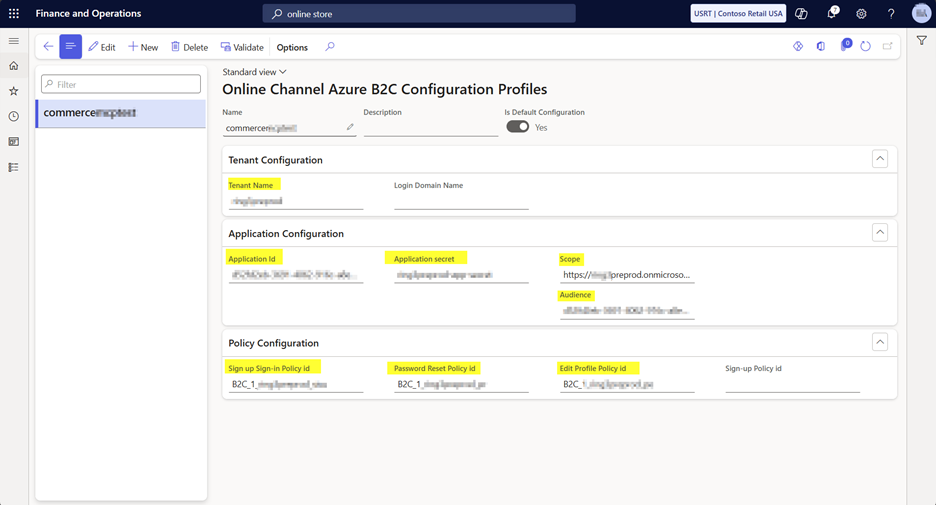
Set up Azure Key Vault to store the application secret
- In an Azure subscription that your organization manages, create an Azure Key Vault to store the application secret.
- Register a client application and create a client secret that the application can use to access the Key Vault.
- Grant the registered application Get and List permissions on the Key Vault.
- Configure the Key Vault settings in Commerce headquarters:
- Key Vault URL: URL of the created Key Vault.
- Key Vault Client: Client ID of the client application created to access the Key Vault.
- Key Vault secret key: Client secret of the application created to access the Key Vault.
- Secrets: Add a secret that points to the secret stored in Azure Key Vault. Use the format
vault://<secret-name>.
Note
If Commerce headquarters shows an existing secret reference with three forward slashes, such as vault:///contoso-app-secret, use that same format. If your environment expects vault://<secret-name>, use the format shown by your headquarters configuration.
Set up the scope for the Azure AD B2C application
- Add a new scope named
accessUserto the Azure AD B2C application. - Grant admin consent to this scope.
Important
When you test access-token generation for Commerce MCP, select only the accessUser scope.
Warning
Make sure the scope value doesn't exceed the maximum field length configured in Commerce headquarters. If the scope value is too long, Commerce headquarters can truncate it, which can cause authentication or sign-in failures.
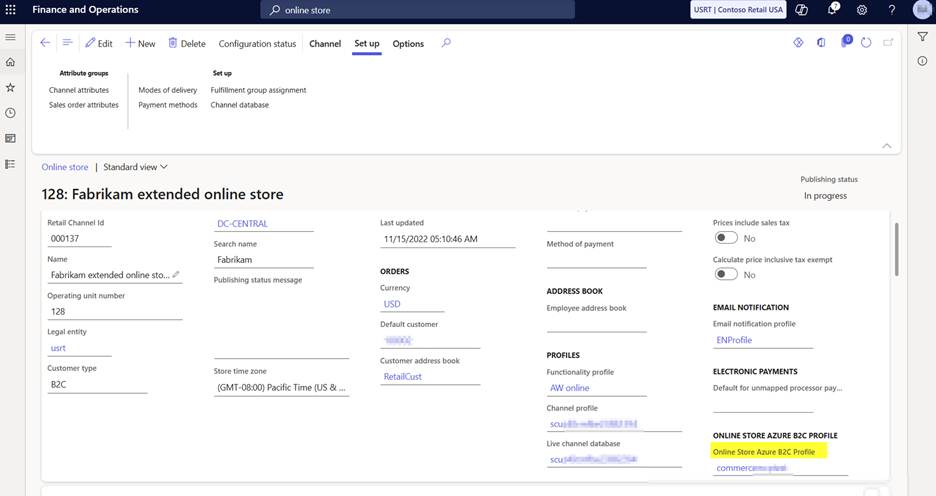
Map the online channel profile to the online store
Associate the configured online channel Azure B2C profile with the online store so that shopper sign-in flows use the agent ready configuration.
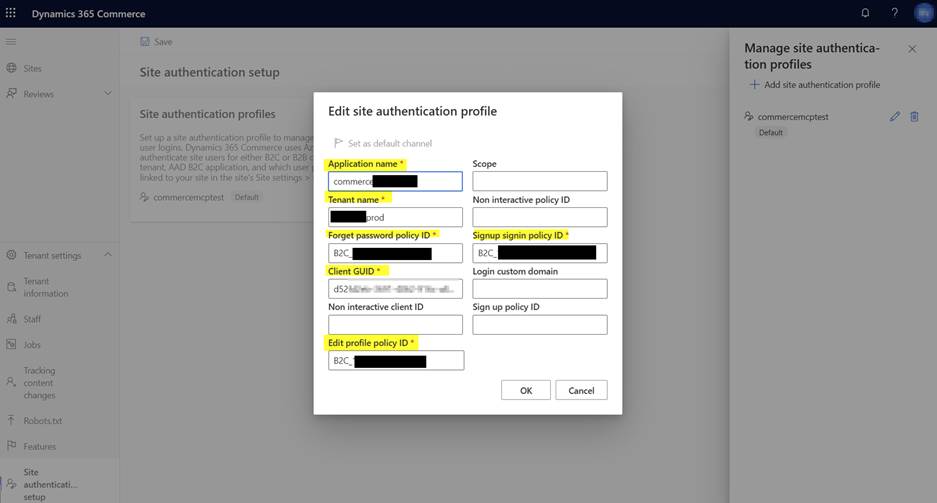
Set up the profile in Commerce site builder
Use the Azure AD B2C tenant settings to populate this profile. For the client GUID, use the application that you configured for the online channel profile.
Note
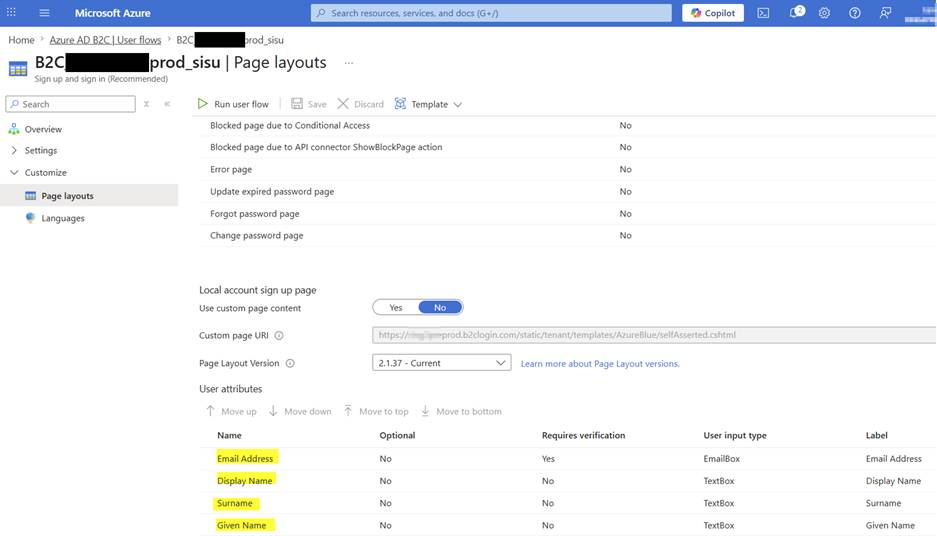
When you set up the sign-up user policy in the Azure AD B2C tenant, mark the following fields as required: Email Address, Display Name, Surname, and Given Name.
Validate Azure AD B2C access token setup
After you configure the online channel profile, validate that Commerce is using the access token configuration.
- In Commerce headquarters, go to Retail and Commerce > Headquarters setup > Parameters > Commerce shared parameters.
- On the Identity providers FastTab, verify that the B2C identity provider type is Microsoft Entra ID B2C (access_token).
- Confirm that the relying party entry uses the client application ID that calls Commerce MCP.
- Confirm that the server resource ID matches the retail server app registration application ID URI or application ID GUID.
- Run CDX job 1110 after making changes to the identity provider, relying party, or server resource ID configuration.
Connect to the Commerce MCP server
The Commerce MCP server uses the standard MCP protocol over HTTP. Any compliant MCP client can connect to it.
Note
The following examples use the placeholder https://<your-csu-host>/mcp. Replace it with the MCP endpoint of your enabled Commerce Scale Unit (CSU).
Get access token
To test authenticated shopper flows, get the shopper access token from the Commerce storefront.
Sign in to the Commerce storefront as a registered shopper.
Open browser developer tools by selecting F12.
Go to the Console tab.
Run the following command:
___initialData.requestContext.user.tokenCopy the returned token.
Use the token in the Visual Studio Code MCP server configuration.
Visual Studio Code
Add the Commerce MCP server to your mcp.json file (workspace or user scope):
{
    "servers": {
        "my-mcp-servers": {
            "url": "https://<your-csu-host>/mcp",
            "type": "http",
            "headers": {
                "Authorization": "Bearer <access-token>"
            }
        }
    },
    "inputs": []
}
Replace <access-token> with the token that you copied from the Commerce storefront browser session.
Microsoft Copilot Studio
Copilot Studio supports MCP servers as custom tools. In your agent, add a custom MCP connector pointing at your CSU's MCP endpoint.
Note
Microsoft Copilot Studio currently supports only anonymous access to the Commerce MCP server.
Endpoint, security, and extensibility considerations
Commerce MCP runs on the Commerce Scale Unit (CSU) and uses the Commerce platform for identity validation, authorization, business logic, and data access.
- C2 shopper context: Authenticated consumer shopper scenarios use a delegated shopper identity so that tools can access saved addresses, customer-specific pricing and discounts, and order history.
- Anonymous context: Anonymous scenarios are limited to guest discovery, guest cart, and guest checkout flows that don't require saved shopper data.
- CSU scope: MCP is enabled on one CSU per environment at a time. Retailers should validate the target CSU before enabling MCP for pilot or production scenarios.
- Authorization boundary: MCP validates the bearer token and passes the user context to Commerce. Commerce applies channel, customer, and role-based authorization.
- Extensibility: Commerce MCP tools are designed to expose Commerce capabilities through the MCP protocol. Any extensions should preserve Commerce business logic and avoid duplicating pricing, promotion, tax, inventory, or order logic outside Commerce.