Note
Access to this page requires authorization. You can try signing in or changing directories.
Access to this page requires authorization. You can try changing directories.
This article describes how to integrate Microsoft Dynamics 365 Customer Voice into Dynamics 365 Commerce e-commerce site pages.
You can integrate Customer Voice into your e-commerce site to collect, analyze, and track real-time customer feedback. To get started with the integration, you must create an account and select a Customer Voice project template for the type of feedback that you want to collect.
Integrate the Customer Voice service
To create a Customer Voice account, go the Customer Voice, and follow the prompts.
After you create a Customer Voice account and sign in, the next step is to select a project template for the type of feedback that you want to collect.
To select a Customer Voice project template, follow these steps:
- Go to the Customer Voice project template page.
- Select Get started.
- Select the project template for the type of feedback that you want to collect, and then select Next.
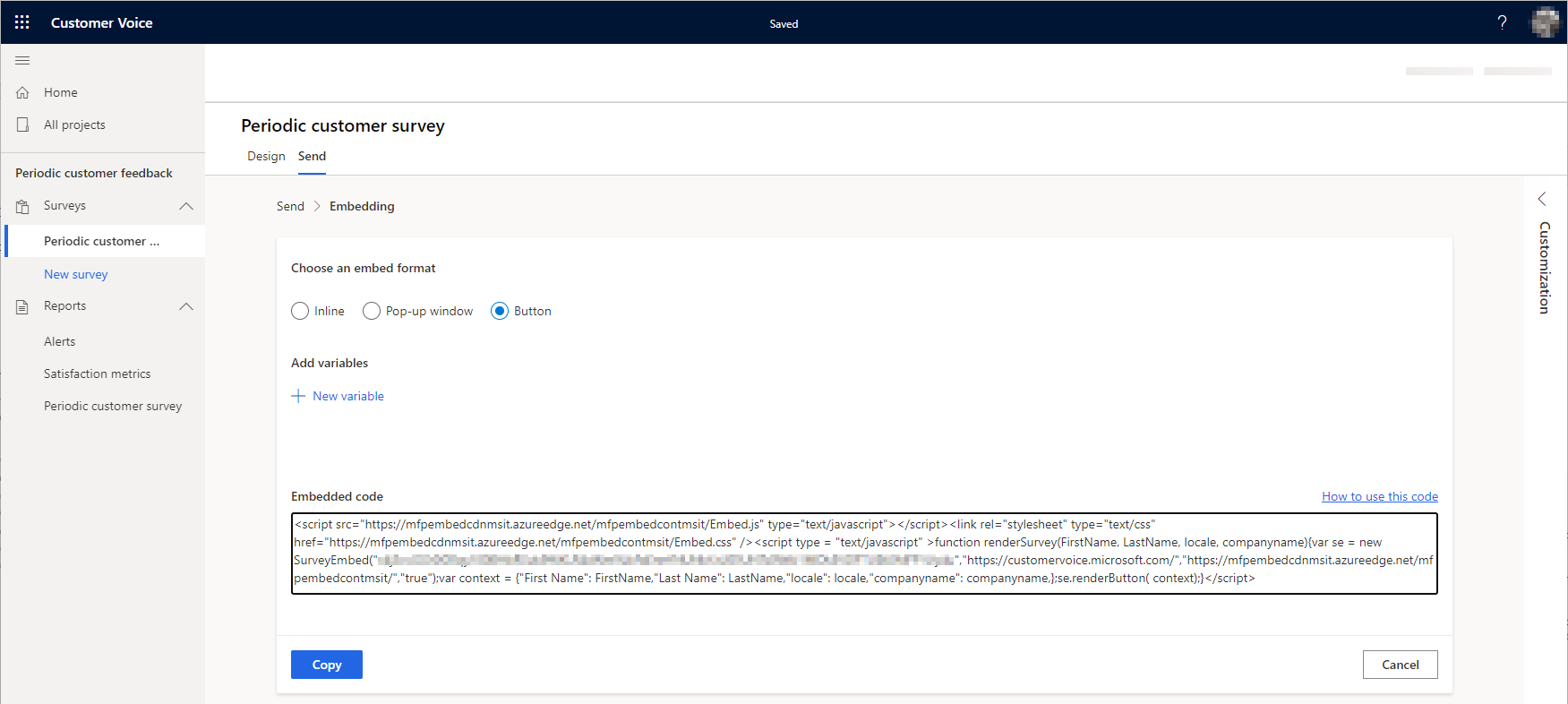
- On the Send tab, under Choose an embed format, select an embed format. The Embedded code field shows the code that you must embed in Commerce site builder.
The examples in this article use the Periodic customer survey project template and the Button embed format.
The following example illustration shows the Periodic customer survey project template page, where the option for the Button embed format is selected. The embed code for that option appears in the Embedded code field. Three separate actions are required to embed the provided code in your site pages, as described in the following sections.
Embed the external script URL
On all site pages that should have a Customer Voice survey, embed the external script URL that Customer Voice provides in the embed code. To embed the script on multiple site pages, create a fragment in site builder that contains the external script URL, and then add the fragment to the appropriate page templates. After you publish an updated template, the embedded external script code resembles the following example on affected site pages.
<script src=https://mfpembedcdnmsit.azureedge.net/mfpembedcontmsit/Embed.js type="text/javascript"></script>
For information about fragments, see Work with fragments.
Note
You only need to add the URL to the fragment. The external script module adds the other script code.
To embed the external script URL into a fragment, follow these steps:
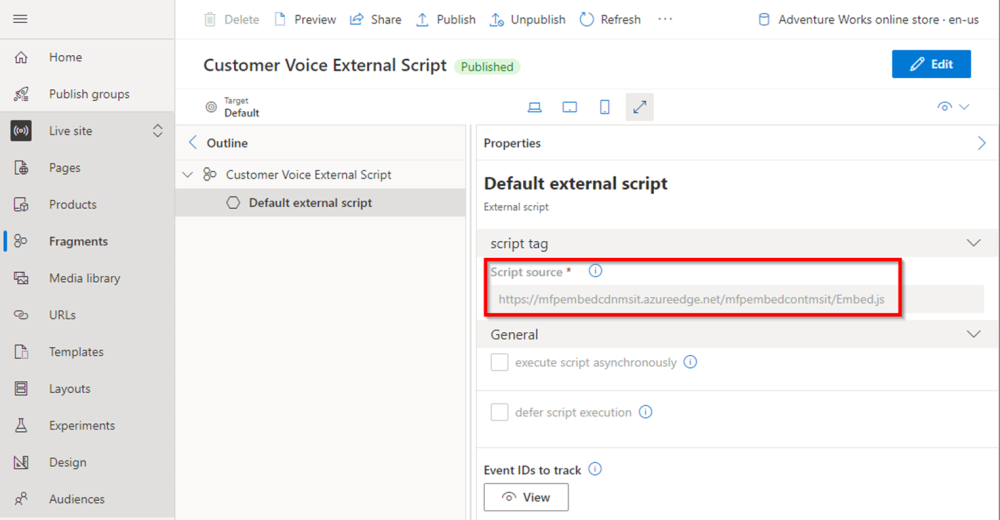
In site builder, create a fragment that is based on the External script module.
In the new fragment, select the Default external script slot.
In the Default external script properties pane, in the Script source field, enter the external script URL, as shown in the following example illustration.
Select Save, and then select Finish editing.
Select Publish to publish the fragment.
You're ready to add the new fragment that contains the embedded external script block to the appropriate page template.
Embed the external style sheet code
Next, on all site pages that should have a Customer Voice survey, embed the external stylesheet code that Customer Voice provides in the embed code. As in the previous section, the best way to embed the external style sheet code on multiple site pages is to create a fragment in site builder that contains the style sheet code, and then add the fragment to the appropriate page templates. The embedded external style sheet code resembles the following example code.
<link rel="stylesheet" type="text/css" href=https://mfpembedcdnmsit.azureedge.net/mfpembedcontmsit/Embed.css />
To embed the external style sheet code into a fragment, follow these steps:
In site builder, create a fragment that is based on the Metatags module.
In the fragment, select the Default metatags slot.
In the Default metatags properties pane, in the Meta tags field, enter the style sheet code, as shown in the following example illustration.

Select Save, and then select Finish editing.
Select Publish to publish the fragment.
You can now add the new fragment that contains the embedded external style sheet code to the appropriate page template.
Embed the inline script code
Next, on all site pages that should have a Customer Voice survey, embed the inline script code that Customer Voice provided in the embed code. The best way to embed the inline script code on multiple site pages is to create a fragment in site builder that contains the inline script code, and then add the fragment to the appropriate page templates.
In the following example of inline script code, SURVEY_KEY is a placeholder. The value for SURVEY_KEY should match the actual survey key that Customer Voice provided in the embed code. The last line calls the code to render the survey button after one second, to ensure that the scripts have enough time to be loaded. Depending on the survey that you selected, you might also have to add or update other metadata, such as the company name.
function renderSurveyButton() {
    var se = new SurveyEmbed("SURVEY_KEY","https://customervoice.microsoft.com/","https://mfpembedcdnmsit.azureedge.net/mfpembedcontmsit/","true");

    var context = {
        "First Name":"",
        "Last Name": "",
        "locale": "en-us",
        "companyname": "Adventure Works"
    };
    se.renderButton(context);
}

setTimeout(renderSurveyButton, 4000);
To embed the inline script code into a fragment, follow these steps:
In site builder, create a fragment that is based on the Inline script module.
In the fragment, select the Default inline script slot.
In the Default inline script properties pane, in the Inline script field, enter the inline script code, as shown in the following example illustration.

Select Save, and then select Finish editing.
Select Publish to publish the fragment.
The new fragment that contains the embedded inline script code is now ready to be added to the appropriate page template.
Add fragments to a template
When you finish creating the fragments that contain the Customer Voice embedded code, add them to the page templates that are associated with the site pages where you want to use them. In the following example illustration, the three example fragments are added to a product details page (PDP) template.

After you publish the updated template, the Customer Voice survey appears on all pages that the template controls.
For information about templates, see Work with templates.
Configure content security policy
By default, content security policy (CSP) doesn't allow calls to other services unless you add additional configuration. Therefore, after you publish the updated templates, the survey might fail to load on the relevant site pages. To view the CSP-related errors, open your web browser's developer tools (F12), and then go to a page that has the survey. The CSP-related errors appear in the console output.
To configure CSP in site builder to fix the errors, follow these steps:
- Go to Site settings > Extensions.
- On the Content security policy tab, add
https://customervoice.microsoft.com/to the child-src directive. - Add
https://customervoice.microsoft.com/to the frame-src directive. - Add
https://mfpembedcdnmsit.azureedge.netand .azureedge.net to the img-src directive.
For more information, see Content security policy.