Note
Access to this page requires authorization. You can try signing in or changing directories.
Access to this page requires authorization. You can try changing directories.
Important
Some or all of the functionality noted in this article is available as part of a preview release. The content and the functionality are subject to change. For more information about preview releases, see One version service updates FAQ.
This article explains what the organization selection module is and how to add it to Microsoft Dynamics 365 Commerce business-to-business (B2B) e-commerce sites.
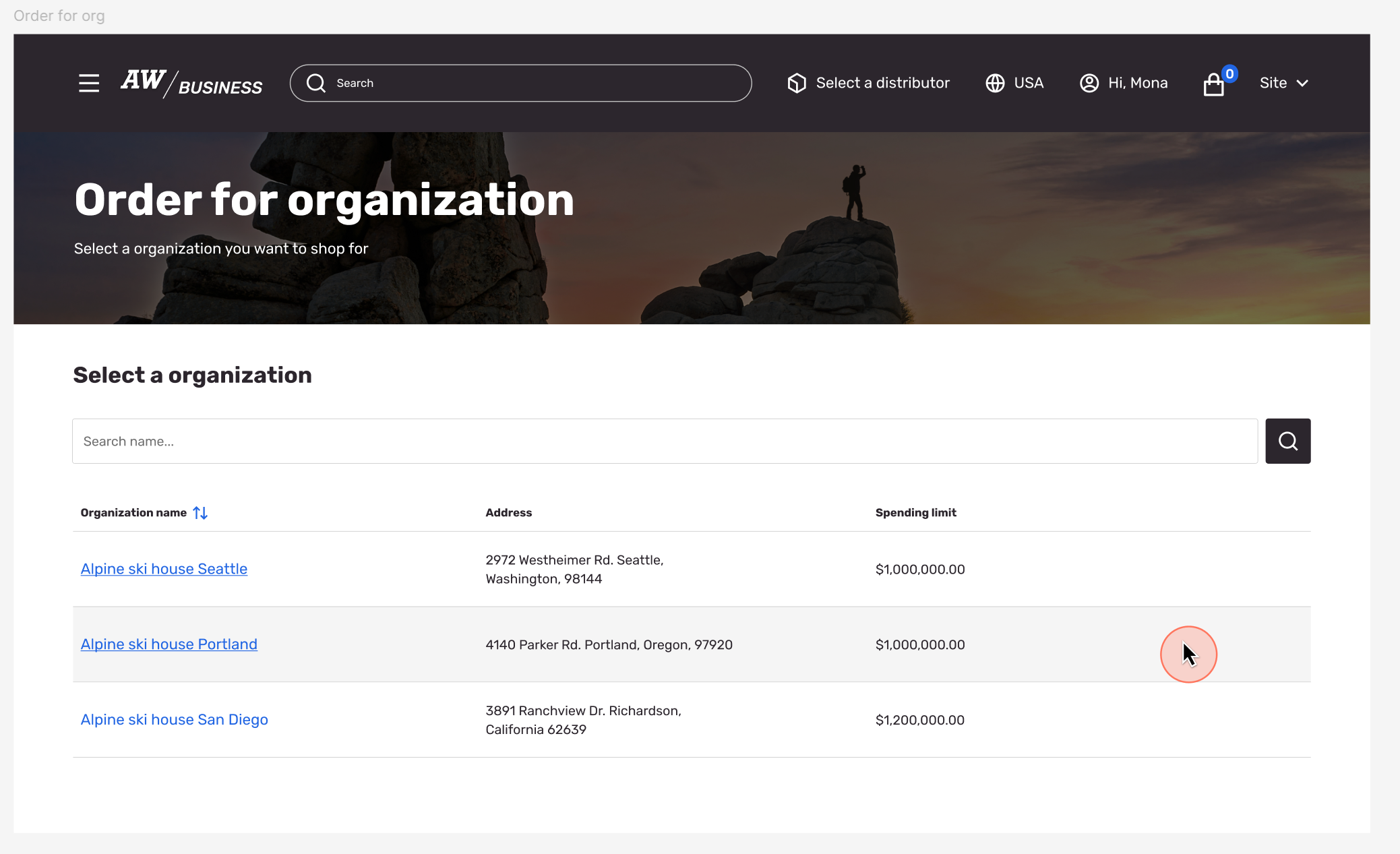
The organization selection module is a special container for listing all the organizations a signed-in user can access through the B2B multioutlet functionality. Multiple organization selection currently supports only B2B sites with the multioutlet feature enabled. The links to this module in the header of the B2B storefront only appear for users who have multiple organizations linked to their contact.
The following illustration shows an example of an organization selection module:
Add an organization selection module
To add an organization selection module to your site in the Commerce site builder, follow these steps:
Step 1: Create an organization selection page
First, create the organization selection page:
Go to Pages, and select New to create a new page.
In Create a new page, under Page name, enter Organization selection.
Under Page URL, enter a URL for the page, and then select Next.
Under Choose a template, select General content, and then select Next.
Under Choose a layout, select Flexible layout, and then select Next.
Under Review and finish, review the page configuration. If you need to edit the page information, select Back. If the page information is correct, select Create page.
Under Organization selection, select Main slot, select the ellipsis (...), and then select Add module.
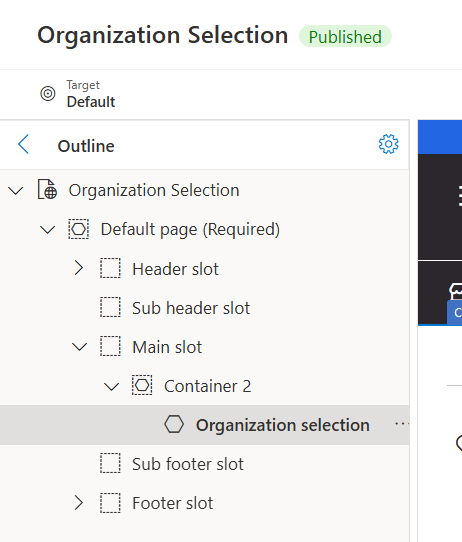
In Select modules, select the Container module, and then select OK.
Select the Container slot, select the ellipsis (...), and then select Add module.
In Select modules, select the Organization selection module, and then select OK.
Select Save, select Finish editing to check in the page, and then select Publish to publish it.
Step 2: Link the organization selection page to the route in extensions
Next, connect the organization selection page to the appropriate route so you can access the multioutlet functionality.
Go to Site Settings in the lower left corner to expand the menu and see the navigation options.
Go to Extensions in this menu.
Go to the Routes tab at the top of the extensions page.
Find the route for Organization selection in the list and link it with the new page you created in previous steps.
Select Save and Publish at the top of the page.
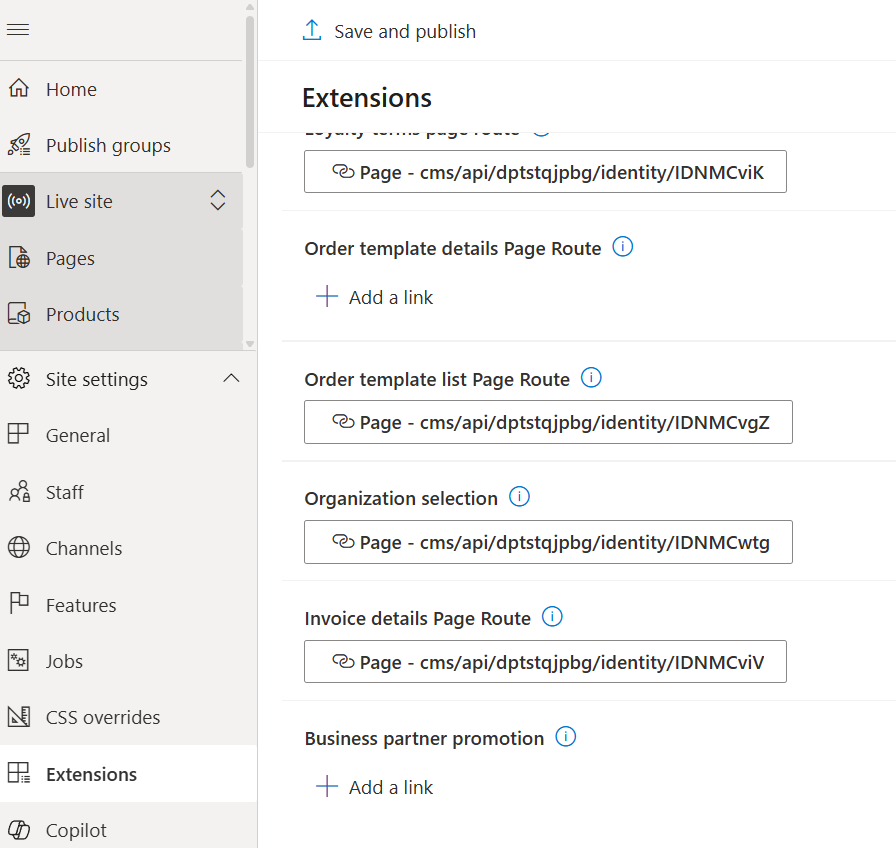
These settings enable the user interface changes tied to the B2B multioutlet feature in the header of the site to link to an organization selection page for multioutlet users.