Note
Access to this page requires authorization. You can try signing in or changing directories.
Access to this page requires authorization. You can try changing directories.
[This article is prerelease documentation and is subject to change.]
Contact Center Admin Workspace is an administration experience for Dynamics 365 Contact Center. Use it to understand and change conversation routing, and to investigate specific conversations.
Important
- This is a production-ready preview feature.
- Production-ready previews are subject to supplemental terms of use.
What you can do
| Feature | What it does |
|---|---|
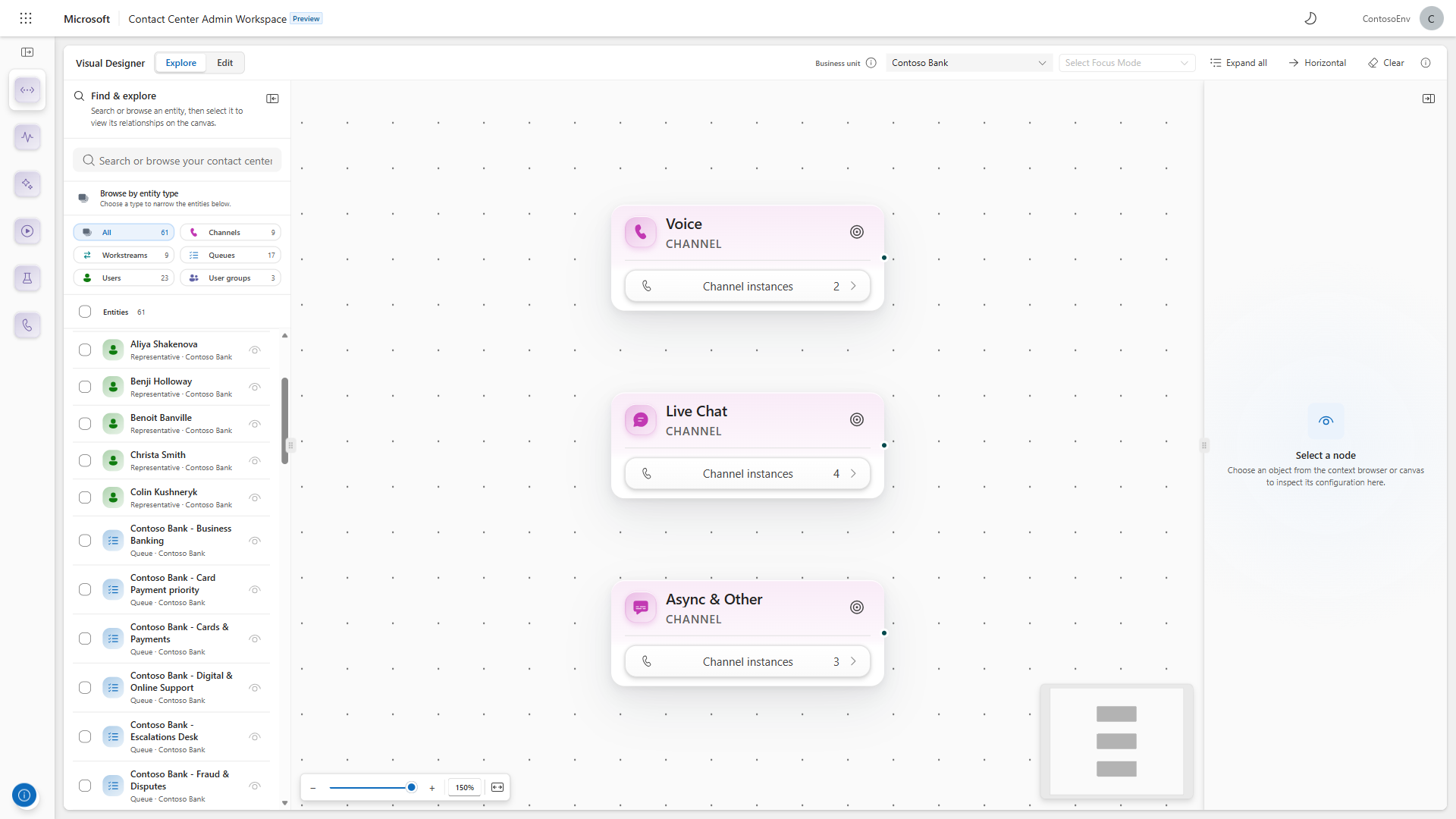
| Visual Designer | Shows channels, channel instances, workstreams, AI agents, classification and route-to-queue rules, queues, overflow, representatives, and user groups on one interactive canvas. Switch to edit mode to change routing in context. Learn more in Visualize and edit routing with Visual Designer (preview). |
| Journey Visualization | Traces a past conversation on the same canvas as your configuration, with a timeline of each step. Open classification, route-to-queue, overflow, or assignment decisions to see which rules were evaluated and why. Learn more in Trace conversations with Journey Visualization (preview). |
Prerequisites
- A Dynamics 365 Contact Center environment and the Omnichannel administrator security role.
- To view a visualization, you configured the corresponding features in Copilot Service admin center.
Open Contact Center Admin Workspace
In Copilot Service admin center, use one of the following options to open the app:
Home page: On the Home page, select Open "New Admin workspace".
A channel, workstream, or queue: Open a channel like Chat or Voice, the Workstream page, or the Advanced queues page, and select New admin Workspace.
The app opens in a new browser tab.
Navigate Contact Center Admin Workspace
Use the navigation pane to switch among features. On each page, select the Business unit that you manage to show only its configuration and conversations. Selecting a parent business unit doesn't include data from its child business units. By default, the Visual Designer page opens.
Select Give feedback in the app to share what works and what doesn't.
Use Contact Center Admin Workspace with the Copilot Service admin center
Contact Center Admin Workspace works with Copilot Service admin center. Both apps read and write the same configuration in your Microsoft Dataverse environment, and changes in one app appear in the other. There's no import, synchronization, or migration step.
During preview, you can't change every setting in Contact Center Admin Workspace. Create and edit capacity profiles, skills, operating hours, channel setup, and other shared settings in the Copilot Service admin center. When Contact Center Admin Workspace uses one of these settings, such as a queue's operating hours, you can select an existing record, and a link opens it in Copilot Service admin center in a new tab.
Record routing for cases and other records isn't part of Contact Center Admin Workspace. Manage it in the Copilot Service admin center.
Preview limitations
- Large configurations load progressively. Very large queue memberships are summarized instead of drawn in full on the canvas.
- Journey Visualization shows current queue membership, not membership at the time of the conversation.