Note
Access to this page requires authorization. You can try signing in or changing directories.
Access to this page requires authorization. You can try changing directories.
Some organizations need read-only segment groups so every segment includes a condition that marketers can't change or remove. These groups can restrict an audience to the creator's business unit, a region, or records the user is allowed to reach.
Customer Insights - Journeys stores a segment query as a Marketing Query Language (MQL) string, and the segment designer can render parts of that query as read-only. By combining a client-side script that injects a required group with a server-side plugin that validates it, you can make that group effectively mandatory.
This article shows how to build both halves.
Important
The code in this article is a sample. Test it in a sandbox environment and adapt the constants to your own business rules before you deploy it to production.
Prerequisites
- Customer Insights - Journeys real-time journeys solution version 1.3.3723.0 or later (March 2026 release). Earlier versions don't expose the MQL manipulator API.
- Basic knowledge of how to create and debug Dataverse plugins.
- Basic knowledge of how to use JavaScript web resources on model-driven app forms.
- The System Customizer or System Administrator security role.
How it works
Enforcement has two layers, and you need both.
| Layer | What it does | Why it isn't enough on its own |
|---|---|---|
| JavaScript web resource on the segment form | Adds the required group to the query every time the segment designer opens, and marks it read-only so the designer locks the controls. Before every save, it moves the group to the end of the query and joins it with INTERSECT. |
Runs in the browser only. Anyone who writes to the msdynmkt_segmentdefinition table through the Dataverse API bypasses it completely. |
Dataverse plugin on msdynmkt_segmentdefinition |
Rejects any create or update whose query doesn't end with the required group joined by INTERSECT. |
Can only reject a bad query. It can't add the group for the user or make the designer show it as locked. |
Together, the script gives marketers a working designer experience and the plugin guarantees the rule.
Mark part of a segment query as read-only
The segment query is stored verbatim in the msdynmkt_segmentquery column of the msdynmkt_segmentdefinition table. The readonly keyword drives the read-only behavior. You can apply this keyword at three different levels.
Lock an entire group
Pass readonly as the alias on PROFILE to lock the whole group:
PROFILE(contact, readonly).FILTER(address1_country == 'Germany')
The designer renders the group with a shaded background and removes every control that could change or remove it. There's no Edit group info pencil, no Show options menu, no Add a subgroup link, and both the operator and the value are disabled. The group can't be dragged to another position. Only Expand or contract group stays available.
The set operator selector above the group, which joins it to the group before it, is disabled too. The selector below it belongs to the next group and stays editable, so a read-only group on its own doesn't stop a marketer from combining it with or. To handle this, keep the required group last, as described in Keep the required group last.
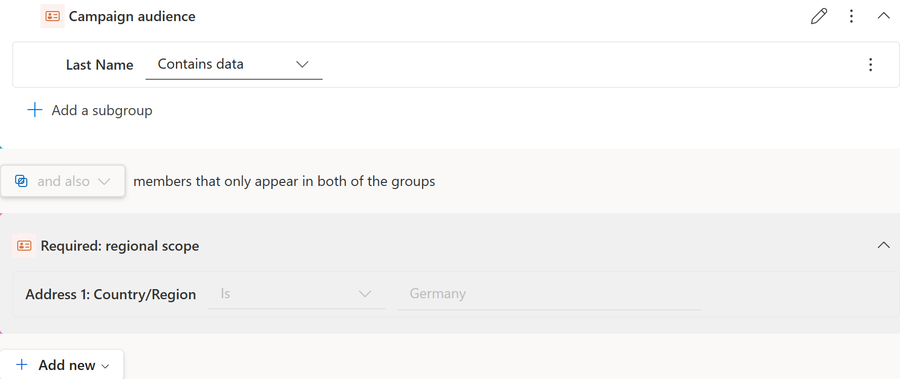
In this example the first group is a normal editable group and the second one is read-only.
Lock a single condition
To keep the group editable but lock one condition inside it, leave the PROFILE alias out and prefix the attribute with readonly.:
PROFILE(contact).FILTER(readonly.address1_country == 'Germany' && firstname == 'John')
The group keeps its pencil, its options menu, and its Add a subgroup link. Only the prefixed condition is locked: its operator and value are disabled and its row-level options menu is removed, so it can't be deleted. Sibling conditions stay fully editable.
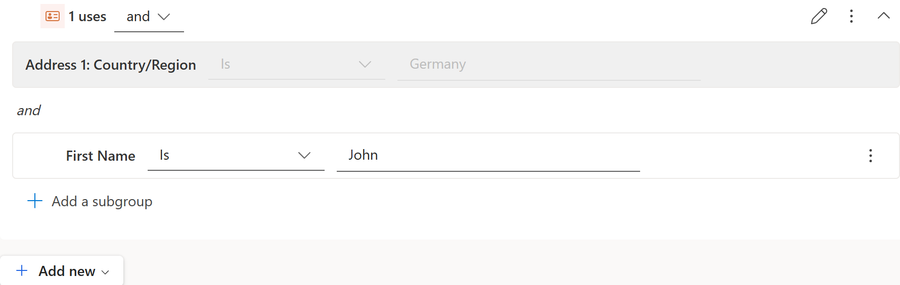
Caution
Don't combine the two forms. If you write PROFILE(contact, readonly) and expect only one condition to lock, the whole group locks instead.
Lock a condition on a related table
For conditions that come from a related table, prefix the relationship alias with readonly_:
PROFILE(contact).RELATEOPTIONAL(contact_customer_accounts, readonly_account_1).FILTER(readonly_account_1.name == 'Contoso' && firstname == 'John')
Every condition that uses the prefixed alias is locked. Conditions on the primary table are unaffected.
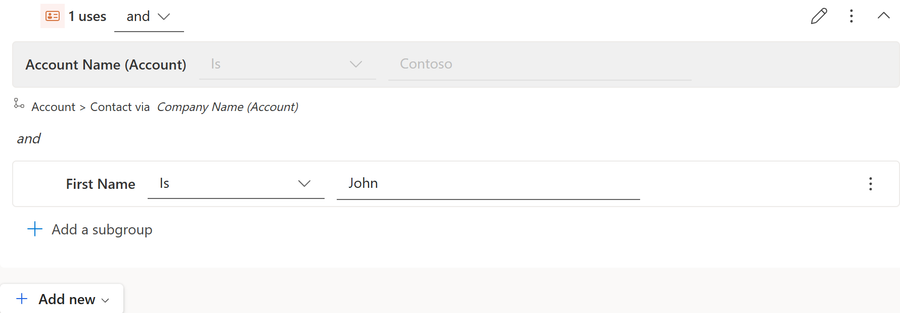
Give the group a name and a color
A required group is easier to recognize if you name it. Wrap the group in GROUP() and pass a display name and a color:
GROUP(PROFILE(contact, readonly).FILTER(address1_country == 'Germany'), 'Required: regional scope', 'pink')
Supported colors include pink, teal, lime, and orchid. The name and color appear in the group header, as shown in the first screenshot.
The sample code in this article matches the unnamed fragment. If you name the required group, use the named form as the required fragment in both the script and the plugin. The script builds its pattern from the fragment, so it needs no other change. In the plugin, also extend RequiredGroupRegex to accept the GROUP() wrapper.
Keep the required group last
In the segment designer, the set operator selector between two groups offers or (all members in both groups), and also (members that only appear in both of the groups), and but not. In MQL these operators are UNION, INTERSECT, and EXCEPT. All three operators have the same precedence and are evaluated from left to right, so a query like this one:
In the segment designer, the set operator selector between two groups offers **or** (all members in both groups), **and also** (members that only appear in both of the groups), and **but not**. In MQL these operators are `UNION`, `INTERSECT`, and `EXCEPT`. All three operators have the same precedence and are evaluated from left to right, so a query like this one:
is evaluated as (<required group> INTERSECT <group 2>) UNION <group 3>. Everyone in group 3 ends up in the segment, whether or not they meet the required condition. The same result happens when the required group is first and the marketer changes the selector below it to or.
The designer always adds a new group at the bottom, and the selector above a new group is editable. A read-only group therefore can't protect itself by its position alone. The only form that keeps every member inside the required group, whatever operators the marketer picks, is the required group as the last group, joined with INTERSECT:
is evaluated as (<required group> INTERSECT <group 2>) UNION <group 3>. Everyone in group 3 ends up in the segment, whether or not they meet the required condition. The same result happens when the required group is first and the marketer changes the selector below it to or.
<group 1> UNION <group 2> EXCEPT <group 3> INTERSECT <required group>
The script in the next section rewrites the query into this form before every save, and the plugin rejects any query that isn't in this form. After a save, marketers see the required group move to the bottom of the segment, with and also locked above it. Any operator they picked next to the required group is replaced. The following table shows examples.
| Query in the designer before save | Query that's saved |
|---|---|
<required group> UNION <group 2> |
<group 2> INTERSECT <required group> |
<required group> INTERSECT <group 2> UNION <group 3> |
<group 2> UNION <group 3> INTERSECT <required group> |
<group 1> INTERSECT <required group> UNION <group 2> |
<group 1> UNION <group 2> INTERSECT <required group> |
<group 1> INTERSECT <required group> |
Unchanged |
More than one read-only group
When a query contains two read-only groups next to each other, the selector between them is disabled, but it still shows the operator that's stored in the query. If the query joins them with UNION, the designer shows a locked or, and marketers can't change it. A group added after the second read-only group has an editable selector, just like after a single one.
If you require more than one group, put all of them at the end of the query and join each of them with INTERSECT. Extend the script and the plugin in this article to treat every required group the way they treat the single one.
Inject the required group with a JavaScript web resource
The segment designer exposes an MQL manipulator on the top-level window. It supports two callbacks:
registerOnInitCallback(callback)runs every time a segment initializes in the designer, for both new and existing segments.registerOnSaveCallback(callback)runs just before the query is saved.registerOnInitCallback(callback)runs every time a segment initializes in the designer, for both new and existing segments.
The script below registers the same function for both callbacks. On init, it adds the required group if it's missing. On save, it moves the required group to the end of the query and joins it with INTERSECT, as explained in Keep the required group last. It splits the query only at set operators that are outside parentheses and quotes, so text inside a condition value can't confuse it.
To change the required group, edit only REQUIRED_READONLY_GROUP. The script builds REQUIRED_GROUP_PATTERN, which recognizes the group in a query, from that fragment and ignores letter case and whitespace differences. A hand-written pattern that doesn't match the fragment would stop the script from recognizing its own group, so it would append another copy of the group on every save.
Form OnLoad handlers run before the segment designer control initializes, so your script usually doesn't find the manipulator when it runs. To handle this, create a stub that queues callbacks in _onInitCallbacks and _onSaveCallbacks. The designer transfers anything it finds in those arrays into the real manipulator when it loads.
Form `OnLoad` handlers run before the segment designer control initializes, so your script usually doesn't find the manipulator when it runs. To handle this, create a stub that queues callbacks in `_onInitCallbacks` and `_onSaveCallbacks`. The designer transfers anything it finds in those arrays into the real manipulator when it loads.
window.Contoso = window.Contoso || {};
window.Contoso.SegmentDesigner = window.Contoso.SegmentDesigner || {};

(function (ns) {
    "use strict";

    // The exact MQL fragment that every segment must contain. This is the only
    // value to edit when you change the required group.
    var REQUIRED_READONLY_GROUP =
        "PROFILE(contact, readonly).FILTER(address1_country == 'Germany')";

    // Matches a group that is exactly the fragment above, ignoring letter case
    // and whitespace differences. It's built from the fragment, so the two
    // can't get out of sync.
    var REQUIRED_GROUP_PATTERN = buildGroupPattern(REQUIRED_READONLY_GROUP);

    // INTERSECT narrows the audience, which gives AND semantics.
    var SET_OPERATOR = "INTERSECT";

    var SET_OPERATOR_PATTERN = /^(UNION|INTERSECT|EXCEPT)(?=[\s(])/i;

    ns.onFormLoad = function () {
        try {
            // Form OnLoad can run in an iframe, and the designer reads the
            // manipulator from the top window.
            var topWin = window.top || window;

            // Pre-registration stub. The designer transfers these callbacks to
            // the real manipulator when the control initializes.
            topWin.mqlManipulator = topWin.mqlManipulator || {
                _onInitCallbacks: [],
                _onSaveCallbacks: [],
                registerOnInitCallback: function (cb) { this._onInitCallbacks.push(cb); },
                registerOnSaveCallback: function (cb) { this._onSaveCallbacks.push(cb); }
            };

            // Init adds the group when a segment opens. Save puts it back in
            // place if the user added groups or changed operators around it.
            topWin.mqlManipulator.registerOnInitCallback(ensureRequiredGroup);
            topWin.mqlManipulator.registerOnSaveCallback(ensureRequiredGroup);
        } catch (error) {
            console.error("Failed to register the MQL manipulator callbacks.", error);
        }
    };

    // Returns a query that is the required group alone, or the user's groups
    // followed by "INTERSECT <required group>". Set operators have equal
    // precedence and are evaluated left to right, so only this position
    // guarantees that the whole segment stays inside the required group.
    function ensureRequiredGroup(mql) {
        if (!mql || mql.trim().length === 0) {
            // New segment: the required group becomes the initial query.
            return REQUIRED_READONLY_GROUP;
        }

        var parts = splitTopLevel(mql);
        if (!parts) {
            // Unexpected syntax. Narrow the whole query rather than guess.
            return mql.trim() + " " + SET_OPERATOR + " " + REQUIRED_READONLY_GROUP;
        }

        var last = parts.groups.length - 1;
        var isRequiredLast = REQUIRED_GROUP_PATTERN.test(parts.groups[last]);
        if (isRequiredLast && (last === 0 || parts.operators[last - 1].toUpperCase() === SET_OPERATOR)) {
            return mql;
        }

        // Drop every copy of the required group together with the operator
        // that joined it, then append it once at the end.
        var kept = [];
        for (var i = 0; i < parts.groups.length; i++) {
            if (!REQUIRED_GROUP_PATTERN.test(parts.groups[i])) {
                kept.push({ op: i > 0 ? parts.operators[i - 1] : null, group: parts.groups[i] });
            }
        }

        if (kept.length === 0) {
            return REQUIRED_READONLY_GROUP;
        }

        var result = kept[0].group;
        for (var k = 1; k < kept.length; k++) {
            result += " " + kept[k].op.toUpperCase() + " " + kept[k].group;
        }

        return result + " " + SET_OPERATOR + " " + REQUIRED_READONLY_GROUP;
    }

    // Splits a query into its top-level groups and the set operators between
    // them, ignoring anything inside parentheses or quotes. Returns null if
    // the query isn't well formed.
    function splitTopLevel(mql) {
        var groups = [];
        var operators = [];
        var depth = 0;
        var quote = null;
        var start = 0;

        for (var i = 0; i < mql.length; i++) {
            var c = mql.charAt(i);
            if (quote) {
                if (c === "\\") { i++; } else if (c === quote) { quote = null; }
                continue;
            }
            if (c === "'" || c === "\"") { quote = c; continue; }
            if (c === "(") { depth++; continue; }
            if (c === ")") { depth--; if (depth < 0) { return null; } continue; }

            if (depth === 0 && i > 0 && /[\s)]/.test(mql.charAt(i - 1))) {
                var match = SET_OPERATOR_PATTERN.exec(mql.slice(i));
                if (match) {
                    groups.push(mql.slice(start, i).trim());
                    operators.push(match[1]);
                    i += match[1].length - 1;
                    start = i + 1;
                }
            }
        }

        groups.push(mql.slice(start).trim());
        if (depth !== 0 || quote || groups.some(function (g) { return g.length === 0; })) {
            return null;
        }

        return { groups: groups, operators: operators };
    }

    // Turns an MQL fragment into a pattern that matches the same fragment
    // with any amount of whitespace between its parts. Quoted values must
    // match exactly, apart from letter case.
    function buildGroupPattern(fragment) {
        var tokens = fragment.match(/'(?:[^'\\]|\\.)*'|"(?:[^"\\]|\\.)*"|\w+|[=!<>&|]+|\S/g) || [];
        var source = "";
        for (var i = 0; i < tokens.length; i++) {
            if (i > 0) {
                // Two words need at least one space between them.
                source += /\w$/.test(tokens[i - 1]) && /^\w/.test(tokens[i]) ? "\\s+" : "\\s*";
            }
            source += tokens[i].replace(/[.*+?^${}()|[\]\\]/g, "\\$&");
        }
        return new RegExp("^\\s*" + source + "\\s*$", "i");
    }

})(window.Contoso.SegmentDesigner);
To scope the group to the signed-in user instead of a fixed value, make the callback async and look up the value before you build the fragment. For example, you can read the user's business unit and return PROFILE(contact, readonly).FILTER(readonly.owningbusinessunit == '<business unit ID>').
Register the web resource on the segment form
To scope the group to the signed-in user instead of a fixed value, make the callback async and look up the value before you build the fragment. For example, you can read the user's business unit and return PROFILE(contact, readonly).FILTER(readonly.owningbusinessunit == '<business unit ID>').
- In your solution, create a new JavaScript (JS) web resource and upload the file.
- Add the
msdynmkt_segmentdefinitiontable to the solution and open its Information main form in the form editor. It's the form that hosts the segment designer. The table's other main form, Customizations form, doesn't host the designer, so don't add the script there. - On the Form libraries pane, add the web resource.
- On the Events tab, add an OnLoad event handler that calls
Contoso.SegmentDesigner.onFormLoad. The function doesn't use the execution context, so you can leave Pass execution context as first parameter cleared. - Save and publish.
Validate the required group with a plugin
The script is a convenience, not a control. A user who calls the Dataverse API directly never loads the form. If your callback throws, the designer logs the error and saves the unmodified query. The plugin closes both gaps. It accepts a query only when the required group is the whole query, or the last group joined with INTERSECT. When it rejects a save from the segment designer, the designer shows your message in a Business Process Error dialog.
Register the plugin in the Pre-Validation stage so that the operation is rejected before anything is committed.
The script is a convenience, not a control. A user who calls the Dataverse API directly never loads the form. If your callback throws, the designer logs the error and saves the unmodified query. The plugin closes both gaps. It accepts a query only when the required group is the whole query, or the last group joined with INTERSECT. When it rejects a save from the segment designer, the designer shows your message in a Business Process Error dialog.
namespace Contoso.Segmentation.Plugins
{
    using Microsoft.Xrm.Sdk;
    using System;
    using System.Text.RegularExpressions;

    /// <summary>
    /// Rejects any segment definition whose query isn't limited by the required
    /// read-only group. Register on Create and Update of msdynmkt_segmentdefinition
    /// in the Pre-Validation stage.
    /// </summary>
    public class ValidateSegmentQueryPlugin : IPlugin
    {
        private const string SegmentQueryAttribute = "msdynmkt_segmentquery";

        // The MQL fragment that the OnLoad script injects. Keep both in sync.
        private const string RequiredMqlFragment =
            "PROFILE(contact, readonly).FILTER(address1_country == 'Germany')";

        // The fragment above, tolerating whitespace differences.
        private const string RequiredGroupRegex =
            @"PROFILE\s*\(\s*contact\s*,\s*readonly\s*\)\s*\.FILTER\s*\(\s*address1_country\s*==\s*'Germany'\s*\)";

        private static readonly Regex RequiredGroupPattern = new Regex(
            RequiredGroupRegex, RegexOptions.Compiled | RegexOptions.IgnoreCase);

        // Set operators have equal precedence and are evaluated left to right,
        // so the query is limited to the required group only when the group is
        // the whole query, or the last group and joined with INTERSECT.
        private static readonly Regex RequiredGroupLimitsQueryPattern = new Regex(
            @"(^\s*|[\s)]INTERSECT\s+)" + RequiredGroupRegex + @"\s*$",
            RegexOptions.Compiled | RegexOptions.IgnoreCase);

        // Detects a read-only contact group with a different filter, so the
        // error message can be more specific.
        private static readonly Regex AnyReadOnlyContactGroupPattern = new Regex(
            @"PROFILE\s*\(\s*contact\s*,\s*readonly\s*\)",
            RegexOptions.Compiled | RegexOptions.IgnoreCase);

        public void Execute(IServiceProvider serviceProvider)
        {
            var tracingService = (ITracingService)serviceProvider.GetService(typeof(ITracingService));
            var context = (IPluginExecutionContext)serviceProvider.GetService(typeof(IPluginExecutionContext));

            if (context.MessageName != "Create" && context.MessageName != "Update")
            {
                return;
            }

            if (!context.InputParameters.Contains("Target") ||
                !(context.InputParameters["Target"] is Entity targetEntity))
            {
                return;
            }

            // On Update, only validate when the query itself changes.
            if (context.MessageName == "Update" && !targetEntity.Contains(SegmentQueryAttribute))
            {
                return;
            }

            var mql = targetEntity.GetAttributeValue<string>(SegmentQueryAttribute);

            // An empty query on Create is allowed. The designer populates it,
            // and the OnLoad script adds the required group at that point.
            if (string.IsNullOrWhiteSpace(mql))
            {
                return;
            }

            if (RequiredGroupLimitsQueryPattern.IsMatch(mql))
            {
                tracingService.Trace("Required read-only group found in the last position.");
                return;
            }

            if (RequiredGroupPattern.IsMatch(mql))
            {
                throw new InvalidPluginExecutionException(
                    "The required read-only group must be the last group in the segment and " +
                    "joined with INTERSECT, otherwise other groups can add people outside it. " +
                    "Reopen the segment designer and save the segment to have the group " +
                    "moved automatically.");
            }

            if (AnyReadOnlyContactGroupPattern.IsMatch(mql))
            {
                throw new InvalidPluginExecutionException(
                    "A read-only contact group was found, but it doesn't contain the required " +
                    "condition. The segment must include: " + RequiredMqlFragment);
            }

            throw new InvalidPluginExecutionException(
                "The segment query must contain the required read-only group: " +
                RequiredMqlFragment + ". This group enforces organizational compliance " +
                "rules and can't be removed. Reopen the segment designer to have the " +
                "required group added automatically.");
        }
    }
}
Register the plugin steps
Register two steps on the assembly:
| Setting | Step 1 | Step 2 |
|---|---|---|
| Message | Create |
Update |
| Primary entity | msdynmkt_segmentdefinition |
msdynmkt_segmentdefinition |
| Event pipeline stage | Pre-Validation | Pre-Validation |
| Execution mode | Synchronous | Synchronous |
| Filtering attributes | Not applicable | msdynmkt_segmentquery |
Test your implementation
Test the segment designer
- Create a segment. Confirm that the designer automatically adds, shades, and locks the required group.
- Try to delete the required group. Confirm that the group doesn't have an options menu and can't be deleted.
- Add a second group and confirm that its operator selector is editable. Add a condition because the designer doesn't save a segment with an empty group.
Test the Dataverse Web API
- Create a segment. Confirm that the designer automatically adds, shades, and locks the required group.
- Use the Dataverse Web API to update the segment's
msdynmkt_segmentqueryvalue with a query that omits the required group. Confirm that the plugin rejects the request and displays the expected error message. - Update
msdynmkt_segmentquerywith a query that places the required group beforeUNIONand another group. Confirm that the plugin rejects the request because the required group isn't last. - Reopen the segment in the designer. Confirm that the required group remains present and last.
- The read-only state applies to the segment designer. It isn't a security boundary on the data, and it doesn't restrict who can read the resulting segment members.
- If an init or save callback throws, the designer logs the error to the browser console and continues with the unmodified query. Keep your callback defensive and rely on the plugin for enforcement.
- The script and the plugin each hold their own copy of the required fragment. If you change the group, update
REQUIRED_READONLY_GROUPin the script and bothRequiredMqlFragmentandRequiredGroupRegexin the plugin. If the plugin expects a different group than the script injects, every save from the designer fails with a Business Process Error dialog that shows the fragment the plugin expects. - The save callback overrides the marketer's choice of operator next to the required group and moves the group to the bottom of the segment. Tell marketers to expect this, or name the group so its purpose is clear.
- Any app, flow, or integration that writes
msdynmkt_segmentquerythrough the API must put the required group last and join it withINTERSECT, or the plugin rejects the write. - Segments that already contain the required group in another position, for example segments saved before you registered the save callback, are rejected by the plugin the next time an API call updates their query. Open and save each one in the designer to move the group.
- Changing the required fragment doesn't rewrite segments that already exist. Existing segments get the new group the next time they're opened and saved in the designer.