Note
Access to this page requires authorization. You can try signing in or changing directories.
Access to this page requires authorization. You can try changing directories.
If an IoT device isn't associated with a customer account in Connected Customer Service, the system doesn't generate work orders or cases for incoming IoT alerts. Device association is optional in Azure IoT Central but required in Connected Customer Service.
This article explains how to associate an IoT device with a customer account. When an IoT alert is received, Connected Customer Service can then create a case or work order.
Associate a device with a customer account
In the Connected Customer Service application, select Devices from the left navigation pane.
Select the device that you want to associate with a customer account.
On the device details page, in the Customer account field, start typing the name of the customer account.
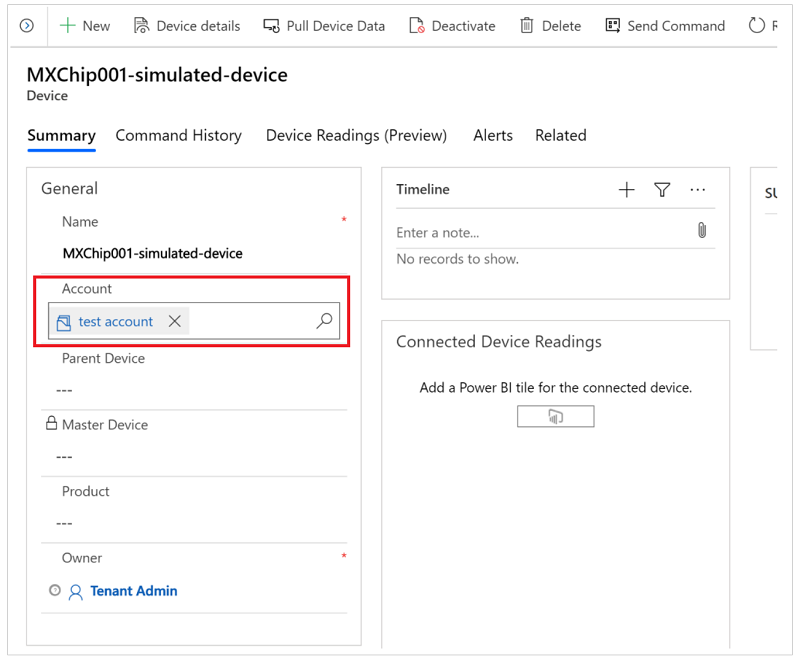
Select the customer account, and then select Save.
After you save the changes, the device is associated with the selected customer account. Connected Customer Service can now create cases or work orders when it receives IoT alerts for this device from Azure IoT Central.
Related information
Prerequisites for setting up Connected Customer Service for Azure IoT Central
Receive IoT alerts in Connected Customer Service from Azure IoT Central