Note
Access to this page requires authorization. You can try signing in or changing directories.
Access to this page requires authorization. You can try changing directories.
Note
Copilot Studio bot is renamed as Copilot agent (agent or AI agent). Human agent is now renamed as customer service representative (service representative or representative). You might come across references to the old and new terms while we update the product UI, documentation, and training content.
When a new work item arrives, unified routing directs it to the representative who is best suited to work on it. But what happens if all the service representatives who could work on it are already at maximum capacity? And how do you handle work items that arrive when your call center is closed? Overflow handling in Customer Service helps you manage both surge conditions and after-hours calls.
A queue's overflow handling options can trigger actions either before or after a work item is queued.
- The average wait time for an incoming call exceeds the time specified.
- An incoming call or conversation exceeds the number of work items defined for the queue.
- A work item comes in outside of business hours.
- Customers are waiting in the queue longer than the time defined for the queue.
If you don't set up overflow handling, then by default, the work item is added to the queue and the customer waits to be connected to a service representative. You can send notifications to the customer, for example, about their place in the queue or when their query will be resolved.
Prerequisites
- Unified routing is configured and you set up queues and added representatives to them.
- If you plan to transfer calls to an external number, external phone numbers with outbound calling are available.
- If you plan to trigger overflow handling before work items are queued, you configured route-to-queue rules in the workstream.
Handle overflow before a work item is queued
Unified routing checks for overflow conditions after evaluating the route-to-queue rules and before directing a work item to a queue.
Note
The system does the check once only for each work item before it enters a queue.
If an overflow action transfers the work item to another queue, or a supervisor assigns the work item to a service representative or transfers it to another representative, the system assigns the work item to the representative or queue without any further prequeue overflow checks.
The system considers the following factors when it checks for overflow conditions before queueing up a work item:
If multiple queues match the route-to-queue rules, the system routes the work item to the first one that's not overflowing.
If all matched queues are overflowing, then:
- If a queue is operational, the system routes the work item to it and triggers the overflow action.
- If none of the queues are operational, the system routes the work item to the queue that will be operational earliest and triggers the overflow action.
If percentage-based routing is configured, the overflow conditions are evaluated after percentage-based routing matches a queue.
If a work item is routed to a fallback queue because of errors or no route-to-queue rule matches the requirement, the system ignores the overflow settings for the fallback queue and assigns the work item to it.
If an AI agent is configured for the workstream, the system checks for overflow conditions only after the AI agent escalates the conversation to a service representative. If multiple escalations happen, the system checks for overflow conditions and triggers an action after the first one.
When you add an operating hour record to a queue, the system assigns a default overflow condition Out of operation hours with the action Assign to queue anyway. You can't edit the condition, but you can set a different action for it.
The channel-specific operating hour setting that's configured in the workstream doesn't affect the overflow settings.
The following table lists the conditions and actions that are available for each channel type.
| Channel | Condition | Action |
|---|---|---|
| Voice |
|
|
| Live chat and other messaging channels |
|
|
| Record |
|
|
How overflow is handled when multiple conditions are true
If the matched queue is overflowing due to multiple conditions, the system triggers the action that's defined for the operating hours condition first, followed by the other conditions in the order they're defined.
How overflow works when work item is routed to a fallback queue
If a work item is routed to a fallback queue because of errors or route-to-queue rules don't match the requirement, the system ignores the overflow settings for the fallback queue and assigns the work item to it.
Configure overflow conditions for before a work item is queued
In the site map of Copilot Service admin center, select Customer support > Queues.
Select Advanced queues, and then select the queue you want to manage overflow for.
Under Overflow handling, select Add condition-action pair.
In the Overflow handling page, in Before work items are queued, select Add condition-action pair.
In the Condition dropdown list, select the condition that you want to set for the queue. The available conditions depend on the channel type.
In the Action dropdown list, select the action that you want to trigger when the condition is met.
Enter as many condition-action pairs as you need for the queue, and then select Save and close.
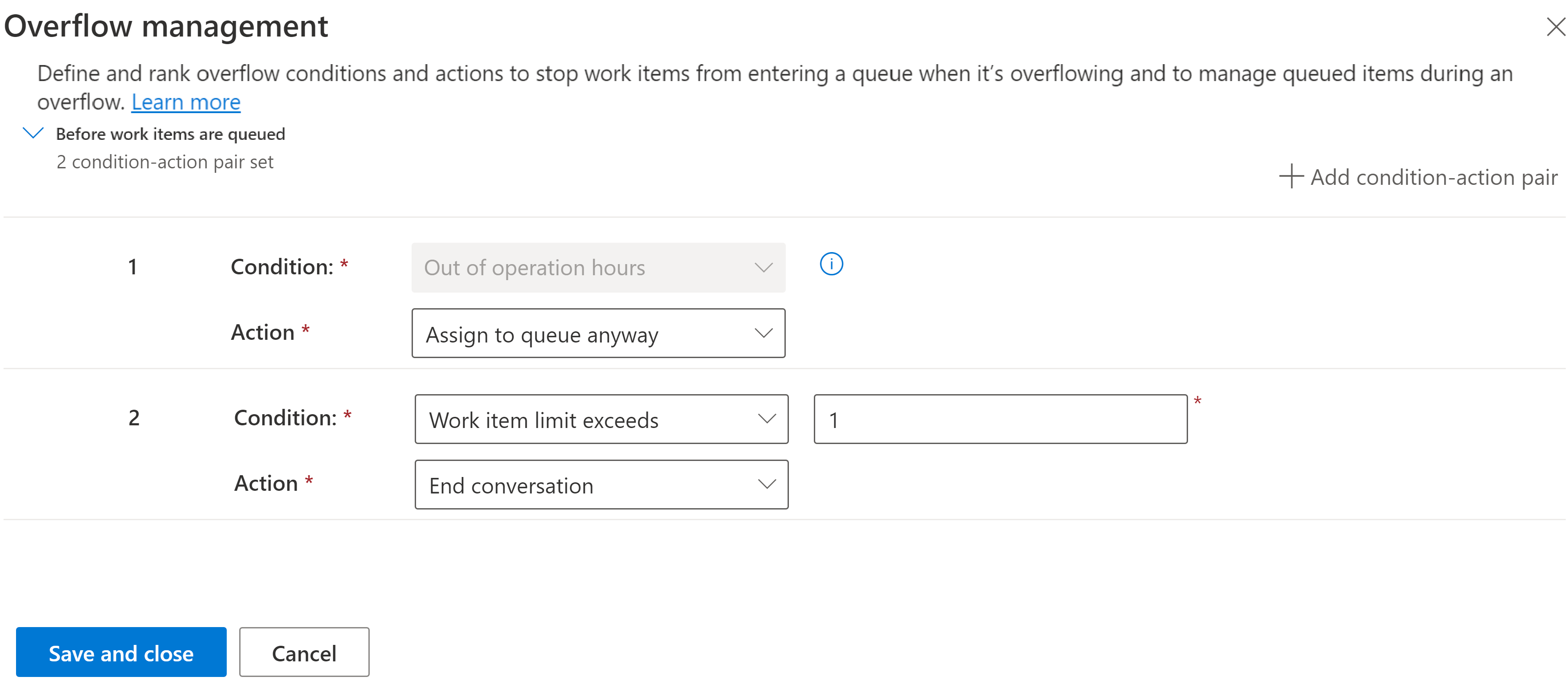
For the record, messaging, and voice queues, you can select the Out of operation hours condition and one of the following actions:
- Assign to queue anyway: The work item is directed to the queue even though it's overflowing.
- Transfer to a different queue: The work item is transferred to the queue that you select in the dropdown list.
For the messaging and voice queues, you can also select the following actions for the Out of operation hours condition:
- End call: For voice queues only. An automated voice message plays and the call ends.
- End conversation: For messaging queues only. The conversation is routed to the queue and ended.
- Transfer to an external number: For voice queues only. The work item is transferred to the phone number that you enter.
- Voicemail: For voice queues only. The customer can choose to leave a voicemail.
For the messaging and voice queues, you can also select the following conditions and actions:
Work item limit exceeds: Enter a number between 1 and 100 to indicate how many open work items can be in the queue before it overflows. Queue position is updated every 10 seconds only. Any incoming conversation that's evaluated for prequeue overflow in the 10-seconds interval uses the older cached value for items in the queue. For example, if you set 2 as the limit, then if the queue contains two open work items, the arrival of a third item triggers one of the following actions:
- Direct callback: For voice queues only. The customer can choose to have the representative call them back. The work item stays open and is routed to the next available representative for callback.
- End call
- End conversation
- Transfer to a different queue
- Transfer to an external number
- Voicemail
Average wait time: For voice queues only. Enter a number and select a unit of time between 30 seconds and 60 minutes to indicate how long the predicted wait time can be before the queue overflows. For example, if you enter 10 Minutes, then if a customer calls, and the predicted wait time is 15 minutes, the system triggers one of the following actions:
- Direct callback
- End call
- Transfer to a different queue
- Transfer to an external number
- Voicemail
Learn about average wait time in Show customers their average wait time in a queue.
Configure rule-specific overflow conditions for before a work item is queued
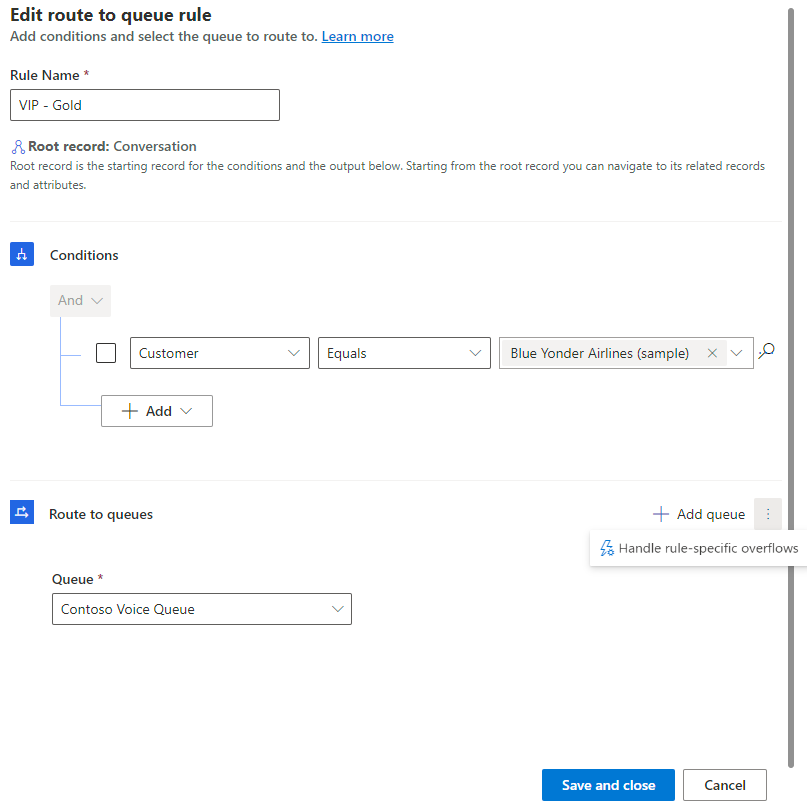
Sometimes you might not want an overflow action to run for specific types of work items or for priority customers. Let's say that a priority customer calls, the queue to which they're routed is overflowing, and the queue is set to end the call or keep the customer waiting. Either action might violate the service-level agreement that you have with your customer. In this scenario, you might want to configure rule-specific overflow conditions for the queue in the workstream's route-to-queue rules.
In the site map of Copilot Service admin center, select Customer support > Workstreams.
Select the workstream, and then select the route-to-queue rule in which the queue is configured.
Under Route to queues, select the queue in the dropdown list, and then select More commands (⋮) > Handle rule-specific overflows.
Handle overflow when a work item is queued
When a work item is in a queue and the actual wait is long because representatives aren't available or have declined the notification, then the system triggers overflow and reroutes the work item to another queue that has representatives available.
In the site map of Copilot Service admin center, select Customer support > Queues.
Select Advanced queues, and then select the queue you want to manage overflow for.
In Overflow handling, select Edit.
In When work items are queued, select Add condition-action pair.
Select the Waiting time in queue exceeds condition.
Enter a number and select a unit of time to indicate how long the predicted wait time can be before the queue overflows.
Select overflow condition-action pairs for queued work items.
Select Save and close.
Overflow condition and actions when work items are queued
The conditions and actions available for the channels are as follows.
| Channel | Condition | Action |
|---|---|---|
| Record | Waiting time in queue exceeds | Transfer to a different queue |
| Voice | Waiting time in queue exceeds | Direct callback Transfer to a different queue Transfer to an external number Voicemail |
| Messaging | Waiting time in queue exceeds | End conversation Transfer to a different queue |
When queues overflow with a large number of items
If more than 20 work items overflow in a minute, the work items are addressed in batches. Those queues that have a lower wait time are addressed first. If all queues are configured with the same wait time, then overflow handling takes place in a round robin manner.
Things to keep in mind
You can configure the following wait time for the channels:
- Voice: 1 to 60 minutes
- Messaging: 1 minute to 2 days
- Records: 3 minutes to 2 days
The "wait time in queue" condition is evaluated in any of the following scenarios:
- Work item is routed to a queue via the route-to-queue rules.
- Work item is transferred by a representative or supervisor to the queue.
- Work item overflows from another queue.
For voice work items, if a representative or supervisor transfers the work item to the queue or it overflows from another queue, transfer to an external number or transfer to a different queue actions only are available.
If a queued work item is moved to another queue because of long wait times, and the new queue also has overflow handling, the system checks for overflow conditions again. If the wait time is too high in the new queue as well, it triggers the overflow action.
Edit automated messages for overflow actions
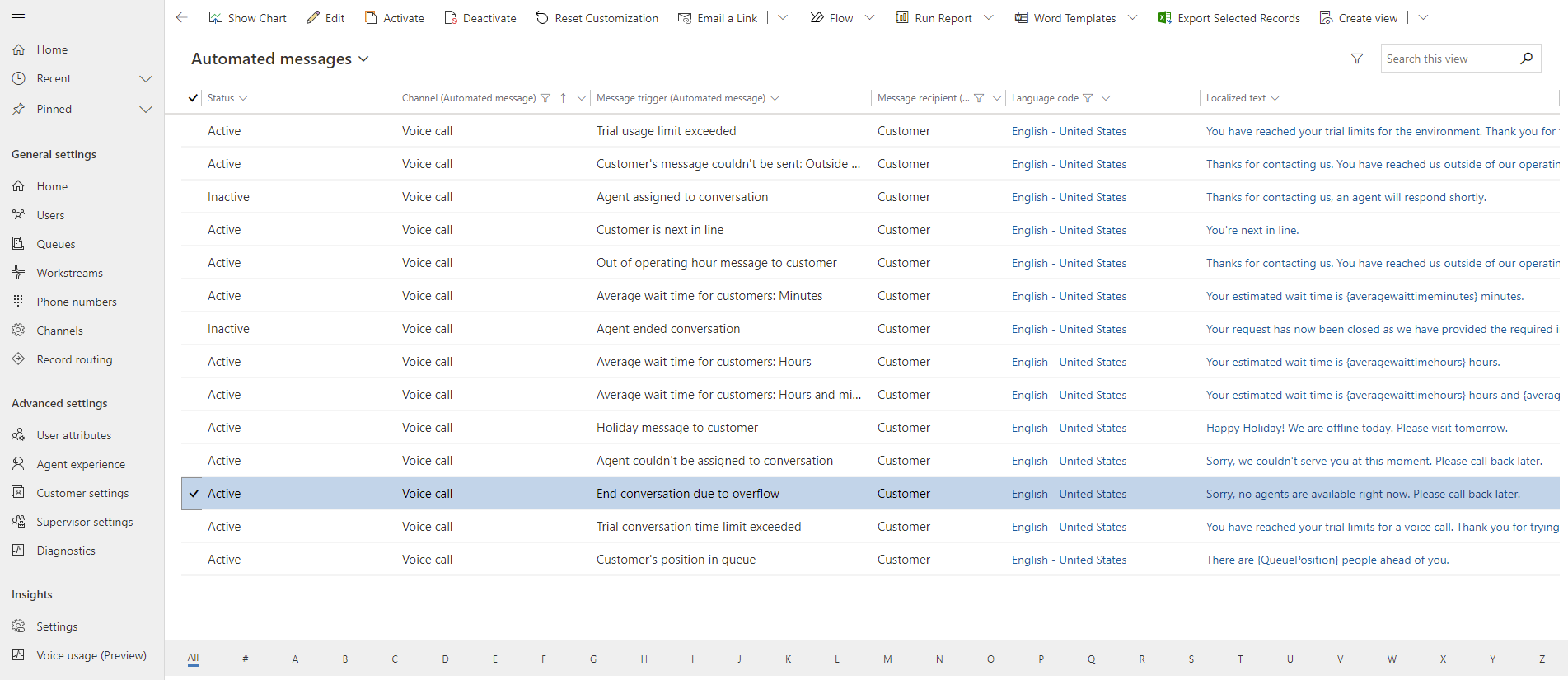
If you set End call or End conversation as an overflow action, you can edit the automated message that informs the customer that no representatives are available.
In the site map of Copilot Service admin center, select Customer support > Customer settings.
Select Automated messages.
Find the automated message for the channel where the message trigger is End conversation due to overflow.
Edit the value of the Localized text column as needed.
Learn more about customizing automated messages.
Use natural language playbooks to configure overflow actions for work items in queue (preview)
[This section is prerelease documentation and is subject to change.]
Configure overflow handling to trigger immediately when eligible service representatives aren't available for a work item or queues are out of operating hours, instead of waiting for time or volume-based conditions.
This capability is useful for scenarios where you want to avoid any wait time in the queue. For example, offering options such as callback or voicemail as soon as it’s determined that no representative can take the conversation.
How it works
When a work item is added to a queue, the system evaluates whether any eligible service representatives are available using the same assignment criteria that are used for routing work items. This check happens before the work item is offered to a service representative.
Configure immediate overflow by using a playbook in conversation orchestration.
You can apply the playbook to:
- All queues
- Selected queues
- All queues except specific queues
You can configure the following actions.
| Action | Description |
|---|---|
| Transfer to another queue | Route the conversation to a different queue |
| End the conversation | End the conversation with a message |
| Offer direct callback | Offer the customer a callback option (Voice channel only) |
| Send to voicemail | Route to voicemail for later follow-up (Voice channel only) |
| Transfer to external number | Transfer the call to an external contact(Voice channel only) |
Use with other overflow conditions: Immediate overflow based on service representatives availability can be used together with other overflow conditions defined on the queue, such as follows:
- Combine with wait-time conditions to handle cases where representatives are available but don’t accept the work item.
- Provide fallback actions after a specified wait duration.
Configure overflow behavior based on a combination of the following conditions:
Queue state conditions
- Queue goes out of operating hours while conversations are waiting.
- Queue is out of operating hours when conversations enter the queue.
Note
You can use the "queue is out of operating hours" condition in the existing overflow rules on the Queue page and playbooks. The key difference is that the system evaluates the queue overflow rules once only before the system adds the work item to the queue, whereas the playbook condition is evaluated continuously, including after transfers.
Agent availability conditions
- No representatives are available immediately: Evaluates representative availability based on skills, capacity, and assignment rules.
- All representatives are signed out: Evaluates for incoming conversations and triggers when representatives sign out, close their browser session, or there's a network outage.
- All representatives sign out while conversations are waiting: Evaluates waiting conversations and is triggered when representatives sign out, close their browser session, or there's a network outage.
Use natural language playbooks to configure overflow actions for direct inward dialed calls (preview)
[This section is prerelease documentation and is subject to change.]
Direct inward dialed calls are phone calls from a customer that go to a specific service representative’s direct phone line via a personal number assigned to them instead of through a main support line or queue. This call type is different from a typical inbound call that comes in through a main support number and is routed by queues or an IVR system. By default, if a representative doesn't answer these calls because they're busy or away, the call usually goes to voicemail. By using conversation orchestration playbooks, you can extend the default behavior beyond voicemail and set up custom overflow actions that run when a direct call can't reach the intended representative. The customer experience is seamless when you route the call appropriately if the representative is unavailable, so that callers aren't abandoned.
Prerequisites for direct inward dialed calls
- Voice channel is configured.
- Direct inward dial is set up using inbound profiles for service representatives.
- Conversation orchestration is available.
- At least one queue is set up to handle transfer scenarios.
- External phone numbers are set up if you want to transfer calls externally.
Configure overflow actions for direct inward dialed calls
Choose the action that best fits each scenario. You can mix and match actions. For example, if a representative is busy, transfer the call to a backup queue. If they actively reject the call, send it to voicemail immediately. If the call times out, you can send it to voicemail or route it to elsewhere.
In the site map of Copilot Service admin center, in Customer support, select Conversation Orchestration.
Select Prompt gallery, and select Overflow handling > Handle overflow for direct inbound call.
Choose one of the scopes for the playbook:
- All inbound profiles
- List of inbound profiles
- All inbound profiles except
Save your selection.
In Build playbook, select the overflow action for each of the following conditions:
- User rejects notification
- User isn't available
- User notification times out
The available actions are:
- Transfer to another queue
- End the conversation
- Send to voicemail
- Transfer to external number
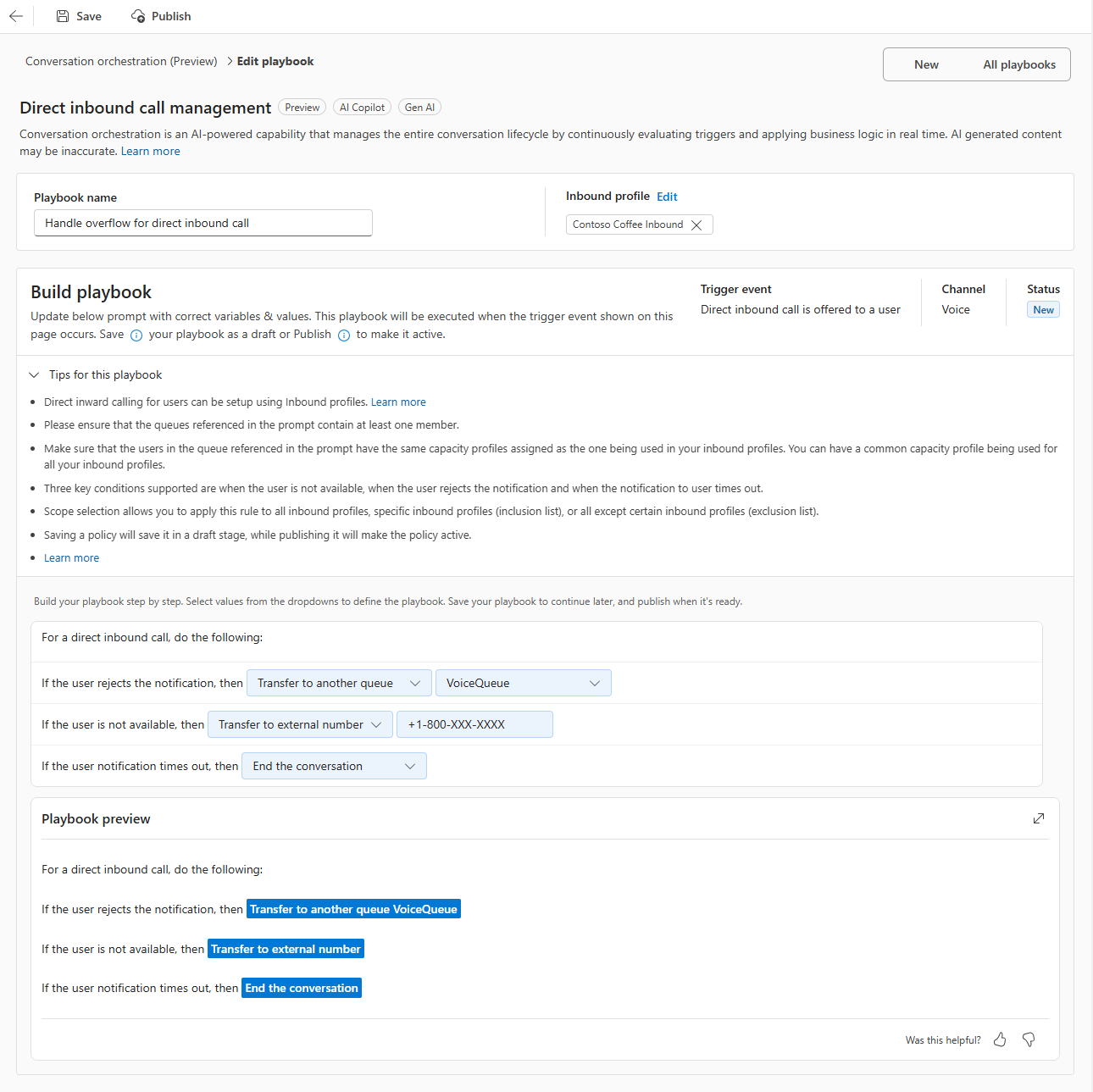
Save and publish the playbook.
How it works
When a direct inward dialed call comes in, the system checks if the intended representative is available. If they're not, the system evaluates the conditions you set in the playbook and triggers the corresponding overflow action. This process ensures that the customer is routed appropriately without unnecessary delays or frustration.
Example scenario:
Suppose you configure a playbook as follows:
- If a representative isn't available, transfer to a general support queue.
- If the representative rejects the call, send it to voicemail.
- If the call times out, forward it to an external after-hours number.
A customer calls Alicia's direct line. If Alicia is on another call, the playbook triggers and sends the call to the support queue, where another representative can help the customer. If Alicia rejects the notification, the caller is requested to leave a voicemail message for Alicia. If Alicia doesn't answer, the system forwards the call to the external number.
View diagnostics for overflow handling
You can view the diagnostics information by using a custom query. Learn more in Sample queries and dashboards.
Related information
Configure voicemail
Configure direct callback
Create and manage queues
Configure percentage-based routing
Overview of voice channel
Overview of unified routing
Configure routing for the voice channel