Note
Access to this page requires authorization. You can try signing in or changing directories.
Access to this page requires authorization. You can try changing directories.
Use inventory adjustments to manually increase or decrease the product inventory at a warehouse in Dynamics 365 Field Service. Inventory adjustments are useful when you want to:
- Record the starting quantities of products at a new warehouse.
- Reflect shrinkage, defects, loss, or theft after a physical count.
- Correct discrepancies between expected inventory and actual inventory.
Each inventory adjustment applies to a single warehouse. When you add a product to the adjustment, Field Service creates an inventory journal that updates the Quantity on Hand for that product at the warehouse. Because Quantity Available is derived from Quantity on Hand, the available quantity also changes.
For more flexibility, such as adjusting On Order or Allocated quantities, or supporting integration scenarios, use manual inventory journals instead.
Prerequisites
- A warehouse record must exist in your system.
- Products where Field Service Product Type = Inventory must exist in your system. You can't adjust non-inventory or service products.
- You need either the Field Service - Administrator security role or the Inventory Purchase security role added to your base Field Service security role. Learn more in Security roles and column-level security profiles.
Create an inventory adjustment
In Field Service, select the Inventory area.
Under Inventory, select Adjustments, and then select New.
In the Warehouse field, select the warehouse where you want to adjust inventory.
Select Save to create the record.
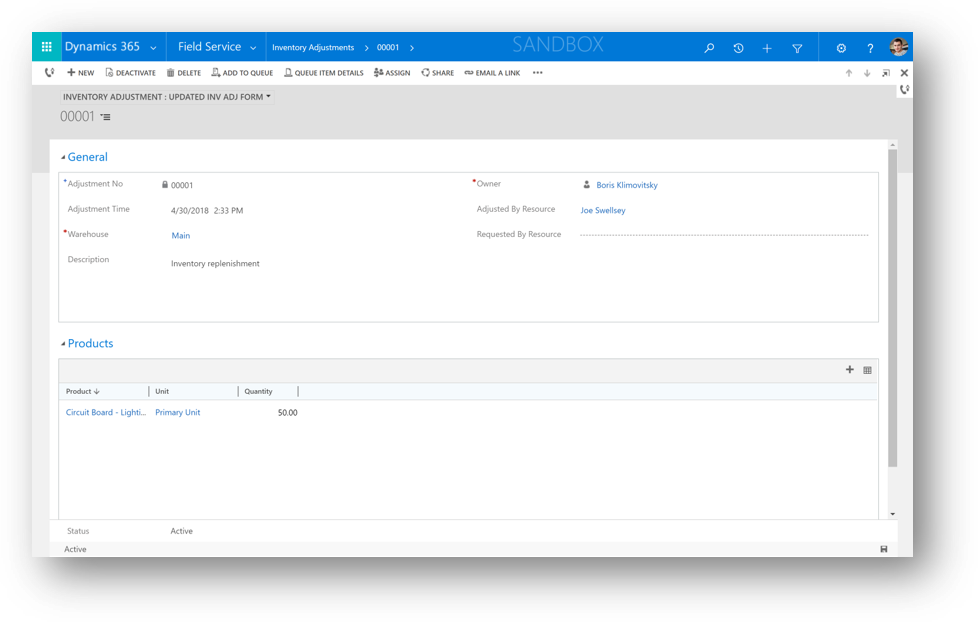
Note
After you add products to an inventory adjustment, you can't change the warehouse. Create a separate adjustment to update inventory at a different warehouse.
Add products to the inventory adjustment
Add a row for each product whose quantity you want to change at the warehouse.
In the saved inventory adjustment, on the Products tab, select + New Inventory Adjustment Product to open Inventory Adjustment Product window.
In the Product field, select a product where Field Service Product Type = Inventory.
In the Unit field, select the unit of measure.
In the Quantity field, enter the amount to change the inventory by:
- Enter a positive value to increase the Quantity on Hand.
- Enter a negative value to decrease the Quantity on Hand.
Select Save and Close. Field Service creates an inventory journal that updates the product inventory at the warehouse.
Repeat these steps for each product that you want to adjust.
Note
Field Service doesn't enforce non-negative inventory for adjustments. If you enter a negative quantity that exceeds the amount on hand, the Quantity on Hand can become negative.
Verify the inventory change
Confirm that the adjustment updated the product inventory at the warehouse.
In Field Service, select the Inventory area, and then select Warehouses.
Open the warehouse that you adjusted.
On the Related tab, select Product Inventory. The updated Quantity on Hand and Quantity Available values appear for the adjusted products.