Note
Access to this page requires authorization. You can try signing in or changing directories.
Access to this page requires authorization. You can try changing directories.
Create postal code records to automatically assign accounts to a service territory. When a user enters the address on the account form, the system automatically populates the service territory if the postal code matches.
Postal codes relate to territories. However, they aren't required for the territories feature to work.
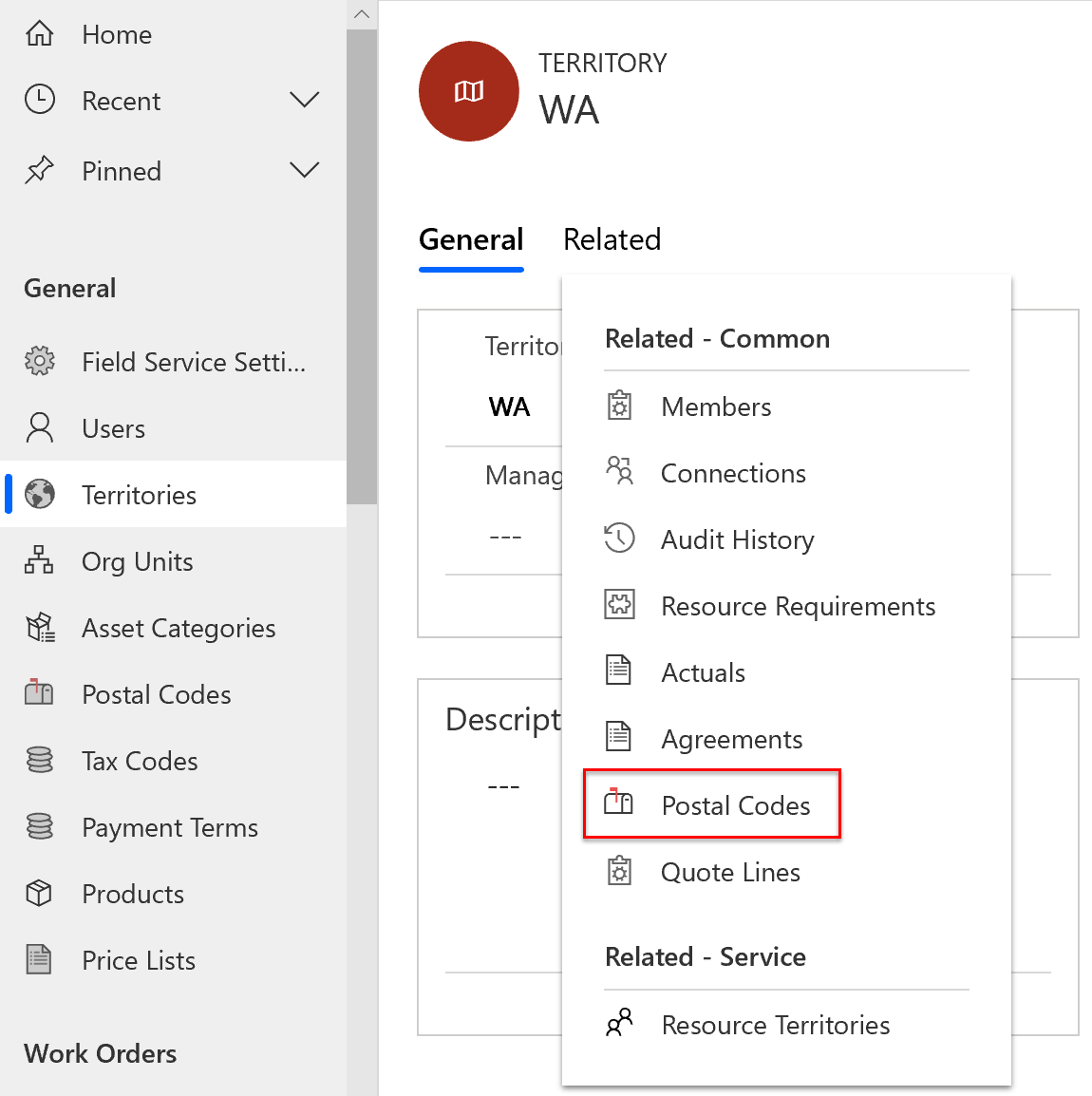
You can't assign a postal code to multiple territories.
Create a postal code
In Field Service, open the Settings area.
In the General section, select Postal Codes.
Select New to create a postal code record.
- Name: Enter the postal code.
- Country: Enter a country code as a differentiator if the same postal code exists in different countries or regions.
- Service Territory: Choose an existing territory or create one.
Select Save.
Edit a postal code
In Field Service, open the Settings area.
In the General section, select Postal Codes.
Select the postal code you want to change and edit the record. To change the territory for multiple postal codes, select multiple records and select Edit.
Select Save.
Delete a postal code
In Field Service, open the Settings area.
In the General section, select Postal Codes.
Select the postal code you want to remove. To delete multiple postal codes, select multiple records.
Select Delete and confirm the deletion.