Note
Access to this page requires authorization. You can try signing in or changing directories.
Access to this page requires authorization. You can try changing directories.
By default, when you don't enable access to Business document management permissions, every user with access to the Business document management workspace sees all of the ER solution templates that are available. The Business document management workspace shows only those templates that reside in ER format configurations and that are marked by a Business document type tag.
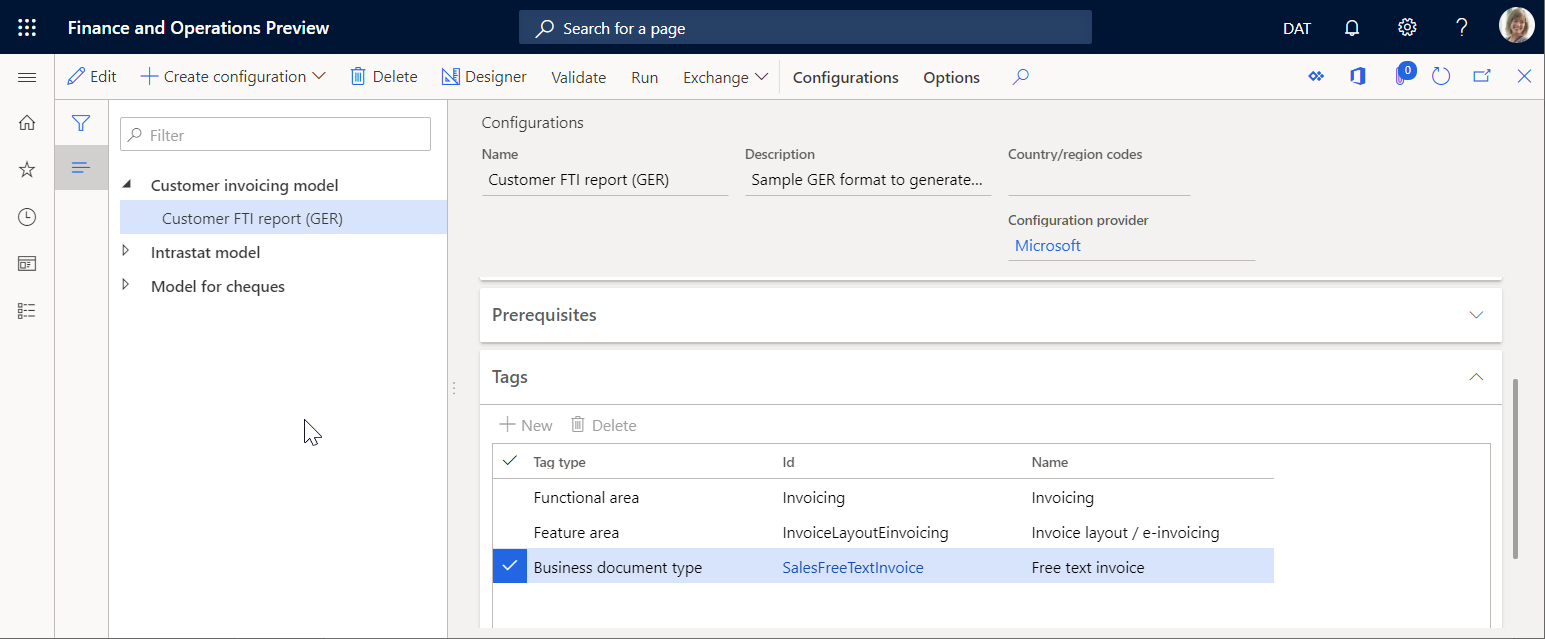
You can restrict the list of templates available in the Business document management workspace by configuring access permissions. This restriction is important when different templates produce business documents for different business domains (functional areas), and you want to allow specific users access to different templates for editing in the Business document management workspace.
Set Business document management access permissions on the Configurator of access permissions. Only the following users can access the page:
- Users assigned to the System administrator role.
- Users assigned to any other role that is configured to perform the duty, Configure permissions to access Business document templates for editing (AOT name ERBDTemplatesSecurity).
Use the following procedure to set up the access Business document management permissions for all legal entities.
Sign in as a user with access to the Configurator of access permissions page.
Go to Organization administration > Electronic reporting > Business document management > Manage access permissions.
Pay attention to the notification that informs you that the usage of access permissions for Business document management isn't currently enabled.
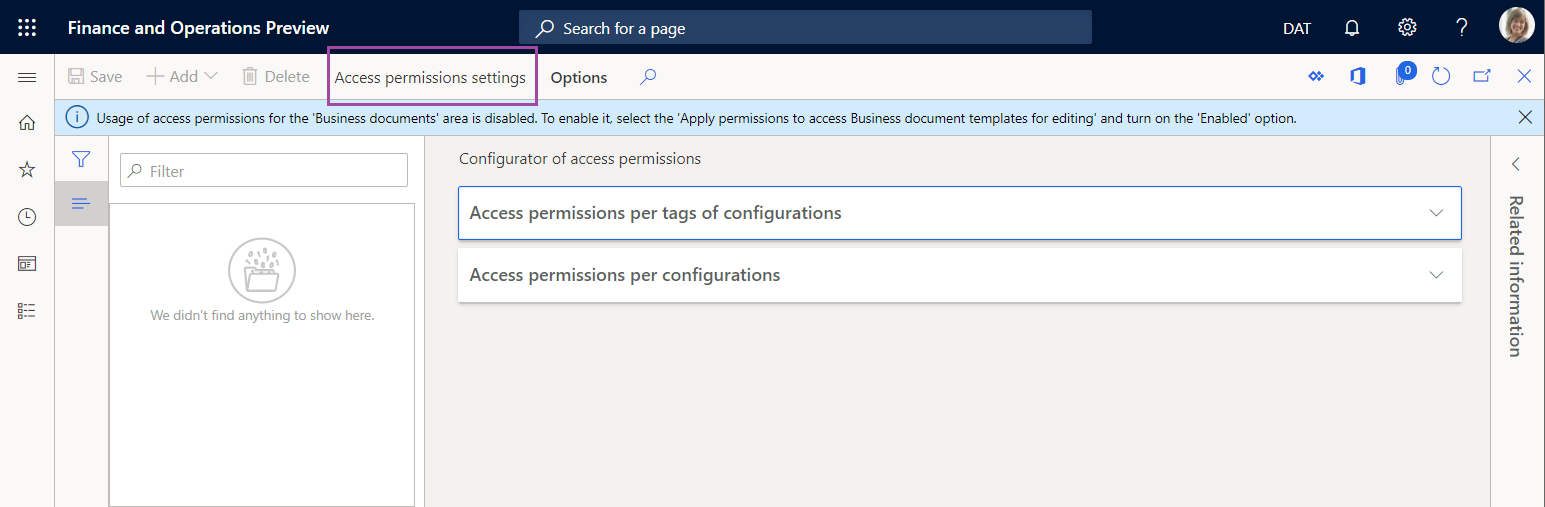
With this setting, every user assigned to any security role that is configured to perform the Manage Business document templates (AOT name ERBDManageTemplates) duty can open the Business document management workspace and can edit any template that is available.
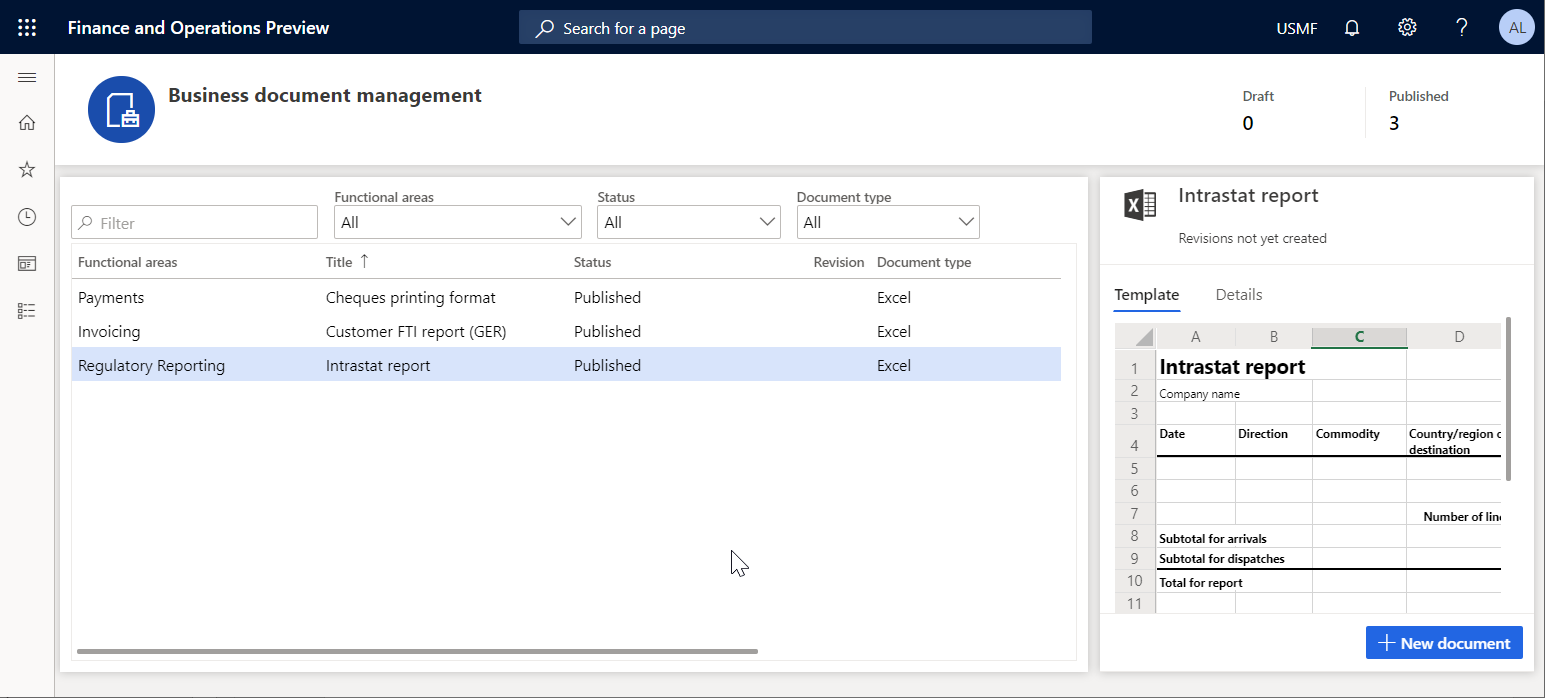
The following graphic shows what is available in the Business document management workspace for users assigned to the Accounts receivable clerk role. With the current access permissions setting, the user can edit business document templates from different functional areas including invoicing, regulatory reporting, and payments.
On the Configurator of access permissions page, select Access permissions setting.
In the Settings of access permissions to edit templates dialog box, enable the Apply configured access permissions option.
Select OK to confirm that Business document management access permissions are enabled.
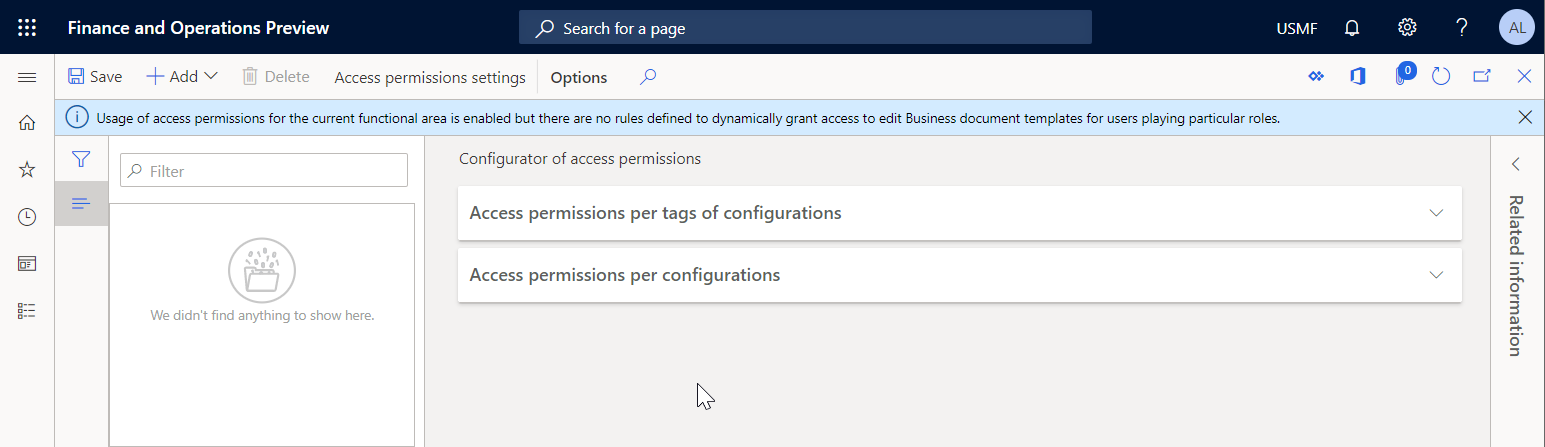
Select Add to enter a new business role for which permissions to access Business document management templates must be configured.
In the Security roles dialog box, select the Accounts receivable clerk role and then select OK to confirm the role selection.
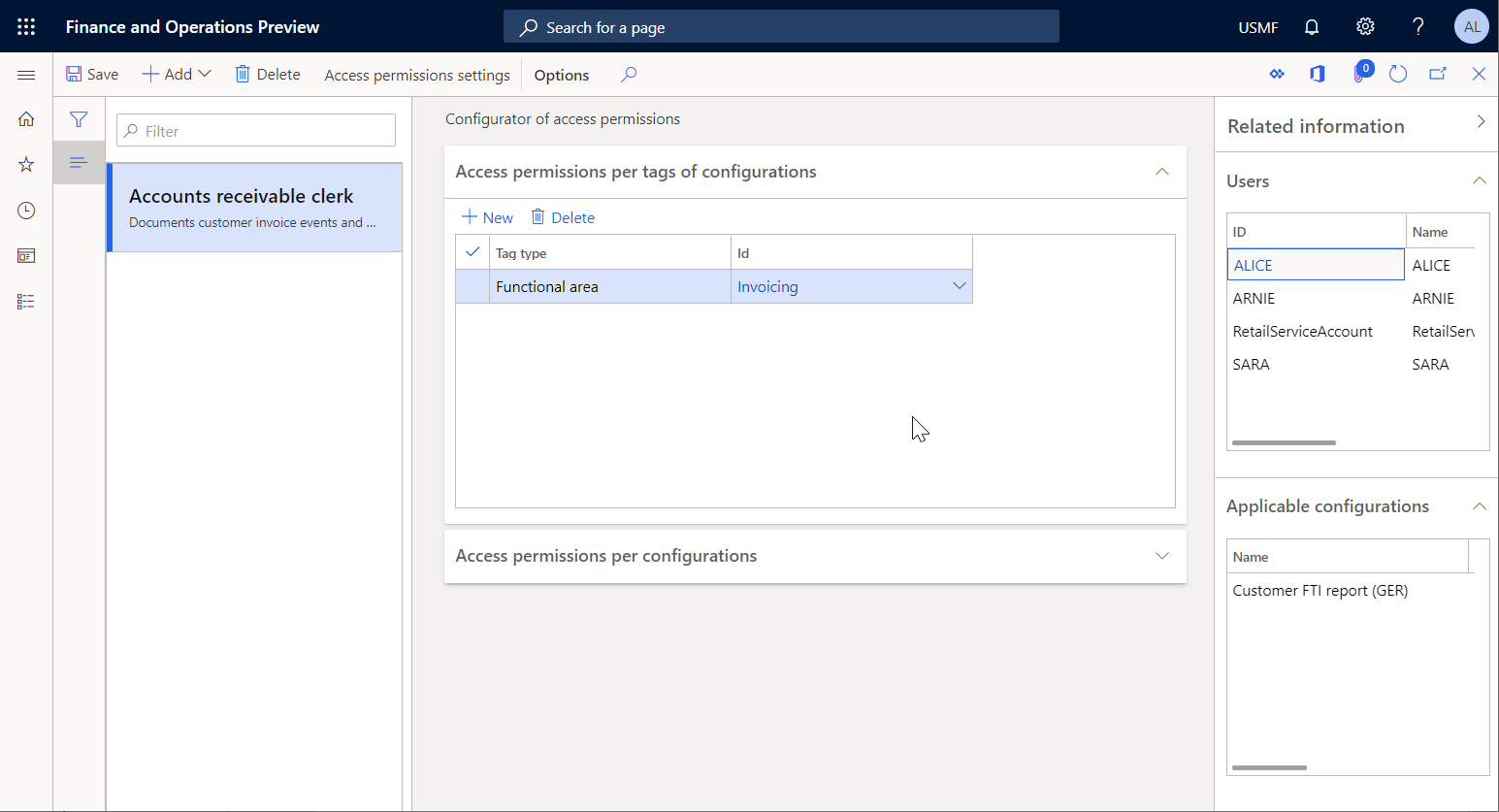
On the Access permissions per tags of configurations tab, select New.
In the Tag type field, select Functional area, and in the ID field, select Invoicing.
Select Save to store configured access permissions for the selected role.
The current setting means that for any user who is assigned to the Accounts receivable clerk role and performing the duty, Manage Business document templates (AOT name ERBDManageTemplates), ER format configuration templates that have the Invoicing value for the Functional area tag are available to edit in the Business document management workspace.
Switch the Related information pane from the right side of the current page. The Related information pane shows how the configured access permissions are applied, including what ER configuration templates are available for users that are assigned to the Accounts receivable clerk role.
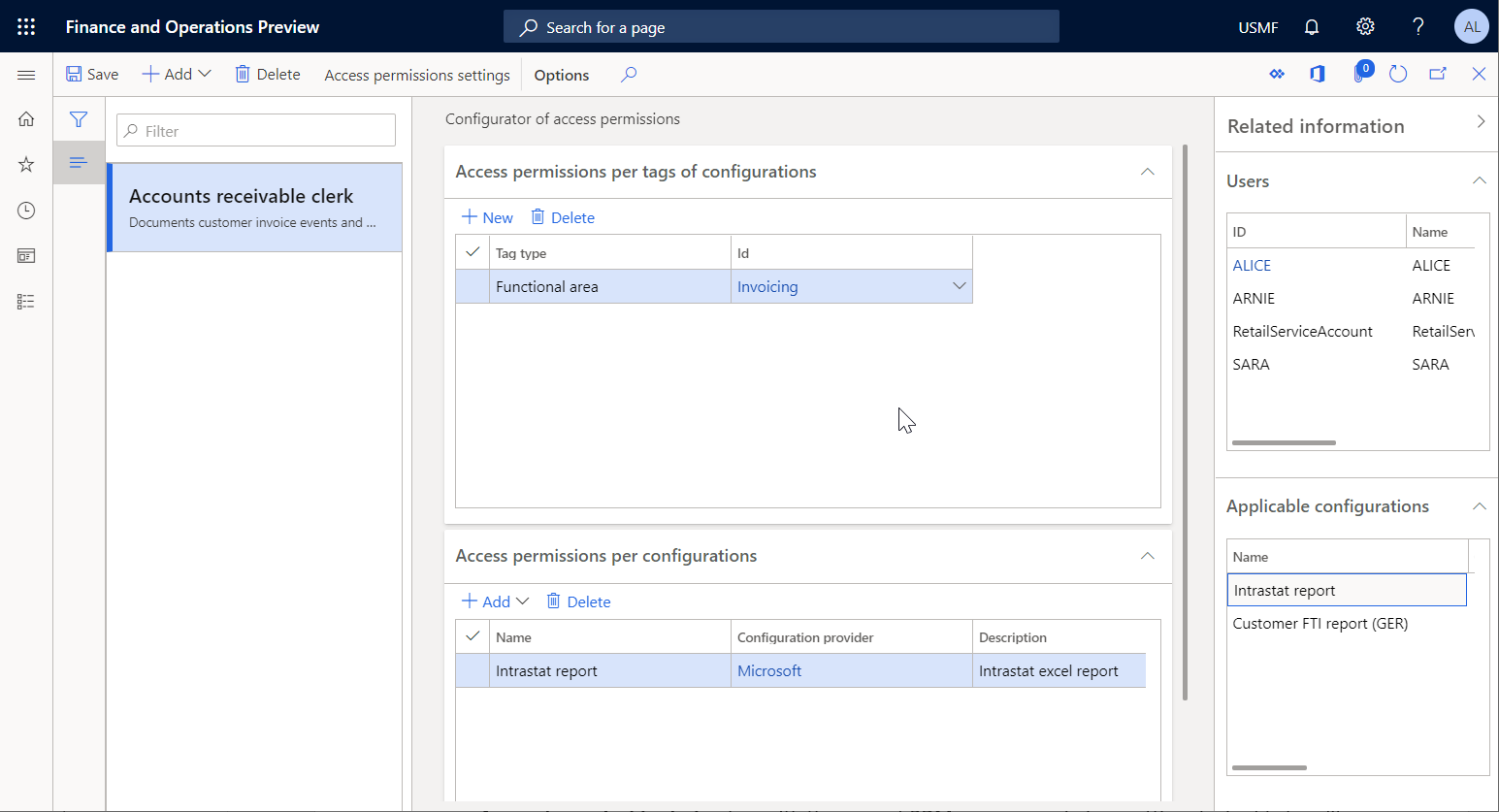
On the Access permissions per configurations tab, select the Add option.
In the Select configuration dialog box, mark the Intrastat report ER format configuration.
Select OK to confirm the entry of the selected configurations and then select Save to store the configured access permissions for the selected role.
The current setting means that for any user assigned to the Accounts receivable clerk role and performing the duty, Manage Business document templates (AOT name ERBDManageTemplates), the following templates are available to edit in the Business document management workspace:
- Templates that have the value, Invoicing for the Functional area tag.
- Templates from ER format configurations that are listed on the Access permissions per configurations tab (templates from the Intrastat report format configuration of the Statutory reporting domain in this example).
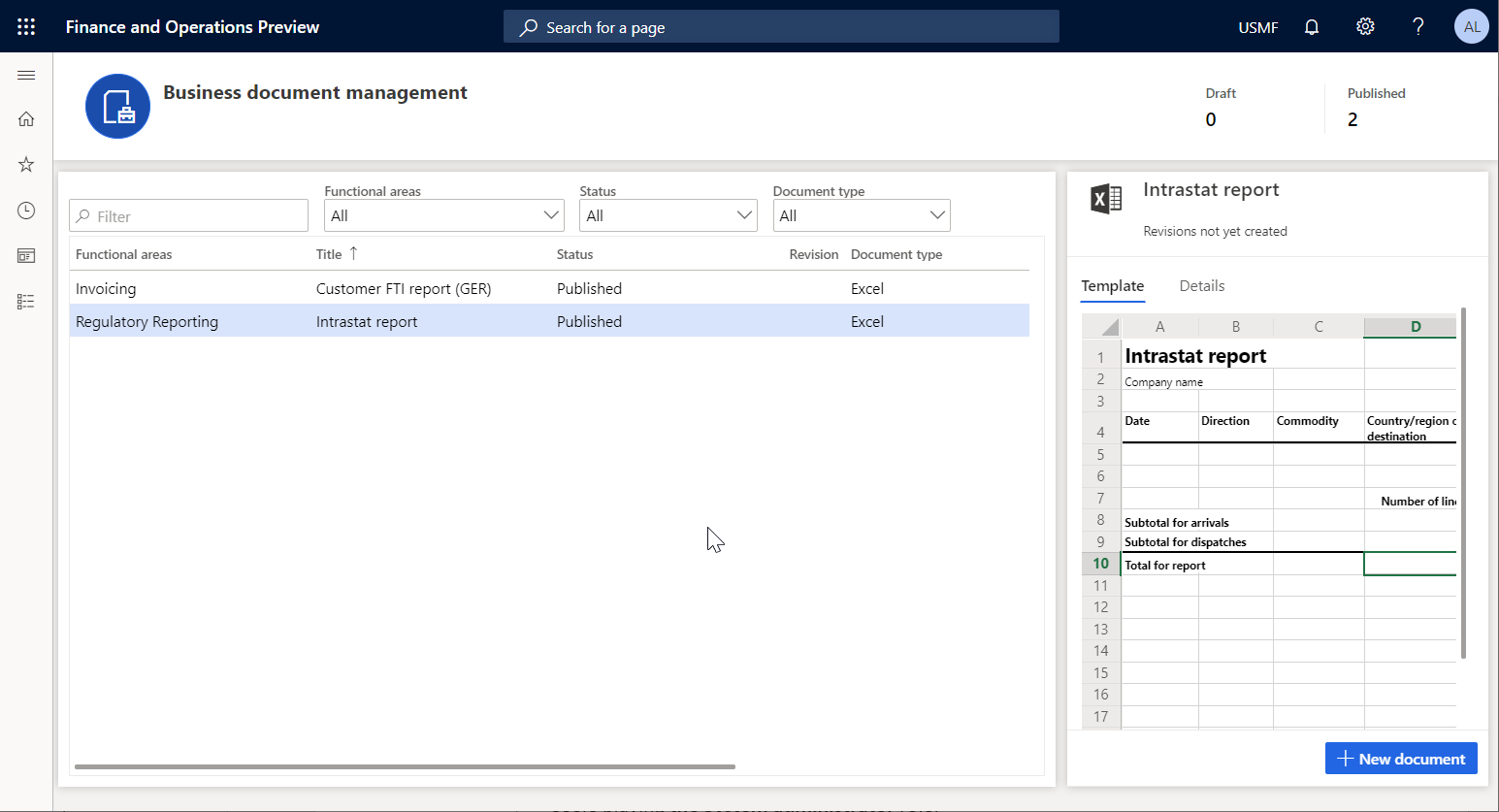
The following graphic shows what the Business document management workspace provides to a user assigned to the Accounts receivable clerk role. With the current Business document management access permissions setting, the user can edit business document templates from the Invoicing domain and the Intrastat report ER format configuration. Templates from the Payments domain aren't accessible for the Accounts receivable clerk role.
Note
The Access permissions per configurations rules use the unique identification ID of an ER format configuration. These rules stay even if you delete an ER configuration that refers to them. When you import deleted configurations back to this instance, these rules refer to them again. You don't need to set up the rules again after you import the deleted configurations.