Note
Access to this page requires authorization. You can try signing in or changing directories.
Access to this page requires authorization. You can try changing directories.
Note
Community interest groups have now moved from Yammer to Microsoft Viva Engage. To join a Viva Engage community and take part in the latest discussions, fill out the Request access to Finance and Operations Viva Engage Community form and choose the community you want to join.
This article explains authentication in Dynamics 365 Finance + Operations (on-premises). It also provides background information about how the process works so that if you encounter issues with authentication, you can work to resolve them.
The URL for Active Directory Federation Services (AD FS)
The first part of the authentication process is to provide the URL for Active Directory Federation Services (AD FS). This URL is similar to: https://adfs.contoso.com/adfs/.well-known/openid-configuration
You find this URL in the deployment instructions found in Configure AD FS. During deployment, use the URL to set various options in the AOS startup variables of each AOS instance. These startup variables reside in an .XML config file located in a Service Fabric directory. This directory varies from machine to machine, but the path looks similar to:
C:\ProgramData\SF\AOS_10\Fabric\work\Applications\AXSFType_App218\AXSF.Package.1.0.xml
XML configuration file
There's a file called AXSF.Package.Current.xml. This file is a copy of the AXSF.Package.1.0.xml in finance and operations deployments. The AXSF.Package.Current.xml file represents the variables that initialize the currently running AOS instance (AxService.exe).
Within this configuration file (which is on each AOS machine), you find some sections that the Microsoft Dynamics Lifecycle Services deployment setting for AD FS sets.
<Section Name="Aad">
    <Parameter Name="Microsoft Entra IDIssuerNameFormat" Value="http://ADFS.contoso.com/{0}/services/trust" />
    <Parameter Name="Microsoft Entra IDLoginWsfedEndpointFormat" Value="https://ADFS.contoso.com/{0}/wsfed" />
    <Parameter Name="Microsoft Entra IDMetadataLocationFormat" Value="https://ADFS.contoso.com/FederationMetadata/2007-06/FederationMetadata.xml" />
    <Parameter Name="Microsoft Entra IDTenantId" Value="adfs" />
    <Parameter Name="Microsoft Entra IDValidAudience" Value="https://ax.contoso.com/" />
    <Parameter Name="ACSServiceEndpoint" Value="https://accounts.accesscontrol.windows-ppe.net/tokens/OAuth/2" />
    <Parameter Name="ACSServicePrincipal" Value="00000001-0001-0000-c000-000000000000" />
    <Parameter Name="ADFSEndpoint" Value="https://ADFS.contoso.com/adfs" />
    <Parameter Name="ADFSIdentifier" Value="http://ADFS.contoso.com/adfs/services/trust" />
    <Parameter Name="FederationMetadataLocation" Value="https://ADFS.contoso.com/FederationMetadata/2007-06/FederationMetadata.xml" />
    <Parameter Name="Realm" Value="spn:00000015-0000-0000-c000-000000000000" />
    <Parameter Name="TenantDomainGUID" Value="adfs" />
    <Parameter Name="TrustedServiceAppIds" Value="913c6de4-2a4a-4a61-a9ce-945d2b2ce2e0" />
</Section>
You also find the following sections.
<Section Name="OfficeApps">
    <Parameter Name="AppInsightsKey" Value="" />
    <Parameter Name="AuthClientId" Value="00001111-aaaa-2222-bbbb-3333cccc4444" />
</Section>
<Section Name="OpenIDConnect">
    <Parameter Name="ClientID" Value="00001111-aaaa-2222-bbbb-3333cccc4444" />
    <Parameter Name="Metadata" Value="https://ADFS.contoso.com/adfs/.well-known/openid-configuration" />
</Section>
<Section Name="Provisioning">
    <Parameter Name="AdminIdentityProvider" Value="http://ADFS.contoso.com/adfs/services/trust" />
    <Parameter Name="AdminPrincipalName" Value="axserviceuser@contoso.com" />
</Section>
Note
The settings shown earlier represent a deployment configured with Microsoft 365 compatibility. For more information, see AD FS Microsoft 365 compatibility.
Configuration values used by the AOS
The AOS uses the preceding configuration values to determine where to redirect an unauthenticated request when a user sends a request to the application URL.
- The browser sends a request to the application URL (
https://ax.contoso.com/namespaces/AXSF/). - The Gateway processes the request and forwards it to an AOS node that accepts interactive sessions.
- The request reaches the AOS server and checks for the authentication cookies.
- No authentication is present, so the AOS server returns a redirect request for the user to authenticate by using AD FS. At this point, the AOS also sets an affinity cookie to bind the user session to that AOS.
- The Gateway receives the response and forwards it back to the browser.
- The browser receives the redirect request and displays the AD FS authentication page so the user signs in.
- When successfully authenticated against AD FS, the AD FS then redirects the user back to the application URL and provides the authentication cookies.
- The Gateway receives this response and forwards the affinitized request to the appropriate AOS node.
- The AOS checks the authentication information provided and checks against the UserInfo table to determine whether the user is allowed to access the application and which permissions are available.
If values in the AOS config file are incorrect, that error typically means the value provided for the AD FS endpoint when deploying the environment was incorrect. The easiest solution is to delete and redeploy the environment from Lifecycle Services with the correct value. You can manually edit the configuration files, but to be safe, redeploy. Otherwise, you need to manually change the values after each servicing operation on each AOS node. If you edit the config files, you need to restart the AOS service (AxService.exe) for the changes to take effect. You can do that from the Service Fabric explorer (right-click the AOS node under Nodes, choose Restart, and then wait at least a minute for the status to change to green). You can also reboot the machine.
Receiving a 500 error when accessing the application URL indicates that there might be an invalid URL for AD FS. This error occurs because on startup the AOS uses that URL to obtain information from the AD FS server. If the URL is incorrect or inaccessible, the AOS is unable to start.
AD FS
The second part of the authentication process is AD FS itself. On the AD FS server, if you open AD FS Management (from Control Panel > System and Security > Administrative Tools), and go to Application groups, you find a group called Microsoft Dynamics 365 for Operations On-premises. This group stores the settings for AD FS for your Dynamics 365 application.
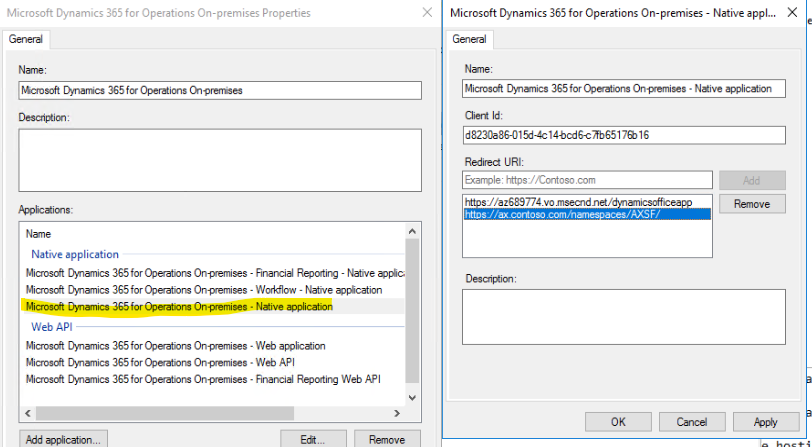
AD FS uses the client ID and the URLs to determine whether to honor the request for access. You see that the client ID from the preceding screenshot matches the IDs specified in the OfficeApps and OpenIDConnect sections. If both the client ID and the redirect URL don't match what the AOS is requesting, AD FS denies the request to authenticate. If that happens, you find an error in the event log on the AD FS server. There's a special event log for AD FS under Application and Services logs > AD FS > Admin.

If any of the AD FS application group setup is incorrect, you likely see an error in the event log that explains the value it was looking for, so you can determine what is set incorrectly.