Note
Access to this page requires authorization. You can try signing in or changing directories.
Access to this page requires authorization. You can try changing directories.
Note
Community interest groups have now moved from Yammer to Microsoft Viva Engage. To join a Viva Engage community and take part in the latest discussions, fill out the Request access to Finance and Operations Viva Engage Community form and choose the community you want to join.
Disaster recovery is an important consideration for on-premises deployments of Dynamics 365 Finance + Operations (on-premises) to protect from events that could put your organization's operations at risk. Examples of such events include equipment failures, datacenter breakdowns due to cyberattacks, electrical, physical, or other disasters.
The core concept of disaster recovery involves the use of a second datacenter including a data recovery environment. Plan, document, and test disaster recovery as carefully as your production setup.
Limitations of this content
This article doesn't cover specific configuration details for disaster recovery of the following components:
- Active Directory Federation Services (AD FS)
- File storage
- SQL Server
Note
This article doesn't cover high availability configuration. For more information about the minimum setup required for high availability, see System requirements for on-premises deployments.
Recommendations
Keep your disaster recovery environment updated with the latest Windows Updates. Your environment should have the latest security updates and not require updates during a disaster event.
Ensure that you apply new prerequisites that Microsoft specifies. Also, keep your Service Fabric cluster updated and perform certificate rotations as required.
After you read through this article, document the steps that your team needs to take. Then, go through the steps multiple times to ensure that you don't encounter unexpected problems and you minimize the potential downtime.
Overview
The basic configuration for disaster recovery involves deploying a duplicate of the production environment within another datacenter (the secondary datacenter) and replicating databases to that datacenter. If a disaster event occurs, you can take a few manual steps to bring the environment in the secondary datacenter online.
The following diagram illustrates the required setup, at a high level.

Environment configuration
In Microsoft dynamics Lifecycle Services, deploy the production environment by using the environment slot named Production. Your disaster recovery environment doesn't use an additional environment slot in Lifecyle Services. It instead reuses the slot for your production environment.
Finance and operations AOS nodes and SQL Server must be colocated within the same datacenter. For more information, see System requirements for on-premises deployments.
Deploying code packages to production
When you deploy code packages to the production environment, you don't need to deploy them to the disaster recovery environment. That environment should be unused and no Service Fabric services should be deployed.
Environment deployment settings
The disaster recovery environment should have a similar configuration as the production environment. The following table illustrates the shared and specific settings for disaster recovery.
| Environment settings | Disaster recovery environment |
|---|---|
| Active Directory settings | |
| Administrator user | Same as production |
| AD FS URL | Same as production |
| AD FS OpenId Connect client ID for AOS | Same as production |
| AD FS OpenId Connect client ID for Financial Reporting | Same as production |
| SQL Database configuration | |
| SQL Server name | Same as production |
| AX database name | Same as production |
| Financial Reporting database name | Same as production |
| File share settings | |
| File share for document store | Same as production |
| File share certificate thumbprint | Same as production |
| SSRS configuration settings | |
| IP address of SSRS instance | Can be different 1 |
| SSRS certificate thumbprint | Same as production |
| Configure service settings | |
| DNS host name of Dynamics 365 instance | Can be different 2 |
| AOS service user | Same as production |
| MR application service user | Same as production |
| MR process service user | Same as production |
| MR click-once service user | Same as production |
| Application certificate settings | |
| Data encryption certificate thumbprint | Same as production |
| Data signing certificate thumbprint | Same as production |
| Session authentication certificate thumbprint | Same as production |
| SSL certificate thumbprint | Same as production |
| Management reporter certificate thumbprint | Same as production |
1 SSRS is referenced by IP. If you can't configure the exact machine IP in the disaster recovery environment, the IP can be different.
2 This setting depends on your network configuration. If you have a load balancer that can handle diverting traffic to the other environment, the host name can be the same. If you can't set up that configuration, use a different host name.
SQL Server Always On Availability configuration
Replicate the business data database (AXDB) to the secondary datacenter, typically by using the SQL Server Always On availability groups feature. For more information, see Always On availability groups.
| Database | Replicated |
|---|---|
| Business data (AXDB) | Yes |
| Financial Reporting | Yes |
| BYODB | Yes |
| OrchestratorData | Yes |
Failing over to disaster recovery
Overview
When a disaster event occurs, the primary datacenter might be unavailable. However, the following components in the secondary datacenter are available.

At the initial moment of the disaster event, the disaster recovery environment is empty. The only resources present are a configured Service Fabric cluster and SQL Server, which contain all of the replicated production data.
To bring the disaster recovery environment online, use Lifecycle Services to deploy what is currently available in your production environment into the disaster recovery environment.
Important
Before you continue, ensure that no Dynamics Service Fabric services are running in your production environment (in case you're only failing due to a partial disaster event).
Deploy the LocalAgent
Download the LocalAgent installer and configuration file from Lifecycle Services to your disaster recovery environment. After you get the configuration file, open it. Make sure that the connectionEndpoint under the serviceFabric section points to the IP address or FQDN of a server in the disaster recovery environment. After modifying the file, save it locally and deploy the LocalAgent as you typically would.
Important
Don't make changes to your connector settings in Lifecycle Services.
Until your main production environment comes back online, this LocalAgent processes all requests that Lifecycle Services puts into the message queue. That's why it's important that you ensure no services are running in your production environment. When your orchestrator nodes come back up in your primary datacenter, unprovision the LocalAgent from the cluster.
Caution
The LocalAgent must only run in one datacenter at a time. At this point, it should only run in your secondary datacenter.
Prepare your pre-deployment scripts (optional)
Pre-deployment scripts are necessary when you need to change the deployment configuration. This script must modify the config.json file with the values you specify. You're responsible for creating this script.
To find the location of the config.json file, run the following command.
select Location from DeploymentInstanceArtifact where AssetId='config.json' and DeploymentInstanceId = 'LCSENVIRONMENTID'
Note
Replace LCSENVIRONMENTID with the ID of your environment. You can get this ID from the full details page for your environment in Lifecycle Services.
If the SSRS node IP is different, you need to modify the following values.
        "biReporting": {
          "persistentVirtualMachineIPAddressSSRS": {
            "value": "192.168.5.31"
          },
          "reportingServers": {
            "value": "192.168.5.31"
          },
If you're changing the host name, make the following modifications.
    "name": "AOS",
      "parameters": {
        "activeDirectory": {
          ...
          "aadValidAudience": {
            "value": "https://ax.contosoen05.com/"
          },
          ...
        "infrastructure": {
          "hostName": {
            "value": "ax.contosoen05.com"
          },
          ...
        }
    ...
    "name": "FinancialReporting",
      "parameters": {
        ...
        "aad": {
         ...
         "cookieDomain": {
            "value": "ax.contosoen05.com"
          },
          "validAudiences": {
            "value": "https://ax.contosoen05.com/"
          },
          ...
Important
If you're changing the hostname URL for your deployment, ensure that your AD FS server is configured to accept the new URL. For more information, see Reuse the same AD FS instance for multiple environments.
If the file share is shared between the production and disaster recovery environments, disable this pre-deployment script. Only enable it when deploying to your disaster recovery environment.
Ensure reports are deployed
Because the database is already synchronized, the system typically skips synchronization. However, to synchronize the reports when the SSRS node is empty, complete the following steps.
Version 10.0.13 or later
Run the following command against your business data database (AXDB):
UPDATE SF.synclog SET STATE=5, SyncStepName = 'ReportSyncstarted' WHERE CODEPACKAGEVERSION in (SELECT TOP(1) CODEPACKAGEVERSION from SF.SYNCLOG ORDER BY CREATIONDATE DESC)
Version 10.0.12 or earlier
Run the following command against your business data database (AXDB):
DELETE FROM SF.synclog WHERE CODEPACKAGEVERSION in (SELECT TOP(1) CODEPACKAGEVERSION from SF.SYNCLOG ORDER BY CODEPACKAGEVERSION DESC)
Note
If you're using version 10.0.12 or earlier, the system runs a full database synchronization.
Deploy your environment
To deploy your environment, follow these instructions.
In Lifecycle Services, go to the environment page for your production environment.
Select Maintain and then select Update Settings.
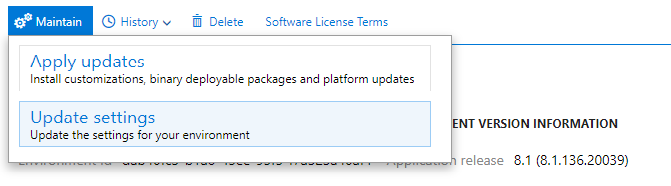
Don't change any values. Select Prepare.
After downloading finishes and preparation completes, the Update environment button appears. Select this button to start updating your environment.
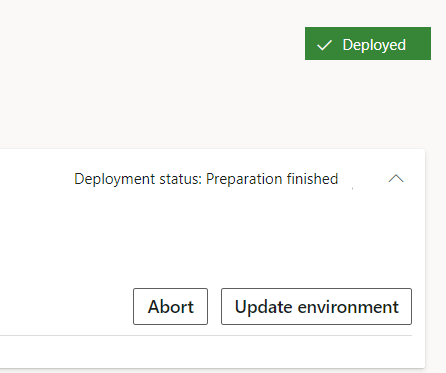
After the environment is deployed, the disaster recovery environment is ready for use.
Using your disaster recovery environment
You can use your disaster recovery environment as you typically would, except that you shouldn't apply updates or hotfixes to the environment. If you must apply updates to your environment, your failback process differs from the one described in this article. This article doesn't cover failing back under this condition.
Failing back to your production environment
Important
At this point, no Dynamics Service Fabric services should be running in your production environment.
Secure a downtime window in which you can switch operation from the disaster recovery environment to the production environment. In the downtime window, disable all non-Orchestrator nodes in the disaster recovery environment through Service Fabric Explorer. Once all nodes are disabled, fail over your SQL Server to the production datacenter.
After the failover occurs, start the AOS, SSRS, and MR nodes in your primary datacenter. Carry out validation tests to ensure that your environment is functioning as expected. When you determine that your environment is working as expected, remove the LocalAgent from your disaster recovery environment and reinstall it on your production environment.
Clean up your DR environment by manually unprovisioning all Dynamics Service Fabric services.
Caution
Don't use the Cleanup functionality in Lifecycle Services to clean up your disaster recovery environment.
Failback checklist
- Non-orchestrator nodes are disabled in disaster recovery datacenter.
- SQL Server is failed back to primary datacenter.
- LocalAgent is uninstalled in your disaster recovery datacenter.
- All Dynamics Service Fabric services (including LocalAgent) are running in your primary datacenter.
- No Dynamics Service Fabric services are deployed in your disaster recovery datacenter.
Important
Your primary environment functions as usual and can be serviced after you ensure that all items in the checklist are verified.