Note
Access to this page requires authorization. You can try signing in or changing directories.
Access to this page requires authorization. You can try changing directories.
Note
Community interest groups have now moved from Yammer to Microsoft Viva Engage. To join a Viva Engage community and take part in the latest discussions, fill out the Request access to Finance and Operations Viva Engage Community form and choose the community you want to join.
Important
The finance and operations (Dynamics 365) mobile app and platform are no longer supported. The platform components supporting the mobile app will be removed in a future update. The mobile app has also been removed from app stores. Previously installed instances of the app will continue to work. For more information, see Removed or deprecated platform features.
This article describes the steps that system administrators must follow to publish a mobile workspace. You must publish a mobile workspace so that users can access it in the mobile app.
Publish a mobile workspace
To publish a mobile workspace, follow these steps:
- In your browser, start your web client.
- Select Settings > Mobile app.
- Select the mobile workspace to publish.
- Select Publish.
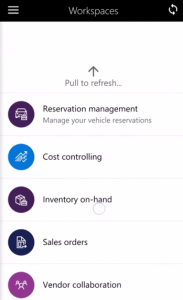
After you publish a new workspace, users must pull to refresh the list of mobile workspaces.