Note
Access to this page requires authorization. You can try signing in or changing directories.
Access to this page requires authorization. You can try changing directories.
Finance and operations apps provide a set of rich security reports to help you understand the set of security roles running in your environment and the set of users assigned to each role. In addition to the reports noted in this article, developers can generate a workbook containing all user security privileges for all roles by using Visual Studio > Dynamics 365 > Addins > View related objects and licenses for all roles.
You can find each of the security reports under System administration > Inquiries > Security. A description of each report is provided in the following sections.
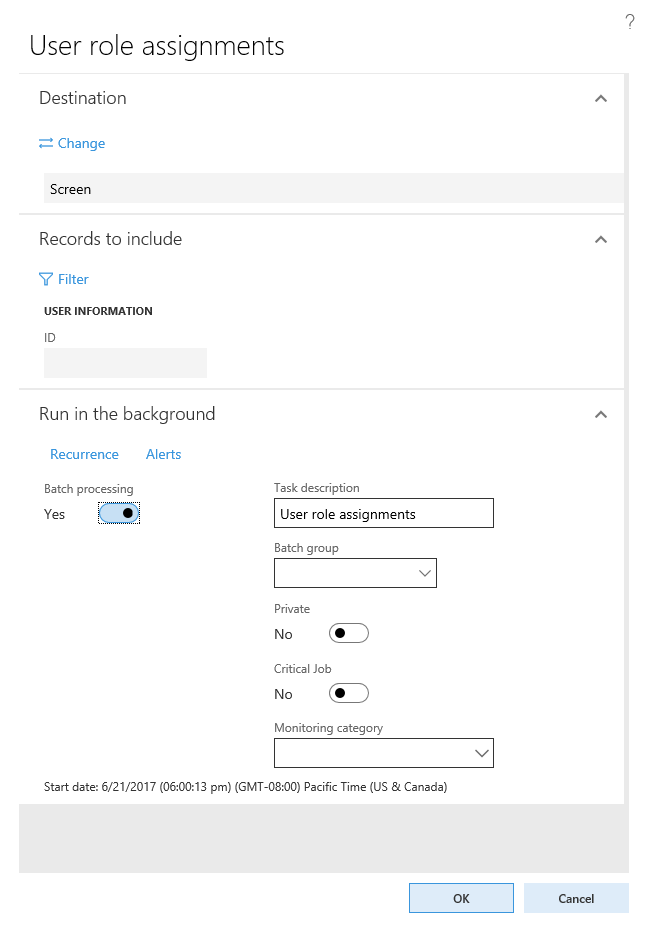
User role assignments
The User role assignments report shows the current user role assignments in your system. By default, the report includes all users with roles assigned. You can optionally limit the report to a specific set of users by entering a list of users when generating the report. On the User role assignments parameters pane, go to Records to include > Filter. From here, you can add or remove filters to the list of users the report generates.

For each user in the report, the report provides a list of roles, along with any restrictions at the legal entity or organization level.
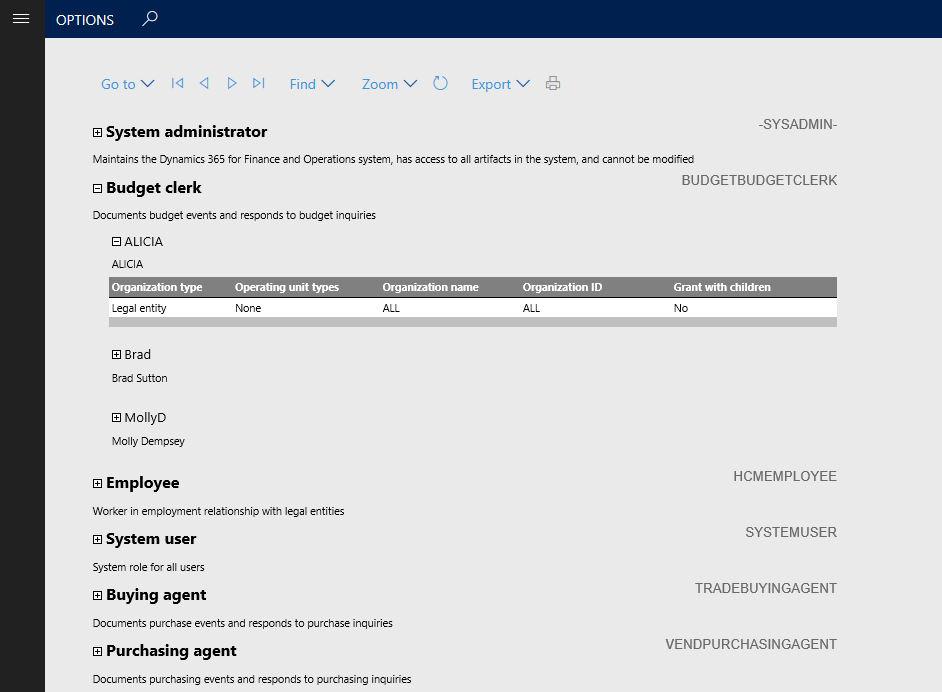
Role to user assignments
The Role to user assignment report provides an aggregation of role assignments. Expanding a role in the report shows the list of users assigned to the role, and expanding the user name shows any restrictions the role has applied. You can apply the same method for filtering the set of users to this report as described for the User role assignments report.
Security role access
The Security role access report shows the effective permissions for each security role. This report provides a flattened list of permissions grouped by type across all sub-roles, duties, and privileges contained in the role.
The data set that supports the Security role access report can be very large, which can cause the report to take some time to run. If there are no changes to security roles since the last time the report ran, you can skip building the report by setting the Rebuild collection option to No in the report parameters pane. This setting renders the report from the existing data set. If it's the first time the report runs, or there might be changes to the role definitions, set the Rebuild collection option to Yes. You can optionally limit the roles to include in the report by adding a filter under Records to include.
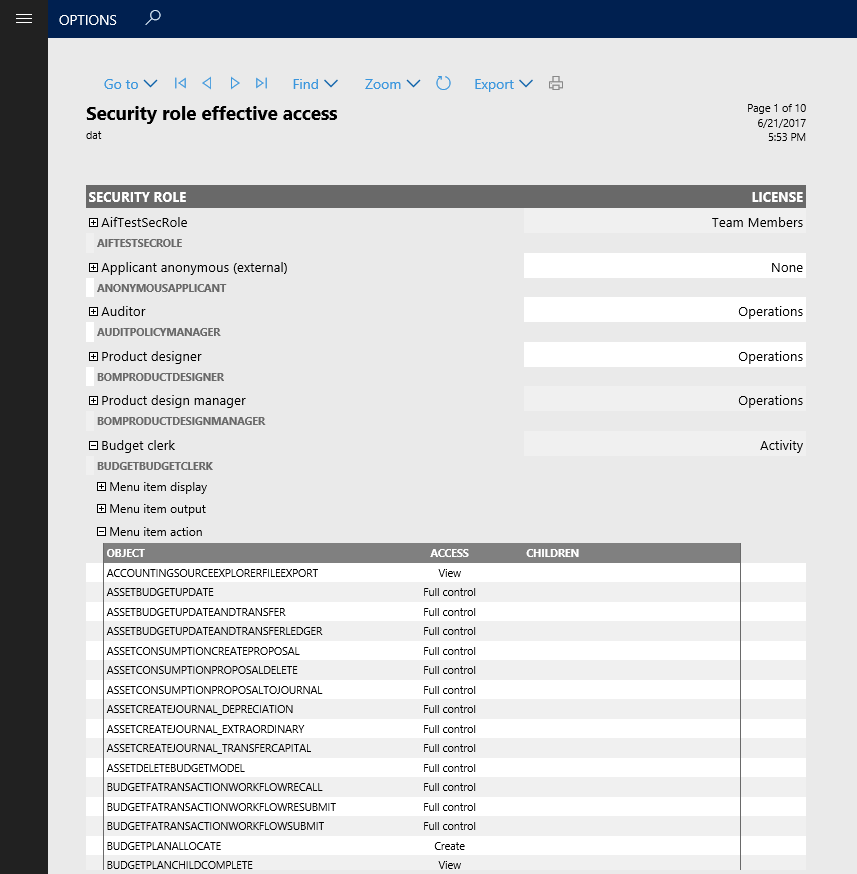
Expanding a role shows the category of objects the role has access to. Expanding one of the object types shows a detailed list of each object of that type included in the role.
Security duty assignments
The Security duty assignments report shows all the duties contained within a role. You can configure this report to run on any collection of roles to ensure that segregation of duties is maintained between roles. By default, the report includes all roles. To limit the roles included, use the filtering provided in the Records to include section.
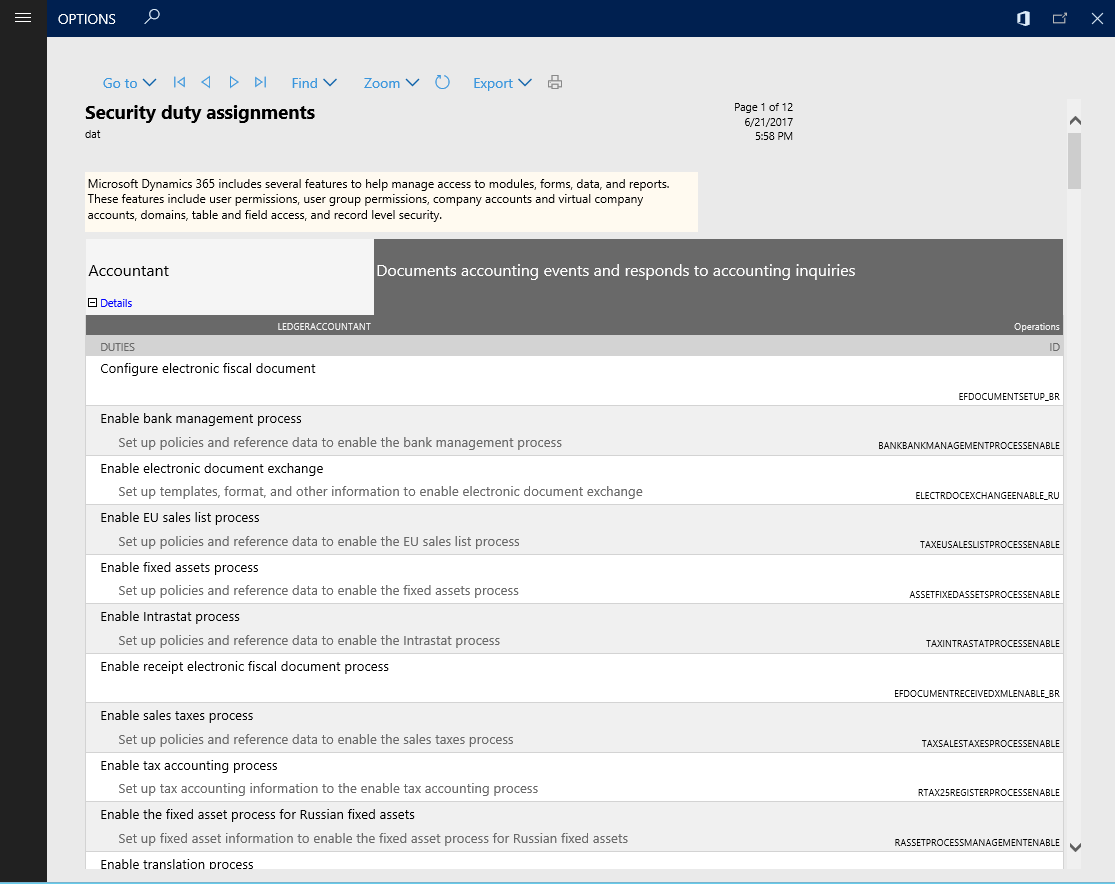
Expanding a role in the Security duty assignments report shows each duty assigned to the role, along with details of the duty.
Batch processing of reports
You can set any of the preceding reports to run as a batch job. Go to the Run in the background section of the report's parameter pane. Set Batch processing to Yes, and then provide a batch task job name, batch group, and whether the job should run as Private or Critical. The batch task creates the report when it runs.