Note
Access to this page requires authorization. You can try signing in or changing directories.
Access to this page requires authorization. You can try changing directories.
Note
Community interest groups have now moved from Yammer to Microsoft Viva Engage. To join a Viva Engage community and take part in the latest discussions, fill out the Request access to Finance and Operations Viva Engage Community form and choose the community you want to join.
This article explains the filtering options that are available.
Introduction
Microsoft Dynamics 365 finance and operations offers the following filtering options.
| Filter option | Description |
|---|---|
| Filter by grid | Define filter conditions in input fields located below the grid column headers. |
| Filter by selection (filter by field) | Select a field value and use that value as a filter condition. |
| Advanced filter | Open a dialog box that contains advanced filtering options, such as filter on columns (not on the form), join additional data sources, and sort by multiple columns. |
Finance and operations offers the following filtering options.
| Filter option | Description |
|---|---|
| Filter pane | An inline pane that slides in from the left, and that contains multiple filter criteria that you can apply to the targeted content. |
| QuickFilter | A framework-provided filtering mechanism that can appear above any list or grid, and that provides fast single-column filtering. |
| Grid column filtering | Define filter conditions and perform single-column sorting by using a drop dialog that opens from the grid column header. |
| Advanced filter or sort | For most advanced filtering scenarios, the migrated Advanced filter page is available. |
Filter expressions
Finance and operations apps use query symbols when defining filter values (for example, * to match zero or more characters, or .. to specify a range of values to match). In the current version, the selected operator implies the query symbols, and the user interface doesn't include them. This approach makes filtering more intuitive and simpler for users. For users who want to specify additional filter conditions by using specific query symbols, or users who must enter more complex conditions, the matches operator is provided for each data type. For all other operators, the query symbols are interpreted as literals. For example, the filter condition First name MATCHES A finds all records where the first name starts with the letter A. However, the filter condition First Name IS A* finds records where the first name is literally equal to A*. The following table shows how the client translates between finance and operations apps filter operators and Dynamics AX 2012 query syntax.
| Filter operator | Finance and operations apps query syntax |
|---|---|
Is exactly circle / Is equal to circle |
circle |
Is not circle / Is not equal to circle |
!circle |
Is one of circle, square, circlesquare |
circle,square,circlesquare |
Contains circle |
*circle* |
Does not contain circle |
!*circle* |
Begins with circle |
circle* |
After circle / Greater than circle |
>circle |
Greater than or equal circle |
circle.. |
Before circle / Less than circle |
<circle |
Less than or equal circle |
..circle |
Between square and circle |
square..circle |
The client interprets any query syntax that doesn't match the preceding templates as the matches operator.
Other frequent filter expressions
You might want to filter for blank values in a column. While there's no filter operator for this specific task, the syntax for performing this filtering remains the same. By using either the matches operator or the is equal to operator, you can type "" to retrieve rows with blank values for the current column. For example, First Name IS "" finds all records where the first name is blank. Note that "" only matches rows where the column value is the empty string and doesn't match rows where the column value is NULL or 0.
You might also want to filter for records that don't belong to a specific list of values. While "is not one of" isn't a filter operator, you can achieve this filter expression by using the matches operator and negating each list item in the list. For example, !circle, !square finds all records that aren't circle or square.
Filter pane
The Filter pane provides an easy-to-use interface for filtering full-page lists. The Filter pane is an inline pane that slides in from the left side of the screen and pushes the page content to the right, so that you can see the data that you want to filter. You open this filter mechanism by selecting the system-defined Show filters button on the left side of the page. After you open it, the Filter pane remains visible until you go to a new page, or until you close the Filter pane by using Hide filters.
When is the Filter pane available?
Currently, the Filter pane is available for all pages except the following pages:
- Drop dialogs
- Dialogs
- Enhanced previews
- Lookups
- Page parts
- Parts
- Table of contents page type
- Pages that have no data sources
What data does the Filter pane work on?
The Filter pane is designed for full page lists. It works only on the tables and fields that are directly joined (by inner or outer joins) to the first primary data source on the page. This filtering mechanism isn't intended for filtering on secondary collections, or for filtering on other root data sources and their directly joined data sources. To meet these other requirements, use other filtering mechanisms such as QuickFilter or grid column filtering.
What fields are initially shown in the Filter pane?
The Filter pane selects the fields it initially shows by using the following criteria:
- It uses all ranges and filters that currently exist on the query (only non-hidden filters and ranges are shown).
- If no ranges or filters currently exist on the query, it uses the fields from the primary index from the first primary data source.
- If there are no fields from the primary index from the first primary data source, it uses the TitleFields that are defined directly on the first primary data source. If no TitleFields are defined, no default fields are shown. Currently, if the first primary data source extends another table (for example, table B), the Filter pane doesn't display TitleFields from table B.
Can I control the default fields that appear in the Filter pane?
Developers can make sure that a particular field appears in the Filter pane by adding an empty filter for that field to the query. For an example, see the FmCustomer page, which adds the filters post super() in form init(). After an empty field is added to guarantee that it appears in the Filter pane, the fields in the Filter pane are always those that are explicitly on the query, and never include the TitleFields or fields from the primary index on the first primary data source.
I don't want users to filter on a specific field or modify an existing filter. How do I accomplish this?
Developers can affect whether users can modify or add filters on certain fields by changing the status of the filters. The allowed values are in the RangeStatus enum:
- Open (default) – The user can see and modify this filter.
- Locked – The user can see the filter value but can't modify it. The user also can't add another filter on this column.
- Hidden – The user can't see that there's a filter on this column. The user also can't add another filter on this column.
Can I control the fields that appear in the Add a filter field list in the Filter pane?
The fields that appear in the Add a filter field list are all the filterable fields from the query that involves the first master data source on the page. Therefore, developers can't control the fields that appear in this list. If you see unexpected fields or can't find the fields that you want to filter on, the fields that you're expecting are either on a different master data source (not the first) or on a child collection.
How is the Filter pane used?
The Filter pane is simple and straightforward to use. First, select a filtering operator in the list that's associated with each filter field. The set of operators that appears depends on the data type of the field. Then enter an appropriate value for the filter condition, and select Apply. The page is updated based on the filter criteria that you specified.
QuickFilter
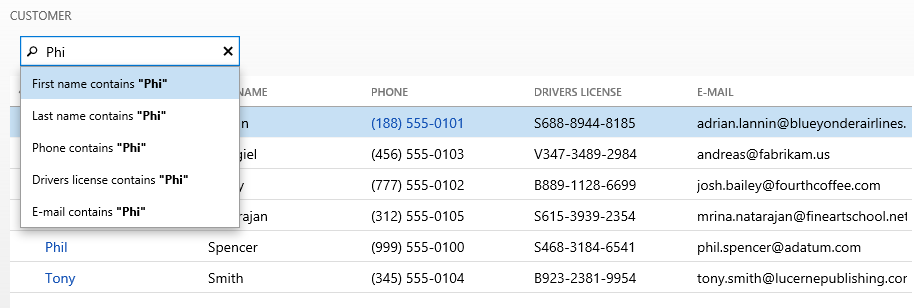
In Dynamics 365 finance and operations apps, the QuickFilter is a modeled control that you can associate with any grid in the system. As the user starts to type, a column selector drop-down appears to guide the user toward the column that the filter applies to. The developer can also specify the default column for the QuickFilter. If you don't specify a column, the default column is the first field that can be filtered in the grid.
Why don't I have a column selector in my QuickFilter?
Column selectors show only for QuickFilters that are attached to grids. If you don't see a column selector, the most likely reason is that the TargetControl property on the QuickFilter is blank. This property must point to the grid that it should operate on. If the TargetControl property is set correctly but you don't see a column selector, you might not have any filterable columns in your grid. In addition to non-text controls (such as images), controls that are bound to data methods aren't filterable.
Can I use the QuickFilter to filter other collection controls (such as trees)?
Yes, you can use the QuickFilter to filter other collection controls, but you must manually wire up the filtering. Follow these general steps:
- Leave the TargetControl property blank.
- Override the applyFilter() method on the QuickFilter.
- Write code in that method to perform the desired filtering.
Grid column header filtering and sorting
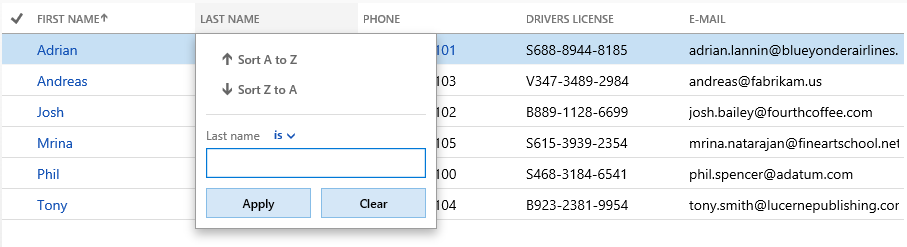
In finance and operations apps, the grid filtering experience more closely aligns with the experience in Microsoft Excel. When the user clicks a column header, a drop-down dialog appears. The user can use it to filter the column. The filtering experience here mimics the filtering experience in the Filter pane. Additionally, there are options to sort the grid based on the column that is currently selected.
Note
Some columns in a grid might not be filterable. In these cases, the column header isn't clickable. From a technical perspective, only columns corresponding to fields in a SQL table support filtering and sorting. You can't filter or sort columns whose values are computed through code by using grid column headers, the Filter pane, QuickFilter, or Advanced filter or sort.