Note
Access to this page requires authorization. You can try signing in or changing directories.
Access to this page requires authorization. You can try changing directories.
Note
Community interest groups have now moved from Yammer to Microsoft Viva Engage. To join a Viva Engage community and take part in the latest discussions, fill out the Request access to Finance and Operations Viva Engage Community form and choose the community you want to join.
Important
Customers using Human Resources, the functionality noted in this article is currently available in both the stand-alone Dynamics 365 Human Resources and the merged Finance infrastructure. Navigation might be different than noted while we make updates. If you need to find a specific page, you can use Search.
Data management in the application supports Microsoft Excel-based templates for data entities. These templates can contain one or more worksheets. You often use templates with multiple worksheets when it's convenient to manage data in a single file and import it to multiple data entities. An example would be sites and warehouses.
Upload a file once and map it to all entities
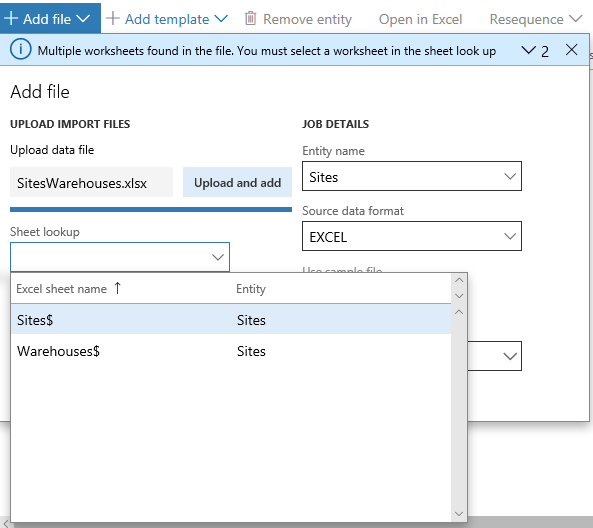
Let's take an example where one Excel file has worksheets called Sites and Warehouses. To set up the data import project, you add the first data entity, Sites, and then upload the file. You can select Sites as the worksheet to use for this entity.
If you add the second entity Warehouses without leaving the Add file form, the worksheet lookup lets you select the Warehouses worksheet without having to upload the file again. The only reason to upload a new file would be if the Warehouses data was in a different file.
Fix worksheet to entity mapping
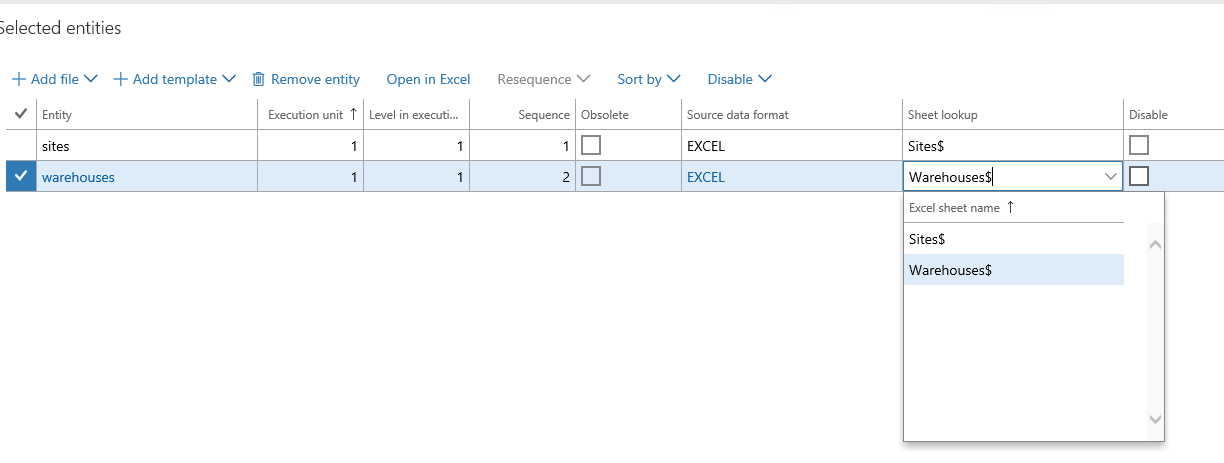
You can fix the mapping of the worksheet to a data entity in the import job from the grid. The Worksheet column in the grid shows the worksheets from the file that you mapped. You can choose a different worksheet from the drop-down menu. If the chosen worksheet is already mapped to an entity in the data project, the system asks you to confirm the change. Fix all mappings in the grid.
Re-map to a new file
If you need to upload a new version of the same file or a completely new file for existing entities in a data project, use the Add file experience, and add the entities again as if you're adding them for the first time. The system confirms that you want to overwrite the existing entities in the data project before proceeding. Entities that you don't add again (or overwrite) keep the previous mappings from the previous file.
Upload a file by using Run project
You can upload an Excel file when you select Run project to execute an import project. Be sure to upload only files that have the same worksheets as the existing mappings on the data entities in the data project. If the newly uploaded file doesn't contain a worksheet, the system displays an error and stops the import. If you need to change the mapping to the worksheet for an entity, first update the mappings in the data project before using the file in the Run project experience.