Note
Access to this page requires authorization. You can try signing in or changing directories.
Access to this page requires authorization. You can try changing directories.
This article explains how to delete versions of a tax calculation feature that you no longer need, and what to do when a version can't be deleted because a legal entity still uses it.
Each tax calculation feature has one or more versions. Over time, you complete many versions, such as after every monthly tax rate update. Old versions that you no longer use can make the version list long and harder to work with.
Previously, you could only delete a whole tax calculation feature, with all its versions. To delete one outdated version, you had to keep it or remove the entire feature. Starting with version 10.0.50, you can delete individual versions of a tax calculation feature from the Versions tab. You can delete:
- A completed version that no legal entity uses.
- The draft version, such as when you want to discard changes and start again.
You can't delete a version that a legal entity currently uses for tax calculation. The system shows a message that tells you which legal entities use the version, so you can change their setup first.
Delete a version
To delete a version, follow these steps:
Go to Workspaces > Globalization studio.
Select the Tax calculation tile.
On the Tax calculation features page, select the tax feature.
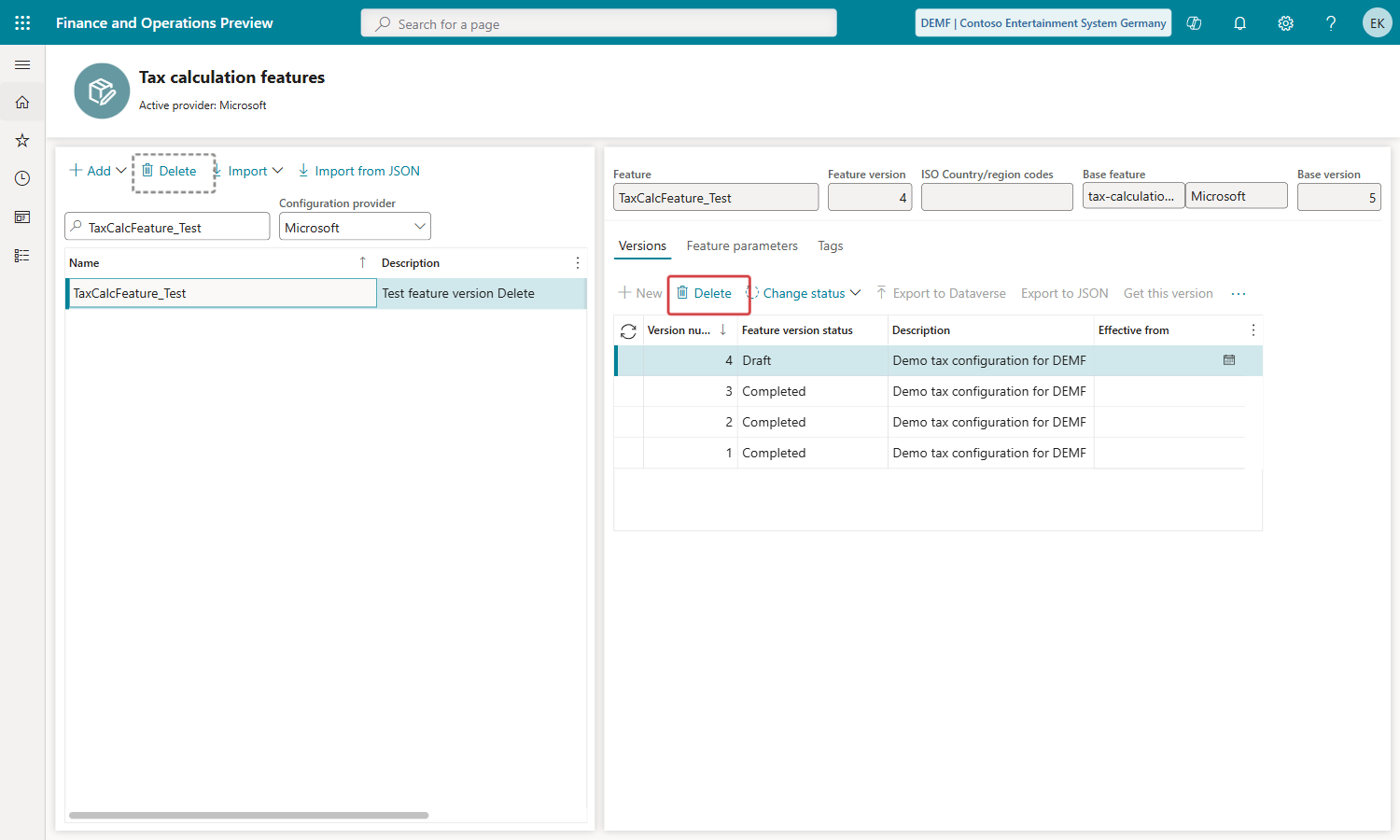
On the Versions tab, select the version that you want to delete. You can delete a completed version or the draft version.
The Feature version field at the top of the page shows the number of the selected version. Check that it's the version that you want to delete.
On the toolbar of the Versions tab, select Delete.
In the message Are you sure you want to delete all marked records?, select Yes. To keep the version, select No.
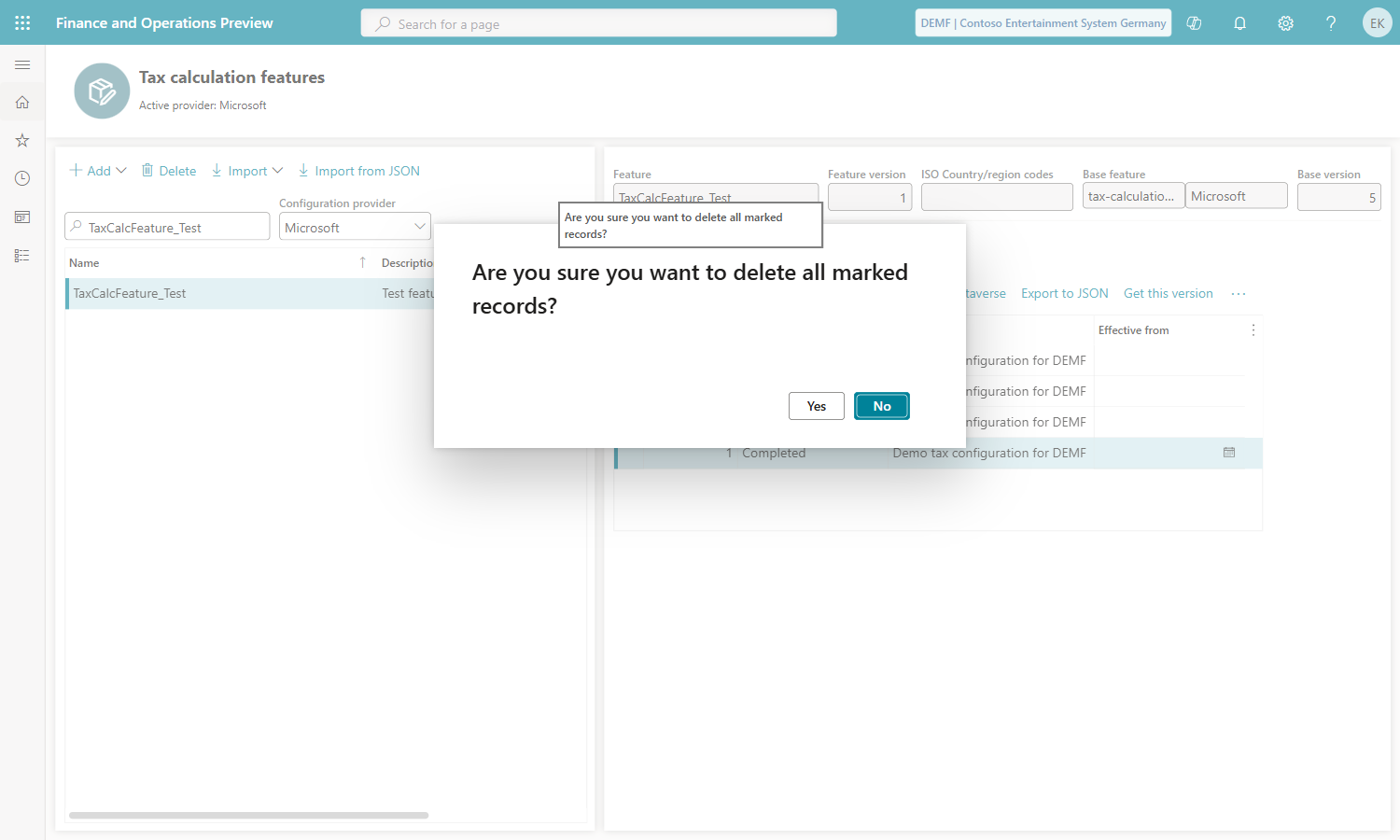
The system deletes the version and removes it from the list. For large tax calculation features, this process can take a moment. The remaining versions keep their version numbers.
If you delete the draft version, the New button becomes available again, so that you can create a new draft from a completed version.
Important
Deleting a version can't be undone. The version and its setup, including tax codes and rates, are removed. If you might need the version later, export it by using Export to JSON before you delete it.
You can't delete a version that a legal entity uses for tax calculation. A legal entity uses a version when the version is selected in the Version field on its Tax calculation parameters page.
When you try to delete such a version, the system doesn't delete it and shows a message that lists the legal entities that use it, for example:
Feature version cannot be deleted because it is used in Tax calculation parameters in the following legal entities: demf. Please remove the assignment and retry.
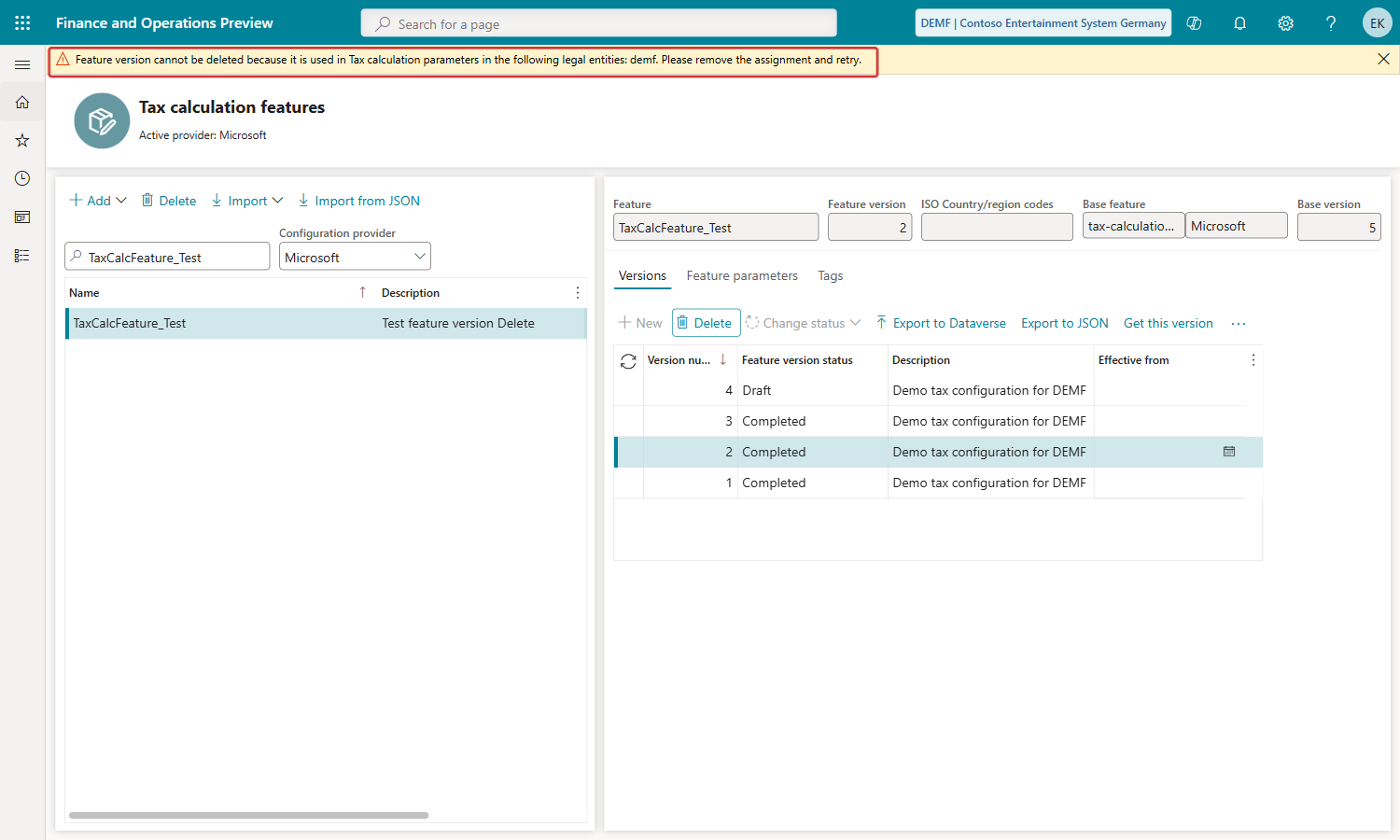
This protection keeps your tax calculation safe. If the version were deleted, the legal entity would have no tax setup to calculate tax on its transactions.
Frequently asked questions
Can I restore a deleted version?
No. You can't undo deleting a version. If you might need a version later, export it by using Export to JSON before you delete it.
Do the remaining versions get new numbers after I delete a version?
No. The remaining versions keep their version numbers. For example, after you delete version 1, the list shows versions 4, 3, and 2.
Why can't I delete a version?
A legal entity uses the version in Tax calculation parameters. The message shows which legal entities use it. Select a different version for those legal entities, and then delete the version.
Can I delete several versions at the same time?
Select and delete one version at a time. This way, you can check the Feature version field before each deletion.
What's the difference between the two Delete buttons on the page?
The Delete button on the Versions tab deletes the selected version. The Delete button above the list of tax calculation features on the left deletes the whole tax calculation feature.