Note
Access to this page requires authorization. You can try signing in or changing directories.
Access to this page requires authorization. You can try changing directories.
This article explains how to set up a client ID and a client secret for the Universal Tax Rate API.
Note
You can create an SR ticket to ask Microsoft support to connect you with the Tax Calculation - Universal Tax Rate API product team for detailed guidance on setting up the client ID and client secret in your environment.
Prerequisites
Before you can access a tax provider's service, you must set up your client ID and client secret for the Universal Tax Rate API. Your tax provider provides these values. When you receive them, store them in a Microsoft Azure Key Vault, and configure Key Vault parameters for Dynamics 365 finance and operations apps. After you set up the client ID and client secret in the key vault, you can select the corresponding Key Vault secret name in the tax feature setup.
Create a key vault in the Azure portal
All the secrets and certificates that are used in the Tax Calculation service must be stored in an Azure Key Vault. This approach helps ensure that you don't work directly with the secrets, and that the secrets are securely stored. When you must use digital signing or secure a connection to external web services, set the reference to the Key Vault secrets instead of using the secrets and certificates directly. For more information, see About Azure Key Vault.
Create a key vault
To create a key vault, follow these steps.
From the Azure portal menu, or from the Home page, select Create a resource.
In the search field, enter Key vault.
In the list of results, select Key vault.
In the Key Vault section, select Create.
In the Create key vault section, set the following fields:
- Subscription – Select a subscription.
- Resource group – Select a resource group, or select Create new.
- Name – A unique name is required. For this example, TaxProvider-vault is used.
- Location – Select a location.
Leave the other fields set to their default values.
Note
In the Set up Key Vault parameters in finance and operations apps section of this article, the name that you enter in the Name field is referred to as <KeyVaultName>.
Select Next, and set the Permission model field to Vault access policy.
Select Review + Create.
After the deployment is completed, expand the Deployment details section, and select the Key vault detail.
Note
Copy and save the Vault URI value. You must enter it in the Key Vault URL field when you complete the procedure in the Set up Key Vault parameters in finance and operations apps section.
Select Next, and set the Permission model field to Vault access policy.
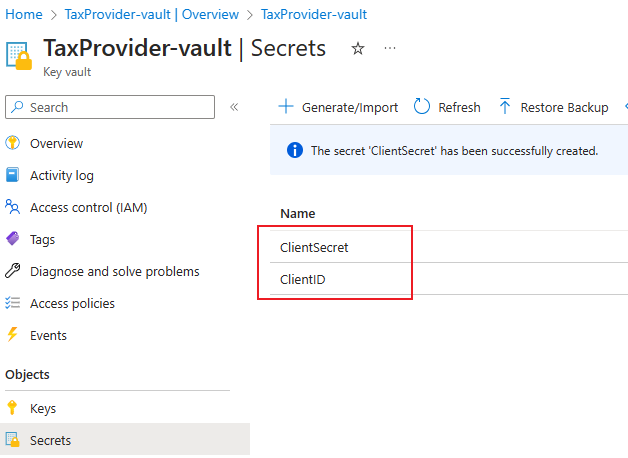
Select Secrets, and then select Generate/Import.
Set the following fields:
- Upload options – Specify Manual.
- Name – Enter a name for the secret. For example, enter ClientID.
- Secret value – Enter the client ID that you get from the tax provider.
Select Create.
Note
The secret name is a mandatory parameter for integration with the key vault. Therefore, it should be specified in the application. In the Set up Key Vault parameters in finance and operations apps section, it's referred to as the <SecretName> parameter.
Repeat step 10 for the client secret.
Set up permissions
This section explains how to complete the following procedures:
- Create an app registration.
- Set up the access policy of the key vault.
- Set up Key Vault parameters in finance and operations apps.
Create an app registration
To access Key Vault, you must create an app registration in Azure Active Directory (Azure AD).
To create an app registration, follow these steps.
In Azure AD, search for register, and then select App registrations.
Set the Name and Supported account types fields, and then select Register.
Copy and save the Application (client) ID value. It should be specified in the application. In the Set up Key Vault parameters in finance and operations apps section, it's referred to as the Key Vault client parameter.
Create a new client secret.
Note
The client secret is a mandatory parameter for integration with the key vault. It should be copied and then specified in the application. In the Set up Key Vault parameters in finance and operations apps section, it's referred to as the Key Vault secret key parameter.
Set up the access policy of the key vault
You must set up the access policy to grant the app registration the correct level of secure access to the secret that you created.
- Open the Key Vault storage that you created earlier.
- Go to Settings > Access policies, and select Create.
- In the Secret permissions section, select the Get and List operations.
- Select Next.
- In the Select principal step, select the app registration that you created earlier.
- Select Next until you reach the Review + create step, and then select Create.
Set up Key Vault parameters in finance and operations apps
After you finish the prerequisite steps, set up the Key Vault parameters to link to the key vault in finance and operations apps.
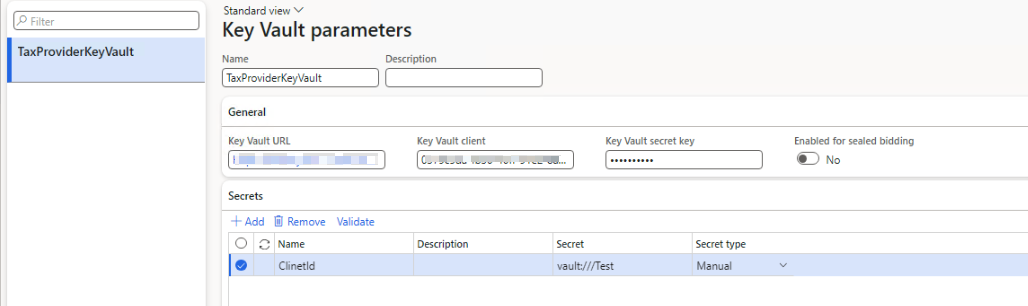
Go to System administration > Setup > Key vault parameters.
Select New to create a new instance.
Enter a name and description, and then, on the General FastTab, set the following fields that are required for integration with Key Vault storage:
- Key Vault URL – Enter the key vault URI that you saved in the Create a key vault section.
- Key Vault client – Enter the interactive client ID of the Microsoft Entra ID application that's associated with the Key Vault storage for authentication.
- Key Vault secret key – Enter the secret key that's associated with the Microsoft Entra ID application that's used for authentication with the Key Vault storage.
On the Secrets FastTab, select Add to add your secret. For each secret, set the following fields:
- Name
- Description
- Secret – Enter a secret reference to the Key Vault secret.
The format of a secret must resemble the following example: vault://<KeyVaultName>/<SecretName>/<SecretVersion>.
The <KeyVaultName> and <SecretVersion> attributes are optional. However, the <SecretName> attribute is required. In most cases, you can define a Key Vault secret key in the following format: vault:///<SecretName>.
If the secret version isn't defined in the Key Vault secret key, the system retrieves the active secret that has the latest expiration date.
Note
You must create the Key vault parameters in each legal entity which is connected to the external tax solution provider for tax calculation.