Note
Access to this page requires authorization. You can try signing in or changing directories.
Access to this page requires authorization. You can try changing directories.
The Field Service Mobile app includes mobile-optimized subgrid controls for work order products, services, and service tasks. These controls let frontline workers manage related records directly from a work order instead of opening individual record forms.
You can configure the controls to:
- Add multiple records at once.
- Find products by using barcode or QR code scanning.
- Edit fields directly in the subgrid.
- Mark all displayed records as complete or used.
Configure a work order subgrid
Add and configure a Power Apps subgrid on the Work Order form.
Note
In the default Field Service Mobile app module, the Work Order - Mobile and Work Order - Service forms already contain work order subgrid controls added according to the steps in this section. For guidance on how to configure these controls, see the following sections.
In the subgrid, go to the Components property.
Search for and add the subgrid control that matches the related record type:
- Product View control for Work Order Products.
- Service View control for Work Order Services.
- Service Task View control for Work Order Service Tasks.
Important
For the control properties in the following sections, such as Multi-add product view, Enable barcode scan, Custom field lookup view, and Enable Complete/Use all, enter the value in Static value. Don't select Bind to table column.
Configure multi-add
When you use multi-add, frontline workers can select multiple records in one flow instead of adding each record individually. The selection can also include products you find by scanning a barcode or QR code.
To enable multi-add, enter a view ID in Static value for Multi-add product view. Use the corresponding entity to determine which records appear in the multi-add panel:
- For products, use the Product entity with the Field Service Product Type column set to Inventory or Non-Inventory.
- For services, use the Product entity with the Field Service Product Type column set to Service.
- For service tasks, use the Service Task Type entity.
Note
The view must include the Name column. Otherwise, the view is invalid, and the experience falls back to adding one record at a time.
For products, include the Default Unit column in the view for the best performance, especially for mobile and offline use. Add the view to the Field Service Mobile app module. If you don't add the view, multi-add works on the web but isn't supported in mobile offline mode.
In online mode, the multi-add panel can show up to 10,000 items. In offline-first mode, it can show up to 5,000 items. Search and barcode scanning use the same limits. For example, in offline-first mode, you can't find items beyond the first 5,000 items in the view. If you don't configure a working multi-add view, the Add action uses a single-record add experience.
Configure barcode or QR code scanning
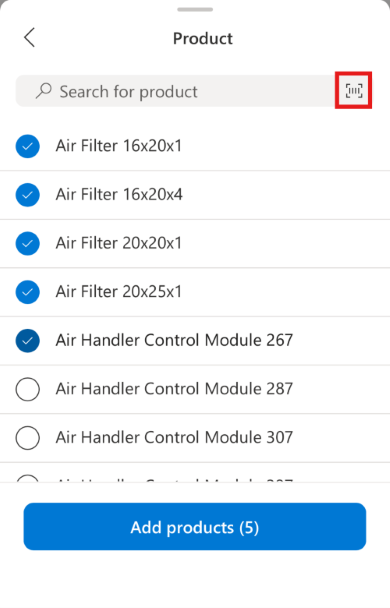
For the Product View control, the add experience also supports selecting existing records through barcode or QR code scanning. Scanning identifies and selects an existing matching record for the add flow. It doesn't create a record from the scanned value.
Register the product's barcode or QR code.
In the Field Service app module, under Field Service Settings, go to the Products tab.
Select Add Product and complete the required fields.
Under the Field Service tab, enter the barcode or QR code value in the UPC Code field.

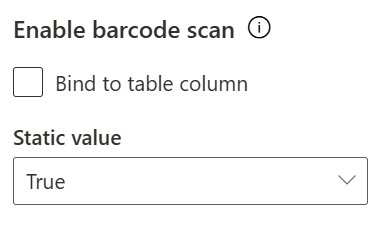
Set Enable barcode scan to True.
The following screenshot shows the barcode icon in the Field Service Mobile app.
Configure inline editing
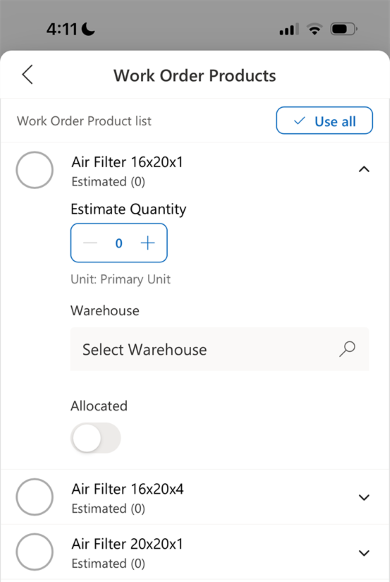
Work order subgrids can show up to two configurable fields for inline editing. You can update frequently changed information without opening the complete record form. The following column types support inline editing:
- Single line of text
- Whole number
- Decimal
- Floating point
- Currency
- Option set
- Two options (Boolean)
- Lookup (simple)
- Date and time (both date only and date and time)
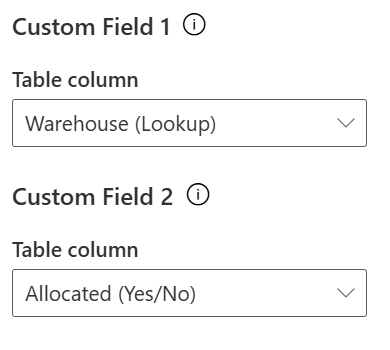
Locate Custom Field 1 and Custom Field 2.
Select the columns to expose for inline editing.
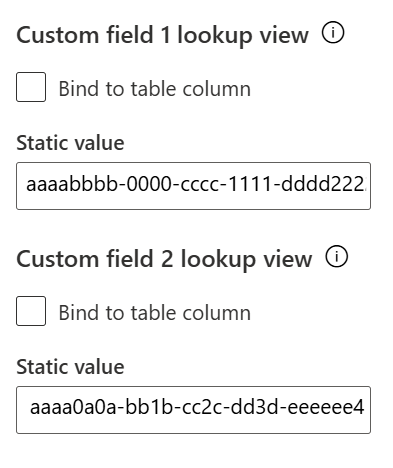
For lookup custom fields, enter a view ID in Custom field lookup view to apply additional sorting or filtering to the lookup list. Leave Static value empty to include all records. Add the lookup view to the Field Service Mobile app module.
If Static value contains a view ID that is unavailable, malformed, not synced offline, or missing its Name column, the lookup displays an empty list.
Note
- Inline editing doesn't support form web-resource JavaScript or Dataverse form business rules. If a field depends on custom form logic, consider whether frontline workers should continue editing the record through the full form instead.
- Inline editable fields don't support required fields. Inline editing doesn't prevent you from clearing a required field and saving the record.
- When you update Estimate Quantity inline, the calculations for Estimate Subtotal, Estimate Discount Amount, Estimate Total Amount, and Estimate Total Cost happen only after Estimate Quantity is updated in Dataverse.
The following screenshot shows the Warehouse and Allocated custom fields in the Field Service Mobile app.
Configure Complete/Use all
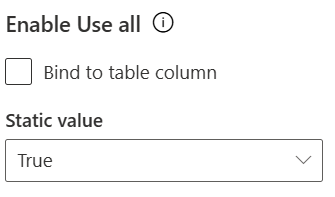
You can mark all Work Order Products and Work Order Services as Used with one action. You can also mark all Work Order Service Tasks as Complete with one action. When you enable this feature, frontline workers can still update an individual record by selecting its row checkbox.
Select True for Enable Use all.
Use the View All experience
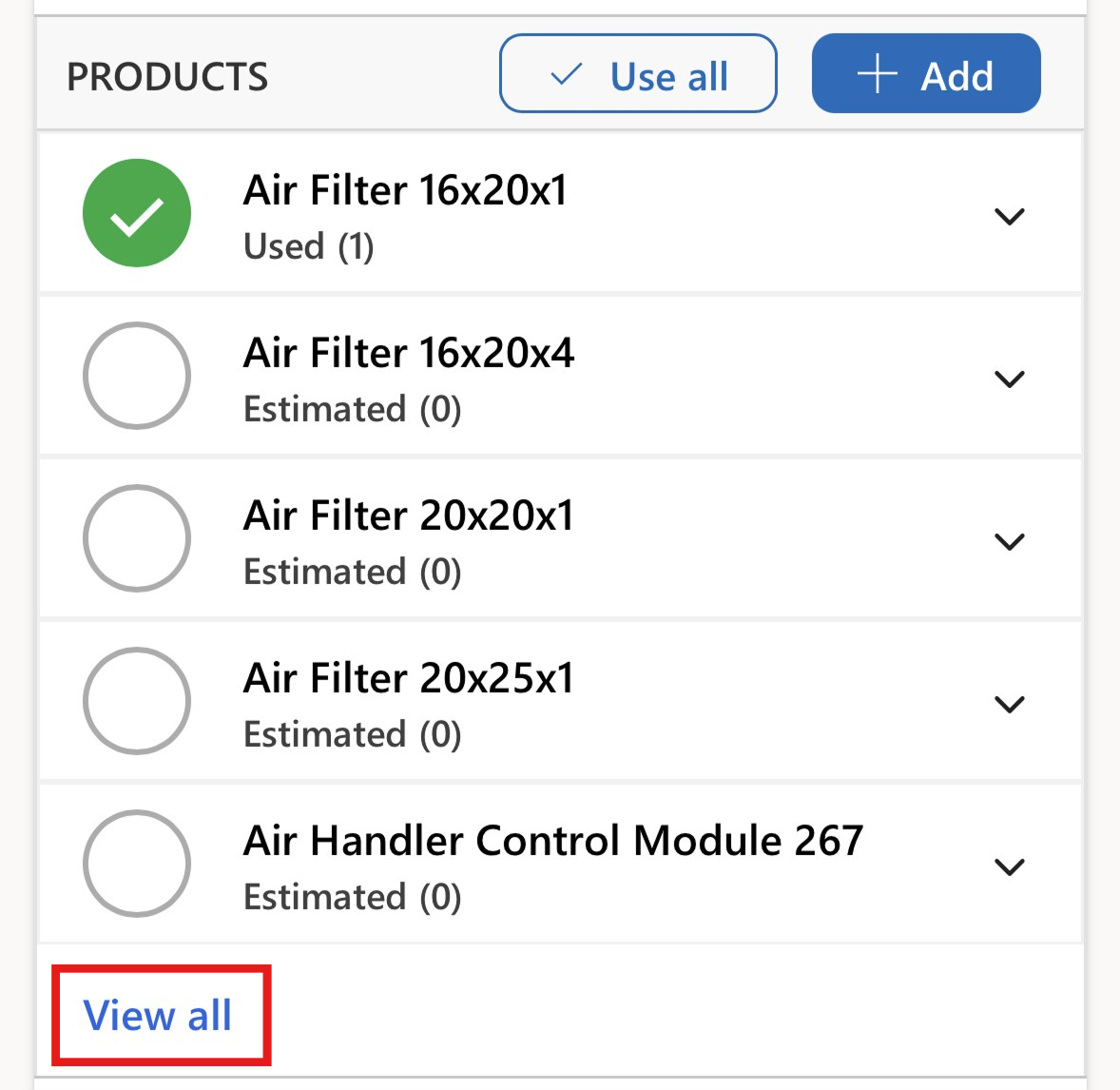
When the number of records exceeds the number of rows you configure for the embedded grid, View All provides access to the larger record list. In View All, you can interact with rows, edit fields inline, complete individual rows, and use the Complete All or Use All actions.
Open the full record
When you select a subgrid row, the record form opens in a dialog. Open the full form when you need fields or functionality that isn't available directly in the subgrid.