Note
Access to this page requires authorization. You can try signing in or changing directories.
Access to this page requires authorization. You can try changing directories.
Important
You can deploy new environments and use database movements to create copies. For more information about self-service deployments, see Self-service deployment overview. For more information about database movements on the finance and operations infrastructure, see Database movement operations home page.
Use Microsoft Dynamics Lifecycle Services (LCS) to copy a Microsoft Dynamics 365 Human Resources database to a sandbox environment. If you have another sandbox environment, you can also copy the database from that environment to a targeted sandbox environment.
To copy an instance, keep the following tips in mind:
- The Human Resources instance you want to overwrite must be a sandbox environment.
- The environments you're copying from and to must be in the same region. You can't copy across regions.
- You must be an Administrator in the target environment so you can sign into it after copying the instance.
- When you copy the Human Resources database, you don't copy the elements (apps or data) that are contained in a Microsoft Power Apps environment. For information about how to copy elements in a Power Apps environment, see Copy an environment. The Power Apps environment you want to overwrite must be a sandbox environment. You must be a global tenant admin to change a Power Apps production environment to a sandbox environment. For more information about changing a Power Apps environment, see Switch an instance.
- If you copy an instance into your sandbox environment and want to integrate your sandbox environment with Dataverse, you must reapply custom fields to Dataverse tables. See Apply custom fields to Dataverse.
Effects of copying a Human Resources database
Note
Starting August 2022, Documents in Microsoft Azure Blob storage are included when copying a production environment to a sandbox environment. Any documents and templates that are attached will be copied over from the source environment to the target environment.
The following events occur when you copy a Human Resources database:
- The copy process erases the existing database in the target environment. After the copy process finishes, you can't recover the existing database.
- The target environment is unavailable until the copy process finishes.
- All users except those with the "System Administrator" security role and other internal service user accounts are unavailable. The Admin user can delete data before other users are allowed back into the system.
- Any user with the "System Administrator" security role must make required configuration changes, such as reconnecting integration endpoints to specific services or URLs.
Copy the Human Resources database
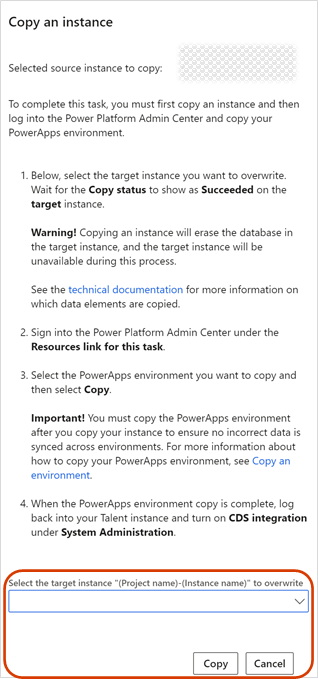
To complete this task, first copy an instance, and then sign in to the Microsoft Power Platform Admin Center to copy your Power Apps environment.
Warning
When you copy an instance, the database is erased in the target instance. The target instance is unavailable during this process.
Sign in to LCS, and select the LCS project that contains the instance you want to copy.
In your LCS project, select the Human Resources App Management tile.
Select the instance to copy, and then select Copy.
In the Copy an instance task pane, select the instance to overwrite, and then select Copy. Wait for the Copy status field to be updated to Completed.
Select Power Platform, and sign in to the Microsoft Power Platform Admin Center.
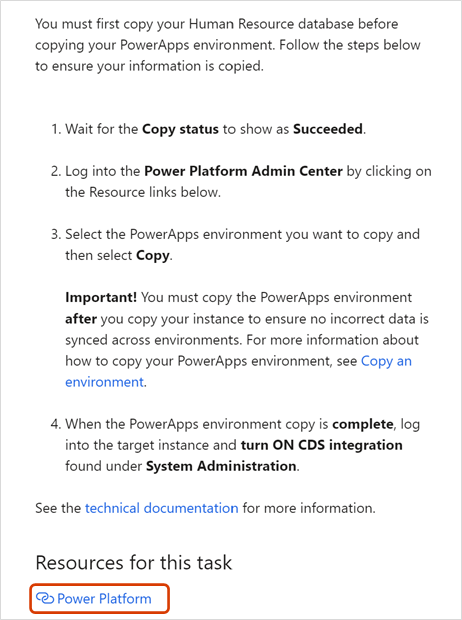
Select the Power Apps environment to copy, and then select Copy.
For more information about copying Power Apps environments, see Copy an environment.
- When the copy process finishes, sign in to the target instance, and enable Dataverse integration. For more information and instructions, see Configure Dataverse integration.
Data elements and statuses
When you copy a Human Resources instance, the process doesn't copy the following data elements:
Email addresses in the LogisticsElectronicAddress table.
The batch job history in the BatchJobHistory, BatchHistory, and BatchConstraintHistory tables.
The Simple Mail Transfer Protocol (SMTP) password in the SysEmailSMTPPassword table.
The SMTP Relay server in the SysEmailParameters table.
Print Management settings in the PrintMgmtSettings and PrintMgmtDocInstance tables.
Environment-specific records in the SysServerConfig, SysServerSessions, SysCorpNetPrinters, SysClientSessions, BatchServerConfig, and BatchServerGroup tables.
Document attachments in the DocuValue table. These attachments include any Microsoft Office templates that were overwritten in the source environment.
The connection string in the PersonnelIntegrationConfiguration table.
Some of these elements aren't copied because they're environment-specific. Examples include BatchServerConfig and SysCorpNetPrinters records. Other elements aren't copied because of the volume of support tickets. For example:
Duplicate emails might be sent because SMTP is still enabled in the user acceptance testing (sandbox) environment.
Invalid integration messages might be sent because batch jobs are still enabled.
Users might be enabled before admins can perform post-refresh cleanup actions.
Also, the following statuses change when you copy an instance:
All users, except those with the "System Administrator" security role, are set to Disabled.
All batch jobs, except for some system jobs, are set to Withhold.
Environment admin
The copy process replaces all users in the target sandbox environment, including administrators, with the users from the source environment. Before you copy an instance, make sure you're an administrator in the source environment. If you're not, you can't sign in to the target sandbox environment after the copy finishes.
The copy process disables all nonadministrator users in the target sandbox environment to prevent unwanted sign-ins. Administrators can reenable users if needed.
Apply custom fields to Dataverse
If you copy an instance into your sandbox environment and want to integrate your sandbox environment with Dataverse, you must reapply custom fields to Dataverse tables.
For each custom field that's exposed on Dataverse tables, complete the following steps:
- Go to the custom field and select Edit.
- Unselect the Enabled field for each cdm_* entity that the custom field is enabled on.
- Select Apply Changes.
- Select Edit again.
- Select the Enabled field for each cdm_* entity that the custom field is enabled on.
- Select Apply Changes again. The process of unselecting, applying changes, reselecting, and reapplying changes prompt the schema to update in Dataverse to include the custom fields.
For more information about custom fields, see Create and work with custom fields.