Note
Access to this page requires authorization. You can try signing in or changing directories.
Access to this page requires authorization. You can try changing directories.
Applies to these Dynamics 365 apps:
Human Resources
Issue
Overview
When you use Dataverse virtual tables to develop integrations and other data connections with Dynamics 365 Human Resources, you might encounter performance problems with queries against the virtual tables. Slow query execution can occur across various clients or interfaces. For example, you might encounter the problem in the following circumstances:
- When querying a virtual table through the Dataverse Web API
- When creating a Power App against a virtual table
- When building a Power BI report on a virtual table
All these interfaces can surface the performance problem.
One cause of slow performance with Dataverse virtual tables for Human Resources is the foreign key columns of the virtual table related to the table's navigation properties. When you create navigation properties for a virtual table, you automatically add a foreign key column to the table to represent the value of the key for the related virtual table's key column. For example, the _mshr_fk_person_id_value column is added to the mshr_hcmworkerbaseentity entity with the foreign key property from the mshr_dirpersonentity entity. Because of how the values for these foreign key columns are maintained in a table, fetching the values can negatively affect the performance of a query against the virtual table.
Potential symptoms
You might see this impact in queries against the Worker (mshr_hcmworkerentity) or Base worker (mshr_hcmworkerbaseentity) entity. The performance issue can manifest in a few different ways:
Slow query execution: The query against the virtual table returns the expected results, but takes longer than expected to complete execution of the query.
Query timeout: The query times out and returns the following error: "A token was obtained to call finance and operations, but finance and operations returned an error of type InternalServerError."
Unexpected error: The query returns an error type 400 with the following message: "An unexpected error occurred."
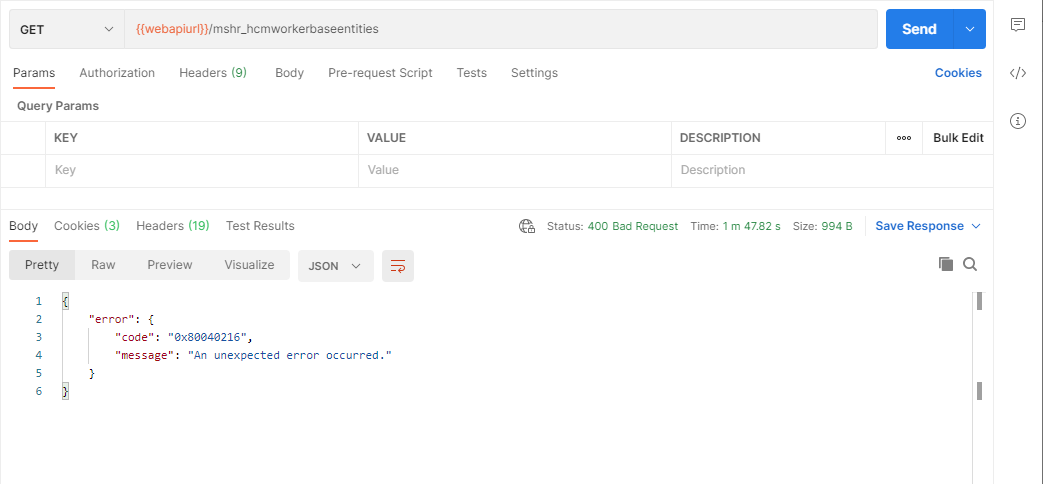
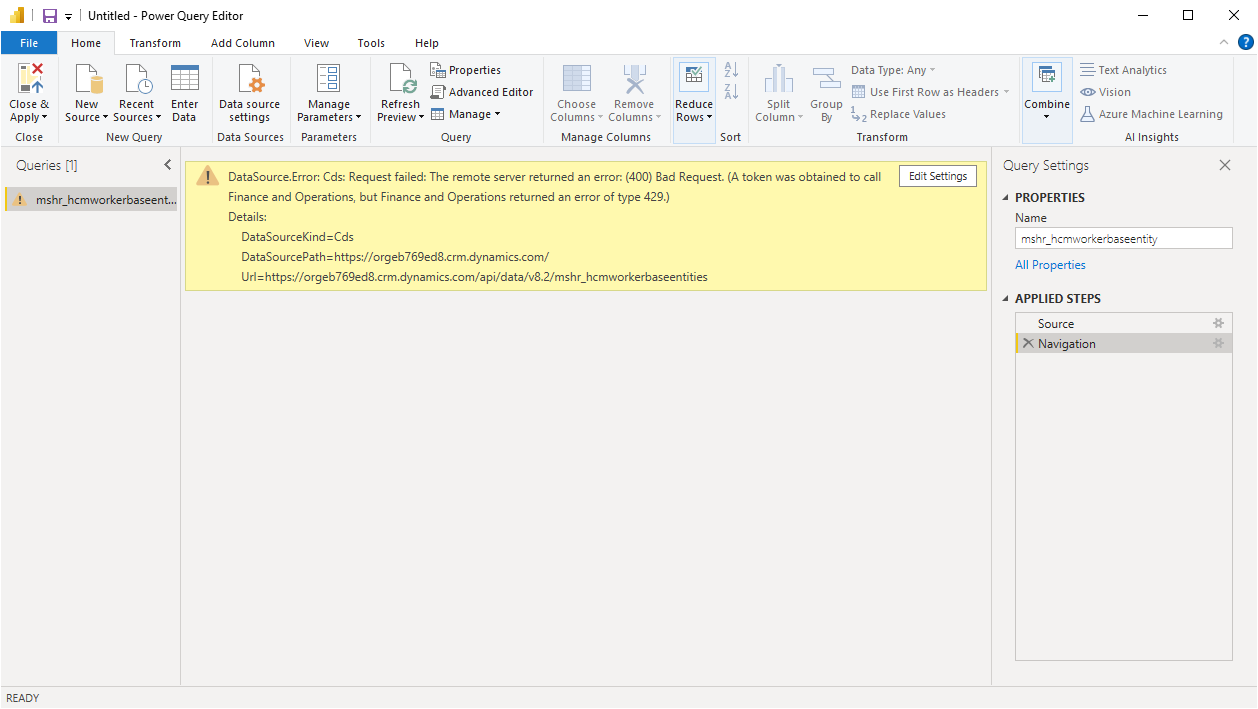
Throttling: The query overuses server resources and becomes subject to throttling. In this case, the query returns the following error: "A token was obtained to call finance and operations, but finance and operations returned an error of type 429." For more information about throttling in Human Resources, see Throttling FAQ.
Resolution
Limit the number of columns included in your data query
When you use virtual tables, one of the best ways to improve query performance is to limit the number of columns you select in the query. To optimize query performance, return only the columns you need in your query. This advice is especially important for foreign key columns on virtual tables. If you don't need the values in the foreign key columns for your integration or report, structure the query to select only the columns you need, and exclude the foreign key columns.
Selecting columns in an OData query
When you query a virtual table through the Dataverse Web API, use the $select system query option to limit the number of columns included in the query. Define the columns for which you need results returned. To maximize performance, exclude foreign key columns (those with the mshr_FK prefix) from the query.
For example, the following query against the mshr_hcmworkerbaseentity entity includes only the columns specified in the $select query option clause, and excludes foreign key values. This query provides significant performance improvements over a query that includes all table columns.
GET [Organization URI]/api/data/v9.1/mshr_hcmworkerbaseentities?$select=mshr_name, mshr_firstname, mshr_gender, mshr_partynumber, mshr_phoneticfirstname, mshr_deceaseddate, mshr_nationalitycountryregion, mshr_allowrehire, mshr_electroniclocationid, mshr_middlename, mshr_knownas, mshr_professionaltitle, mshr_nativelanguageid, mshr_disabledverificationdate, mshr_personalsuffix, mshr_lastnameprefix, mshr_personbirthcity, mshr_personaltitle, mshr_phoneticlastname, mshr_namesequencedisplayas, mshr_personbirthcountryregion, mshr_isdisabled, mshr_birthdate, mshr_professionalsuffix, mshr_isfulltimestudent, mshr_education, mshr_namealias, mshr_phoneticmiddlename, mshr_personnelnumber, mshr_hcmworkerbaseentityid, mshr_motherbirthcountryregion, mshr_fatherbirthcountryregion, mshr_lastname, mshr_languageid, mshr_partytype, mshr_ethnicoriginid, mshr_citizenshipcountryregion HTTP/1.1
Accept: application/json
OData-MaxVersion: 4.0
OData-Version: 4.0
The recommendation to limit the number of columns selected also applies when you use the $expand query option to expand the query to related virtual tables through navigation properties. For example, the following query includes columns from the mshr_hcmworkerbaseentity entity with expanded columns from the mshr_dirpersonentity entity. Note that the $select query option is also included in the $expand query option clause.
GET [Organization URI]/api/data/v9.1/mshr_hcmworkerbaseentities?$select=mshr_name, mshr_firstname, mshr_gender, mshr_partynumber, mshr_phoneticfirstname, mshr_deceaseddate, mshr_nationalitycountryregion, mshr_allowrehire, mshr_electroniclocationid, mshr_middlename, mshr_knownas&$expand=mshr_FK_Person_id($select=mshr_addressstreet, mshr_addresscity, mshr_addressstate, mshr_addresszipcode) HTTP/1.1
Accept: application/json
OData-MaxVersion: 4.0
OData-Version: 4.0
When you use this method of retrieving data by using the $select query option in the $expand query option clause, you typically see greater performance improvements when the navigation property between the entities is a many-to-one relationship. You might not see the same decrease in query execution time when expanding a one-to-many relationship. For more information about relationship definition for Dataverse virtual tables, see Table relationships.
For more information about using the $select and $expand system query options in the Dataverse Web API, see Retrieve related entity records with a query.
Selecting columns in Power BI
If you experience any of the aforementioned indications of slow performance when building a Power BI report against a Dataverse virtual table, you can improve the performance by excluding foreign key columns from the columns selected from the table for the report. For example, if you're using Power BI Desktop to create a report against the mshr_hcmworkerbaseentity entity, use the following steps to select the columns you want included in the report query.
In Power BI Desktop, select More... from the Get data drop-down list on the action ribbon.
In the Get Data window, enter Common Data Service in the search box, select the Common Data Service connector, and select Connect.
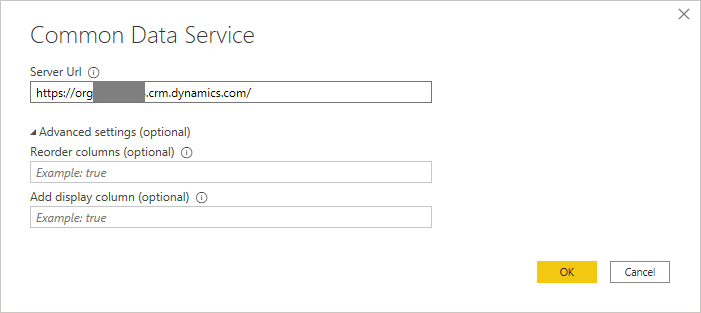
In the Server Url field of the Common Data Service window, enter the organization URI for your Dataverse environment, and select OK.
In the Navigator window, expand the Entities node.
In the search box, enter mshr_hcmworkerbaseentity, and select the entity.
Select Transform Data.
In the Power Query Editor window, select Advanced Editor.
In the Advanced Editor window, update the query to look like the following code, adding or removing any columns to the array as needed.
let
  Source = Cds.Entities("[Your Organization URI]", [ReorderColumns=null, UseFormattedValue=null]),
  entities = Source{[Group="entities"]}[Data],
  mshr_hcmworkerbaseentities = entities{[EntitySetName="mshr_hcmworkerbaseentities"]}[Data],
  selectedWorkerBaseEntityColumns=Table.SelectColumns(mshr_hcmworkerbaseentities,{"mshr_name","mshr_partynumber", "mshr_professionaltitle","mshr_birthdate"})
in
  selectedWorkerBaseEntityColumns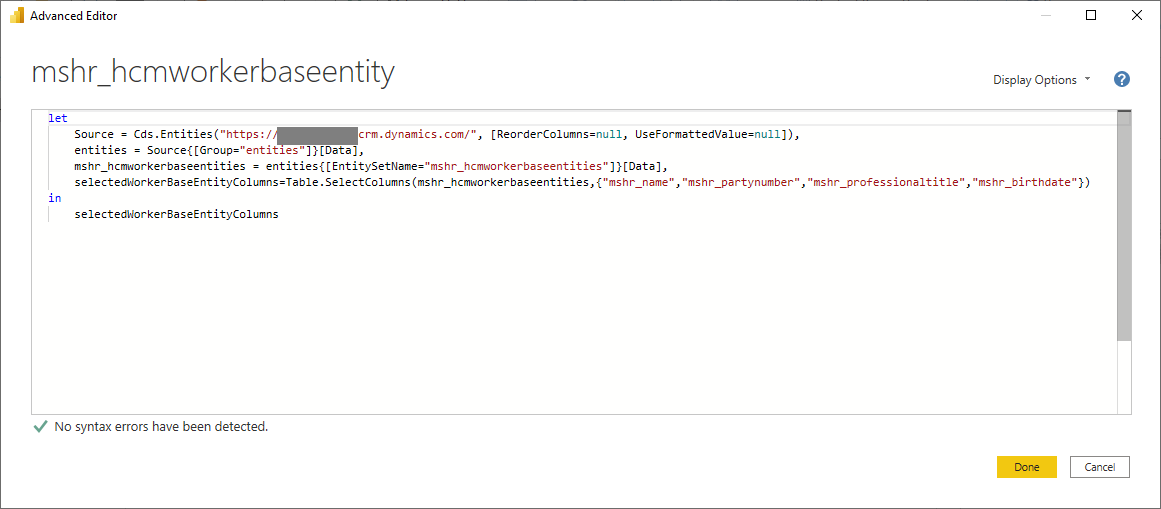
Select Done.
Note
If you previously received an error of type 429 from the query prior to updating, you might need to wait for the retry period before refreshing the query for it to complete successfully.
Select Close & Apply on the Power Query Editor action ribbon.
You can then begin building your Power BI report against the columns selected from the virtual table.
Selecting columns in Power Apps
Similar to Dataverse Web API queries and Power BI, you can improve query performance for Power Apps based on Dataverse virtual tables by excluding columns of related tables from your app. If you include any columns from a related table on a page, the request URL constructed to fetch the data includes foreign key properties of the related table. This inclusion, as in the examples of Selecting columns in an OData Query above, reduces performance by causing extra data lookups.
To work around this problem, validate that you don't include any data fields from related tables on any data form of your Power App.
- In the Tree view pane, select the data form for the screen.
- In the Properties pane, select Edit on the Fields property.
- In the Data pane, verify that none of the selected fields are fields of the virtual table of the data source.
For example, if one of the data fields you include on a page in the app references another table, such as ThisItem.Worker.Name, where Worker is the related table, there's a potential for reduced performance in fetching the data.
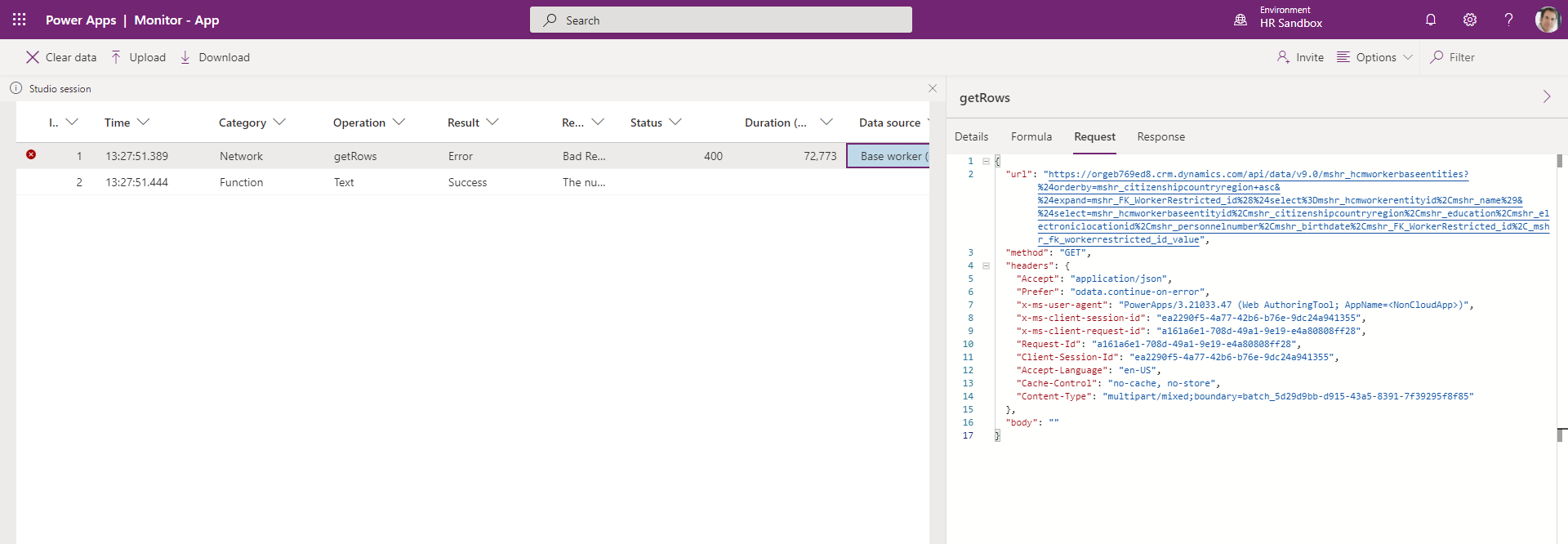
Use the Power Apps Monitor to ensure that you include only the columns you need in the query to get the data for the Power App. You can view the URL constructed for the getRows operation to ensure the columns you selected for your app are optimal for retrieving the data.
Filter the data query
To improve query execution performance, limit the number of records returned in the query results. Filter the results to ensure that you only receive the records you need.
For more information, see Filter results.
Limit the page size of the query
If you're working with large data sets, add the odata.maxpagesize preference header to data queries to divide query results into multiple pages.
For more information on paging, see Specify the number of entities to return in a page.