Note
Access to this page requires authorization. You can try signing in or changing directories.
Access to this page requires authorization. You can try changing directories.
This article shows you how to import the PD - PO Core - Transactional Data package into your Dynamics 365 environment by using Package Deployer, and how to confirm that the import succeeded.
Important
Import the PD - PO Core - Setup Data package before you import the transactional data package. The transactional records depend on records the setup data package creates, and importing out of order causes the import to fail. If you didn't import the setup data package yet, see Import the Setup data package.
This demonstration data is for evaluation purposes only. Deploy it to a non-production Dynamics 365 environment.
Prepare the package files
- Download the PD - PO Core - Transactional Data package to your computer, and wait until the download finishes completely.
- Right-click the downloaded zip file and select Properties. On the General tab, select the Unblock checkbox, then select Apply and OK.
- Right-click the file again and select Extract All, choose a destination, and select Extract.
- Open the extracted folder, then open the PD - PO Core - Transactional Data folder inside it.
Run Package Deployer
Double-click PackageDeployer, and then select Continue when the Package Deployer window opens.
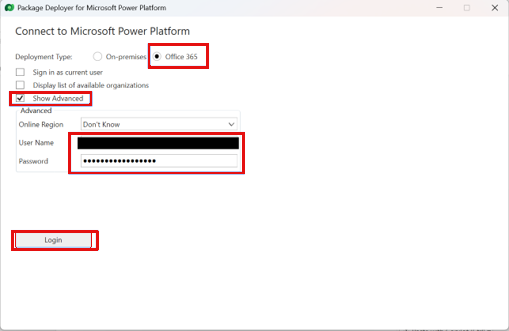
On the Connect to Microsoft Power Platform screen, set Deployment Type to Microsoft 365, select Show Advanced, enter your credentials, and select Login. Enter the full Dynamics 365 instance URL when prompted, then select OK.
On the Welcome screen, select Next. On the Ready to Install screen, confirm that the solution package and organization are correct, then select Next.
Package Deployer reads the configuration file and validates readiness. When every validation item shows a green check mark, select Next to start the import.
Wait for the import to run. When it finishes, the screen shows Import Process Completed with a green check mark on each step. Select Next.
On the Installation Completed screen, select Finish. The PD - PO Core - Transactional Data package is now imported.
Common issues
If Package Deployer reports a pre-import step failure, rerun the import starting from the PackageDeployer step. The tool detects what's missing and completes it on the rerun, so repeat this rerun until the import finishes successfully.

If Package Deployer reports that no import packages were found, confirm that the download finished completely and that you unblocked the file, then import the package again.
Validate the transactional data
Sign in to the organization and open the Project Operations app.
Go to Projects > Projects and select the All Active Projects view.
Confirm that the record count at the bottom-left shows 14 rows, and that the Effort (Hours) and Estimated Total Cost columns contain values for each project.
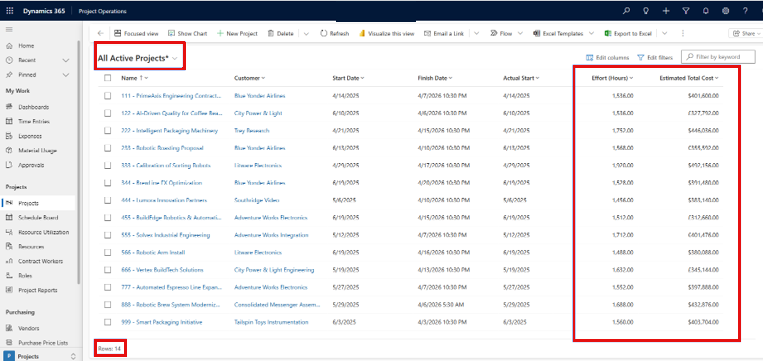
If the record count and column values match, the transactional data package imported correctly. Your environment now has the Project Operations demonstration data installed and ready to use.