Note
Access to this page requires authorization. You can try signing in or changing directories.
Access to this page requires authorization. You can try changing directories.
Applies To: Project Operations Integrated with ERP, Project Operations Core
Use Bulk update on the task grid to apply the same change to multiple project tasks. Project managers can set task dates, update progress, or change resource assignments in one operation instead of editing each task separately.
Supported updates
The Edit tasks pane supports one update at a time. The following table explains which items you can change by using Bulk update.
| Operation | What you can change |
|---|---|
| Start date | Set the same start date for the selected tasks. |
| Finish date | Set the same finish date for the selected tasks. |
| % Complete | Set the same progress value, from 0 through 100, for the selected tasks. |
| Assigned to | Replace existing task assignments or add resources to the existing assignments. |
The scheduling service processes date and progress changes according to the project's existing scheduling rules. After you apply a date change, review the selected tasks and related tasks for schedule adjustments.
Prerequisites
- You must have permission to update the field that you select.
- You must select at least two tasks in the task grid.
- To update % Complete, every selected task must have effort and you must have permission to complete and partially complete tasks.
- To update Assigned to, you must have permission to create and delete task assignments.
Open multiple tasks on the Edit tasks pane
To open multiple tasks on the Edit tasks pane, follow these steps:
- Open a project and go to the Tasks tab. Select multiple tasks by using Shift + Click for consecutive tasks or Ctrl + Click for non-consecutive tasks.
- Select two or more tasks in the task grid.
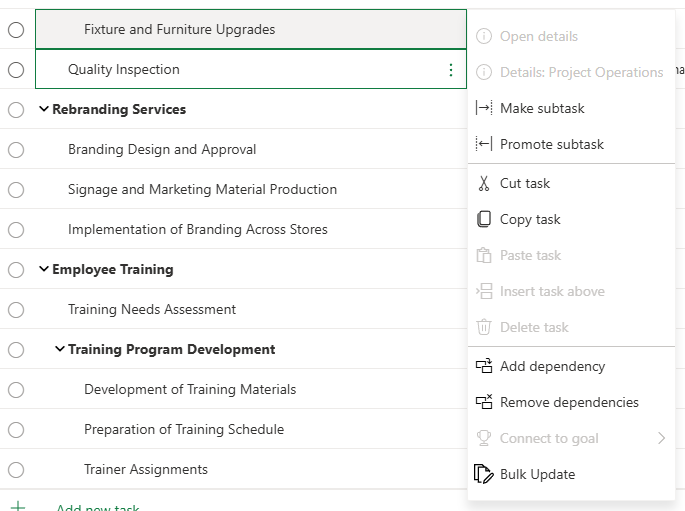
- Open the context menu for one of the selected tasks.
- Select Bulk Update.
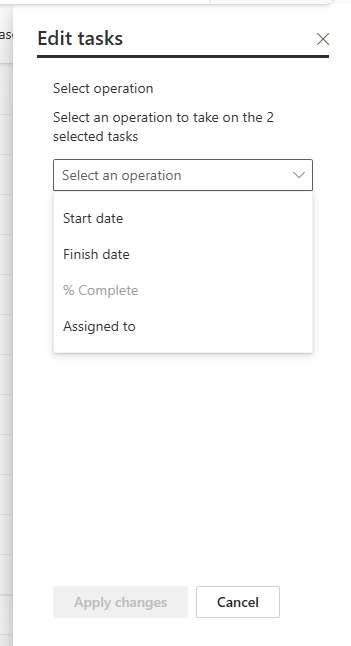
The Edit tasks pane opens and shows the number of selected tasks.
Note
If your selection contains a summary task, you can update only Start date. The Finish date, % Complete, and Assigned to options are unavailable because those values depend on the summary task's child tasks.
Set task dates
Use the date operations to assign one start or finish date to all selected tasks.
Set start dates
To set start dates, follow these steps:
- In the Edit tasks pane, select Select an operation.
- Select Start date.
- Enter or select the date.
- Select Apply changes.
The system applies the date to the selected tasks and recalculates the schedule according to existing scheduling rules. You can include summary tasks when you update the start date.
Set finish dates
To set finish dates, follow these steps:
- In the Edit tasks pane, select Select an operation.
- Select Finish date.
- Enter or select the date.
- Select Apply changes.
The system applies the finish date to the selected tasks and recalculates the schedule according to existing scheduling rules.
Important
You can't update the finish date when the selection contains a summary task. Remove summary tasks from the selection and try again.
Update task progress
To update task progress, follow these steps:
- In the Edit tasks pane, select Select an operation.
- Select % Complete.
- Enter a value from
0through100. - Select Apply changes.
The system sets the same progress value on all selected tasks.
Note
% Complete is unavailable if a selected task is a summary task, a selected task has no effort, Allow percent complete update on the project is set to No, or you don't have permission to update task progress.
Update resource assignments
To update resource assignments, follow these steps:
In the Edit tasks pane, select Select an operation.
Select Assigned to.
Under Assignment type, select one of the following options:
- Reassign: Remove the existing assignments from every selected task, and then assign the resources that you select.
- Add Assignment: Keep the existing assignments and add the resources that you select. If a selected resource is already assigned to a task, the system doesn't create a duplicate assignment.
Select one or more resources from the resource picker.
Select Apply changes.
Important
Reassign replaces all existing assignments on each selected task. The system recalculates task contours based on the new assignment.
Note
Bulk updates change task assignments but don't adjust resource bookings. Review and update bookings separately when project staffing changes.
Undo a bulk update
The task grid groups all changes from one bulk update into one undo action. Use the standard CTRL + Z action to reverse the operation.
Field behavior reference
| Field | Input | Summary task behavior | Other availability rules |
|---|---|---|---|
| Start date | Date | Available | Requires write access to the start date. |
| Finish date | Date | Unavailable | Requires write access to the finish date. |
| % Complete | Number from 0 through 100 |
Unavailable | Every selected task must have effort. You must have permission to complete and partially complete tasks. Allow percent complete update on the project is set to Yes |
| Assigned to | One or more project resources | Unavailable | Requires permission to create and delete task assignments. |
Common issues
| Issue | Cause | Resolution |
|---|---|---|
| Bulk Update isn't available. | Fewer than two tasks are selected, the project is read-only, or you don't have permission to update. | Select at least two editable tasks and check permissions. |
| An operation is read-only in the Edit tasks pane. | You don't have permission to update the field. | Ask your administrator to review your project and task permissions. |
| % Complete isn't available. | The selection includes a summary task, at least one selected task has no effort, Allow percent complete update on the project is set to No, or you don't have the required progress permissions. | Select only tasks that have effort and that you have permission to update. |
| Finish date or Assigned to isn't available. | The selection includes a summary task. | Remove summary tasks from the selection and open Bulk Update again. |