Note
Access to this page requires authorization. You can try signing in or changing directories.
Access to this page requires authorization. You can try changing directories.
[This article is prerelease documentation and is subject to change.]
As an admin, you can configure which agents can use the Recommended Actions agent, how actions are prioritized, and whether the feature is enabled.
Important
- This is a preview feature.
- Preview features aren’t meant for production use and might have restricted functionality. These features are subject to supplemental terms of use, and are available before an official release so that customers can get early access and provide feedback.
Enable recommended actions for agents
When you turn on the recommended actions toggle for an agent, that agent's action insights are integrated into the recommended actions interface. Instead of appearing only in the agent's own interface, the agent's action insights now appear as action cards in the recommended actions experience, giving sellers a unified view of prioritized, actionable recommendations. For example, when this feature is enabled, the Data Enrichment Agent displays action insights related to data quality improvements in the recommended actions interface.
Sales Opportunity Agent
In the agent configuration page, go to Guidance > Connected skills.
In the Recommended action section, turn on the toggle.
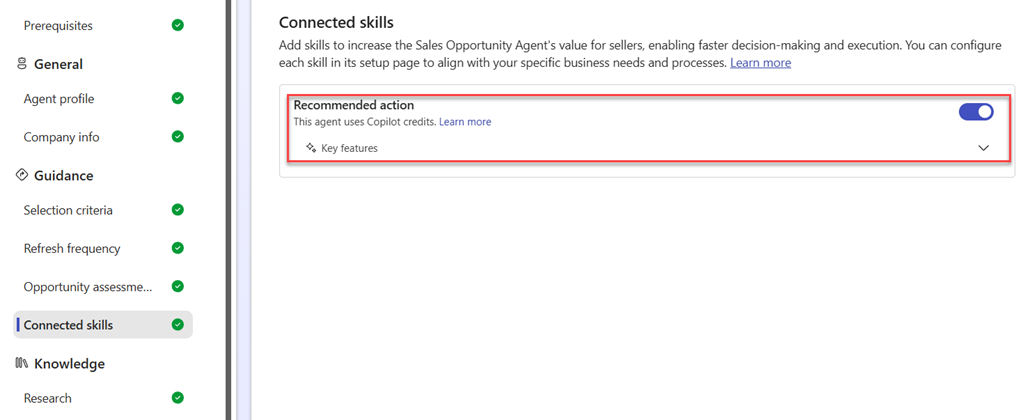
The recommended actions feature is enabled and action insight cards start appearing on opportunities that meet the criteria for the Sales Opportunity Agent.
Data Enrichment Agent
In the Data Enrichment Agent configuration page, go to General > Connected skills.
In the Recommended action section, turn on the toggle.
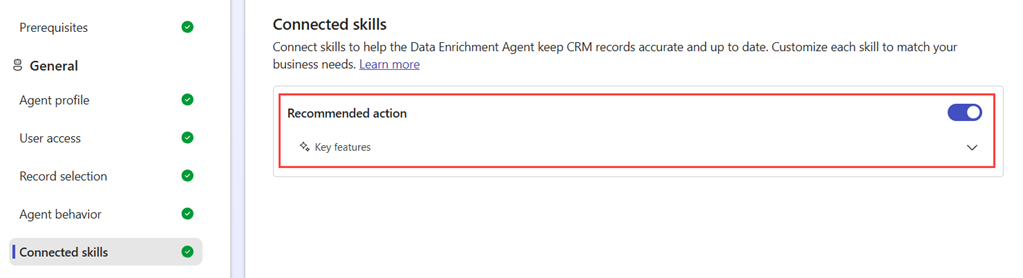
The recommended actions feature is enabled and action insight cards from the Data Enrichment Agent start appearing on opportunities that meet the criteria for the agent.
Add custom agents for recommended actions
Add custom agents to show actions in the recommended actions experience by adding them to the recommended actions framework. To add the agent to the framework:
In the Sales Hub app, go to Change area in the lower-left corner of the page and select App Settings.
Go to General settings > Dynamics 365 AI hub.

In the Agent manager section, select Create and manage agent.
The AI agent page opens.Select Create.
The create an agent dialog opens.In the Recommended Actions section, select Choose.
The configuration page opens.Select Sources and then select New custom source. The add a custom source dialog opens.
In the Add a custom source dialog, enter the following information:
Field Description Source name Enter a name for the custom source. This name identifies the source of the action in the recommended actions interface. Source ID Enter a unique identifier string value that identifies the custom source. The system uses this ID to recognize and differentiate between different sources. For example, use a GUID or UUID. Description Enter a description for the custom source. This description provides additional context about the source and the type of actions it provides. 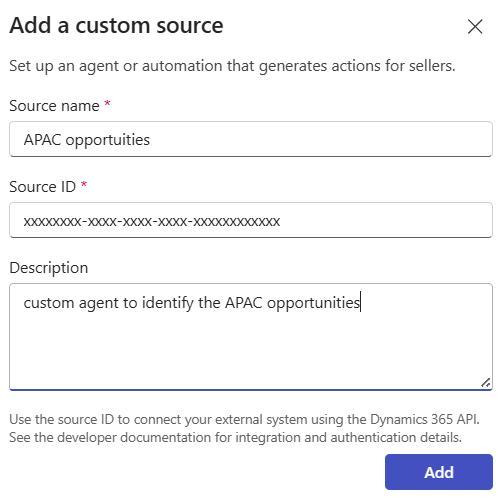
Select Add. The custom source is added to the recommended actions framework and listed in the custom sources section of the configuration page. Your custom agent can now use the added custom source to return actionable insights that appear in the recommended actions interface.
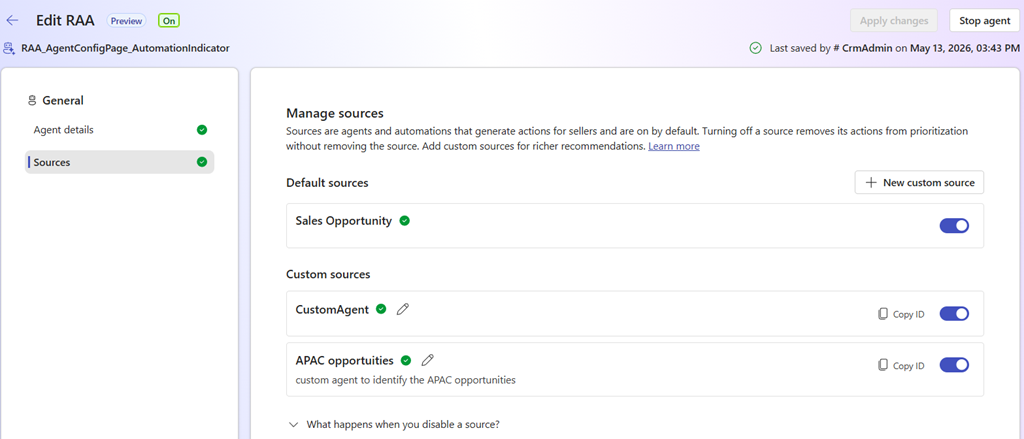
Configure the custom agents using the
msdyn_PushActionDataToRecommendedActionAgentAPI to return actionable insights in the format required by the recommended actions framework. For more information, refer to the Recommended actions API documentation.
Disable recommended actions
To disable recommended actions for an agent, turn off the recommended actions toggle in the agent's configuration page.
When disabled, the agent continues to run and generate insights in its own interface but the insights don't appear in the recommended actions interface. You can re-enable the source at any time to get the insights back in the recommended actions interface.
Permissions required for custom security roles
If you use custom security roles in your organization, add the following privileges to allow users to access and interact with recommended actions. Built-in sales security roles include these privileges by default.
| Privilege | Table | Access level |
|---|---|---|
prvReadmsdyn_rawactioncatalogue |
msdyn_rawactioncatalogue | User (Basic) |
prvWritemsdyn_rawactioncatalogue |
msdyn_rawactioncatalogue | User (Basic) |
prvReadmsdyn_prioritizedactioncatalogue |
msdyn_prioritizedactioncatalogue | User (Basic) |
prvWritemsdyn_prioritizedactioncatalogue |
msdyn_prioritizedactioncatalogue | User (Basic) |
prvReadmsdyn_recommendedactionsourceagentconfig |
msdyn_recommendedactionsourceagentconfig | Organization (Global) |
prvReadmsdyn_salesagentprofile |
msdyn_salesagentprofile | Organization (Global) |
prvReadmsdyn_dataqualitysuggestion |
msdyn_dataqualitysuggestion | Organization (Global) |
prvWritemsdyn_dataqualitysuggestion |
msdyn_dataqualitysuggestion | User (Basic) |
prvReadmsdyn_dataqualitysource |
msdyn_dataqualitysource | Organization (Global) |
To add these privileges to a custom security role, go to Power Platform admin center > Environments > select your environment > Settings > Users + permissions > Security roles. Open the custom role, locate each table on the Custom Entities or relevant tab, and set the specified access level.
Migrate agents across environments
When you have configured the Recommended Actions Agent in one environment, you can export the agent as a solution and import it into another environment. This is especially useful when you have set up the agent in a sandbox or test environment and want to deploy it in production after testing and validation. Learn more in Import an agent into a target environment.