Note
Access to this page requires authorization. You can try signing in or changing directories.
Access to this page requires authorization. You can try changing directories.
Views in Dynamics 365 Sales help you control how records appear in lists. You can customize views to match your sales processes and priorities, displaying only the information your team needs. For example, you can create a view that shows only high-priority opportunities with expected close dates within the next 30 days, sorted by revenue potential.
What is a view?
A view is a saved configuration of how records display in a table (also called a grid). Each view defines:
- Columns: The fields to display in the list
- Column widths: The size of each column
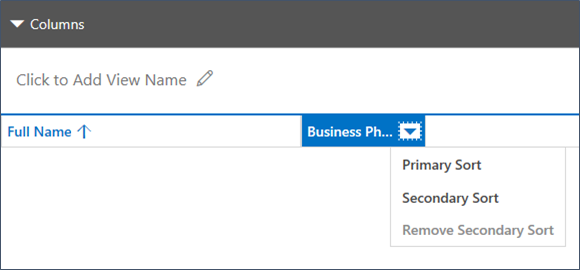
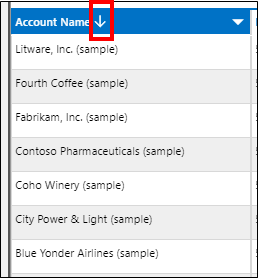
- Sort order: Primary and secondary sorting of records when the view opens
- Filters: Criteria that determine which records appear
Each row in a table represents one record. You can modify views by adjusting columns, sort order, column widths, and filters. Views also serve as data sources for charts throughout the application.
Types of views
Dynamics 365 Sales includes two view types:
System and public views
- Created by: Included with the app or created by administrators and customizers
- Who can edit: Administrators and customizers only
- Scope: Available to some or all users, depending on configuration
- System views: Special views that the application requires or automatically creates for custom entities
Personal views
- Created by: Individual users for their own use
- Visibility: Only visible to the creator unless they share it with others
- Based on: System or public views as templates
- Sharing: You can share personal views with other users
- Limitation: You can't convert personal views to system or public views
Learn more about sharing personal views
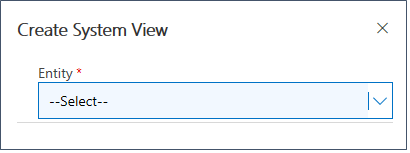
Create a system view
Select a tab based on the sales app that you use:
- Sign in to Power Apps.
- Follow the instructions in Create and edit public or system model-driven app views to create or customize system views.
Create a personal view
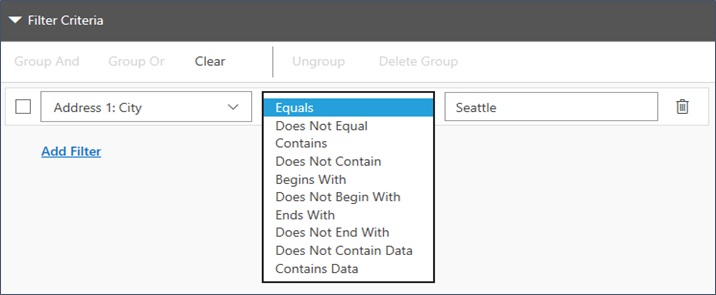
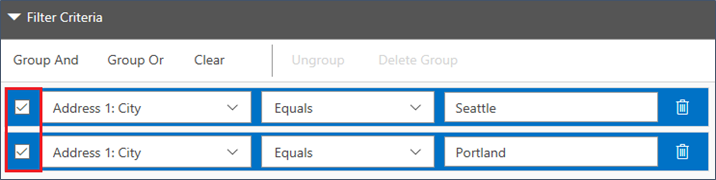
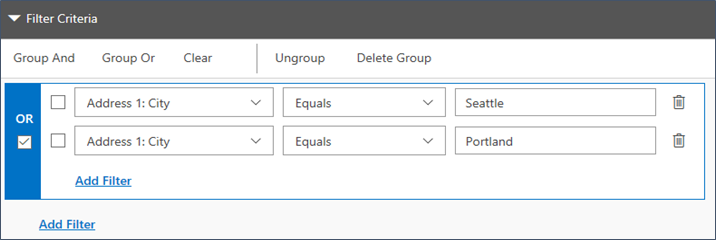
Create personal views with columns and filters that are relevant for you. You can open an existing view and modify the columns, apply filters, save it as a personal view, and share it with your team.
More information:
Can't find the feature in your app?
There are a few possibilities:
- You don't have the necessary license to use this feature. Check out the comparison table and the licensing guide to see which features are available with your license.
- You don't have the necessary security role to use this feature.
- To configure or setup a feature, you need to have the Administration and customization roles
- To use sales-related features, you need to have the Primary sales roles
- Some tasks require specific Functional roles.
- Your administrator hasn't turned on the feature.
- Your organization is using a custom app. Check with your administrator for exact steps. The steps described in this article are specific to the out-of-the-box Sales Hub and Sales Professional apps.