Note
Access to this page requires authorization. You can try signing in or changing directories.
Access to this page requires authorization. You can try changing directories.
Generate a debug report whenever you encounter issues in Copilot in Dynamics 365 Sales and need to share diagnostic information with the support team. With a simple prompt, you can export a detailed log to an Excel file containing all session activity—queries, intents, payloads, timestamps, and correlation IDs—eliminating the need for manual HAR file captures.
Generate a debug report
Open the Copilot chat interface in Dynamics 365 Sales. You must have an active Copilot session with queries and responses to generate a meaningful debug report.
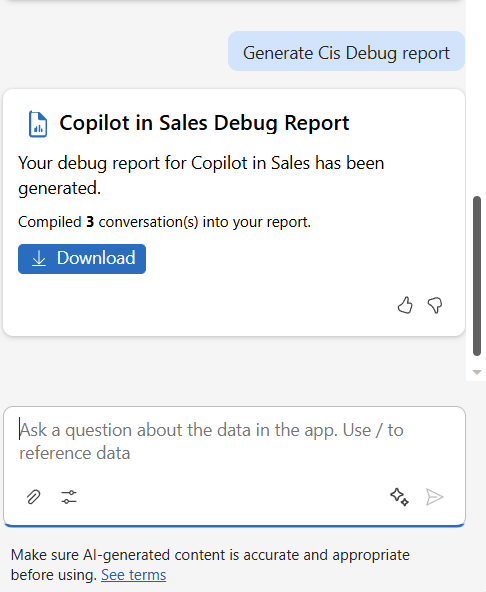
In the message input field, enter the following prompt and select Send.
Generate Cis Debug reportCopilot processes your request and prepares the debug report with all relevant information from your Copilot chat window. This may take a few moments depending on the length of the conversation and the amount of data being compiled. You see the Download option once the report is ready.
Select Download to download the Excel file containing your debug report.
Review the debug report and share with support
The exported Excel file contains a comprehensive record of your Copilot session. The report includes the following information for each query:
| Field | Description |
|---|---|
| User Query | The exact text of your Copilot query |
| Response | The response generated by Copilot for your query |
| Intent | The action or task Copilot identified based on your input |
| API Payload | The structured data passed to the skill |
| Conversation ID | The unique identifier for your Copilot session |
| Timestamp | The date and time the query was processed |
| Correlation ID | A unique identifier that links queries for tracing and support purposes |
Share the Excel file with your support team to help them understand the context of your issue and provide more effective assistance.