Note
Access to this page requires authorization. You can try signing in or changing directories.
Access to this page requires authorization. You can try changing directories.
[This article is prerelease documentation and is subject to change.]
If you already have one Sales Development agent configured the way you want, you can copy that setup to a new agent instead of starting from scratch. This is useful when you want to onboard another agent quickly with the same playbook, guidelines, and settings.
Note
Knowledge sources (for example, uploaded docs, FAQs, and URLs) aren't included in the configuration copy. Add those resources separately to the target agent after import.
Important
- This is a preview feature.
- Preview features aren’t meant for production use and might have restricted functionality. These features are subject to supplemental terms of use, and are available before an official release so that customers can get early access and provide feedback.
Before you start
Ensure that you meet the following conditions:
- You're a manager or owner of both agents.
- You can open both agents in Microsoft Teams.
- The target agent is already hired and ready to configure.
- You know which agent is the source (copy from) and which agent is the target (copy into).
Important
Configuration copy is a one-time transfer. After import, future changes in the source agent don't automatically sync to the target agent.
Step 1: Export the source agent configuration
Open the source agent chat in Teams (for example, Rolo).
Ask the source agent to package its configuration.
Example prompts:
Save your configuration so I can apply it to another agent.Export your playbook, guidelines, and settings.Package your setup as a file for another agent.
Download the file from the response link and save it locally.
Keep the file exactly as downloaded. Don't rename, unzip, or edit it.
The export filename typically includes a timestamp, for example config-export-20260803-145900.zip.
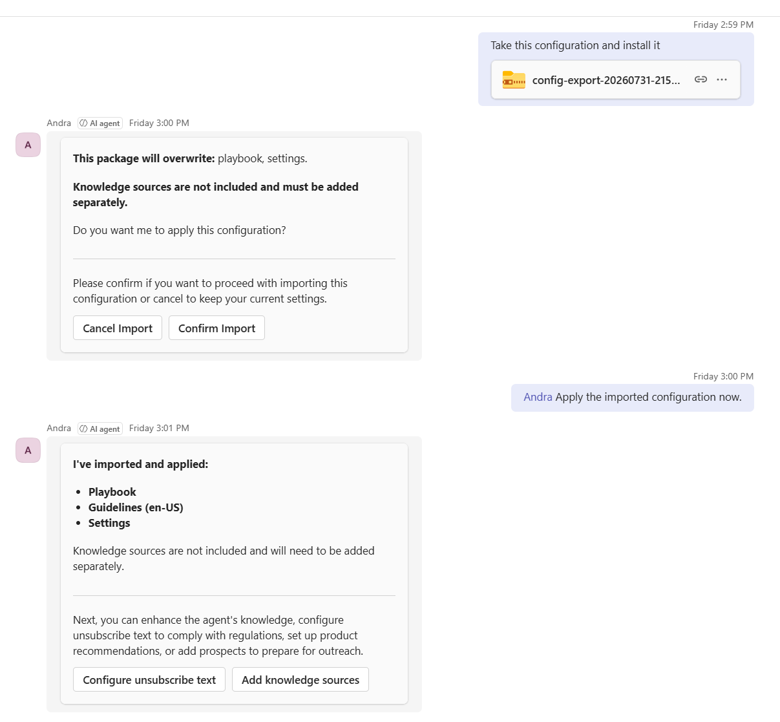
The source agent confirms that it includes playbook, guidelines, and settings. Knowledge sources aren't included. You must add them separately to the target agent after import.

Step 2: Import into the target agent
Open the target agent chat in Teams (for example, Andra).
Attach the exported configuration file.
In the same message, include a clear instruction to import the configuration.
Example prompt:
Take this configuration and apply it.
Wait for the target agent confirmation that import completed.
Step 3: Validate the target agent
After import completes, quickly review the target agent configuration:
- Playbook
- Guidelines and language settings
- Agent persona and email footer
- Follow-up cadence and send-window settings
- Default product and locale settings (if used)
- Knowledge sources (add these manually)
Common mistakes to avoid
| Avoid | Why it matters | Do this instead |
|---|---|---|
| Renaming or unzipping the export file | The target agent might not be able to parse the package. | Attach the file exactly as downloaded from the source agent. |
| Attaching the file without a request | The target agent doesn't know what action to take. | Include a clear request in the same message as the file. |
| Expecting ongoing sync after import | Copy is one-time only, not live sync. | Re-export and re-import if the source configuration changes later. |
| Closing Teams immediately after confirmation | You can miss follow-up warnings or partial-failure messages. | Stay in chat until final completion is confirmed and reviewed. |
Troubleshooting
| What you see | What to do |
|---|---|
| Target agent can't read the file | Reattach the original export file and include a clear import request in the same message. |
| File is reported as corrupted | Ask the source agent for a fresh export and retry. |
| No preview appears before applying | Confirm you're in the target agent chat and the file is attached in the same message as the request. |
| Expected content is missing in the target agent | Most likely missing knowledge sources. Re-add them directly to the target agent. |
Handle the exported file securely
Configuration export files can contain business-specific details. Treat the file as an internal document:
- Store and share it according to your organization's data policies.
- Limit access to only authorized users.
- Delete local and cloud copies (for example, OneDrive) when the transfer is complete.