Note
Access to this page requires authorization. You can try signing in or changing directories.
Access to this page requires authorization. You can try changing directories.
[This article is prerelease documentation and is subject to change.]
You can create an instance of the Sales Development agent from either the Microsoft Teams Store or the Microsoft 365 Copilot Agent Store.
Note
An administrator must activate the Sales Development agent in the Microsoft 365 admin center before you can create an instance.
Important
- This is a preview feature.
- Preview features aren’t meant for production use and might have restricted functionality. These features are subject to supplemental terms of use, and are available before an official release so that customers can get early access and provide feedback.
Based on your preference, go to either Microsoft Teams or Microsoft 365 Copilot.
- In Microsoft Teams, go to Store, go to the Agents for your team category, or search for Sales Development (Frontier).
- In Microsoft 365 Copilot, go to Agents, scroll to Agents for your team, or search for Sales Development (Frontier).
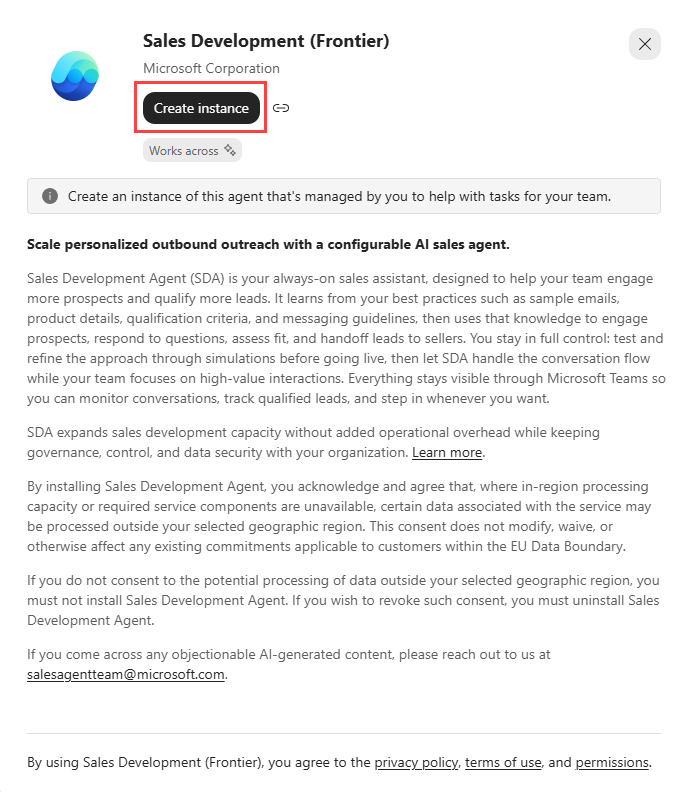
Select the agent, and then select Create instance.
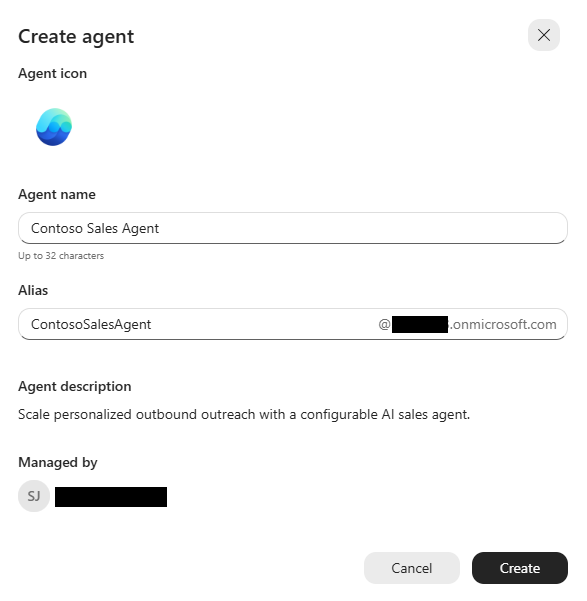
Create the agent identity by entering a unique name and email alias.
Select Create to finish.
Note
During instance creation, you may be able to choose a different email domain. After the agent is created, an IT admin can change the username, email alias, and domain in Microsoft Entra or the Microsoft 365 admin center.
The agent is then created with its own identity and provisioned with a Teams account, Exchange mailbox, OneDrive, and SharePoint.
Note
Provisioning typically takes about 5 minutes, but it can take longer.