Note
Access to this page requires authorization. You can try signing in or changing directories.
Access to this page requires authorization. You can try changing directories.
Maintenance request lifecycle states define the stages that a request can go through. Examples include Created, Active, and Ended. When a maintenance request is converted to a work order, the maintenance request lifecycle state should be updated to Ended or Closed to indicate that the maintenance request is no longer active. On the All maintenance requests list page, you can view all maintenance requests, regardless of their lifecycle state.
Set up maintenance request lifecycle states
Select Asset management > Setup > Maintenance requests > Lifecycle states.
Select New to create a maintenance request lifecycle state.
In the Lifecycle state field, enter an ID for the lifecycle state.
In the Name field, enter a name.
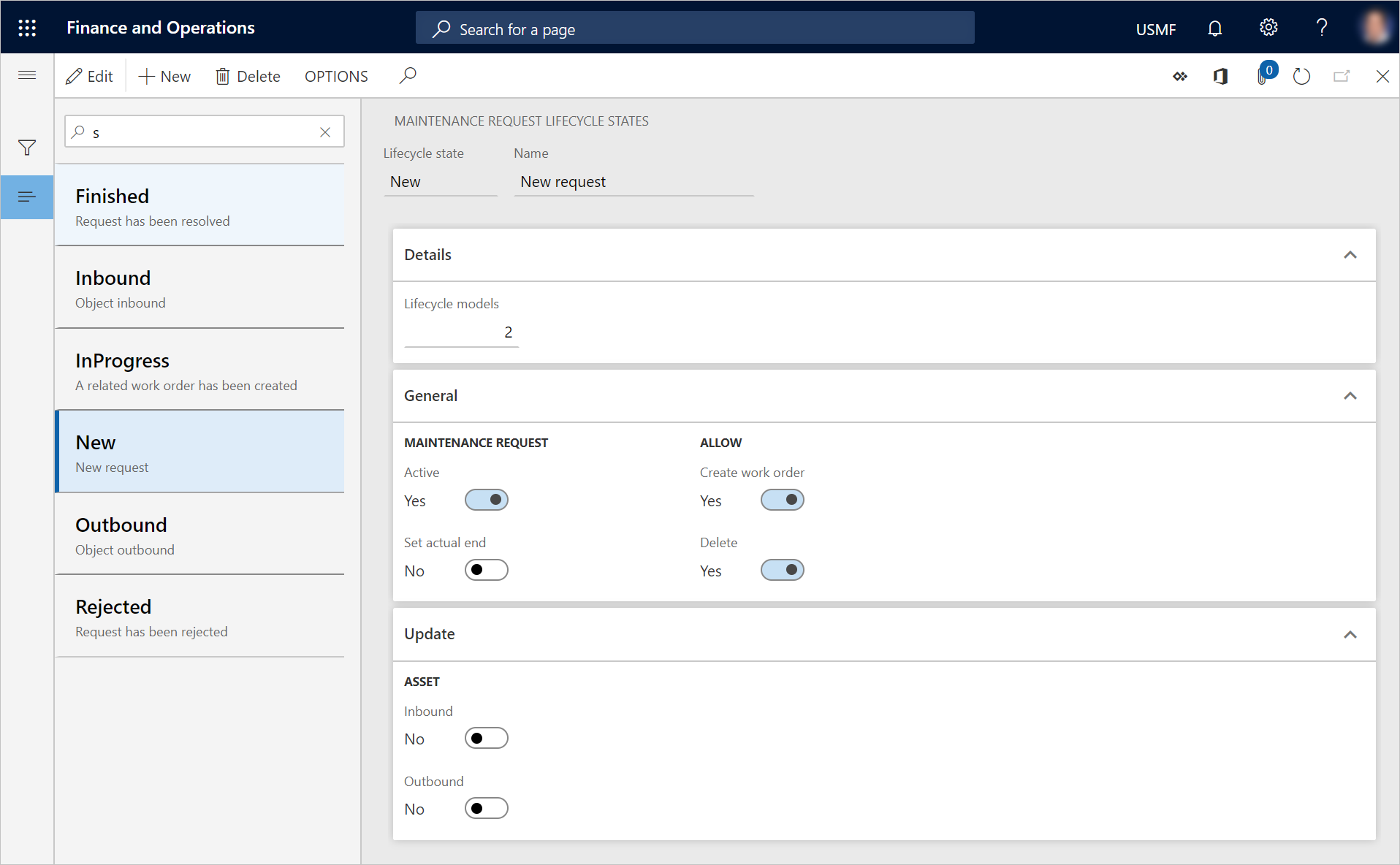
On the Details FastTab, the Lifecycle models field shows the number of maintenance request lifecycle models that use this lifecycle state.
On the General FastTab, set the Active option to Yes if a maintenance request should be active while it's in this lifecycle state.
Set the Set actual end option to Yes if an actual end date and time should automatically be entered on a maintenance request that is in this lifecycle state.
Set the Create work order option to Yes if a work order can be created from a maintenance request that is in this lifecycle state.
Set the Delete option to Yes if a maintenance request can be deleted while it's in this lifecycle state.
On the Update FastTab, the Inbound and Outbound options in the Asset section are relevant if you use depot repair. Set the appropriate option to Yes if the asset lifecycle state of assets that are selected on a maintenance request should automatically be updated to Inbound or Outbound when the maintenance request lifecycle state of that maintenance request is set to Inbound or Outbound.
The follow illustration shows an example of the Maintenance request lifecycle states page.
Note
Maintenance request lifecycle states, lifecycle state groups, and types are related to, and used in the same way as, work order lifecycle states, lifecycle state groups, and types.
Set up maintenance request lifecycle models
After you've created the lifecycle states that are required for your maintenance requests, they can be divided into lifecycle state groups, or lifecycle models. Maintenance request lifecycle models are used to create the flow that can be used for different types of maintenance requests. At a minimum, one standard maintenance request lifecycle model should be created.
Select Asset management > Setup > Maintenance requests > Lifecycle models.
Select New to create a maintenance request lifecycle model.
In the Lifecycle model field, enter an ID for the lifecycle model.
In the Name field, enter a name.
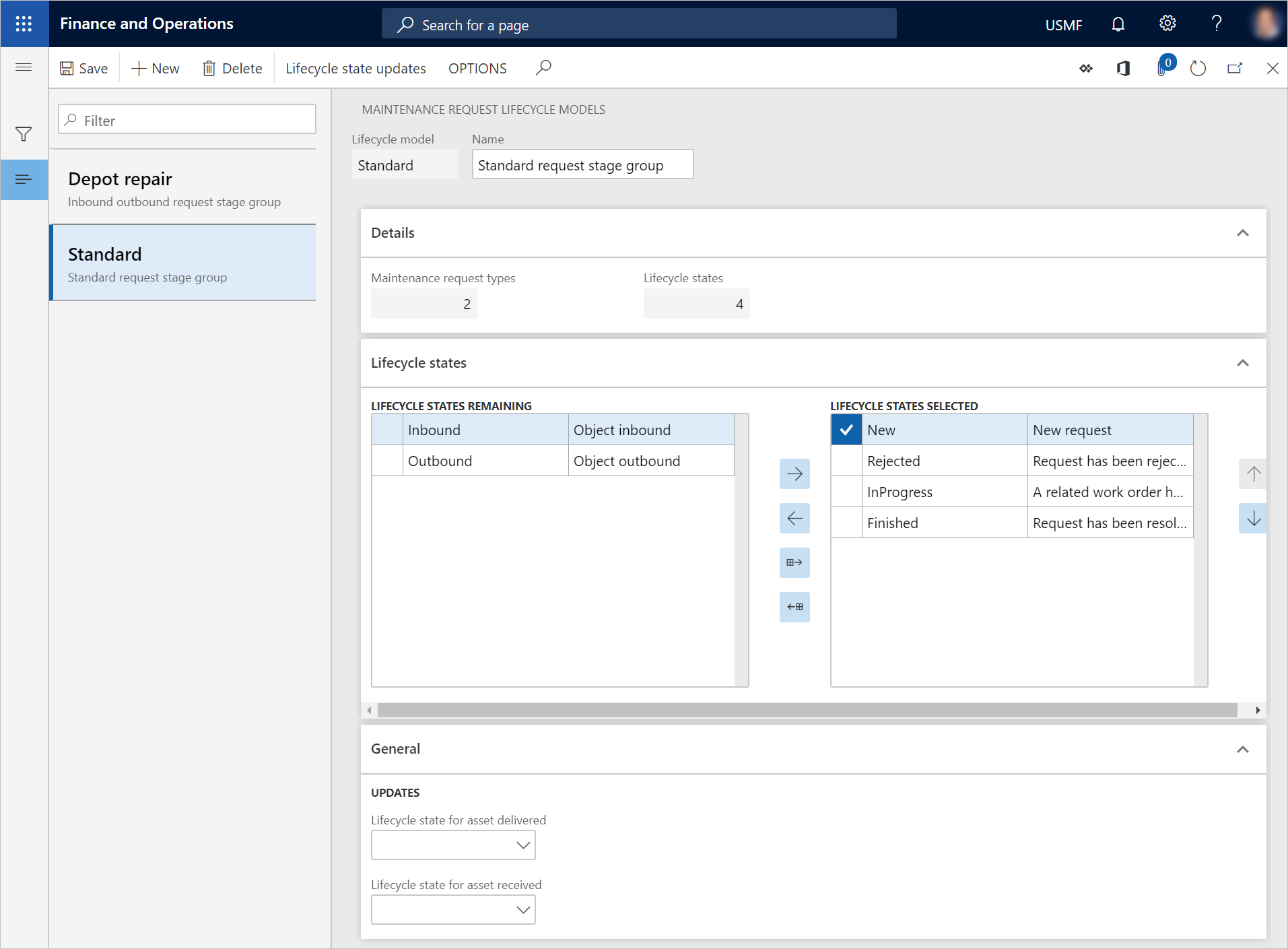
On the Details FastTab, the Lifecycle states shows the number of lifecycle states that are selected in this lifecycle model. The Maintenance request types field shows the number of maintenance request types that use this lifecycle model.
On the Lifecycle states FastTab, select the lifecycle states that should be included in the lifecycle model:
- To include a lifecycle state in the lifecycle model, select it in the Lifecycle states remaining section, and then select the right arrow button
 to move it to the Lifecycle states selected section.
 - To include all the available lifecycle states in the lifecycle model, select the Select all available states button
 . All lifecycle states are moved to the Lifecycle states selected section.
 - To remove a lifecycle state from the lifecycle model, select it in the Lifecycle states selected section, and then select the left arrow button
 to move it to the Lifecycle states remaining section.
- To include a lifecycle state in the lifecycle model, select it in the Lifecycle states remaining section, and then select the right arrow button
On the General FastTab, the fields in the Updates section are relevant if you use depot repair.
- In the Lifecycle state for asset received field, select the asset lifecycle state that assets that are selected on a maintenance request should automatically be updated to when they are received for depot repair.
- In the Lifecycle state for asset delivered field, select the lifecycle state that assets that are selected on a maintenance request should automatically be updated to when they are returned after repair.
The following illustration shows an example of the Maintenance request lifecycle models page.