Note
Access to this page requires authorization. You can try signing in or changing directories.
Access to this page requires authorization. You can try changing directories.
Almost every operation that changes a time series in Demand planning—such as running a transformation, calculation, or forecast—creates a new version. This version history is valuable, but over time, unused versions and entire time series that you no longer need accumulate and consume storage.
The data cleanup feature lets you review everything that's stored and permanently delete the versions and time series you no longer need. The feature shows you exactly what you're removing, including its size and anything that still references it, so you can make informed decisions before deleting.
Important
Deletion is permanent and can't be undone. Always review the details shown in the confirmation dialog before proceeding.
Required security role
Only users with the Demand planning manager role can access data cleanup. This restriction ensures that only authorized users can permanently remove data.
Open the data cleanup page
To review and clean up time series data, open the Demand planning app, go to the navigation pane, and select Data management > Data cleanup.
The Data cleanup page shows a list of all time series in the system. For each time series, you can see the number of versions, the number of data rows, and whether any references to the time series or its versions still exist.
- Select a time series name to see its versions.
- Select the link in the References column to open a list of profiles that are using the time series as input.
- Select the link in the View column to open the time series itself.
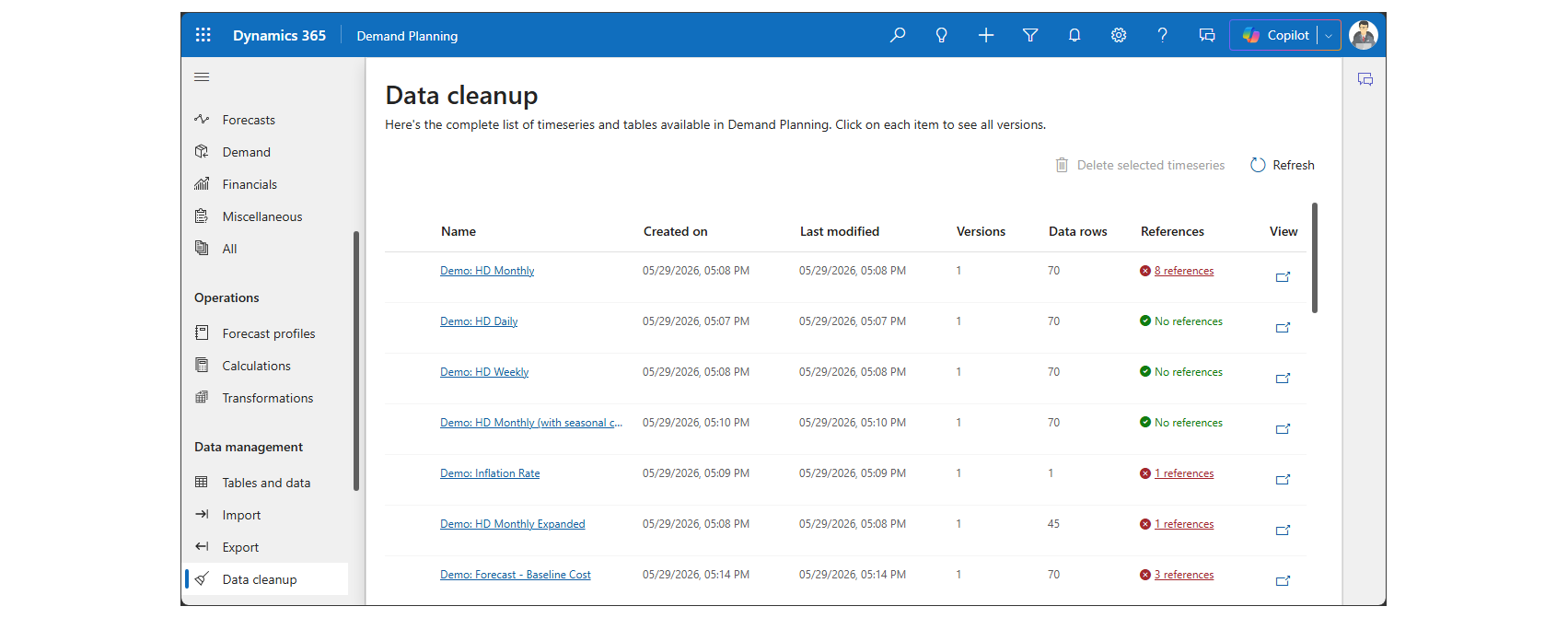
View time series versions
To view the versions of a time series, open the the Data cleanup page and select the link in the Name column for the target time series.
The versions view shows a list of all major and minor versions of the selected time series, along with details such as their status, creation date, number of data rows, and references.
- The newest versions appear first. The version currently in use is named Current.
- Expand or collapse major versions to show or hide their minor versions.
- Select the link in the References column to open a list of profiles that use the time series version as input.
- Select the link in the View column to open the version itself.
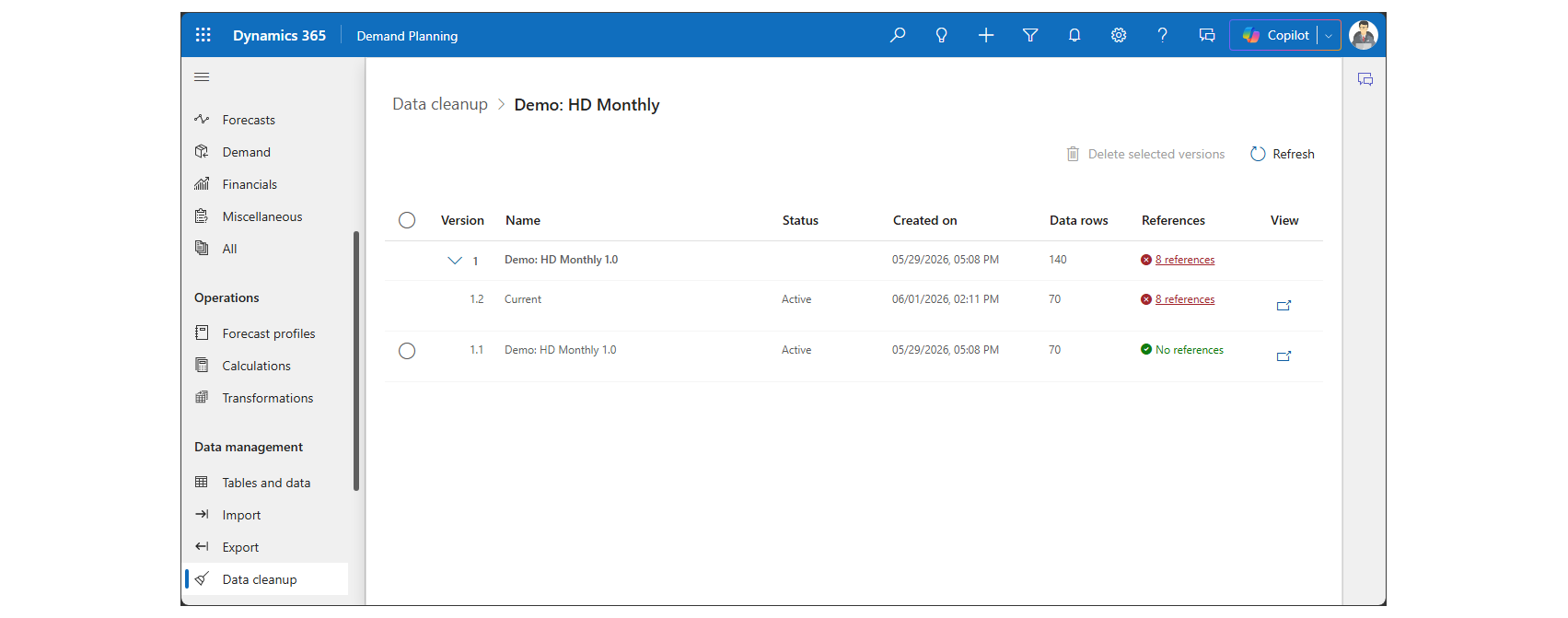
Understand time series versions
Versions are organized in two levels:
- Major versions – Created by a job or action such as a transformation, calculation, forecast, revert, or copy. They're numbered sequentially (1, 2, 3, and so on).
- Minor versions – Individual data versions within a major version. They're numbered hierarchically (1.1, 1.2, and so on). Users name minor versions and they typically represent saved edits of the major version.
Learn more about how to create and manage versions in Time series, worksheets, and planning data.
Understand version statuses
Each version listed on the version view of the Data cleanup page shows one of the following status values:
- Active – The version exists normally and is available for use.
- Marked for deletion – You confirmed the deletion of this version. A background cleanup process will soon remove the version. This is a normal intermediate state, not an error.
- Failed deletion – A cleanup attempt didn't finish, typically because of a temporary issue. The system retries these automatically, so a version might briefly show this status before the retry succeeds.
Understand references
When you use a time series or time series version as input for a calculation or forecast profile, the system creates a reference between the time series and the profile. To preserve data integrity, the system doesn't allow you to delete a time series or version that is referenced by a profile. You must remove all references to a time series or version before you can delete it. The Data cleanup page shows the number of references for each version and provides tools for viewing and removing them, as described later in this article.
Delete time series versions
To delete one or more versions of a time series, follow these steps:
- On the navigation pane, select Data management > Data cleanup.
- Find the time series that has the versions you want to delete and select the link in the Name column to open the versions view for that time series.
- Find a version you want to delete and check the References column for that time series version. If it shows that references exist, do the following steps:
- Select the link in the References column to open a dialog that lists the profiles that use your target time series version.
- Open each listed profile and either delete it or change its settings to use a different input.
- When you've removed all references, close the dialog to return to the Data cleanup page.
- Repeat the previous step as needed for each version you want to delete.
- In the versions view, select the check box for each version you want to delete. Selecting a major version automatically selects all of its eligible minor versions, and clearing it clears them. You can't select the Current version or any version that has references.
- On the toolbar, select Delete selected versions.
- You're asked to confirm the deletion. Select Confirm to proceed, or Cancel to back out.
Note
Deleting versions of a time series also affects worksheets that include them. If the deleted version is the main version for a worksheet, the system also deletes the worksheet. If a deleted version isn't the main version, then the system just deletes its reference from the worksheet, which means that the worksheet still appears but without the deleted version.
Delete an entire time series
To delete one or more complete time series, including all of their versions and data, follow these steps.
- On the navigation pane, select Data management > Data cleanup.
- Find the time series you want to delete.
- Check the References column for your selected time series. If it shows that references exist, do the following steps:
- Select the link in the References column to open a dialog that lists the profiles that use your target time series.
- Open each listed profile and either delete it or change its settings to use a different input.
- When you've removed all references, close the dialog to return to the Data cleanup page.
- For your target time series, select the checkbox in the left column.
- On the toolbar, select Delete selected timeseries.
- You're asked to confirm the deletion. Select Confirm to proceed, or Cancel to back out.
Note
Deleting time series also affects worksheets that include them. If the deleted time series is the main time series for a worksheet, the system also deletes the worksheet. If a deleted time series isn't the main time series, then the system just deletes its reference from the worksheet, which means that the worksheet still appears but without the deleted time series.